
To set up a GoLogin proxy, create or open a browser profile, choose the connection type, add the proxy IP, port, username, and password from your provider, test the connection, then save and start the profile.
This article provides a comprehensive guide to GoLogin proxy setup, helping users navigate IP-level limits and account issues effectively.
A GoLogin proxy is a proxy server that you connect to inside a GoLogin browser profile. All traffic from that profile goes through the proxy. This hides your real IP address and replaces it with an IP from another location.
With a proxy inside GoLogin, every profile can use IPs that match real, separate end-user environments in a compliant way. This is important if you run many accounts, do paid ads, manage clients, or test websites from different countries. GoLogin proxies help protect your privacy by routing both your IP address and digital fingerprint through secure connections, so websites see a privacy-preserving connection.
In practice, you use a GoLogin proxy when you want to:
If you are new to proxies in general, it can help to first learn what a proxy list is. This shows how multiple proxy entries look and what data you need for each one.
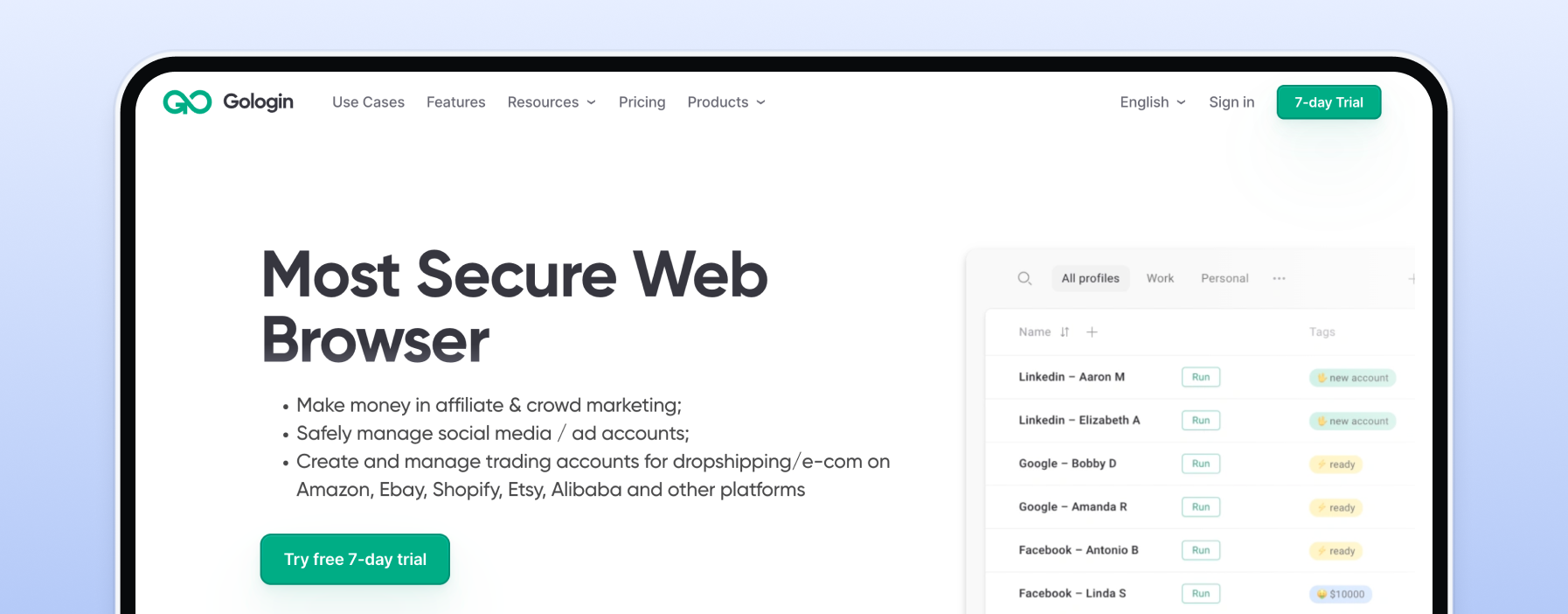
GoLogin gives you browser profiles and fingerprint control. A proxy provider gives you IP addresses and network routes. You need both so each profile uses IPs that match real, separate end-user environments in a compliant way.
Businesses of all sizes, from small teams to large enterprises, find it beneficial to use proxy providers with GoLogin for tasks like digital marketing, e-commerce, and web scraping.
Here is why a good proxy matters:
A strong provider like Proxy-Cheap lets you pick from many locations, proxy types, and price levels, then connect them to GoLogin in a few clicks. Paid plans offer beneficial features such as increased proxy traffic limits and access to premium proxies, making them ideal for businesses with higher operational needs.
GoLogin supports both HTTP(S) and SOCKS5 proxies. Each type has its own best use case.
GoLogin also supports mobile proxies, which are suitable for specific use cases that require high trust and reliability.
HTTP proxies work at the application level. They are the most common type in browsers and tools. HTTPS means the connection between your browser and the proxy is encrypted.
HTTP(S) proxies are often used for:
To better understand how SOCKS works compared to HTTP, you can read this clear SOCKS vs HTTP comparison.
SOCKS5 proxies work at a lower level. They can handle many kinds of traffic, not only web pages. They are flexible and often more stable for heavy tasks.
SOCKS5 proxies are useful for:
If you want the full technical picture, see the complete guide to SOCKS proxies. It shows how SOCKS5 handles traffic and why many power users prefer it.
Residential proxies use IP addresses from real home internet connections. Sites see them as normal user traffic, not as data center IPs.
For GoLogin, residential proxies are ideal when you:
You can explore flexible residential proxy plans and match them to the number of GoLogin profiles you run.
Before you add a GoLogin proxy, make sure you have:
Most providers give you these details inside a dashboard. You can see how such a panel works in the Proxy-Cheap dashboard tutorial. The exact design may differ, but the data you need is the same.
Keep your proxy list in a safe place. Do not share it in public chats or screenshots. Anyone who has your proxy credentials can use your IPs.
Now let us go through the full process in GoLogin.
Start by navigating to the profiles page, which serves as the central hub for managing and customizing your profiles. Here, you can create a new profile and set up specific proxy settings tailored to your needs. This allows you to customize each profile for different use cases, ensuring optimal performance and privacy.
Give the profile a clear name. For example, include the site name and country, like "FB - US - Main". This will help you track which proxy is linked to which account.
Inside the profile settings, look for the connection or proxy section. By default, the profile is usually set to use your local connection.
To configure your proxy, go to the Proxy tab. Change the connection type to “Proxy” or “Custom proxy”. In the Proxy tab, select the proxy protocol (HTTP, HTTPS, or SOCKS5) from the list before entering your proxy details.
Pick the type that matches your proxy details from the provider.
GoLogin will now show fields like:
Copy these values from your proxy dashboard. Make sure all parameters, such as credentials and fingerprint settings, are correctly configured to ensure a proper connection. Be careful not to mix them between different proxies. Small mistakes in the IP or port will cause connection errors.
If your provider uses IP authentication instead of username and password, you may leave the login fields empty. In that case, you must allow your home IP in the provider dashboard first.
Most GoLogin builds have a “Check proxy” or “Test” button next to the proxy settings. Use the check proxy button to verify the connection and ensure your proxy works as expected.
Click this button. GoLogin will try to connect through the proxy and show the result. It may display:
If the proxy works, you should also verify that the geolocation matches your intended location. If the detected IP and country match your proxy plan, you are good to go. If it fails, double check your IP, port, login, and password.
When the test passes, save the profile.
Then click “Run” or “Start”. GoLogin will launch the browser profile with the proxy active.
You can open a site like “what is my IP” inside the profile to confirm. The IP should match the one from the proxy provider, not your home IP.
Once the profile is running, you can start browsing securely with your new proxy settings.
You can mix HTTP and SOCKS proxies across your profiles.
A simple rule is:
If you are unsure what to pick, start with HTTP(S). You can always switch the profile to SOCKS5 later. The SOCKS vs HTTP comparison explains the tradeoffs in more detail.
Different projects need different proxy setups. Here are some tested patterns.
Managing browser fingerprints and cache is crucial for maintaining consistent profile behavior, especially when performing web scraping or automating workflows across multiple accounts. Proper browser profile management helps ensure consistent behavior across sessions and enables reliable web scraping and social media workflows.
For social networks, forums, and communities, it is safer to give each account its own IP.
Tips:
Residential proxies are good here because they route traffic through residential networks for location-accurate testing. This reduces risk when you log in often.
Ad platforms and marketplaces watch IP changes very closely.
Recommended setup:
If you manage many shops or clients, keep a clear mapping of which proxy belongs to which profile.
Some users connect GoLogin to scripts or automation tools. For example, Selenium or headless browsers.
In these cases, stability and session control are important.
Guidelines:
For deeper tips, you can follow the Selenium proxy setup guide. Many of the same ideas apply when you control GoLogin profiles by code.
Some teams use GoLogin to test how content appears in different countries. Others test public media content from several locations for research.
If you do this, you need IPs that match real user behavior.
You can see a concrete example in the GoMovies proxy use case. It shows how location based content can change when you switch IPs.
When you manage many profiles, it is hard to handle proxies one by one. A structured proxy list makes this simpler.
Some providers offer free proxies or free trials, allowing you to test GoLogin setups without any initial cost.
A proxy list is normally a text file or table with lines like:
username:password@ip:port
or
ip:port:username:password
Each line is a single proxy. You paste one line into each GoLogin profile. Some tools even let you import lists.
If you want to understand formats in detail, read more about what a proxy list is. This helps you avoid mistakes when you copy data into GoLogin.
For rotation, you have two main options:
Longer sessions are better for accounts. Very fast rotation is better for scraping public data with no login.
GoLogin is one of several anti-detect browsers on the market. GoLogin verifies browser, location, IP address, hardware, and software parameters to ensure each profile maintains a consistent and trustworthy digital identity. Many users test several tools before they pick a main one.
To compare features, you can read a detailed GoLogin vs Multilogin comparison. This helps you see how each tool handles profiles, fingerprints, and proxies.
If you also test other browsers, you might look at the Incogniton vs Multilogin overview. It gives you more context about how these tools differ.
There are also setups where anti-detect browsers work with extra managers. For example, you can control other apps and still use the same proxy provider. One example is the MoreLogin integration guide. The details are different, but the idea of linking dashboards and browsers is the same.
The key point is that your proxy provider stays in the center. No matter which browser app you choose, you can keep the same proxy pool and settings.
Even with a correct setup, errors happen. There's no need for worrying when you encounter these problems—just focus on the troubleshooting steps provided below. Here are typical issues and quick fixes.
If the built in test fails:
You can also try the proxy in a normal browser without GoLogin. If it fails there too, the issue is with the proxy or network, not GoLogin.
If a site shows your home IP even when the proxy test passes:
Always test inside the GoLogin profile window, not outside.
If you see many captchas or connection limits:
If the issue is only on one account, stop using that account for a while. Use a fresh profile and proxy for a new one.
Proxies and anti-detect browsers are powerful tools. Use them in a safe and legal way.
For teams, write simple internal rules. For example, one rule can say that each staff member has their own login and their own set of profiles.
A full GoLogin setup has three parts:
GoLogin offers a variety of proxy solutions, including built-in proxies and integrations with third-party providers, making it a comprehensive and user-friendly platform for digital identity management and web scraping.
If any of these parts is weak or random, you risk fast bans and broken sessions.
A strong proxy provider gives you:
When you combine these with GoLogin profiles, each account becomes easier to control and safer to grow.
You now know what a GoLogin proxy is, which proxy types work best, and how to add them step by step. You also saw setups for social media, ads, automation, and content testing, plus real world tips for fixing errors.
The next step is simple. Choose a solid proxy plan that matches the number of profiles you run, set up your browser profiles, and keep a clean map of which IP belongs to which account.
When you are ready to move from theory to action, open the official proxy dashboard in a new tab, pick a plan that fits your project, connect your first proxies to GoLogin, and start working with safer, smarter browser profiles today.
Don't forget to check for any available promo codes or special offers before signing up to make sure you get the best deal.