
You can find your proxy server address on your phone by opening your network settings, choosing the WiFi or mobile network you use, and checking the Proxy or Configure Proxy section. This blog post provides a step-by-step guide for finding your proxy server address on mobile devices.
On most Android phones and iPhones, you can follow these instructions for mobile devices: go to Settings > Wi-Fi > your network > Advanced or Proxy (on Android) to see the server and port. On iPhone, go to Settings > Wi-Fi > tap the i icon next to your network > Configure Proxy to view the address and port if a proxy is active.
Knowing your proxy server address is essential for configuring applications or troubleshooting connectivity issues.
Before you look for the proxy address, it helps to know why it may be there.
Many people do not set a proxy on purpose. Often, it is added by:
If you use a work or school phone, your proxy settings may be managed. This means you can see the settings, but you may not be able to change them.
If you added the proxy yourself, you may have received the server address and port from:
Knowing who set up the proxy helps you decide what you can change and what you should leave as it is.
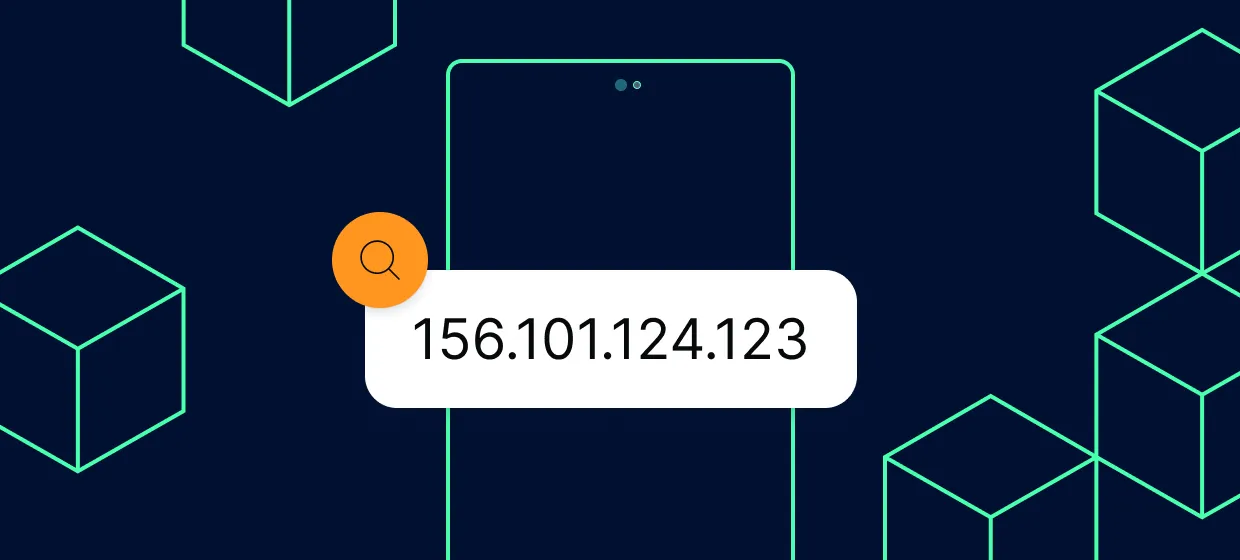
A proxy server address is a pair of details your phone uses to send traffic through another server instead of connecting directly to websites or apps.
In most phone settings you will see two key fields:
The address can look like:
The port is usually a number like 3128, 8080, 8000, or a value your provider gives you.
It’s important to use the correct proxy server address and port. Using a wrong IP address can lead to connectivity issues or inaccurate geolocation, which may prevent you from accessing the services you need.
If you want a deeper explanation of how these details work, you can read a full guide on what a proxy address is in this article on what is the proxy address.
When your phone uses a proxy, every web request goes to that server first. The proxy then forwards your request, receives the response, and sends it back to you. This can help with privacy, control, caching, or access policies. Additionally, using a proxy server can help you access market-specific content while keeping your connection private.
Take a moment to check a few things before you dig into settings.
Once you know who may have set the proxy and which network is affected, you can follow the right steps on Android or iPhone.

Using a proxy server on your phone offers a range of valuable benefits that go beyond just changing your IP address. One of the main advantages is enhanced online privacy. When you connect through a proxy, your real IP address is hidden from websites and apps, making it much harder for third parties to track your online activities or collect sensitive information. This extra layer of privacy helps protect you from data leaks and keeps your browsing habits more secure.
A proxy server also acts as a security buffer between your device and the wider internet. By routing your internet traffic through a proxy, you reduce the risk of exposing your phone to malware, phishing attempts, and other online threats. Some proxy servers even filter out malicious content before it reaches your device, adding an extra shield against cyberattacks.
Another key benefit is the ability to access region-specific content from multiple locations. If you need to access content or services that are available only in certain regions, a proxy server lets you connect through an IP in that location. This is especially useful for media platforms, accessing region-specific apps, or working while traveling.
Finally, using a proxy server can help you monitor and control your internet usage. Whether you want to manage data consumption, enforce parental controls, or simply keep your online activities private, configuring the right proxy settings on your phone gives you more control over your digital footprint.
In summary, a proxy server is a powerful tool for boosting online privacy, securing your sensitive information, preventing data leaks, and opening up a more open internet experience, all from your mobile device.
On Android, the proxy settings can sit in several places. The most common location is inside the wi fi networks settings for your wireless network. Please note that the process of finding proxy settings may differ depending on your Android version. Some carriers or custom Android skins also allow proxies for mobile data.
Follow these steps on most modern Android phones:
You will usually see one of three states:
If the proxy is set to Manual, look for fields such as:
Write down these values if you need to use them on another device or app. If the proxy is set using a PAC URL, you may need to open that URL in a browser to see the exact servers and ports.
If you want a step-by-step visual guide on changing these options, you can follow this Android proxy setup tutorial.
Not all Android phones let you set a standard HTTP or HTTPS proxy for your mobile data connection in the main settings. When this option exists, it is usually inside the Access Point Name (APN) settings.
To check:
APN settings can vary based on your mobile carrier, which may affect how you configure proxy settings.
If your carrier or admin configured a proxy, you may see fields like Proxy, Port, Username, and Password.
Do not change these values unless you know what you are doing. Wrong APN settings can break your mobile data.
Some security or VPN apps also create a local proxy on the phone. In those cases, the app manages the configuration and you will see the proxy address inside the app, not in the system settings.
On an iOS device, proxy settings are usually tied to each WiFi network. You can configure a proxy on your iPhone either manually by entering the proxy server details or automatically using a PAC file. Proxy settings can also be pushed by a configuration profile if your phone is managed by a company or school.
To see if your iPhone uses a proxy on a specific WiFi network:
In this section you will see one of these options selected:
If Manual is selected, below it you will see:
Write down these values if you need to use the same proxy in another app or device.
If Auto is selected, you will see a URL field. This is the address of the PAC script. Open that URL in a browser to inspect the script and find the exact proxy servers and ports.
For more detailed iPhone-specific instructions and examples, you can follow this guide to configure a proxy on iPhone.
Sometimes your iPhone may not show a manual proxy in WiFi at all, but your traffic still routes through a proxy. This can happen when a configuration profile is installed.
To check for profiles:
If you see a profile from your company, school, or a security vendor, that profile may include proxy settings. Tap the profile to see more details. Do not remove it if your organization manages the device, as this may break access to company resources.
Modern phones are flexible. Many apps and tools can add their own proxy settings, separate from system WiFi or mobile data settings.
Here are common places where a proxy address may hide:
1. VPN apps
2. Browser-specific proxies
3. Security and parental control apps
4. Work or school device management
MDM (Mobile Device Management) tools can push hidden settings.
You may not see the proxy address in plain text, but the profile still forces its use.
In browsers like Google Chrome and Microsoft Edge, you can access your computer's proxy settings by clicking the menu icon (three horizontal lines or horizontal lines) in the top right corner or right corner of the browser. Then, select 'Settings' from the menu bar or left sidebar. In Google Chrome, you can open the system's proxy settings directly from the browser menu, while in Edge, you can do so by selecting 'Open Edge' and navigating to network settings. The network settings section in these browsers allows you to view and modify the configured proxy server address and proxy server details. On Windows, you can also access these through Windows settings or by using a setup script.
Proxy servers can be added to almost any toolkit, including browsers and mobile devices.
If you suspect any of these, open the app in question and browse its settings or support section for proxy details.

A proxy server port number is a crucial part of your proxy configuration. It’s a specific number that tells your device which “door” to use when connecting to the proxy server. Every proxy server address is paired with a port number, and together they direct your network traffic through the correct channel.
The port number is typically provided by your proxy provider and is required whenever you set up proxy settings on your phone, tablet, or computer. Common port numbers for proxies include 8080, 3128, and 8000, but your provider may assign a different one depending on the type of proxy service you use.
To find the proxy server port number on your device, follow these steps based on your operating system:
If you’re using a proxy service from a provider like Proxy-Cheap, you’ll find the correct proxy ip address and port number in your account dashboard or welcome email. Always make sure to enter both the server address and port number correctly in your proxy settings to ensure a secure and reliable connection.
Understanding where to find and how to use your proxy server port number is essential for setting up your device, maintaining secure web proxy connections, and making the most of your proxy server functions.
Sometimes you know a proxy is in use, but you cannot see the details anywhere obvious. In that case you can:
If you still cannot locate the proxy details and this is a managed device, there is a good chance the settings are hidden by design. In that case, only the admin can reveal or change them.
Once you know where to find your proxy address, the next question is which type of proxy works best for your use case.
Phones can work with several proxy types, but three groups are especially relevant:
If you need IPs that match real smartphone usage patterns, explore mobile proxy services.
To compare server-based options that can still work well with mobile workflows, take a look at datacenter proxies.
Each type has trade-offs:
Your choice depends on what you do on your phone, how sensitive your apps are, and what level of performance you need.
If you decide to use a paid proxy service, it is important that buying access is as simple as using it.
Many people manage proxy subscriptions directly from their phones. If you have a Samsung device and prefer contactless payments, you can even buy proxies using Samsung Pay through this option to buy proxies with Samsung Pay.
This kind of payment flexibility makes it easier to manage your subscription on the go, without needing to sit down at a desktop.
When your phone sends traffic through a proxy, that proxy can see a lot of what you do online. This includes the sites you visit and some of the data you send, especially if the connection is not properly encrypted.
That is why you should always choose a provider with a clear policy, strong security standards, and transparent support.
A reliable service like Proxy-Cheap focuses on stable infrastructure, clear documentation, and support that can help you with both Android and iPhone setups. Good providers share detailed guides, explain how to find your proxy address, and offer help if something does not work as expected.
Look for:
These signs show that the provider invests in long-term service, not just quick access.
You now know how to find a proxy server address on both Android and iPhone. You know where to look for WiFi and mobile data settings, how to handle managed devices, and what to do if you cannot see the proxy details directly. You also understand the main proxy types that make sense for mobile use.
The next step is to choose a provider you can trust and set up proxies that match the way you use your phone.
If you want mobile-friendly proxies that are easy to manage from your device, visit the Proxy-Cheap website and get started with Proxy-Cheap today. Set up your proxy, confirm the server address on your phone using the steps above, and enjoy safer, more flexible browsing wherever you are.