DiCloak is one of the newer names in the antidetect browser space, and its whole value depends on one thing you have to supply yourself: the proxy. The browser gives every profile a distinct, internally consistent fingerprint. The proxy gives every profile its own IP. Get the proxy step right and your accounts stay independent and stable. Get it wrong, and every profile leaks back to a single IP. This guide walks the full setup, from installing the app to automating proxied profiles through the Local API, and it fixes the errors most guides skip.
DiCloak is an antidetect browser (also called a fingerprint browser) built for running many online accounts from one machine without those accounts looking linked. Each account lives in its own browser profile with a separate fingerprint: user agent, time zone, language, WebGL, WebGPU, and canvas values, plus its own cookies and its own proxy. The app is made by DICloak Technology Limited, registered in Singapore.
The category is crowded, and DiCloak sits alongside tools like Multilogin, AdsPower, GoLogin, and MoreLogin. If you are still comparing options, Proxy-Cheap keeps a current roundup of the best antidetect browsers for multi-accounting that puts DiCloak in context. The short version: the browser separates the fingerprint, and the proxy separates the IP. You need both, and DiCloak only ships the first half.
DiCloak is a multi-account tool first, so its use cases cluster around teams and operators who run many identities at once:
Every one of these depends on each profile presenting a consistent, location-accurate identity, which is exactly what a good proxy provides.
The features that matter once you start running real accounts:
Yes. DiCloak has a permanent free plan, not a time-limited trial. The free tier includes 5 profiles, 1 member, and 15 daily profile openings, which is enough to test the workflow and run a handful of accounts. Batch operations and data sync are reserved for the paid tiers, not the free plan.
Paid plans (Base, Plus, and Share+ at the time of writing) raise the profile count, add seats, and increase daily openings, with Share+ aimed at larger teams. Pricing changes often, so check the DiCloak pricing page for current numbers. One thing that never changes: none of the DiCloak plans include proxies. The proxy is always a separate purchase, which is where the rest of this guide comes in.
DiCloak is a desktop app. There is no Android or iOS version, so plan to run it from a computer.
The minimum requirements are light (a dual-core CPU and 2 GB of RAM), so DiCloak runs on modest hardware. If you plan to open many profiles at once, more RAM helps, since each profile is a separate browser instance.
Before you add a proxy, you need a profile to attach it to.
You can also batch-create profiles, and DiCloak's AI Crawler can auto-provision a profile with a proxy and account logins. For your first profile, the manual path above is the clearest way to see how the pieces fit.
DiCloak's fingerprinting only solves half the problem. If ten profiles all leave from your home IP, the platforms you use can still see ten accounts behind one address, and the fingerprints stop mattering. A dedicated proxy per profile is what makes the separation real. There are three concrete reasons to put a proxy in front of every DiCloak profile.
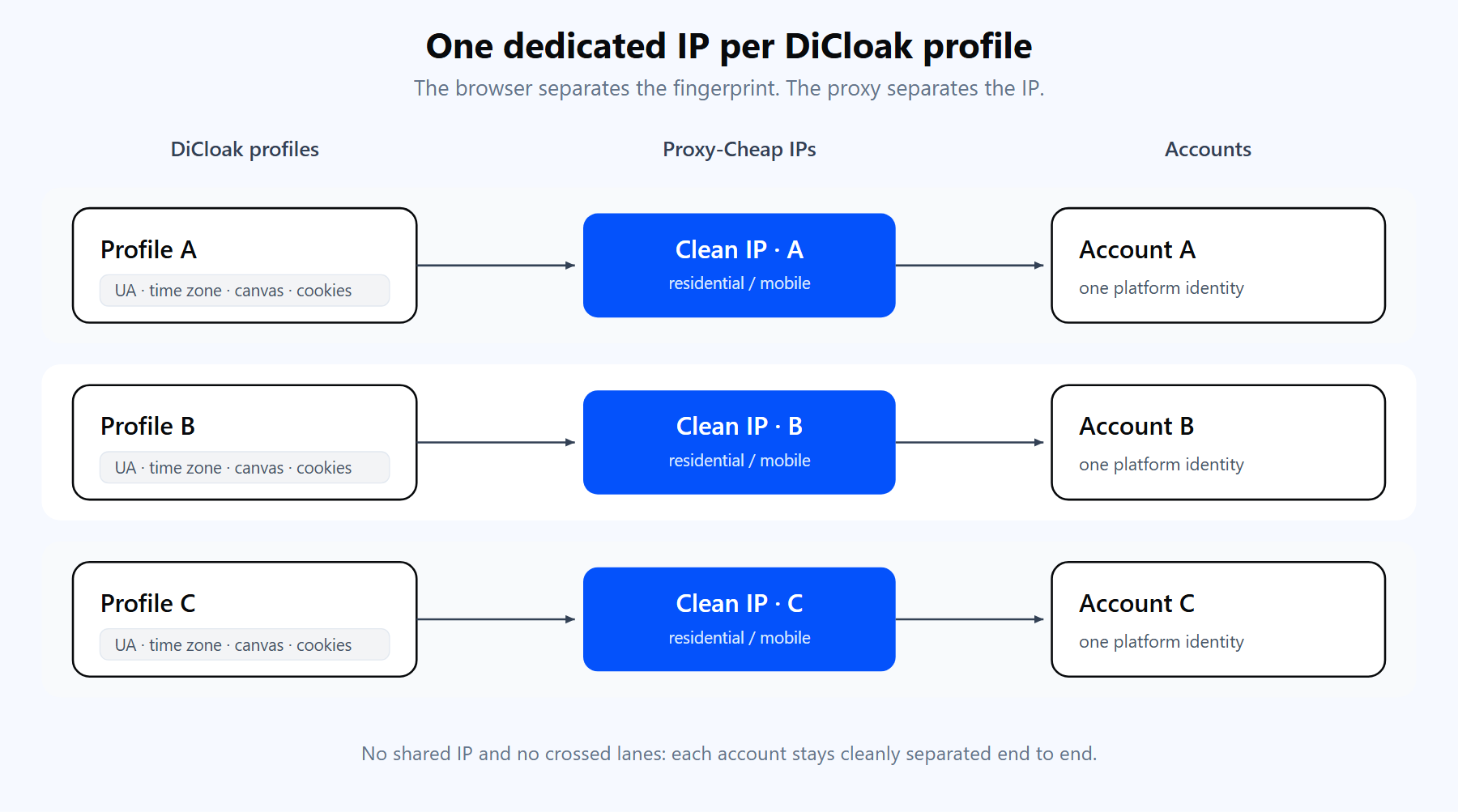
The browser separates the fingerprint. The proxy separates the IP. Each DiCloak profile carries one dedicated Proxy-Cheap IP so the accounts stay independent.
For a deeper look at which proxy type to pair with an antidetect browser, Proxy-Cheap's multi-accounting guide breaks the choice down by platform and risk level. The setup below works with any of them.
DiCloak gives you two places to add a proxy: directly inside a profile, or in a central Proxies pool you can reuse. Both use the same fields.
First, get your credentials. In the Proxy-Cheap dashboard you generate your credentials in the Proxy-Cheap dashboard and copy four values: host, port, username, and password. For rotating residential, the endpoint is a single shared hub, thehub.proxy-cheap.com on port 8080, and you choose the country in the dashboard credential generator, so there is no separate US or EU gateway. For static residential, ISP, mobile, and datacenter proxies, each proxy has its own unique host and port that you copy from the dashboard.
To add the proxy inside a profile:
Here is the exact string to paste for the rotating residential hub. Keep your username and password in their own fields, never inside the host:
thehub.proxy-cheap.com:8080:<your-proxycheap-username>:<your-proxycheap-password>Before you paste anything, it is worth testing the proxy from your terminal. A quick curl call proves the host, port, and credentials are valid, so a failed check in DiCloak points to the app rather than the proxy:
# A returned JSON IP means the proxy works. A 407 means the host and port
# are reachable but the username or password is wrong. Fix and retry.
curl -x http://thehub.proxy-cheap.com:8080 \
  -U "<your-proxycheap-username>:<your-proxycheap-password>" \
  https://ipinfo.io/json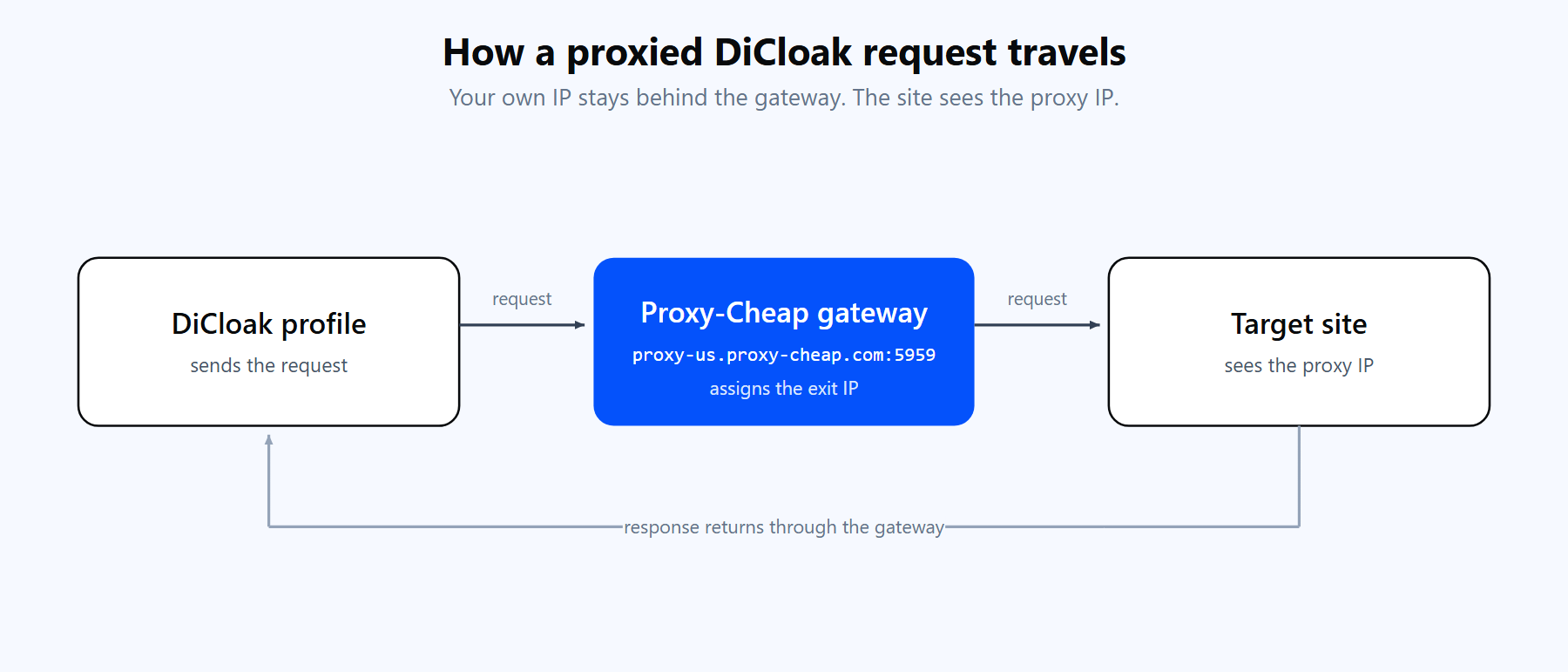
Each request from a proxied DiCloak profile travels through the Proxy-Cheap gateway and reaches the site from the proxy IP, not your own.
To build a reusable pool instead, open Proxies from the main menu, click Create Proxy, choose Custom Proxy, enter the same host, port, account, and password, click Checking Proxy, and confirm. Saved proxies then appear inside any profile under the Saved Proxies mode, where you pick Fixed to pin one specific IP or Random to auto-assign an unused one.
A note on authentication. DiCloak treats the Proxy Account and Proxy Password fields as optional, so an IP-whitelisted proxy also works: leave both blank and enter only the host and port. To use whitelist authorization, add your machine's current public IP to the allowlist in your Proxy-Cheap dashboard. Whitelisting is handy for a fixed workstation, while username and password travel better across changing networks.
A DiCloak profile wants a steady identity, so the session type you pick matters more here than in a scraper. You have two models.
The practical rule: pin one static IP per profile for accounts you log into and keep, and reserve rotating IPs for scale and discovery work. If you point a profile at a rotating gateway but need it to stay put, use your provider's sticky port or session parameter so the IP does not change mid-session and log you out. Mixing the two up is the single most common cause of a profile that keeps getting signed out.
Once your profiles carry the right proxies, you can drive them programmatically. DiCloak exposes a Local Open API on the desktop client at http://127.0.0.1:52140/openapi. Every request sends an X-API-KEY header, whose value you copy from More > Settings > Open API inside the app.
The flow is: list your profiles, open one, read the returned debug_port, then attach an automation library over the Chrome DevTools Protocol. Because the proxy stays bound to the profile inside DiCloak, your automation code never handles proxy credentials at all. The profile launches through its assigned IP automatically.
import requests
from playwright.sync_api import sync_playwright

# DiCloak Local Open API, desktop client default port 52140.
BASE = "http://127.0.0.1:52140/openapi"
HEADERS = {"X-API-KEY": "<your-dicloak-api-key>"}  # More > Settings > Open API

def open_profile(env_id):
    # The proxy is already bound to the profile in DiCloak, so this
    # request carries no proxy details. DiCloak launches through it.
    r = requests.patch(f"{BASE}/v1/env/{env_id}/open", headers=HEADERS, timeout=30)
    r.raise_for_status()
    return r.json()["data"]["debug_port"]

def drive(debug_port):
    # DiCloak exposes the running profile over the DevTools Protocol.
    with sync_playwright() as p:
        browser = p.chromium.connect_over_cdp(f"http://127.0.0.1:{debug_port}")
        page = browser.contexts[0].pages[0]
        page.goto("https://ipinfo.io/json")  # confirm the profile exit IP
        print(page.inner_text("body"))

if __name__ == "__main__":
    port = open_profile("<your-env-id>")
drive(port)Call GET /v1/env/list to enumerate profiles and PATCH /v1/env/{env_id}/close when you finish. For Selenium, set the ChromeDriver debuggerAddress option to 127.0.0.1:<debug_port> instead of connecting over CDP. Everything else stays the same, and the proxy assignment in the app remains the source of truth for each profile's IP.
Most DiCloak proxy problems are one of these. Each has a quick fix.
DiCloak works with every Proxy-Cheap product line, so the real decision is which IP type matches your workload. The matrix below maps the common DiCloak jobs to the proxy that fits best. A filled dot is the primary pick, an open dot is a solid secondary option.
| DiCloak use case | Static residential / ISP | Mobile | Rotating residential | Datacenter |
|---|---|---|---|---|
| Long-lived social accounts | Filled | Filled | Open | Empty |
| Strictest mobile-first platforms | Open | Filled | Empty | Empty |
| E-commerce and marketplace accounts | Filled | Open | Open | Empty |
| Warming many new profiles | Open | Open | Filled | Empty |
| Scraping and RPA at speed | Empty | Empty | Open | Filled |
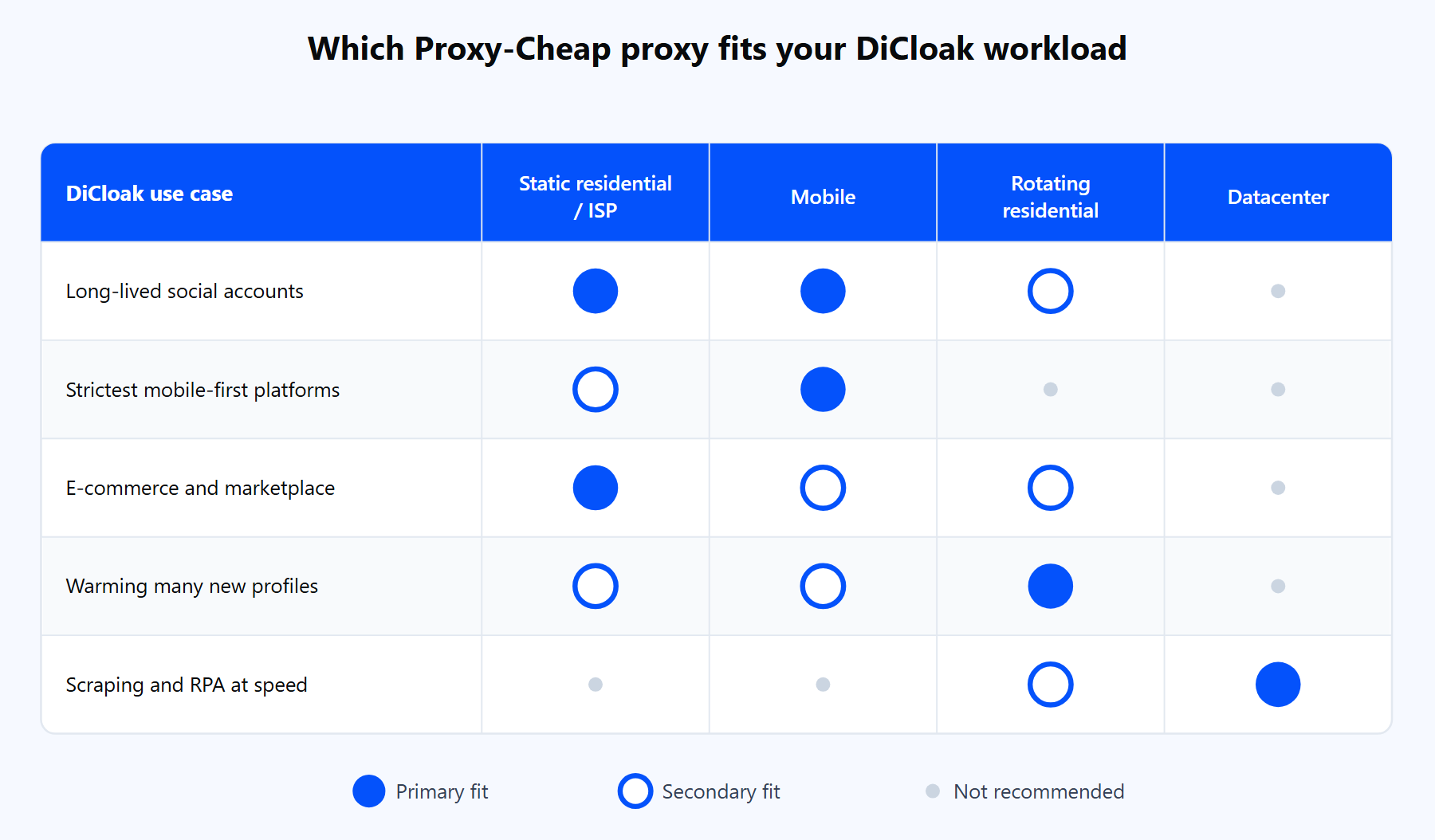
Match the proxy type to the DiCloak workload: static residential or ISP and mobile for real accounts, rotating residential for scale, datacenter for speed.
Here is how the lines map in practice:
Pick the type that matches the account, assign one dedicated IP per profile, and DiCloak handles the rest. Start with a residential or ISP plan on Proxy-Cheap's pay-as-you-go pricing, add IPs as you add profiles, and your multi-account setup scales cleanly from the first profile to the hundredth.