VMLogin is a virtual multi-login antidetect browser. The Windows desktop client lets you save many browser profiles, each with a fully separate fingerprint, cookie jar, cache, local storage, and proxy. Profiles do not share data, so platforms see each one as a distinct device on a distinct connection.
The official user base statement names cross-border e-commerce (Amazon, eBay, Shopee, Walmart), advertising management, social media marketing, affiliate marketing, and data collection. In practice, VMLogin shows up most often in three workflows: e-commerce multi-account selling, where one merchant operates multiple stores; paid social and affiliate, where a team manages many ad accounts; and agency operations, where one team services many client accounts under separate logins.
For that work to be safe, every profile needs a dedicated, residential-grade IP that does not change underneath a logged-in session. The browser provides the isolation. Your proxy provides the identity the platforms actually check. If you want a primer on the wider category, our explainer on the best antidetect browsers covers how VMLogin compares with adjacent tools.
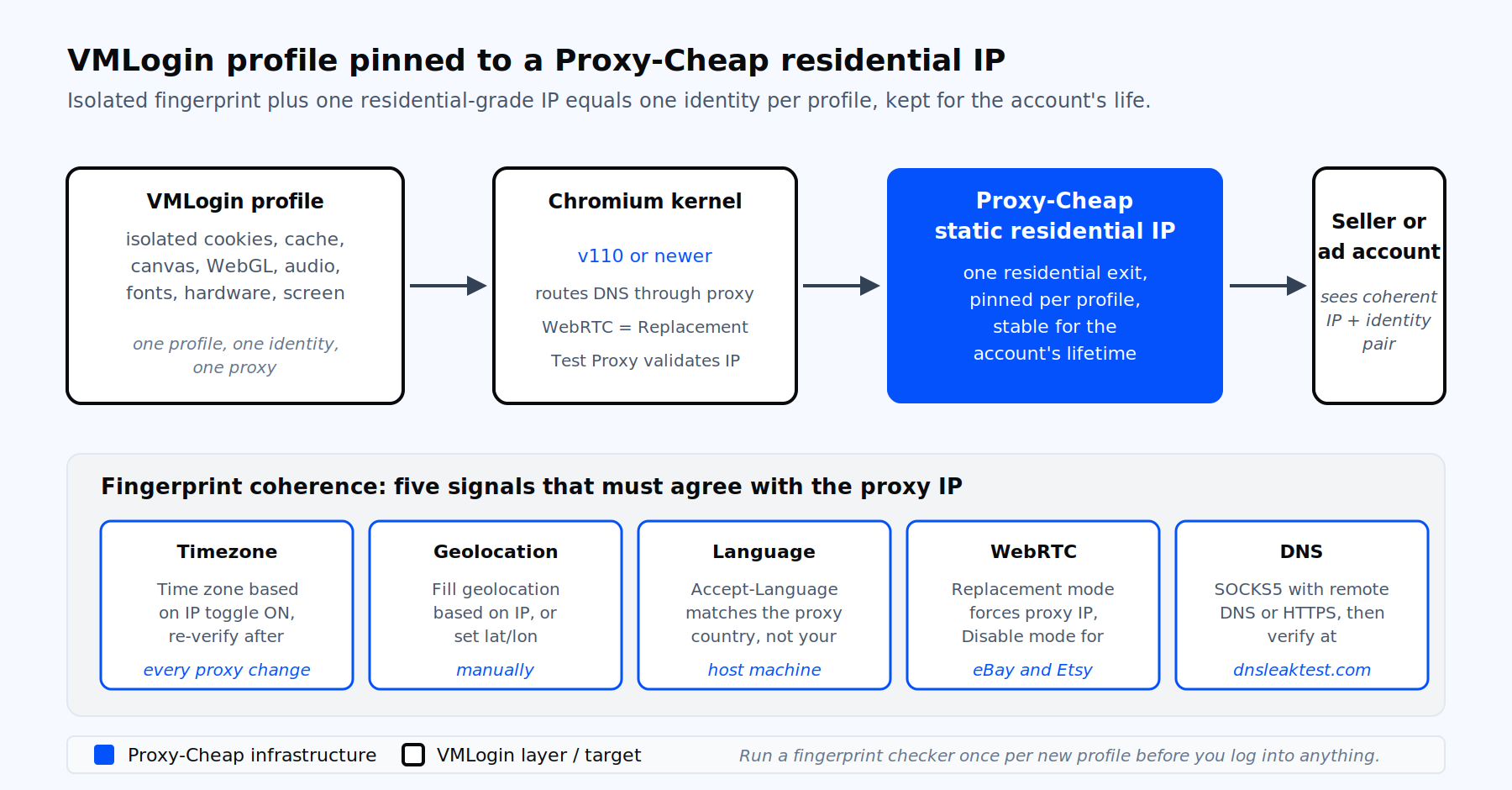
VMLogin + Proxy-Cheap architecture. Each profile pins one residential-grade IP, and the fingerprint is matched to that IP’s country before launch.
VMLogin runs on Windows only. The official system requirements page lists Windows 11, Windows 10, Windows Server 2016, and Windows 8 as supported. Chrome kernels from version 110 require Windows 10 or newer; older Windows builds are capped at kernel 109. macOS and Linux are not supported as host operating systems, although you can choose macOS, Linux, Android, or iOS as the simulated operating system inside a profile’s fingerprint.
Minimum hardware is modest: 4 GB RAM (8 GB or more if you plan to run several profiles in parallel), 1 GB free disk space, and a functional GPU. Plan for roughly 1 GB of RAM per active profile if you run many in parallel, which makes 16 to 32 GB of RAM realistic for serious multi-account operators.
One install note saves a lot of grief later: Windows Security and most antivirus products flag the chromium launcher. Disable real-time protection during install, then add the VMLogin install folder to the allowlist before re-enabling.
Paid plans start at the SOLO tier for 200 profiles. Higher tiers add more profiles and more sub-account seats. Verify current pricing on the official pricing page before purchase, because plan limits change.
After first sign-in, open Help and Support inside the client and click Check for new client version. VMLogin ships frequent updates and an out-of-date client can break the proxy test against newer providers.
In the main window, click New browser profile. The profile editor opens with two panels: Basic configuration on the left, Advanced fingerprint controls on the right.
In Basic configuration, set the display name to something operator-friendly, for example store-us-01 or fb-ads-uk-agency. Pick a group so you can filter profiles later. Choose the OS the profile should impersonate (Windows, macOS, Linux, Android, or iOS) and the browser kernel version. The kernel should be current. Older kernels are easier to fingerprint.
Set language and Accept-Language to match the country the profile will operate in. Set screen resolution to a common value the host machine can render at or below. Set hardware concurrency to 4 or 8 cores, device memory to 8 GB. Exotic values are themselves a signal.
On the Advanced side, the defaults are sensible. Two settings deserve attention even on first run:
Do not save the profile yet. The proxy comes next.
VMLogin ships no proxy network. The client itself states this on every provider page: "VMLogin browser software has no proxy IP service." The fingerprint isolation prevents one profile from inheriting another profile’s cookies or canvas hash, but every profile still exits through your local network unless you assign a proxy.
If two profiles share the same exit IP, platforms link them. Marketplaces match IP, ASN, and connection history; ad platforms add carrier, autonomous system, and reverse DNS to that list. One proxy per profile, kept for the lifetime of the account, is the rule that keeps multi-account work alive.
The proxy type also matters. Static residential and ISP proxies look like real home connections from real consumer ISPs, which is what marketplace risk engines expect from a long-running seller. Mobile carrier IPs carry the highest trust on platforms that profile mobile traffic heavily. Datacenter IPs are fine for QA, scraping, and ad verification inside VMLogin, but they are not the right choice for a logged-in seller or social account. The static vs rotating proxies guide breaks down the decision in more depth.
The exact UI path inside the profile editor is short, but every field has a reason. Use the steps below in order.
If the test fails, the error is almost always one of three things: wrong protocol selected in the dropdown, IP-whitelist authentication where your local IP is not whitelisted, or special characters in the password that broke the parser. Fix the credential first, then re-test.
Operators with dozens or hundreds of profiles do not configure proxies one at a time. VMLogin’s batch importer reads a plain text file, one proxy per line, in this format:
ProxyType:Host:Port:Username:Password:Tags
HTTP:gw.example-host.net:7777:user01:pass01:store-us
SOCKS5:gw.example-host.net:7778:user02:pass02:store-uk
HTTP:gw.example-host.net:7777:user03:pass03:ads-deSave the file as UTF-8 text. In the main profile list, multi-select the target profiles with Shift or Ctrl, right-click, and choose Batch import proxy to the selected profile. Point to the text file. VMLogin assigns one proxy to one profile in list order. You can re-test any profile individually after import.
For workflows that need a fresh IP per request rather than one IP per profile, paste a rotating residential gateway URL into the host field. The gateway issues a new exit IP on each request or on the sticky-session window you configured.
A proxy that passes Test Proxy can still leak. Platforms compare the proxy’s stated country against five fingerprint signals inside the browser. If any of them disagree, the profile looks engineered.
The five checks before you do real work inside a profile:
After the profile launches, open browserleaks.com, dnsleaktest.com, and whoer.net inside the VMLogin window. The IP should match what you ordered. The DNS resolvers should be in the proxy’s country, not your home ISP. The timezone should match the proxy’s region. The Accept-Language reported by browserleaks should match what you set in the profile. Repeat this every time you change the proxy or any fingerprint field.
The single most repeated workflow question for VMLogin operators is whether to rotate the IP on a logged-in account. The answer from both VMLogin’s documentation and marketplace risk-engineering is the same: do not rotate IP mid-session on a logged-in account.
One profile equals one identity equals one IP, ideally for the lifetime of the account. A static residential or ISP plan is the right shape for that work, because the same IP stays bound to the same profile for months. The rule has three practical edges:
VMLogin’s paid plans include sub-accounts (5 on SOLO, 10 on TEAM, 20 on SCALE). Sub-accounts let a manager share specific profiles with specific team members without exposing the main credentials.
The admin creates sub-accounts in the web account portal at m.vmlogin.com, sets the sub-account email and password, and then chooses three permission switches per sub-account: Profiles Create, View Profiles, and Proxy Edit. To share a profile, right-click it and choose Share profile, then enter the sub-account email. Hold Shift or Ctrl to share many at once.
By design, sub-accounts cannot modify the proxy on an admin-shared profile unless Proxy Edit is enabled. That is usually what you want for agency work: the admin owns the proxy inventory, the team member operates the account. For multi-account operations at scale, pair the sub-account model with one Proxy-Cheap order per team, then assign IPs to profiles centrally.
VMLogin does not ship a one-click cookie robot. New profiles start cold, which is a flag on platforms that score account age and browsing history.
The supported warming flow inside VMLogin uses three pieces:
For high-stakes platforms, run warming through a mobile proxy tied to the same carrier you plan to use long-term. The carrier signature carries forward and the account’s history reads as a real mobile user from day one.
VMLogin exposes two API surfaces. The cloud API at https://api.vmlogin.com/v1/ handles profile lifecycle (create, update, share, delete). The local API at http://127.0.0.1:35000/api/v1/ runs against the installed client and is what you use to launch profiles, drive Selenium or Puppeteer, and check proxy status. Both require a per-account access token from the web portal.
The example below creates a profile, attaches a Proxy-Cheap endpoint, and starts the browser. Replace YOUR_VMLOGIN_TOKEN, the proxy fields, and the target host with your own values.
import requests

VMLOGIN_TOKEN = "YOUR_VMLOGIN_TOKEN"
CLOUD_API = "https://api.vmlogin.com/v1"
LOCAL_API = "http://127.0.0.1:35000/api/v1"

profile = {
    "token": VMLOGIN_TOKEN,
    "name": "store-us-01",
    "remark": "Amazon US seller, store 01",
    "browserApi": {"autoGeoIp": True},
    "timeZoneFillOnStart": True,
    "os": "Windows",
    "kernelVer": 130,
    "langHdr": "en-US",
    "acceptLanguage": "en-US,en;q=0.9",
    "screenWidth": 1920,
    "screenHeight": 1080,
    "proxyServer": {
        "setProxyServer": True,
        "type": "HTTP",
        "host": "gw.proxy-cheap.example",
        "port": "7777",
        "username": "pc_user_01",
        "password": "pc_pass_01"
    },
    "webRtc": {"type": "FAKE", "fillOnStart": True}
}

create = requests.post(f"{CLOUD_API}/profile/create", json=profile, timeout=30)
profile_id = create.json()["value"]["id"]

start = requests.get(
    f"{LOCAL_API}/profile/start",
    params={"profileId": profile_id, "block": "true"},
    timeout=120
)
print(start.json())The local /profile/start endpoint exposes a Chrome DevTools Protocol debugging port, which is what lets Selenium, Puppeteer, or any CDP-aware client drive the running profile. For scraping workflows that combine VMLogin with code, our roundup of the best proxies for web scraping covers which Proxy-Cheap product fits which scrape pattern.
The error patterns below come from VMLogin’s own troubleshooting page and from repeated operator reports. The fixes are tested and stable.
"Failed to test the proxy server." Wrong connection type is the most common cause. Switch between HTTP, HTTPS, and SOCKS5 in the dropdown and retest. If the dropdown is right, check that your local IP is whitelisted at the provider, or switch to user-password authentication.
Test passes, browser shows "Site cannot be reached." The proxy responds but its upstream route is broken. Rotate to a different IP from the same country, or change country if a regional outage is in play.
Authentication popup appears inside the launched profile. The credentials did not propagate. Re-enter them directly in the proxy fields rather than using paste-format, and URL-encode any @, :, or # in the password.
WebRTC leaks the real public IP. Replacement mode needs both Public network IP and LAN IP toggles on with auto-detect checked. If either is off, WebRTC reverts to the system IP.
Timezone reads wrong inside the browser. Either Enable settings time zone based on IP is off, or the profile cached an older value. Toggle it off, save, toggle it back on, save, and relaunch.
DNS leak in dnsleaktest.com. SOCKS5 without remote DNS resolution leaks to the host operating system’s resolver. Switch the connection type to HTTPS, or use a SOCKS5 endpoint that supports remote DNS.
Proxy works in Chrome but fails in VMLogin. The provider gateway is rejecting the chromium User-Agent or enforcing a single-connection limit that Test Proxy already consumed. Wait 60 seconds and retest, or create a sub-credential per profile so each profile has its own concurrent slot.
VMLogin profiles are only as good as the proxies behind them. The fit depends on what each profile actually does. The matrix below maps the most common VMLogin workloads to the Proxy-Cheap product line that fits, and why.
| VMLogin workload | Best fit | Why it fits |
|---|---|---|
| Amazon, eBay, Shopify seller multi-account | Static residential | One residential-grade IP per profile, kept for the account’s lifetime, 24+ countries, 37+ ISPs |
| Long-running ad accounts on Google or LinkedIn | ISP proxies | Residential trust profile, datacenter speed, stable session for ad management |
| Facebook, Instagram, TikTok multi-account | Mobile proxies | Real 4G, 5G, and LTE carrier IPs, 100+ countries, highest trust on mobile-heavy platforms |
| Affiliate and social media management mix | Mobile or static residential, depending on platform mix | Carrier IPs for hardest targets, ISP IPs for everything else |
| Scraping inside a VMLogin profile, ad verification | Rotating residential or datacenter | Fresh IPs per request, 900K datacenter pool, unlimited bandwidth |
| QA and compliance testing across regions | Datacenter or rotating residential | Speed and country coverage for routine checks |
| Dropshipping research and supplier portals | Static residential or rotating residential with sticky sessions | Consistent identity for portal logins, rotation for catalogue checks |
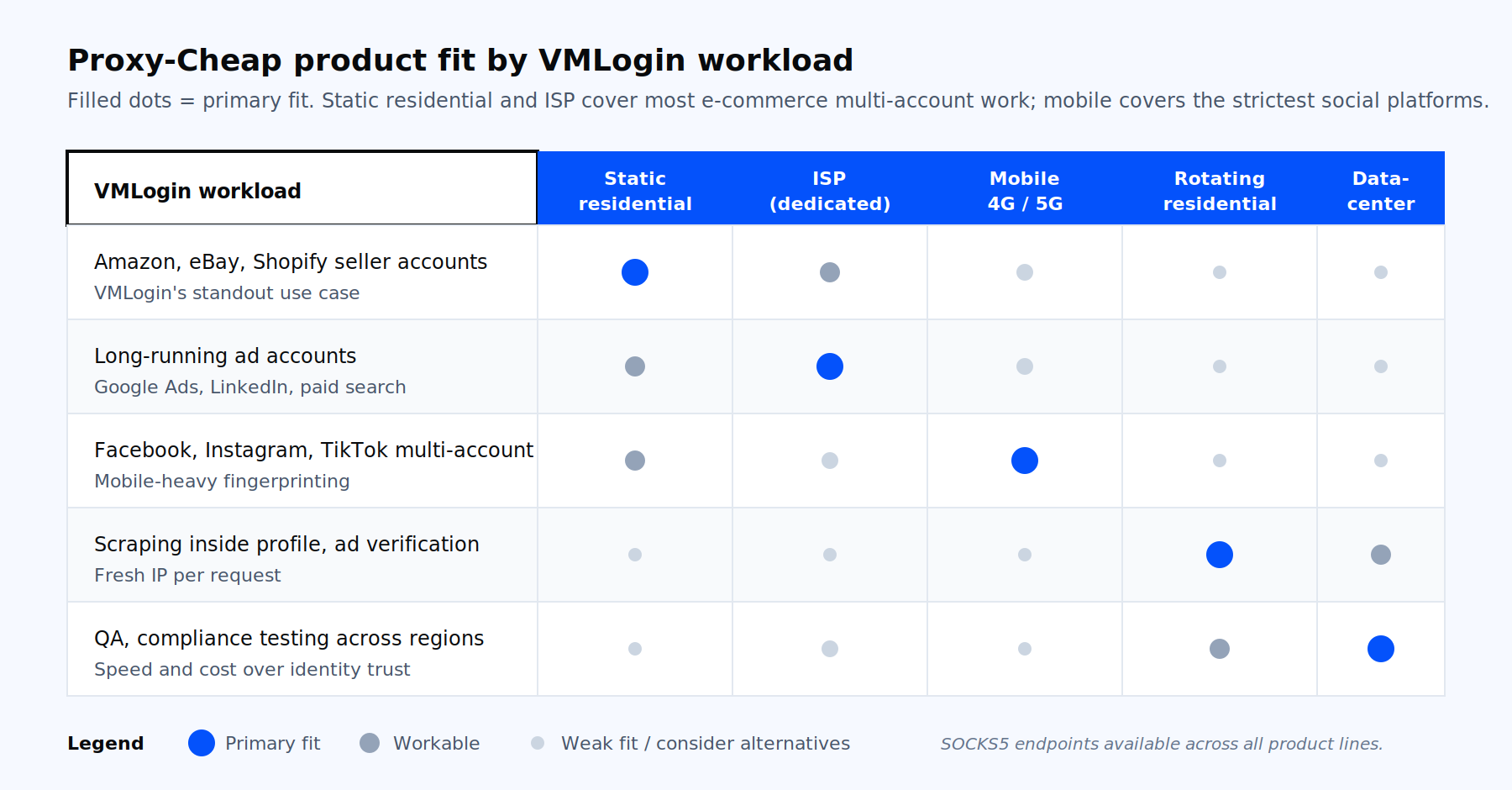
Decision matrix: which Proxy-Cheap proxy type fits which VMLogin workload.
For multi-store sellers, the playbook is simple: one static residential or ISP IP per store, one VMLogin profile per store, matched timezone and language. For social media operations on the hardest platforms, lead with mobile. Start a Proxy-Cheap order, assign one IP per VMLogin profile from day one, and run a leak test before the first login.