Proxy-Cheap
Proxy-Cheap
Integrations
How to set up a proxy in Lauth browser (2026 guide)

Lauth Proxy Integration

Give every Lauth profile its own dedicated IP so each account keeps a separate, consistent network identity. Add Proxy-Cheap residential, ISP, mobile, or datacenter proxies to your profiles and confirm each one with Lauth’s built-in Test proxy check.
Get Proxies for How to set up a proxy in Lauth browser (2026 guide)
How to set up a proxy in Lauth browser (2026 guide)
What is Lauth?
Lauth is a Chromium-based multi-account browser from the Brazilian company JRX Internet. Each profile runs in an isolated environment with its own fingerprint, cookies, and proxy IP, through an isolation layer Lauth calls AdSafe. It runs on Windows and macOS and offers a 7-day free trial with no credit card.

Key takeaways

  • Lauth is a Chromium-based multi-account browser that gives each profile its own fingerprint, cookies, and proxy IP, so one operator can run many separate accounts from a single machine.
  • You set a proxy per profile under Connection and proxy: turn on Browse using proxy, pick the Type (HTTP, HTTPS, SOCKS4, or SOCKS5), enter host, port, username, and password, then click Test proxy.
  • Lauth has no bulk proxy import, so you enter each proxy by hand and keep one dedicated IP per profile, with the profile timezone and language matched to the proxy country.
  • Match the Proxy-Cheap product to the job: Static Residential (ISP) or Mobile for identity accounts, Rotating Residential for geo-specific research, Datacenter for high-throughput tasks.

What is Lauth?

Lauth is a multi-account browser built on Chromium, developed by the Brazilian company JRX Internet and distributed at lauth.com.br. It arrived in 2024 and runs on Windows and macOS.

Each profile in Lauth runs as a fully isolated environment. It carries its own device fingerprint (user agent, Canvas, WebGL, audio, fonts, timezone, WebRTC, and resolution), its own cookies and local storage, and its own proxy IP. Lauth calls this isolation layer AdSafe. Because those signals do not overlap between profiles, you can operate many accounts side by side on one computer while keeping each one internally consistent and separate from the others.

That model puts Lauth in the same category as the tools covered in our roundup of the best antidetect browsers for multi-accounting. The proxy is the piece that completes the picture: the fingerprint separates the browser environments, and a dedicated IP per profile separates the network identity.

What is Lauth used for?

Lauth is used anywhere one operator needs to run several accounts that each look like a distinct, ordinary user. The most common jobs:

  • E-commerce multi-account management. Run several storefront or buyer accounts across marketplaces, each on its own profile and IP.
  • Social media management. Keep separate profiles for Facebook, Instagram, and TikTok accounts so each maintains a stable, consistent identity.
  • Affiliate marketing. Manage many landing-page and tracking accounts without mixing cookies or sessions between them.
  • Ad operations and verification. Segment campaigns and accounts cleanly, and review publicly served ads across geo-specific markets.
  • Market research and SEO. Check localized search results, pricing, and catalogs from different regions using geo-specific IPs.
  • Agencies and teams. Share a pool of profiles across team members with per-seat access and an activity log.

The unifying thread is legitimate multi-account management: many accounts, each kept in good standing under its own consistent fingerprint and IP, in compliance with each platform's terms.

Key features of Lauth

The features that matter most for proxy-backed multi-account work:

  • Per-profile fingerprint isolation (AdSafe). Every profile gets its own set of device signals, so profiles do not share an identity.
  • Per-profile proxy binding. Attach an HTTP, HTTPS, SOCKS4, or SOCKS5 proxy to each profile, with a Test proxy button that reports the exit IP and location.
  • Reusable proxy list. Save a proxy once to your personal list and reuse it across profiles, which softens the lack of a bulk import.
  • Folder organization and teams. Group profiles into folders, add team seats, and track changes through an activity log.
  • Integrated 2FA and cookie tools. Store two-factor tokens next to each profile, import cookies from other browsers, and clear cookies per site.
  • Bring-your-own or bundled proxies. Lauth offers its own bundled proxy option and also accepts any third-party provider, which is the path this guide follows.

Is Lauth free to use?

Lauth offers a 7-day free trial with no credit card required. After the trial, it moves to paid plans that scale by the number of profiles you can run at once.

PlanProfilesBest for
Starter10Solo operators and a first account set
Premium50Growing portfolios and small teams
Premium Plus300Agencies running many client accounts
Max1,000High-volume operations and resellers

Plans are billed in Brazilian reais (R$), and prices change often, so confirm the current figures on the Lauth pricing page before you commit. Team seats are available as an add-on on the higher tiers. One thing the plans do not fully replace is a quality proxy network: Lauth bundles a proxy option, but most operators bring their own provider so they control the IP type per account, which is where Proxy-Cheap fits in.

How to install Lauth

Lauth ships desktop builds for Windows and macOS. There is no native Linux desktop build, so Linux users run it inside a virtual machine or a Windows environment.

Installation is quick:

  1. Go to lauth.com.br and download the build for your operating system.
  2. On Windows, run the installer (Lauth-Setup.exe) and follow the prompts. On macOS, open the disk image and drag Lauth into the Applications folder.
  3. Launch Lauth, then create an account and confirm it to start the 7-day trial.
  4. Sign in. You land on the profiles page, which is where every profile and its proxy live.

Quickstart: create your first Lauth profile

Before you add a proxy, create a profile to attach it to. This takes under a minute.
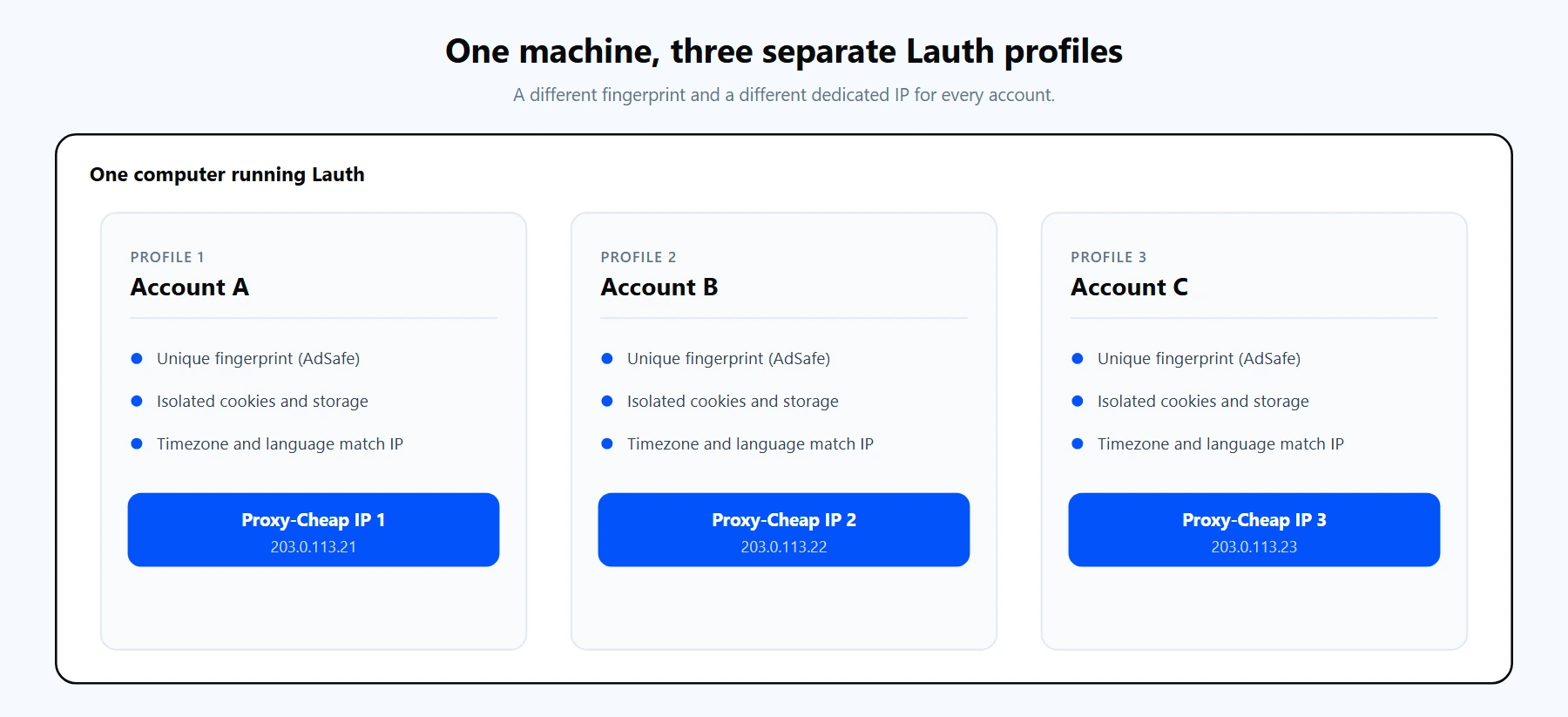
  1. On the profiles page, click Create profile (or New profile) to open the profile form.
  2. Give the profile a name, then leave the fingerprint on its defaults. AdSafe generates an internally consistent fingerprint automatically, so you rarely need to touch individual values at first.
  3. Optionally place the profile in a folder to keep related accounts together.
  4. Save the profile. It appears in your list, ready to open.

Each Lauth profile is a separate environment with its own fingerprint and its own dedicated IP. One profile, one identity, one proxy.

At this point the profile uses your real connection. The next sections add a proxy so each profile has its own IP, which is the part that actually separates the accounts at the network level.

Why you need a proxy with Lauth

Lauth separates your accounts at the browser level, but every profile still leaves through the same connection until you add a proxy. Two profiles sharing one public IP are easy to associate, no matter how distinct their fingerprints are. Routing each profile through its own IP from a residential proxy network is what makes multi-account management hold up in practice.

Three concrete reasons to put a proxy on every Lauth profile:

  1. Account separation. A dedicated IP per profile means each account presents its own network identity, so profiles are not associated by a shared address. This is the single most important habit for keeping accounts in good standing.
  2. Consistent geolocation. Prices, catalogs, and search results vary by region. An IP in the account's home market keeps the profile's location signals consistent with its timezone and language, which matters for both accuracy and account health.
  3. Reliable, stable sessions. A quality proxy pool keeps response success rates high across long sessions, so logins and everyday work do not stall on a single overloaded IP.

Not every profile needs the same kind of proxy. The cards below map Proxy-Cheap product lines to the jobs people actually run in Lauth, and the best proxies for multi-accounting guide goes deeper on the tradeoffs.
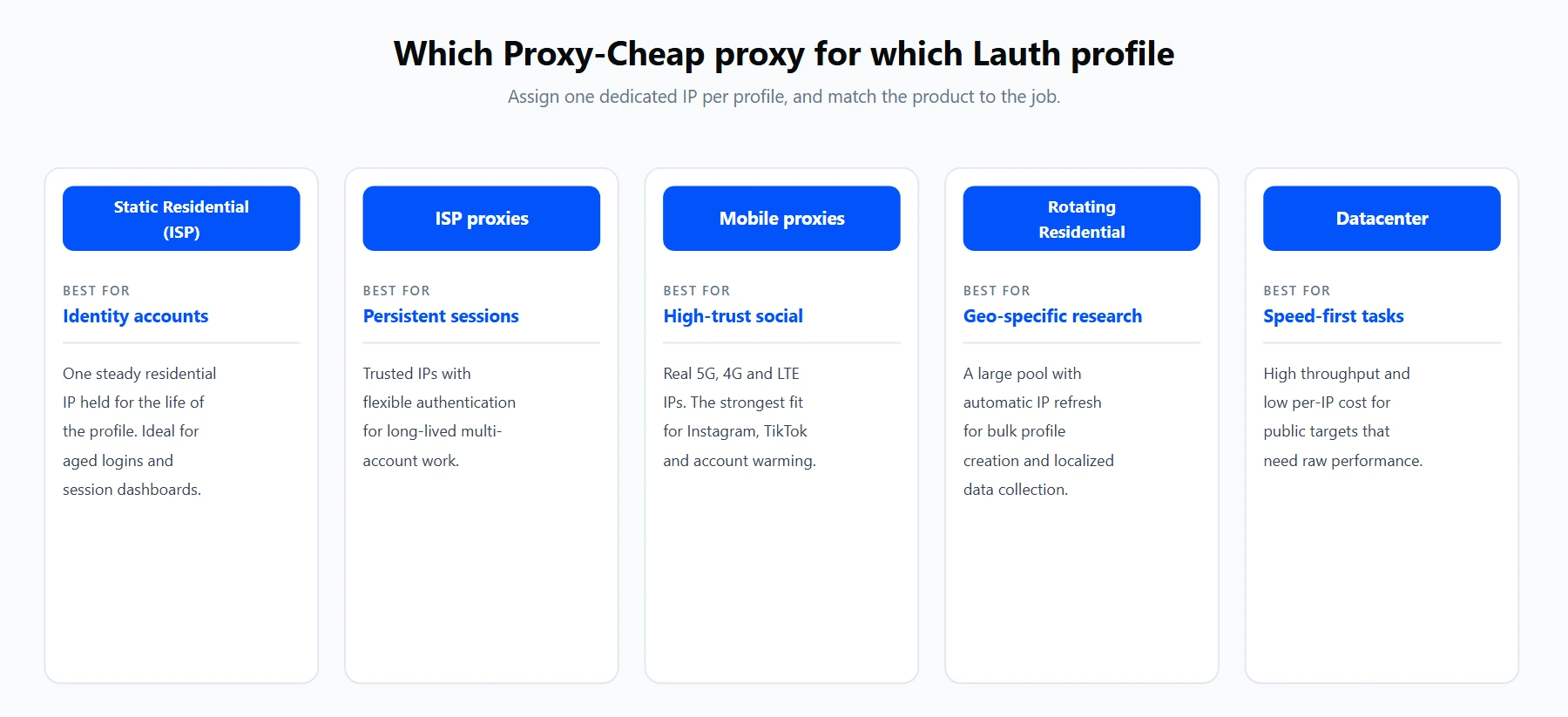
Each product line fits a different profile type. The links below match the cards above.

  • Static Residential (ISP) proxies for identity accounts. One dedicated residential IP held for the profile's lifetime, ideal for aged logins and dashboards that expect a stable address.
  • ISP proxies for persistent sessions. Static and rotating ISP options on trusted IPs, with flexible authentication for long-lived multi-account work.
  • Mobile proxies for high-trust social profiles. Real 5G, 4G, and LTE IPs, the strongest fit for Instagram, TikTok, and account warming.
  • Rotating Residential proxies for geo-specific research. A large pool across many countries, with automatic IP refresh for bulk profile creation and localized data collection.
  • Datacenter proxies for speed-first tasks. High throughput and predictable per-IP pricing for public targets where raw performance matters more than a residential origin.

For most Lauth operators the answer is Static Residential (ISP) or Mobile for the accounts that carry value, and Rotating Residential or Datacenter for research and bulk profiles.

How to set up a proxy in Lauth

Proxies live inside each profile, so you set them when you create or edit a profile. Here is the full path using manual entry, which is the only method Lauth offers.
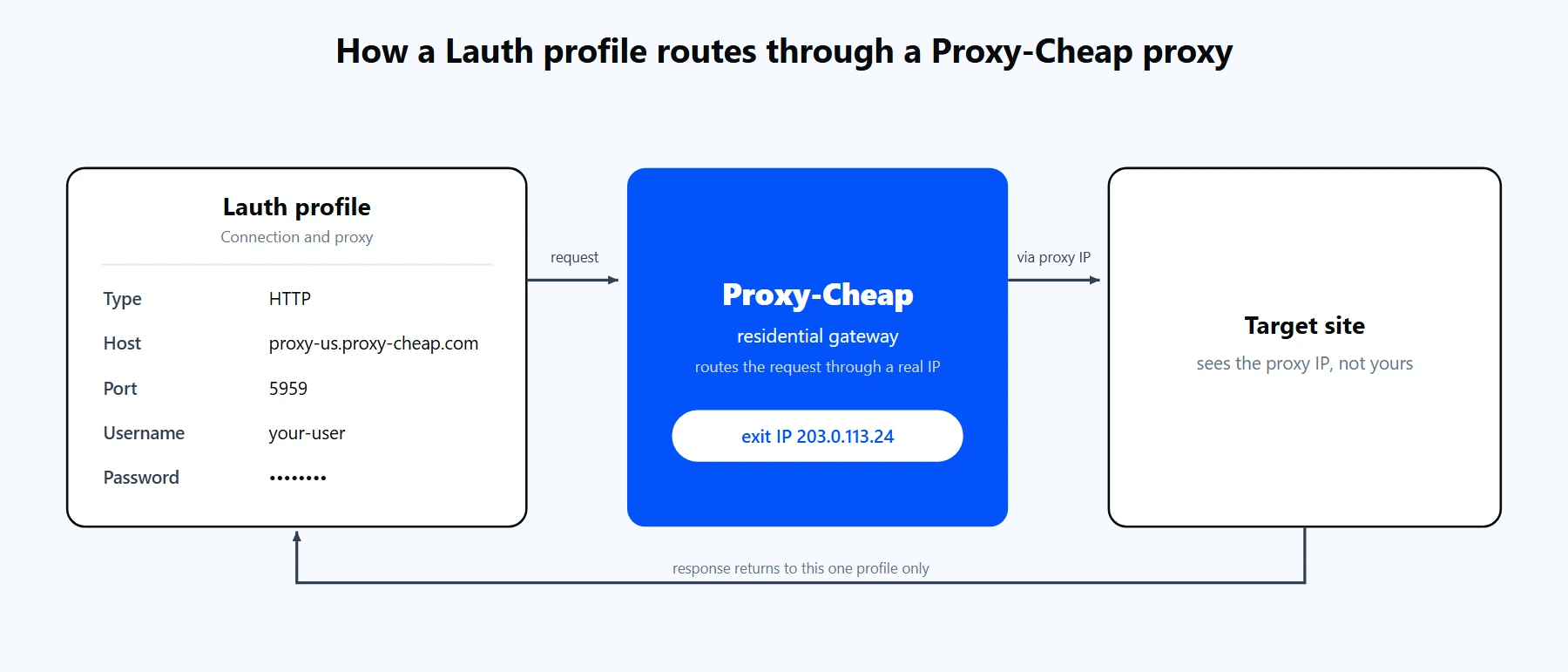
A Lauth profile sends its traffic through the Proxy-Cheap proxy, reaches the target site from the proxy's IP, and returns the response to that single profile.

  1. Right-click a profile and choose Edit Profile Preferences, or open the proxy step while creating a new profile.
  2. Open the Connection and proxy section in the side panel, then turn on Browse using proxy.
  3. If your proxy uses a username and password, turn on Proxy requires authentication. This reveals the credential fields.
  4. Set the Type dropdown to match your proxy: HTTP, HTTPS, SOCKS4, or SOCKS5. Use HTTP for the Proxy-Cheap rotating gateway, or SOCKS5 for a static endpoint that provides it.
  5. Fill in the IP address (host) and Port in their own fields, then enter the Username and Password below the authentication toggle.
  6. Click Test proxy. On success, Lauth shows the exit IP and its location.
  7. Optionally click Save proxy to my list to reuse this proxy on other profiles later.
  8. Save the profile with Save changes, then open it and confirm the exit IP on a site such as ipinfo.io.

The one detail that trips up most first-time setups is the field split. Lauth's own help shows proxies in a single reference string, but the app expects each part in a separate box. Do not paste the whole string into the IP address field:

Reference string Lauth shows:  http://45.128.10.20:8080:jdoe:pa55word

Enter it as separate fields instead:

  Type       HTTP

  IP address 45.128.10.20

  Port       8080

  Username   jdoe        (turn on "Proxy requires authentication")

  Password   pa55word

Proxy-Cheap delivers credentials in exactly this shape. Rotating residential uses a single shared hub, thehub.proxy-cheap.com:8080, with your username and password, and you choose the country in the dashboard credential generator. Static products (residential/ISP, datacenter, and static mobile) assign a unique host and port to each proxy, which you copy straight from the dashboard. If you are new to the panel, the Proxy-Cheap dashboard guide shows where those credentials appear.

IP whitelist as an alternative to username and password. Static Residential (ISP), datacenter, and static mobile products support IP allowlist authentication. If you prefer not to store credentials in the profile, add your current public IP to the allowlist in the Proxy-Cheap dashboard and leave Proxy requires authentication turned off in Lauth. Re-add your IP whenever your own ISP address changes. IP whitelist is not offered on rotating residential, which uses username and password.

Rotating proxies with Lauth

Rotation works one of two ways in Lauth, and the right choice depends on whether the profile needs a steady IP or a fresh one each time.

  • Rotate at the hub. Point the profile at the Proxy-Cheap rotating residential hub (thehub.proxy-cheap.com, port 8080, Type HTTP), and choose the country in the dashboard credential generator. Every request through the hub gets a new exit IP automatically, which suits geo-specific research and bulk profile creation.
  • Hold one steady IP per profile. For logged-in accounts, you usually want the same IP to persist. Use a sticky session (Proxy-Cheap rotating residential supports sticky sessions of around 30 minutes) or a static product that gives each profile its own fixed IP. This avoids the mid-session IP changes that trigger re-verification.

Because Lauth has no bulk proxy import, the reusable proxy list is how you scale without retyping. Save each Proxy-Cheap endpoint once, then pick it from the list when you edit a profile, mapping one distinct proxy to each account so no two profiles share an address.

For a full breakdown of when each type fits, see static vs rotating proxies. The short version for multi-accounting: identity accounts want one steady IP, while research and bulk profiles benefit from rotation.

Advanced: matching each profile's identity to its proxy

A proxy only helps if the rest of the profile agrees with it. When the IP exits in one country but the profile reports another timezone, language, or WebRTC address, the signals look inconsistent, and inconsistency is what puts accounts at risk. Three habits keep a Lauth profile coherent:

  1. Match timezone and language to the proxy country. Leave the profile timezone on automatic so it derives from the proxy IP, and set the profile language to the region the IP belongs to. A US IP paired with a US timezone and US English reads as one consistent user.
  2. Set WebRTC to use the proxy IP. WebRTC can reveal your real address even behind a proxy. Configure the profile so WebRTC reports the proxy IP, then confirm on a leak checker that no home IP appears.
  3. Keep one dedicated IP per profile. Never point two accounts at the same IP. Assign a distinct Proxy-Cheap IP to each profile, and never use fewer IPs than you have accounts.

After you set a proxy, verify the whole picture: open the profile and load an IP checker to confirm the exit IP and country, then run a WebRTC and DNS leak test to confirm every signal matches the proxy. This two-step check catches the majority of account-consistency problems before they matter.

Common errors and how to fix them

Most proxy problems in Lauth fall into a handful of buckets. Each has a clear fix.

1. The whole proxy string was pasted into one field. Lauth has no import, so a value like host:port:user:pass dropped into the IP address box never resolves. Split it: bare host or IP in IP address, the number alone in Port, and the login in the username and password fields after you enable Proxy requires authentication.

2. Authentication fails or Test proxy returns no IP. Usually the Proxy requires authentication toggle is off, so Lauth sends the request with no credentials. Turn it on, then enter the username and password from your provider dashboard (not your Lauth account login) in the fields that appear, and re-test.

3. Test proxy fails even though the credentials are correct. The Type dropdown does not match the endpoint. HTTP, HTTPS, SOCKS4, and SOCKS5 are not interchangeable, and providers often serve different protocols on different ports. Match the dropdown to what the provider issued, confirm the port belongs to that protocol, and re-test. If unsure, try SOCKS5 first, since it also routes DNS through the proxy.

4. Authentication keeps failing no matter what. The proxy may use IP-whitelist authentication instead of a username and password. Add your current public IP to the allowlist in the provider dashboard, turn Proxy requires authentication off in Lauth, and enter only host and port. Re-whitelist whenever your home IP changes.

5. Test proxy passes, but the profile still shows your real IP. The change was tested but not fully saved, or the profile was open before the save. Save the connection settings, save the profile with Save changes, then fully close and relaunch the profile. Verify on an IP checker that the displayed IP equals the proxy IP.

6. A stray space or hidden character breaks the connection. A trailing space after the port or an invisible line break from a dashboard copy is enough to fail the check. Retype or carefully paste each field, delete any leading or trailing whitespace, and confirm the port is digits only.

7. The exit IP is in the wrong country, or a leak still shows your home IP. The IP itself may be in the wrong region, or the profile's WebRTC and DNS are leaking your real address. Request an IP in the target country, set the profile timezone to automatic, point WebRTC at the proxy IP, and confirm on a WebRTC and DNS leak checker that every signal matches the proxy.

Is Lauth good? Pros and cons

For legitimate multi-account management, Lauth is a capable option in its class. The fingerprint isolation is thorough, the proxy support is broad, and the 7-day trial lets you test a full workflow before paying. A few tradeoffs are worth weighing.

Pros

  • Thorough per-profile fingerprint isolation through AdSafe.
  • Full proxy protocol support: HTTP, HTTPS, SOCKS4, and SOCKS5, with a built-in Test proxy check.
  • Reusable proxy list, folder organization, team seats, and integrated 2FA.
  • 7-day free trial with no credit card, and builds for both Windows and macOS.
  • Plans that scale cleanly from 10 profiles to 1,000 for agencies and resellers.

Cons

  • No bulk proxy import, so proxies are entered by hand (the reusable list eases this).
  • No local automation API, so Lauth does not attach to Selenium, Puppeteer, or Playwright the way some peers do.
  • No native Linux desktop build, so Linux users need a virtual machine.
  • The interface and help center are Portuguese-first, so some pages read more clearly in translation.

The practical setup for most teams: run Lauth for the fingerprint isolation, pair it with a value-tier provider on pay-as-you-go pricing, and assign one dedicated IP per profile. That covers the vast majority of multi-account workflows without enterprise overhead. Residential IPs are the default starting point for most Lauth accounts, with mobile or ISP for your highest-value profiles and datacenter for speed-first tasks.


FAQs

Lauth offers a bundled proxy option, but most operators bring their own provider so they can choose the IP type per account. Bring-your-own gives you control over whether a profile runs on residential, ISP, mobile, or datacenter IPs, which is the setup this guide follows.

Yes. Lauth's Type dropdown supports HTTP, HTTPS, SOCKS4, and SOCKS5, selectable per profile. Proxy-Cheap supports HTTP and SOCKS5 across its product lines, so either works: use HTTP for the rotating residential gateway and SOCKS5 where a static endpoint provides it.

HTTP proxies handle web traffic and are the most compatible choice for the rotating gateway. SOCKS5 tunnels all traffic, including DNS, through the proxy, which prevents a local DNS leak. For account work where every signal should match the proxy, SOCKS5 is often the safer default when the endpoint offers it.

Yes, and you should. Assigning a unique IP to each profile is what separates the accounts at the network level. Enter or select a distinct proxy in each profile's Connection and proxy settings, and never use fewer IPs than you have accounts.

Click the Test proxy button in the Connection and proxy panel; on success Lauth shows the exit IP and location. For a second confirmation, open the profile and load ipinfo.io or an IP checker to see the exit IP, then run a WebRTC and DNS leak test to confirm no home IP appears.

For accounts that carry value, residential, ISP, or mobile IPs are the safest choice because they read as ordinary home or carrier connections. Datacenter IPs are cheaper and faster and fit research or public targets, but for aged social and marketplace logins a residential or mobile IP holds up better.

Yes, when the proxy supports it. Static Residential (ISP), datacenter, and static mobile products allow IP allowlist authentication. Add your public IP to the allowlist in the Proxy-Cheap dashboard, leave Proxy requires authentication off in Lauth, and enter only host and port.

Use a static or sticky IP for any logged-in account, so the address stays consistent through the session. Use a rotating pool for research, bulk profile creation, and localized data collection, where a fresh IP per request is an advantage rather than a risk.

No, there is no native Linux desktop build. Lauth ships builds for Windows and macOS. Linux users typically run it in a virtual machine or a Windows environment.

That depends on the type and volume, not on Lauth itself, since you supply the proxies. Proxy-Cheap prices rotating residential per gigabyte and static, ISP, mobile, and datacenter proxies per IP on pay-as-you-go plans, so you can start with a few IPs and scale as you add profiles.