GeeLark is a cloud phone platform. It runs real ARM-based Android devices in a data center and streams them to your desktop app or browser, so you can operate many separate Android phones from one computer without buying a single handset. GeeLark markets itself as "the first antidetect phone," and the distinction it draws is worth understanding. Instead of changing a browser fingerprint the way a desktop antidetect tool does, it gives you a full native Android environment, each one with its own randomized hardware profile: device model, IMEI, Android ID, MAC address, and more.
Each cloud phone is an isolated device. It has its own apps, its own device identity, and, most important for this guide, its own network connection through a proxy. That separation is the entire point. One operator can run dozens or hundreds of independent Android environments side by side, each with a clean, consistent identity. Because the device lives in the cloud, the IP it presents to the outside world comes entirely from the proxy you attach. No proxy, no connection.
GeeLark ships as a desktop app for Windows 10 and newer, macOS 12 and newer, and Ubuntu 22.04.5 and newer, plus a web console and an API for programmatic control. Running many accounts at once is the core job, which is why operators pair it with proxies built for multi-accounting from the very first profile.
GeeLark is built for running many mobile accounts at once without those accounts sharing a device or an IP. The most common jobs:
Every one of these depends on the same foundation: a consistent, location-accurate IP for each account. Because GeeLark is a mobile-first platform, the proxy choice matters as much as the device itself.
The capabilities that shape how you plan a proxy setup:
The location-matching feature is the one to keep in mind throughout this guide. It only works in your favor when the proxy IP genuinely sits in the market you want, which is a product-quality question rather than a GeeLark setting.
GeeLark has a free plan. It gives you 2 profiles, a set of bonus cloud-phone minutes, and one seat, with no credit card required, which is enough to walk through the entire proxy workflow before you pay anything.
Beyond the free plan, GeeLark uses two billing dimensions rather than one. A subscription tier (the Base and Pro plans) sets how many profiles and seats you get, and cloud-phone run time is billed separately, either as usage-based minutes or as a flat monthly device rental. Exact subscription figures shift with promotions, so check the live GeeLark pricing page before you budget.
One cost is easy to miss: GeeLark does not sell proxies. It is a bring-your-own-proxy platform that integrates with third-party networks, so the proxy is a separate line item from the cloud phone itself. That is where a pay-as-you-go provider keeps the total sensible, because you buy one IP (or a small pool) per phone rather than committing to an enterprise plan.
Getting a cloud phone ready is quick, and it sets up everything the proxy steps build on:
That mandatory-proxy step trips up a lot of first-time users who expect the phone to work like a normal handset on Wi-Fi. It will not. In GeeLark, the proxy is the connection, so nothing loads until you add one.
A GeeLark cloud phone has no SIM and no Wi-Fi of its own. The proxy you attach is its entire internet connection, which makes a proxy mandatory rather than optional. Beyond simply getting the phone online, three reasons make the proxy choice the most important decision in the whole setup.
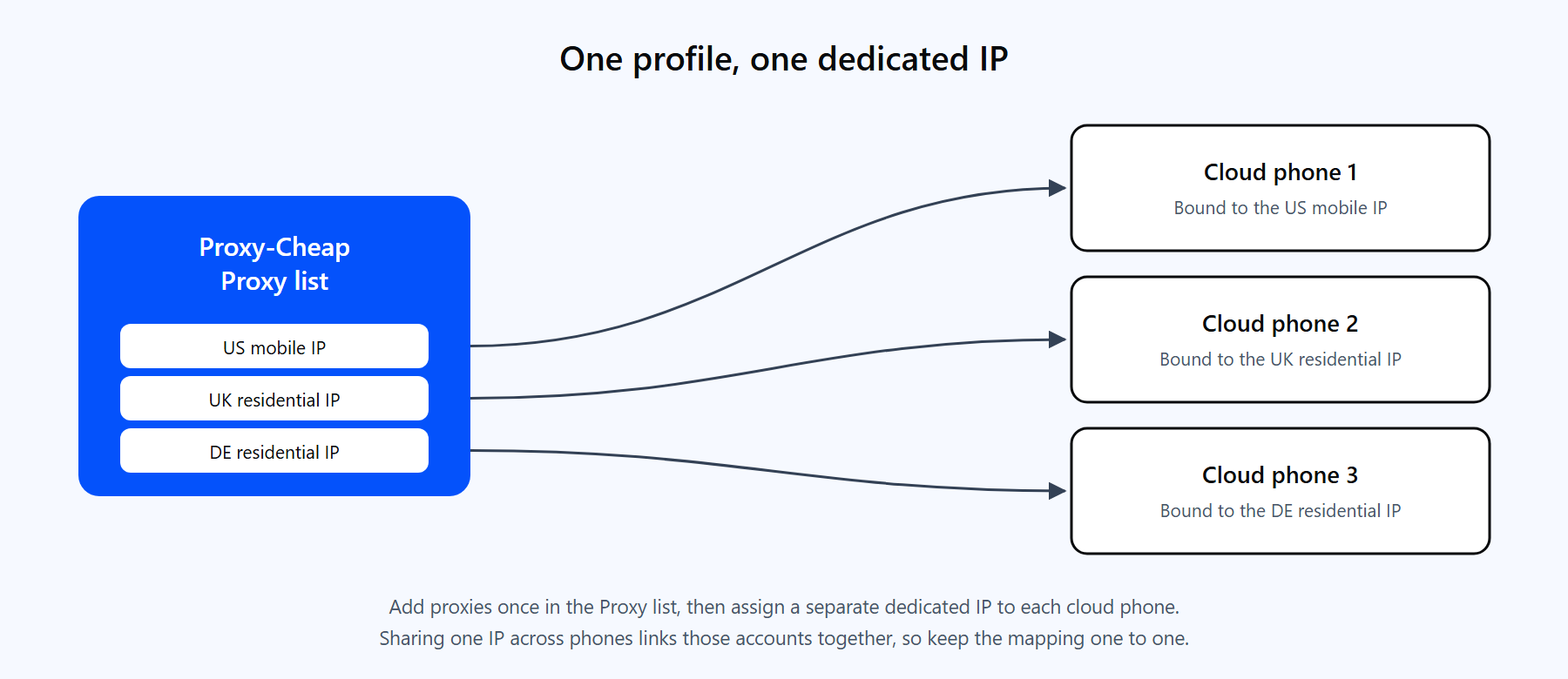
Add proxies once in the Proxy list, then give each cloud phone its own dedicated IP. One profile, one IP keeps every account independent.
1. One dedicated IP per account. Running several accounts behind a single shared IP is the fastest way to get them linked together. Giving every cloud phone its own dedicated IP keeps each account on a separate, consistent identity, which is what platforms expect from an ordinary user.
2. Location accuracy. GeeLark builds the device's GPS and time-zone signals from the proxy IP's location. If the IP genuinely sits in the target country, the device profile lines up. If the IP is mislabeled or sits in the wrong place, the signals conflict, and that mismatch is exactly what you want to avoid. Mobile IPs carry the most trust for these mobile-native platforms, which is why many operators start with the best mobile proxies for their most sensitive accounts.
3. Account health and platform compliance. Managing multiple accounts works best when each one behaves like a real local user: a stable IP, a matching location, and a clean network reputation. A quality proxy network with country-level targeting lets you keep each account in good standing and in line with the platform's own rules.
GeeLark accepts HTTP, HTTPS, and SOCKS5 proxies, and Proxy-Cheap supports HTTP and SOCKS5 across its product lines, so the question is not whether a product works but which one fits the account. Match the product to how sensitive the account is and how long each cloud phone needs to hold a single identity.
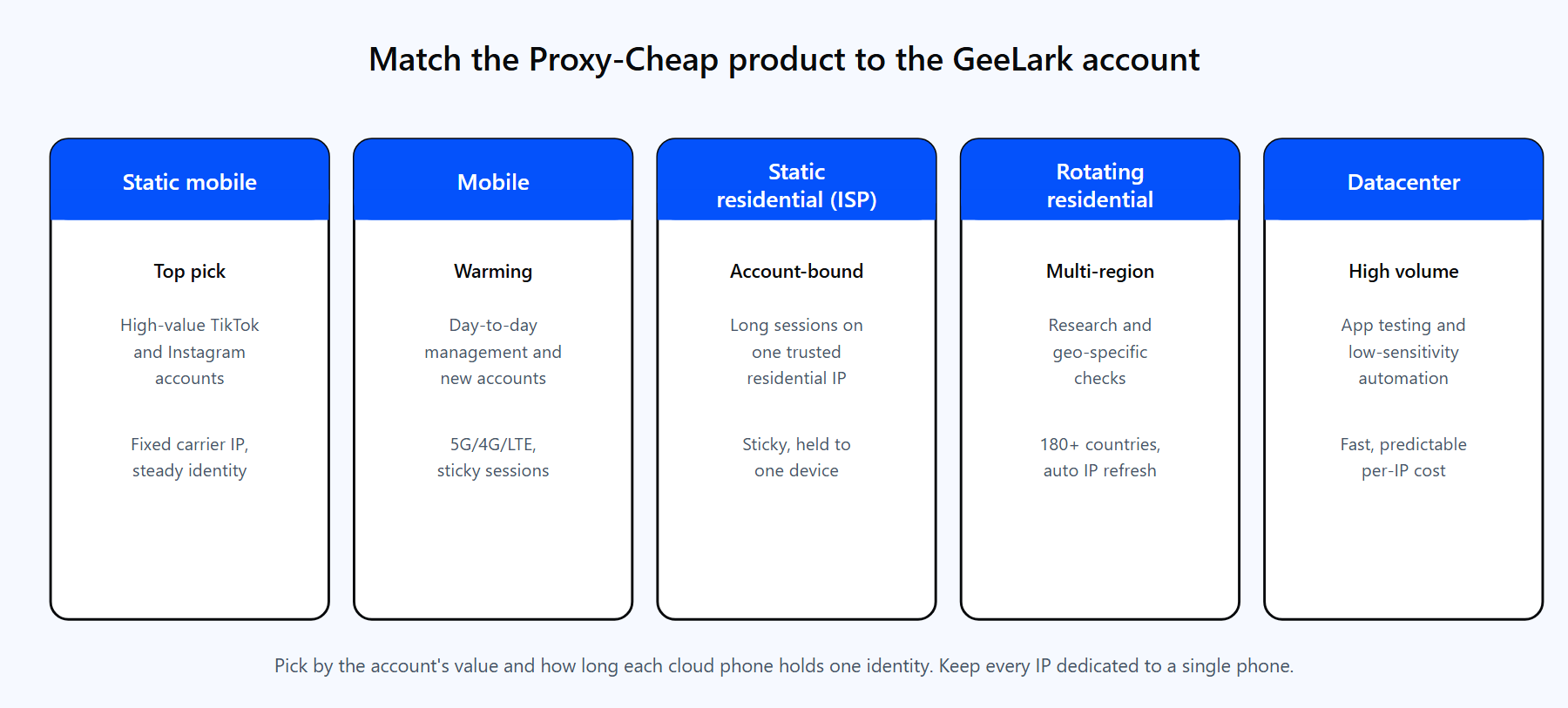
Pick the Proxy-Cheap product by the account's value and how long each cloud phone holds its identity.
For most GeeLark operators the answer is mobile or static residential, picked by the value of the account rather than the size of the budget. Reserve datacenter for the work that genuinely does not need a residential or mobile signal.
This is the core integration. The flow is: generate credentials at Proxy-Cheap, add the proxy in GeeLark, run the built-in check, then power the phone on.
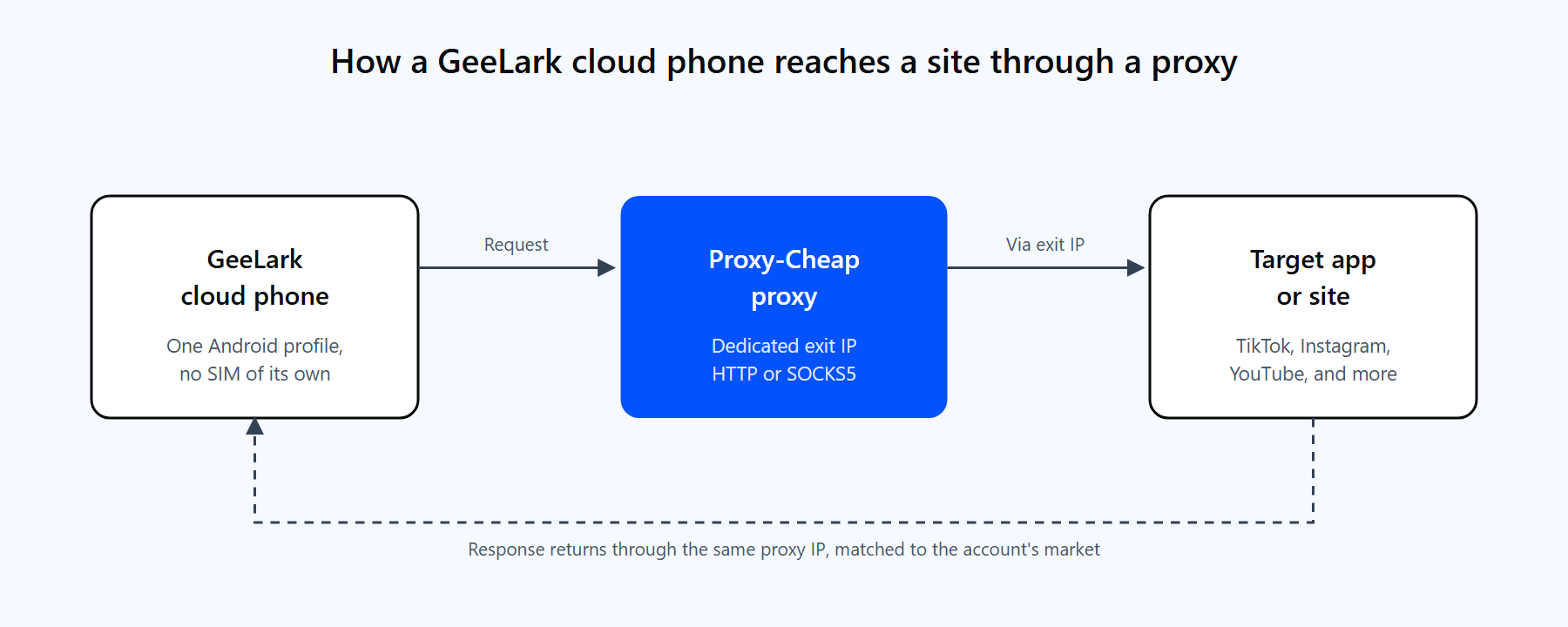
One cloud phone, one dedicated IP. The request leaves GeeLark, exits through the Proxy-Cheap IP in the target market, and returns.
Step 1: Get your credentials from Proxy-Cheap. Buy the product that fits the account (see the section above), then open the Proxy-Cheap dashboard and copy four values from the Setup Credentials panel: the host (or IP), the port, your username, and your password. For static products you copy the exact host and port assigned to that proxy. For rotating residential you use the gateway host from your dashboard with the port for the protocol you want.
Step 2: Open the proxy configuration in GeeLark. You have two paths that reach the same fields. Either open the Proxies button, go to the Proxy list tab, and click Add proxy to store the proxy in your reusable pool, or configure it inline while creating a profile, in the Proxy Settings section, by setting the Proxy option to Custom.
Step 3: Choose the protocol and enter the details. Set the Proxy type dropdown to HTTP, HTTPS, or SOCKS5 to match your Proxy-Cheap endpoint, then fill in the separate fields:
Step 4: Run Check Proxy. GeeLark tests the connection and returns the exit IP along with its detected country and ISP. A green result means the proxy is working. Confirm the country matches the market you want before you save.
Step 5: Save and start the phone. Save the configuration (or assign the saved proxy to the profile), then launch the cloud phone. The device now reaches the internet through your Proxy-Cheap IP, with its GPS and time-zone data matched to that IP's location.
If you want to confirm the exit IP independently, test the same credentials from a terminal before or after binding them. For an HTTP endpoint, the Proxy-Cheap rotating residential gateways are thehub.proxy-cheap.com:8080, with the country chosen in the dashboard credential generator:
# HTTP endpoint test. Returns the outbound IP and its location.
curl -x http://thehub.proxy-cheap.com:8080 \
  -U "<your-proxycheap-username>:<your-proxycheap-password>" \
https://ipinfo.ioFor a SOCKS5 endpoint, use the exact SOCKS5 host and port from your dashboard's Setup Credentials panel. The socks5h scheme resolves DNS through the proxy, which keeps the lookup on the exit IP:
# SOCKS5 endpoint test. Use the host and port shown in your dashboard.
curl -x socks5h://<your-proxycheap-username>:<your-proxycheap-password>@<host-from-dashboard>:<socks5-port> \
https://ipinfo.ioEither command returns the IP and location the proxy presents, which should match the country you expect for the account.
Because GeeLark exposes all three protocols in the Proxy type dropdown, the single most common setup mistake is a protocol and port mismatch. The dropdown value has to match what your provider issued, and many providers use a different port for SOCKS5 than for HTTP. Choose the wrong pairing and Check Proxy fails even though the credentials are correct.
Here is the short version for a GeeLark setup:
The rule that prevents most failures: pick one protocol, then use that protocol's matching port. If you are still deciding, the guide to SOCKS5 and HTTP proxies explains the tradeoffs in more depth. Whichever you pick, set the same protocol in GeeLark's Proxy type dropdown and in any terminal test you run.
GeeLark binds a proxy to each cloud phone, and because each phone usually represents a persistent account, the identity question matters more than raw rotation. The choice between static vs rotating proxies comes down to how long the account needs to hold one IP.
One GeeLark-specific caveat is worth knowing: its built-in one-click IP change (the rotate-URL feature) does not work with mobile proxies. Mobile IPs rotate on the carrier side instead, so drive rotation from your provider's rotation URL or a sticky-session parameter rather than GeeLark's timer. A practical pattern is static IPs for your established, high-value phones and a rotating or sticky mobile product for the phones doing early-stage warming.
Once the basics work, running accounts at scale means adding and assigning proxies in batches, and this is where GeeLark's central Proxy list earns its keep.
The rule that does not change at scale: keep one dedicated IP per phone. Batch tools make assignment faster, not shared. If you buy a small pool of static IPs, map them one-to-one to your phones rather than pointing several phones at the same address.
A note on authentication. Proxy-Cheap static products support both username and password and IP whitelist authentication. GeeLark's proxy fields are built around username and password, so that is the simplest path. If you prefer whitelisting on a static product, remember the cloud phones connect from GeeLark's own servers, so those are the egress IPs your provider would need to allow, not your local computer's address. When in doubt, username and password authentication avoids the question entirely.
Most GeeLark proxy problems come from the same short list. Each has a direct fix.
1. The cloud phone will not start. A GeeLark cloud phone needs a working proxy before it can launch, so a dead, expired, or out-of-bandwidth proxy holds the phone at the setup gate. Run Check Proxy first, confirm it returns a valid IP and location, and only then start the phone.
2. Check Proxy fails because the protocol does not match. This is the number one cause. If you selected SOCKS5 for an HTTP endpoint (or the reverse), or paired a protocol with the wrong port, the test fails. Set the Proxy type to match your Proxy-Cheap endpoint and use that protocol's port from the dashboard.
3. An authentication error even though the IP and port look right. Almost every paid proxy needs a username and password. Re-copy both from the Proxy-Cheap dashboard, watching for trailing spaces, and enter them in their separate fields. If instead you authenticated by IP whitelist, leave the username and password blank and make sure GeeLark's egress IP is on the allowlist.
4. The status dot turns yellow or red. GeeLark shows a live connection-health dot per profile. Green is a solid link; yellow or red points to a slow, high-latency, or dropped proxy, which also makes the screen lag. Switch to a faster, more stable IP closer to the target region, and re-run Check Proxy if the color persists.
5. The IP, time zone, or location looks inconsistent. If an antidetect checker flags a location mismatch, the proxy country and the phone's settings are out of sync. Pick a proxy whose country you actually want before you create the profile, verify the exit IP with the curl ... ipinfo.io test above, and align the phone's time zone and language to the proxy country.
6. A local or private address was entered. Addresses like 127.0.0.1, 192.168.x.x, or 10.x.x.x cannot work, because the cloud phone runs remotely and cannot reach your local network. Use the public host and port from your dashboard.
7. Accounts still get flagged. A proxy alone is not the whole story. Reused or low-quality IPs, a shared browser fingerprint, or aggressive automation can still draw action limits. Use a clean, dedicated residential or mobile IP per account, keep each profile on its own device fingerprint, and pace your activity.
For running many Android accounts from one machine, GeeLark is a strong, focused tool. It removes the cost and clutter of physical handsets, isolates each account cleanly, and automates the repetitive parts. A few honest tradeoffs are worth weighing before you commit.
Pros
Cons
The takeaway for most teams: GeeLark handles the devices well, and the outcome rises or falls on the proxies you feed it. Pair it with the right product per account, keep every IP dedicated, and match the protocol to the port, and the integration is reliable.