Proxy-Cheap
Proxy-Cheap
Integrations
Proxy integration with GenLogin: the complete setup guide

GenLogin Proxy Integration

Give every GenLogin profile its own dedicated IP so each account stays separate and consistent. Pair GenLogin’s unique fingerprints with Proxy-Cheap proxies for stable sessions, accurate geo-specific data, and clean multi-account management.
Get Proxies for Proxy integration with GenLogin: the complete setup guide
Proxy integration with GenLogin: the complete setup guide
What is GenLogin?
GenLogin is an antidetect browser for Windows and macOS that gives each profile its own fingerprint, isolated cookies, and a dedicated proxy. It supports HTTP, HTTPS, SOCKS4, and SOCKS5, and includes a free plan with 5 profiles, so you can pair each profile with a Proxy-Cheap IP in a few clicks.

Key takeaways:

  • GenLogin is a Windows and macOS antidetect browser that gives each profile its own fingerprint, isolated cookies, and a dedicated proxy, so you can manage many accounts in compliance with each platform's terms.
  • You add a proxy per profile in the GenLogin GUI: click Create Profile, pick the proxy type (HTTP, HTTPS, SOCKS4, or SOCKS5), enter host, port, username, and password, then press Check proxy.
  • For Proxy-Cheap rotating residential, set the type to HTTP and use thehub.proxy-cheap.com:8080, choosing the country in the dashboard credential generator; for static or SOCKS5 products, copy the exact host and port from the dashboard.
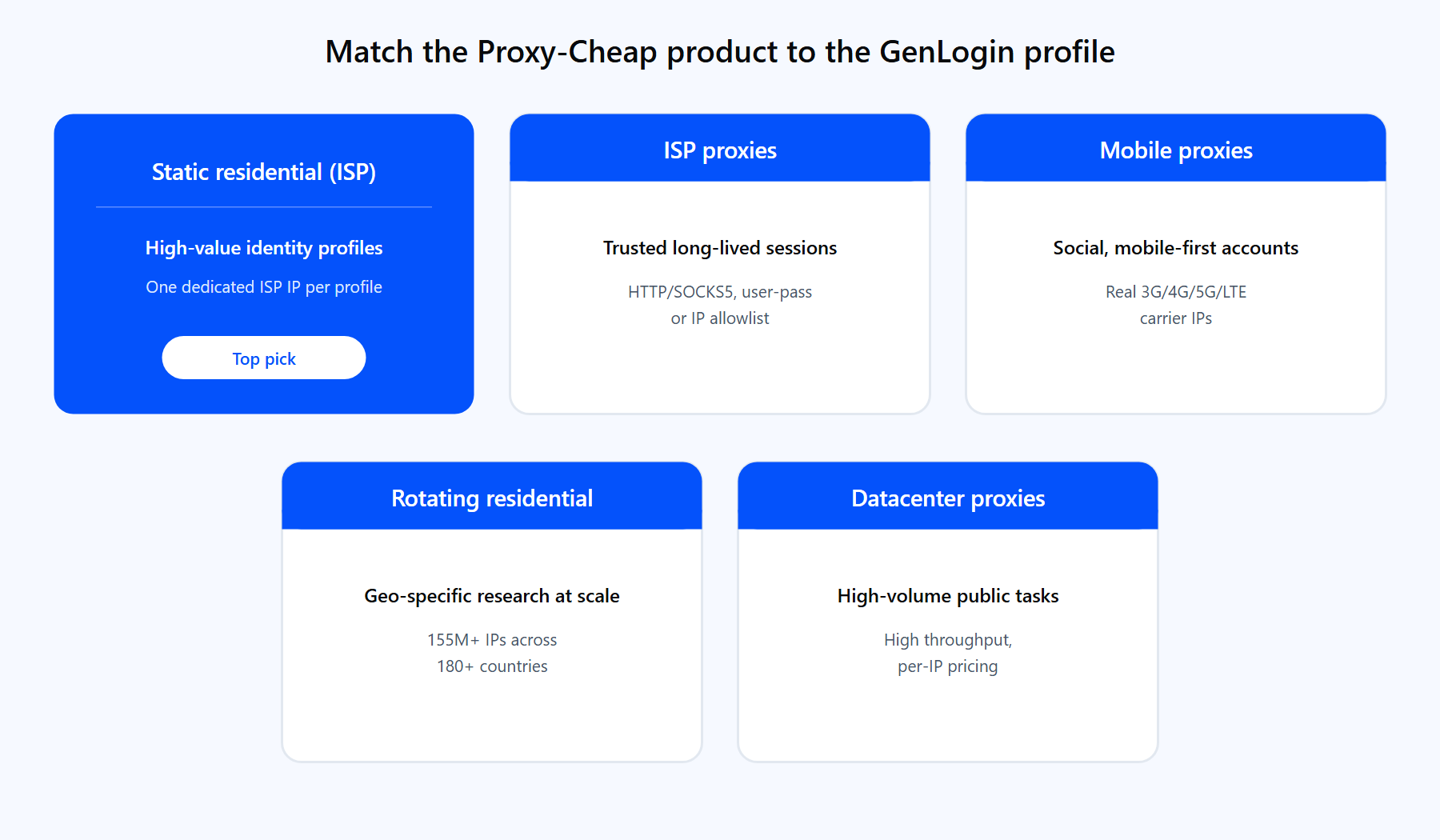
  • Match the Proxy-Cheap product to the job: static residential (ISP) for high-value identity profiles, mobile for social workflows, rotating residential for geo-specific research, datacenter for high-volume public tasks.

GenLogin pairs naturally with proxies. The browser keeps each account in its own profile, and a proxy gives each profile its own IP. This guide walks through installing GenLogin, creating your first profile, and wiring a Proxy-Cheap proxy into it, with rotation, fingerprint alignment, and the fixes for the errors people hit most.

What is GenLogin?

GenLogin is an antidetect browser built for running many separate browser identities from one app. Each profile gets a unique browser fingerprint and its own cookie and storage container, so accounts never share state. The current release is GenLogin V3.0, and the project reports more than 200,000 users worldwide.

It is more than a browser. GenLogin ships as a platform that combines profile management with a no-code automation builder and a Mini-App marketplace, so repetitive tasks across profiles can run on a schedule. If you are still comparing tools in this category, the roundup of the best antidetect browsers is a good starting point, and the side-by-side look at two popular antidetect browsers shows how profile and proxy handling differs between products.

What is GenLogin used for?

GenLogin is used wherever one person or team needs to operate several online accounts cleanly and consistently. The most common workflows:

  • Multi-account management. Run multiple e-commerce, social, marketplace, or affiliate accounts, each in its own profile, in line with every platform's terms.
  • Ad verification. Review how publicly served ads render for users in different markets.
  • Web scraping and automation. Drive data-collection and repetitive browser tasks across many profiles at once with the no-code builder.
  • E-commerce operations. Manage seller accounts and storefronts that each need a stable, separate identity.
  • Localization and QA testing. Check how a site behaves for users in a specific country.

The common thread is account separation. Every profile behaves like an independent browser on an independent device, which is exactly why a per-profile proxy matters so much.

Key features of GenLogin

The features that matter most for proxy-backed, multi-account work:

  • Per-profile fingerprints. Each profile carries its own canvas, WebGL, user agent, timezone, and geolocation values.
  • Isolated profiles. Cookies, local storage, and cache are compartmentalized per identity, so sessions never cross-contaminate.
  • Broad proxy support. Assign an HTTP, HTTPS, SOCKS4, or SOCKS5 proxy to any profile.
  • Proxy Manager. Import a list of proxies in bulk, one per line, up to 100 at a time, without creating a profile first.
  • No-code automation. A drag-and-drop builder plus a Mini-App marketplace automate logins, posting, and data tasks across profiles.
  • Team features. Member and sub-account roles let a team share profiles on the paid tiers.
  • Titan engine. Titan is GenLogin's own browser engine, offered alongside the standard Chromium-based profiles.

Is GenLogin free to use?

Yes. GenLogin has a free plan that includes 5 browser profiles, along with automation tasking, the Mini-App interface, and the Synchronizer. No credit card is required to start.

Paid tiers scale the profile count and team seats. At the time of writing the published plans are:

PlanProfilesMembersPrice (billed annually)
Free51Free
Mini Plus502from $10 / month
Solo Plus1505from $19.50 / month
Team Plus45015from $45.50 / month
Company Plus1,50040from $94.50 / month

Pricing changes, so confirm the current numbers on the GenLogin pricing page before you commit. The proxy you connect is separate: GenLogin manages the profiles, and you bring your own IPs.

How to install GenLogin

GenLogin runs on the desktop, so installation is a real step rather than a package import.

  1. Create a free account. Sign up on the GenLogin site. The free plan and its 5 profiles are enough to follow this guide end to end.
  2. Download the app. Pick the build for your system from the download page: Windows (64-bit), macOS (Intel), or macOS (Apple Silicon). Linux is not supported.
  3. Check the hardware. A modern multi-core processor (around 4 cores) and at least 8 GB of RAM are recommended, since each open profile runs its own browser instance.
  4. Install and sign in. Run the installer, open GenLogin, and log in with your account.

Once you are logged in, you land on the home screen with an empty Profiles tab. That is where every profile, and every proxy, lives.

How to create your first GenLogin profile

Before adding a proxy, create a profile so you can see where the proxy settings live.

  1. Click Create Profile in the top-left corner of the home screen.
  2. Give the profile a clear name, for example store-account-de or ads-us-01. A naming convention pays off fast once you have dozens of profiles.
  3. Leave the fingerprint settings on their generated defaults for now. GenLogin builds a unique fingerprint (user agent, canvas, WebGL, timezone, geolocation) for each profile automatically.
  4. Press Create profile to save it. The new profile appears in the Profiles tab.
  5. Click Run next to the profile. A fresh browser window opens with its own isolated cookies and storage.

That window is a clean, standalone identity. The next step is to give it a dedicated IP.

Why you need a proxy with GenLogin

A profile gives you a unique browser fingerprint, but every profile on your machine still leaves through the same home or office IP unless you add a proxy. For real multi-account work, that shared IP undoes the separation the profiles create. Routing each profile through its own IP from a residential proxy network is what makes each identity stand on its own. Three concrete reasons to put a proxy behind every GenLogin profile:

  1. Consistent, separate identities. When each profile holds its own dedicated IP, accounts stay independent and a session looks the same every time you open it. That consistency is the core of compliant multi-account management.
  2. Accurate geo-specific data. Prices, ads, search results, and product listings change by country and city. Routing a profile through an IP in the target market is the only way to see what a local user sees, which matters for ad verification, localization, and research.
  3. Reliable connectivity and stable sessions. Many sites throttle repeated requests from a single IP. Spreading work across IPs keeps response success rates stable across long automation runs.

Proxy-Cheap offers several product lines that map cleanly onto GenLogin workflows. Pick by the shape of the account, not just the price:

GenLogin workloadBest Proxy-Cheap fitWhy it fits
High-value identity profiles, long sessionsStatic residential (ISP) proxiesOne dedicated, ISP-trusted IP held per profile for a stable identity
Trusted long-lived sessions, flexible authISP proxiesStatic and rotating ISP options, HTTP/SOCKS5, username/password or IP whitelist
Social and mobile-first accountsMobile proxiesReal carrier IPs (3G/4G/5G/LTE) that match a mobile user's network
Geo-specific research and testing at scaleRotating residential proxies155M+ IPs across 180+ countries, a fresh IP per request
High-volume public data tasksDatacenter proxiesHigh throughput and predictable per-IP pricing for public targets

Proxy-Cheap product lines matched to GenLogin workflows: static residential and ISP for identity profiles, mobile for social, rotating residential for geo research, datacenter for public tasks.

Each Proxy-Cheap product line is optimized for a different kind of GenLogin profile. The links above match the cards here.
How to set up a proxy with GenLogin

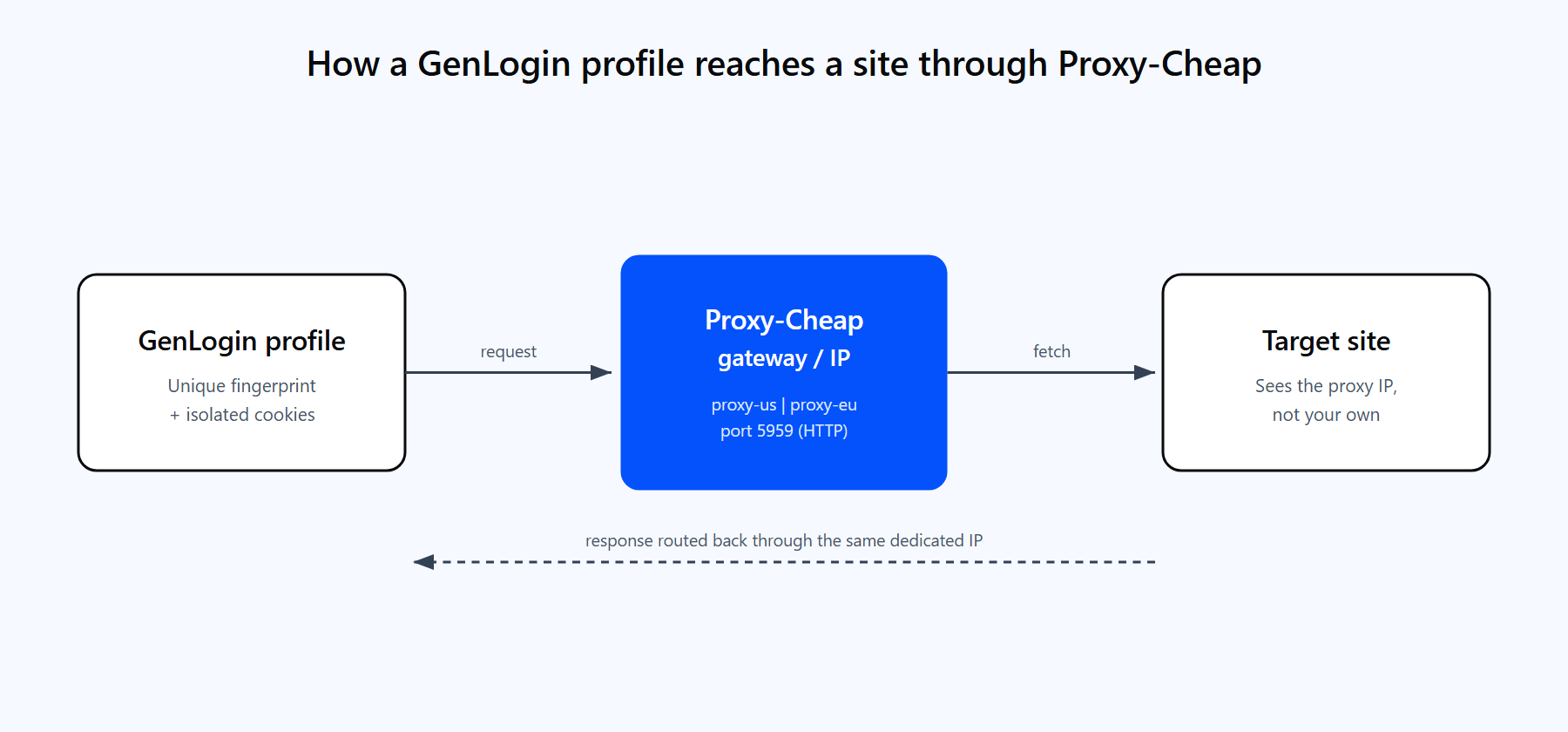
A GenLogin profile routing its traffic through the Proxy-Cheap gateway to a target site and back, with the dedicated IP bound to that single profile.

One GenLogin profile sends its traffic through a Proxy-Cheap IP to the target site, so the profile presents that IP rather than your own.

GenLogin configures proxies in the profile dialog, so the proxy is bound to the profile itself. You can add it while creating a profile or edit an existing one.

  1. Open a profile for editing, or click Create Profile, then find the proxy section and choose Your proxy.
  2. Set the proxy type. Proxy-Cheap supports HTTP and SOCKS5, so pick one of those in GenLogin.
  3. Enter the host, port, username, and password from your Proxy-Cheap account.
  4. Click Check proxy. GenLogin tests the connection and shows the detected IP and country.
  5. Press Create profile (or Save) to store the settings. The profile now leaves through that IP every time you run it.

Proxy-Cheap delivers credentials differently depending on the product, so match the values you type into GenLogin to the product you bought:

  • Rotating residential uses a single shared hub. Set the GenLogin type to HTTP, the host to thehub.proxy-cheap.com, and the port to 8080. You choose the country in the dashboard credential generator, so there is no separate US or EU gateway. Every request through the hub gets a new exit IP automatically.
  • Static residential, ISP, datacenter, and mobile assign a unique IP and port to each proxy. Copy the exact host and port from the dashboard, and choose HTTP or SOCKS5 to match. These static products also support IP whitelist authentication if you would rather not type credentials.

You can generate and copy all of these values from the dashboard's Setup Credentials panel. It is worth testing a proxy on the command line before you paste it into GenLogin, so you know the credentials are right:

# Verify a Proxy-Cheap rotating residential gateway over HTTP.
# Credentials go in the -U flag, not inside the URL.
curl --max-time 10 -x http://thehub.proxy-cheap.com:8080 \
  -U "<your-proxycheap-username>:<your-proxycheap-password>" \
  https://ipinfo.io/json

For a static product over SOCKS5, use the exact host and port from the dashboard:

# Static residential, ISP, datacenter, or mobile over SOCKS5.
# Copy <host> and <port> from the dashboard Setup Credentials panel.
curl --max-time 10 -x socks5://<host>:<port> \
  -U "<your-proxycheap-username>:<your-proxycheap-password>" \
  https://ipinfo.io/json

A successful response prints the proxy IP and its country. Those are the exact values that should appear when you press Check proxy inside GenLogin.

Rotating and static proxies with GenLogin

GenLogin handles rotating and static proxies in two different ways, and the right choice depends on the profile.

  • Rotating residential rotates at the hub. You enter one entry (thehub.proxy-cheap.com:8080) and each request gets a new IP, or a sticky session of around 30 minutes when you need the same IP for a short workflow.
  • Static residential, ISP, datacenter, or mobile give you a fixed IP per proxy. This is the better choice when a profile must show the same IP every session, which is the norm for high-value identity profiles and account management.

To rotate across many static IPs, lean on Proxy Manager. Import your list one proxy per line, up to 100 at a time, then assign a different IP to each profile. That mapping, one dedicated IP per profile, is the pattern most multi-account setups want.
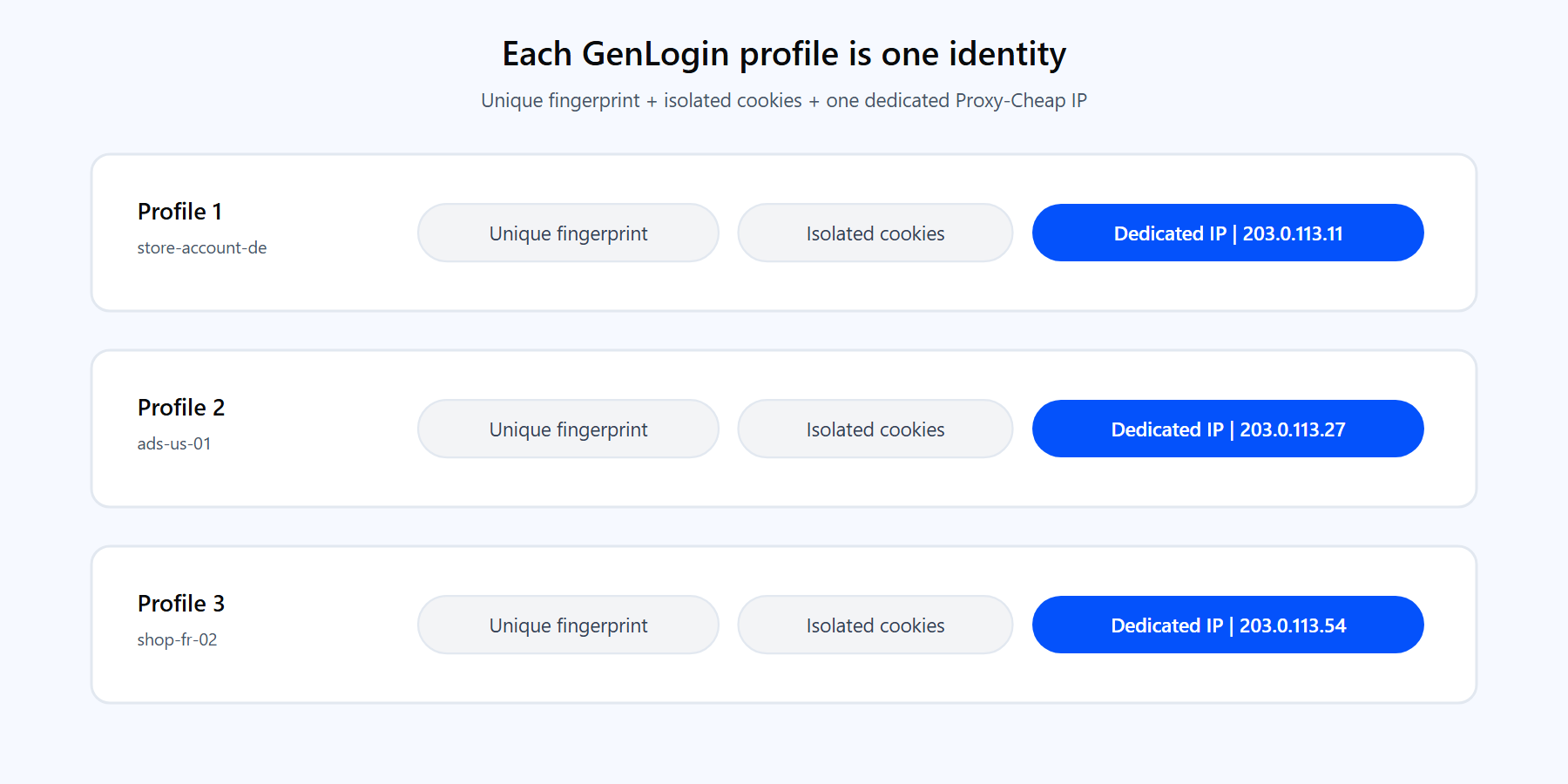
A GenLogin profile equals a unique fingerprint plus isolated cookies plus one dedicated Proxy-Cheap IP, shown as three independent profiles each bound to its own IP.

Each profile combines a unique fingerprint, its own cookie store, and a single dedicated IP, so identities stay cleanly separate.

For a deeper look at when to pick each type, read the breakdown of static vs rotating proxies. As a rule: rotating for volume and geo coverage, static for a steady identity that has to persist.

Advanced: matching profile fingerprint to your proxy

Adding a proxy is half the job. The other half is making the profile's fingerprint agree with the proxy IP, so the profile reads as a normal user from that location.

  • Timezone. Set the profile's timezone to the proxy IP's country. A US IP paired with a European timezone is an obvious mismatch.
  • Geolocation. Align the profile's geolocation with the proxy region, or let GenLogin set it from the IP where that option is available.
  • Language and locale. Match the profile's language to the market you are working in.
  • WebRTC. Configure the profile's WebRTC handling so it reflects the proxy IP instead of your own. This keeps your real IP from appearing through WebRTC even while the proxy is active.

When timezone, geolocation, language, and WebRTC all agree with the proxy IP, the profile presents a single coherent identity. That consistency is what makes profile-plus-proxy pairs reliable for compliant testing and account management.

Common GenLogin proxy errors and how to fix them

Most proxy issues in GenLogin fall into a handful of buckets. Each has a quick fix.

1. The IP checker cannot verify the proxy. GenLogin shows Cannot check this proxy. Switch the IP checker service to a different option in the proxy dialog, then test again. Also confirm the host, port, and credentials, and that the proxy is active in your dashboard.

2. Wrong proxy type selected. For the Proxy-Cheap rotating gateway on port 8080, set the type to HTTP. For static products, use the type shown next to that IP in the dashboard (HTTP or SOCKS5). A type mismatch is the most common reason a valid proxy fails the check.

3. Authentication fails. Put the username and password in their own fields, not inside the host string. Re-copy them from the dashboard to avoid a trailing space, and regenerate the credentials if a check still fails.

4. Timezone or geolocation mismatch. If accounts behave oddly after the proxy connects, the profile fingerprint probably disagrees with the IP. Set the profile timezone and geolocation to the proxy's country.

5. Real IP visible through WebRTC. Enable the profile's WebRTC handling so it follows the proxy IP. Test the result on an IP-check page inside the profile before you use the account.

6. The same IP across many profiles. Reusing one IP for many identities defeats the separation you set up. Assign one dedicated static IP per high-value profile, and use Proxy Manager to map a list quickly.

7. Slow pages or timeouts. Match the product to the target. Use residential or mobile IPs for protected commerce and social platforms, and datacenter IPs for high-volume public pages where throughput matters more.

Is GenLogin good? Pros and cons

For solo operators and small teams running many accounts, GenLogin is a capable, budget-friendly choice. It covers the essentials, gives every profile a clean identity, and connects to any proxy you bring. A few honest tradeoffs are worth weighing.

Pros

  • Free plan with 5 profiles and automation included.
  • Runs on both Windows (64-bit) and macOS (Intel and Apple Silicon).
  • Unique fingerprint and isolated storage for every profile.
  • Supports HTTP, HTTPS, SOCKS4, and SOCKS5 proxies.
  • No-code automation builder and a Mini-App marketplace.
  • Proxy Manager for bulk importing and mapping IPs.
  • Affordable paid tiers that scale to 1,500 profiles.

Cons

  • One profile runs on one machine at a time; you cannot run the same profile in two places at once.
  • Desktop only, with no Linux build.
  • Tougher target sites reward a quality residential or mobile IP, so the proxy you pair with does real work.
  • Parts of the interface and docs are translated, since the product is built by a Vietnamese team.

GenLogin versus plain browser profiles. Stock Chrome or Firefox profiles share one fingerprint and one IP across every profile on the machine, and proxy setup is global rather than per profile. GenLogin gives each profile its own fingerprint and its own proxy binding, which is the difference that makes per-account separation practical at scale. Pair it with the right Proxy-Cheap product and you have a clean, repeatable setup for every identity you manage.


FAQs

Yes. GenLogin accepts HTTP, HTTPS, SOCKS4, and SOCKS5. For Proxy-Cheap, use HTTP on the rotating residential gateway (port 8080), or SOCKS5 with the host and port from the dashboard for static residential, ISP, datacenter, and mobile products.

You can, but for multi-account work it is better to give each high-value profile its own dedicated IP so identities stay separate. Proxy Manager lets you import a list and map a different IP to each profile in a few clicks.

A proxy type (HTTP, HTTPS, SOCKS4, or SOCKS5), the host, the port, and a username and password. Static Proxy-Cheap products also support IP whitelist authentication, so you can skip the credentials if your machine has a stable IP.

The IP checker service could not reach the verification endpoint through the proxy. Switch the IP checker to another option in the proxy dialog and test again, then confirm the host, port, and credentials and that the proxy is active.

Yes. GenLogin offers macOS builds for both Intel and Apple Silicon, alongside a Windows 64-bit build. There is no Linux version at the time of writing.

The free plan includes 5 browser profiles with automation tasking. Paid tiers scale from 50 profiles on Mini Plus up to 1,500 on Company Plus, with more team seats at each level.

Not for casual testing on a single account. For genuine multi-account work, a separate IP per profile keeps each identity consistent and prevents accounts from sharing one footprint.

Yes. Proxy Manager imports a list without creating profiles first, one proxy per line, up to 100 at a time. From there you assign each IP to the profile that should use it.

It depends on the account. Static residential (ISP) suits high-value identity profiles, mobile suits social and mobile-first accounts, rotating residential suits geo-specific research, and datacenter suits high-volume public tasks.

GenLogin runs locally on your own machine, isolates each profile's cookies and storage, and connects to proxies you control. As with any multi-account tool, use it in line with the terms of each platform you work with.