Android does not let you set a SOCKS5 proxy from its native settings, only HTTP. SocksDroid fills that gap, forwarding your device traffic to any SOCKS5 proxy you point it at, app by app or for the whole phone. This guide covers what SocksDroid is, why the proxy behind it matters, and the steps to connect Proxy-Cheap proxies, route specific apps, and fix common errors.
SocksDroid is a lightweight SOCKS5 client for Android. It uses Android's built-in VpnService API to capture traffic from your apps and forward it to a SOCKS5 proxy server you configure. Because it relies on VpnService rather than system-level changes, it runs on a standard, non-rooted device.
The app is open source under the GPL-3.0 license. It was created by developer PeterCxy and lives on as community-maintained forks (the net.typeblog.socks package), with the current build at version 1.0.4 from late 2023. The project is in maintenance mode, meaning the maintainers ship bug fixes and compatibility updates rather than new features. That stability is part of the appeal: it does one job and keeps doing it across Android releases.
One point to set straight early. SocksDroid is a proxy client, not a proxy provider. It does not give you any IP addresses of its own. You supply a SOCKS5 endpoint from a proxy service, and SocksDroid routes your traffic through it. If you are new to the protocol, the primer on what a SOCKS proxy is explains how SOCKS5 differs from an HTTP proxy.
SocksDroid is used wherever someone needs a SOCKS5 connection on Android that the native settings cannot provide. The most common jobs:
Because the device is an Android phone, the proxy choice carries as much weight as the app, which is why operators pair SocksDroid with proxies chosen for Android that fit the task.
The capabilities that matter when you plan a proxy setup:
Per-app routing and DNS handling are the two features to keep in mind, since they decide what traffic flows and how cleanly it resolves.
Yes. SocksDroid is fully free and open source under the GPL-3.0 license. There is no paid tier, no account, and no ads. You can read the source, build it yourself, or install a published build at no cost.
The only thing you pay for is the proxy itself. SocksDroid supplies the routing; your proxy provider supplies the IPs, the locations, and the connection quality. That split suits budget-conscious users: you bring a pay-as-you-go proxy, and the client around it costs nothing.
Installation takes a minute. SocksDroid runs on Android 5.0 and newer.
That is the whole install. There is no sign-up or onboarding before you add a proxy.
SocksDroid on its own does nothing visible, because it has no IPs to route through. The proxy you attach is the entire point of the setup, and its quality decides how well everything works. Three reasons make the proxy choice the most important decision here.
SocksDroid is the steering wheel; the proxy is the engine. A weak or mislabeled IP undercuts the setup, so the product you pick decides most of the outcome.
This is the core integration. The flow is: get SOCKS5 credentials from Proxy-Cheap, enter them in the SocksDroid profile, turn the switch on, approve the VPN prompt, then confirm the exit IP.
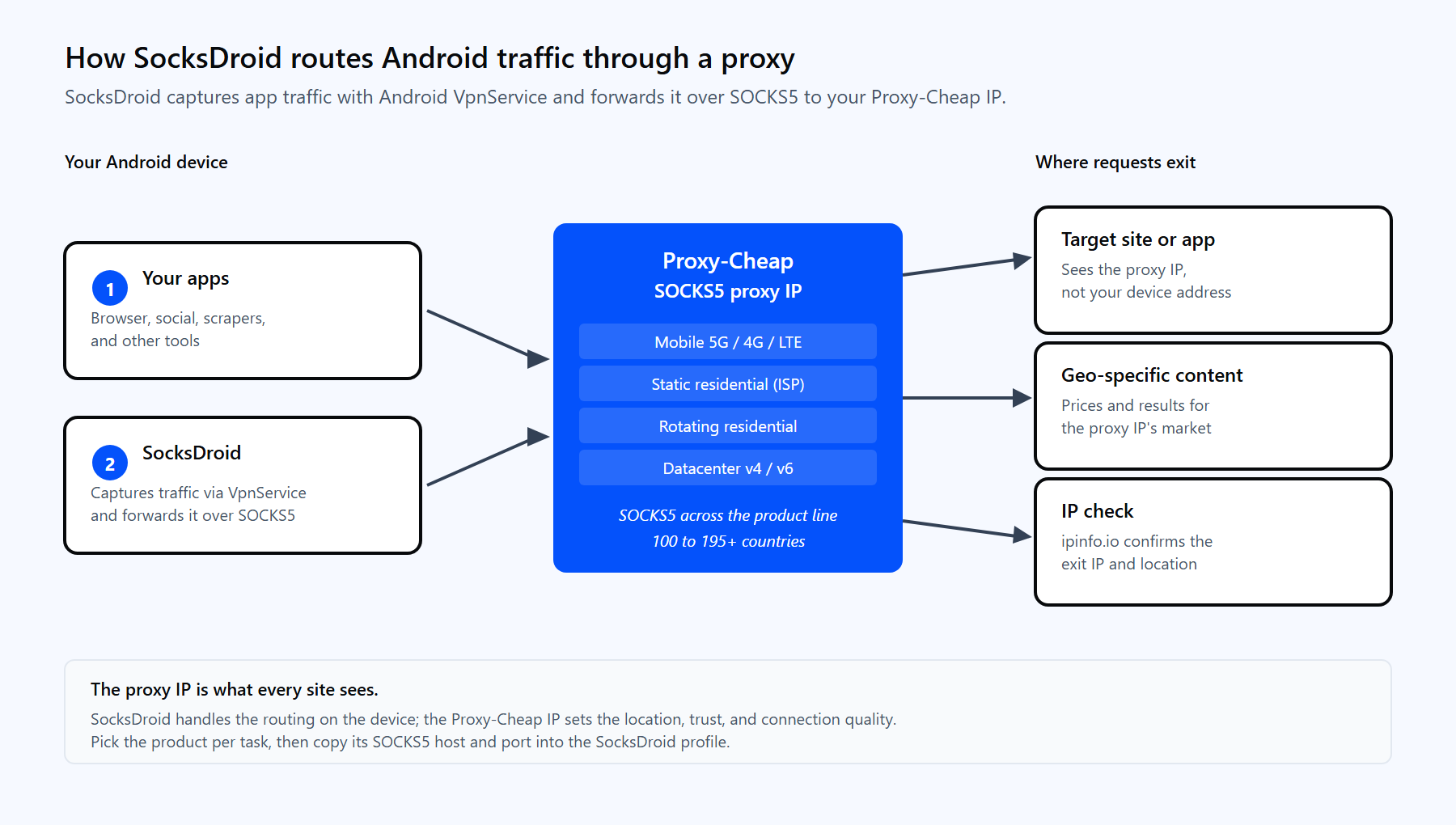
SocksDroid captures traffic with Android VpnService and forwards it to your Proxy-Cheap SOCKS5 IP, which fetches the target and returns the response.
Step 1: Get your SOCKS5 credentials from Proxy-Cheap. Buy the product that fits your task (see the matrix near the end), then open the Setup Credentials panel in your Proxy-Cheap dashboard and copy four values: the host, the SOCKS5 port, your username, and your password. For static products you copy the exact host and port assigned to that proxy. For rotating residential you use the gateway host shown in your dashboard with its SOCKS5 port. Use the SOCKS5 endpoint, not the HTTP one, because SocksDroid speaks SOCKS5 only.
Step 2: Open the default profile. In SocksDroid, tap the profile to edit it. You can rename it so a saved setup is easy to find later.
Step 3: Enter the proxy details. Fill in each value in its own field:
Leave Username and Password empty only if you authenticate by IP allowlist instead. Keep credentials in their own fields rather than pasting them into the host.
Step 4: Turn the proxy on. Go back to the main screen and toggle the switch to on. Android shows a connection request the first time; approve it. A key icon appears in the status bar once the tunnel is up.
Step 5: Confirm the exit IP. Open a browser and visit an IP checker such as ipinfo.io or ipleak.net. The IP and location shown should match your proxy, not your carrier or Wi-Fi. The guide on how to test proxies lists more ways to verify a connection.
If you want to confirm the same credentials from a computer before entering them on the phone, the SOCKS5 string works in curl too:
curl --max-time 10 -x socks5h://<your-proxycheap-username>:<your-proxycheap-password>@<host-from-dashboard>:<port-from-dashboard> https://ipinfo.ioThe socks5h scheme resolves DNS through the proxy too, mirroring how SocksDroid should resolve names. A returned IP proves the credentials work before you open the app.
Once the basic connection works, the advanced options decide what traffic actually flows and how cleanly it resolves.
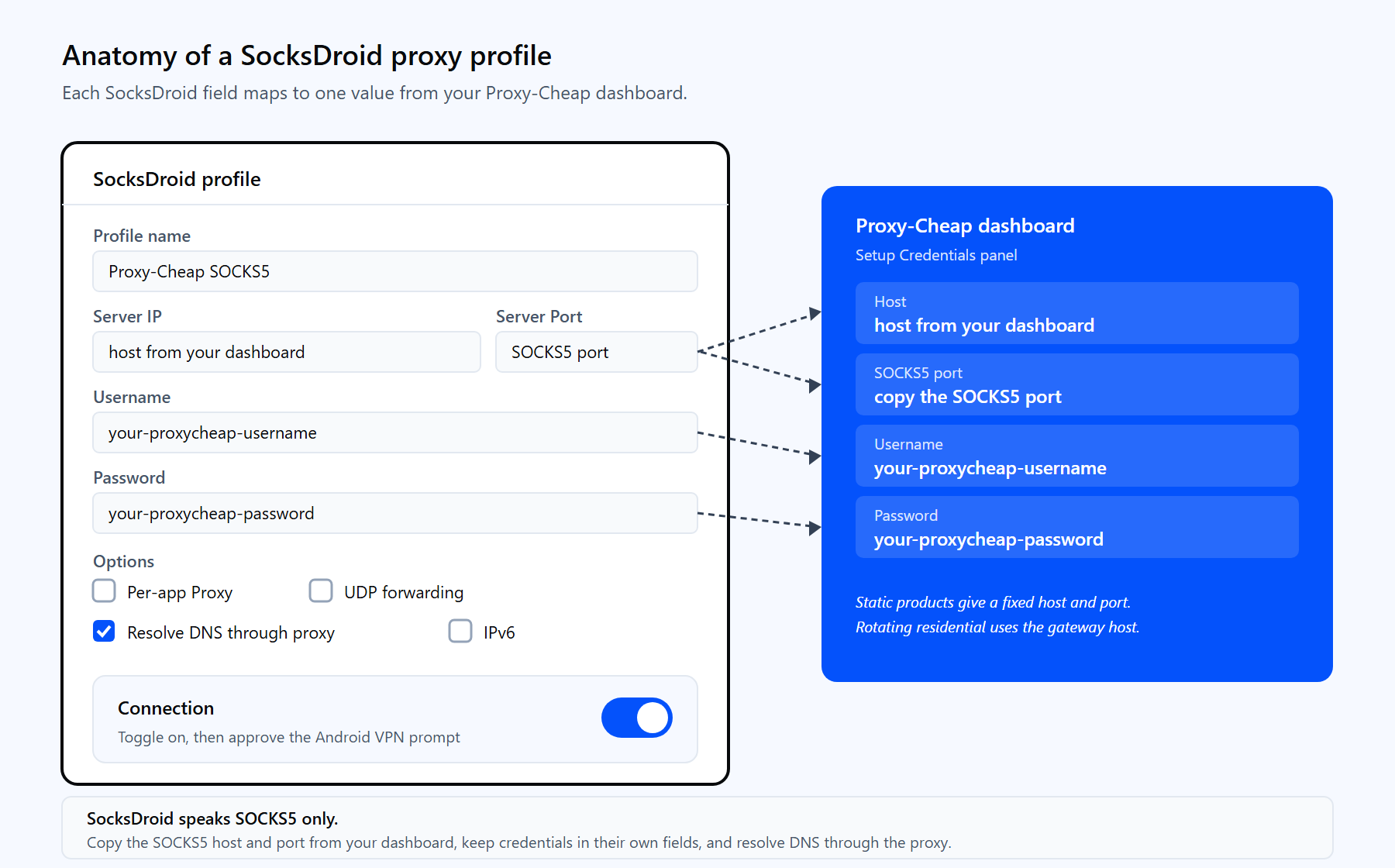
Each SocksDroid field maps to a value from your Proxy-Cheap dashboard. The advanced options below control routing, UDP, and DNS.
A practical default: leave UDP off, route DNS through the proxy, and use per-app routing only when you genuinely want some apps off the proxy. Simpler profiles connect more reliably.
SocksDroid holds one SOCKS5 endpoint per profile, so how you rotate IPs depends on the Proxy-Cheap product behind it. The choice between static vs rotating proxies comes down to whether you want a fixed identity or a fresh IP over time.
A common pattern is one saved profile per identity: a static IP for the account you keep long term, and a rotating gateway profile for the testing and research work that benefits from fresh IPs. Switching profiles in SocksDroid then switches your whole routing in a tap.
Most SocksDroid problems come from the same short list. Each has a direct fix.
1. The proxy is not SOCKS5. SocksDroid speaks SOCKS5 only. An HTTP or SOCKS4 endpoint will not connect. Copy the SOCKS5 host and port from your Proxy-Cheap dashboard and use those.
2. Some apps show no internet after you connect. This is almost always DNS. Set the DNS server in the profile and send lookups through the proxy so names resolve from the exit IP. Enabling UDP forwarding also helps apps that resolve over UDP.
3. The connection fails with an authentication error. The username or password is wrong or has a trailing space. Re-copy both from your dashboard and paste them into their own Username and Password fields, not into the host.
4. A local or private address was entered. Values like 127.0.0.1, 192.168.x.x, or 10.x.x.x point back at the device, not your proxy. Use the public host and port from your dashboard.
5. A whitelisted proxy will not connect. With IP allowlist auth, the whitelisted IP must match the phone's current network. Mobile and Wi-Fi addresses change often, so username and password authentication is simpler on a phone.
6. One app still shows the real IP. Per-app routing excludes it, or the app cached a connection. Check the Per-app Proxy list, then close and reopen the app so it reconnects through the tunnel.
7. The exit country looks wrong. The proxy IP is in or labeled for the wrong place. Verify it with an IP checker or the curl ... ipinfo.io test above, and pick a product with accurate country targeting for that market.
For getting a SOCKS5 connection onto Android without root, SocksDroid is the cleanest free option available. It is small, focused, and open source, and it has stayed reliable across Android versions. A few honest tradeoffs are worth weighing before you commit.
Pros
Cons
For most users, SocksDroid handles the routing well, and the result rises or falls on the proxy you feed it. Pair it with the right product, use the SOCKS5 endpoint, and route DNS through the proxy.
The right product depends on the task, not the size of your budget. Because SocksDroid routes a whole Android device, match the proxy to how stable the identity needs to be and how the target treats mobile traffic. The table maps common SocksDroid jobs to the Proxy-Cheap product that fits first, with a workable second choice.
| Android use case | First choice | Also works |
|---|---|---|
| Localization and app QA testing | Rotating Residential | Mobile |
| Privacy on shared or public Wi-Fi | Residential | Mobile |
| Multi-account mobile apps | Static Residential (ISP) | Mobile |
| Ad verification across markets | Mobile | Rotating Residential |
| High-volume public data collection | Datacenter | Rotating Residential |
| Long, identity-stable sessions | Static Residential (ISP) | ISP proxies |
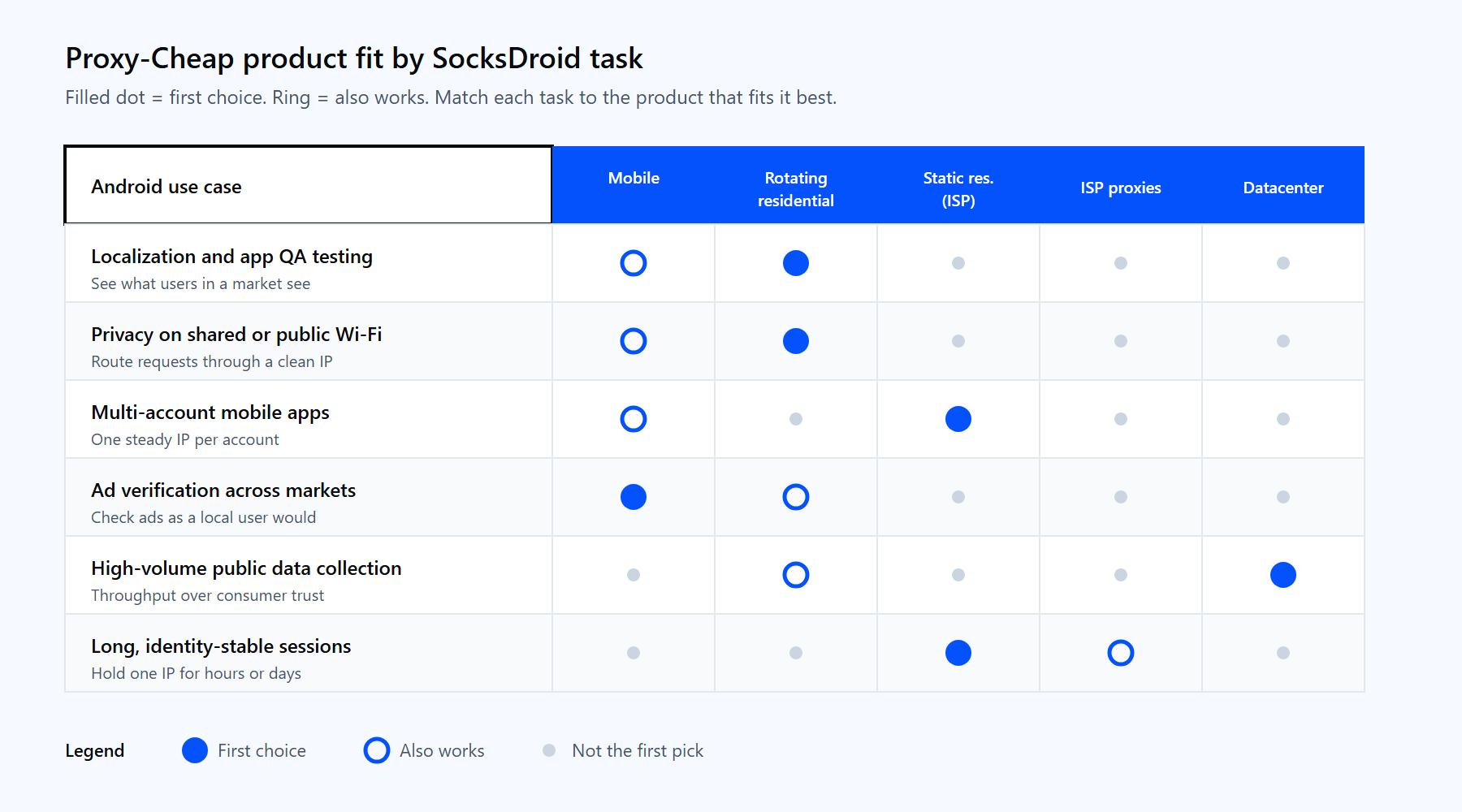
Match the Proxy-Cheap product to the shape of your SocksDroid task.
For most setups the answer is a mobile or static residential product, picked by how sensitive the work is, on pay-as-you-go pricing with no monthly commitment. Copy the SOCKS5 host and port from your dashboard into the profile, and your Android traffic routes through an IP you chose.