
TexAU sits in an unusual spot among automation tools. It runs your growth workflows in the cloud, on TexAU's infrastructure, which means the IP address your accounts and targets see is decided by your proxy configuration, not by your home connection. This guide walks through the full proxy integration with TexAU: what the platform does, where the proxy manager lives, how to connect Proxy-Cheap proxies step by step, and how to match each proxy type to the automations you run.
TexAU is a growth automation platform built for lead generation, data extraction, and social media outreach. Its core product, TexAU V2, is a cloud application at app.texau.com paired with a Chrome extension that syncs your logged-in browser sessions. V2 ships more than 180 prebuilt, no-code automations across X (Twitter), Google Maps and Search, Reddit, Product Hunt, Slack, GitHub, and Quora, and lets you chain them into multi-step workflows.
The product family is in transition in 2026, and it pays to know the timeline before you build anything:
One more piece of history that shapes how people use the tool: TexAU retired LinkedIn automations from the cloud product in August 2025. LinkedIn workflows now belong to the Desktop app, while the cloud version focuses on X, Google, Reddit, and the other supported platforms. Proxy integration remains a V2 concept, and V2 Cloud is still live today, so everything below reflects the current dashboard.
TexAU's automations cluster around a few repeatable jobs:
The common thread is volume. Every one of these jobs sends far more requests than a human clicking around, which is exactly why the platform ships with proxy support at the account and automation level.
The features that matter most when you plan a proxied setup:
TexAU is a paid product with a trial. The current platform offers a 14-day trial with no credit card, then credit-based plans: at the time of writing, Solo at $79 per month, Starter at $199, and Teams at $549, with annual discounts. The API tier includes 50 free credits on signup.
TexAU V2 Desktop is sold as a one-time perpetual license (a founder price of $1,499 applied before June 11, 2026, and $1,999 after), with 5 years of updates and a 14-day money-back guarantee from its July 1, 2026 release.
During the V2 Cloud era, trial and paid plans included residential proxies automatically, while free-plan users brought their own. Verify current plan details on the live TexAU pricing page before you commit, since the lineup is actively changing through 2026.
Because TexAU V2 is a cloud app, there is nothing to install beyond the browser extension. Getting to your first automation takes four steps:
One habit worth forming from day one: decide which IP each account will use before you run anything. The account row shows a Proxy column and a Location column for a reason. Connecting an account from one region and then running its automations through infrastructure in another region is the single most common self-inflicted problem in cloud automation, and it is much easier to prevent than to repair.
In the V2 Cloud product, yes. TexAU's own documentation states that residential proxies are included automatically on trial and paid plans, with additional proxies available from the Add-ons section if you use up the included allocation. Free-plan users did not receive included proxies. TexAU also explicitly gives you full flexibility to use external proxies from any provider.
So why bring your own? Control. The built-in allocation decides for you; an external proxy lets you choose:
Three concrete reasons, in order of how often they matter:
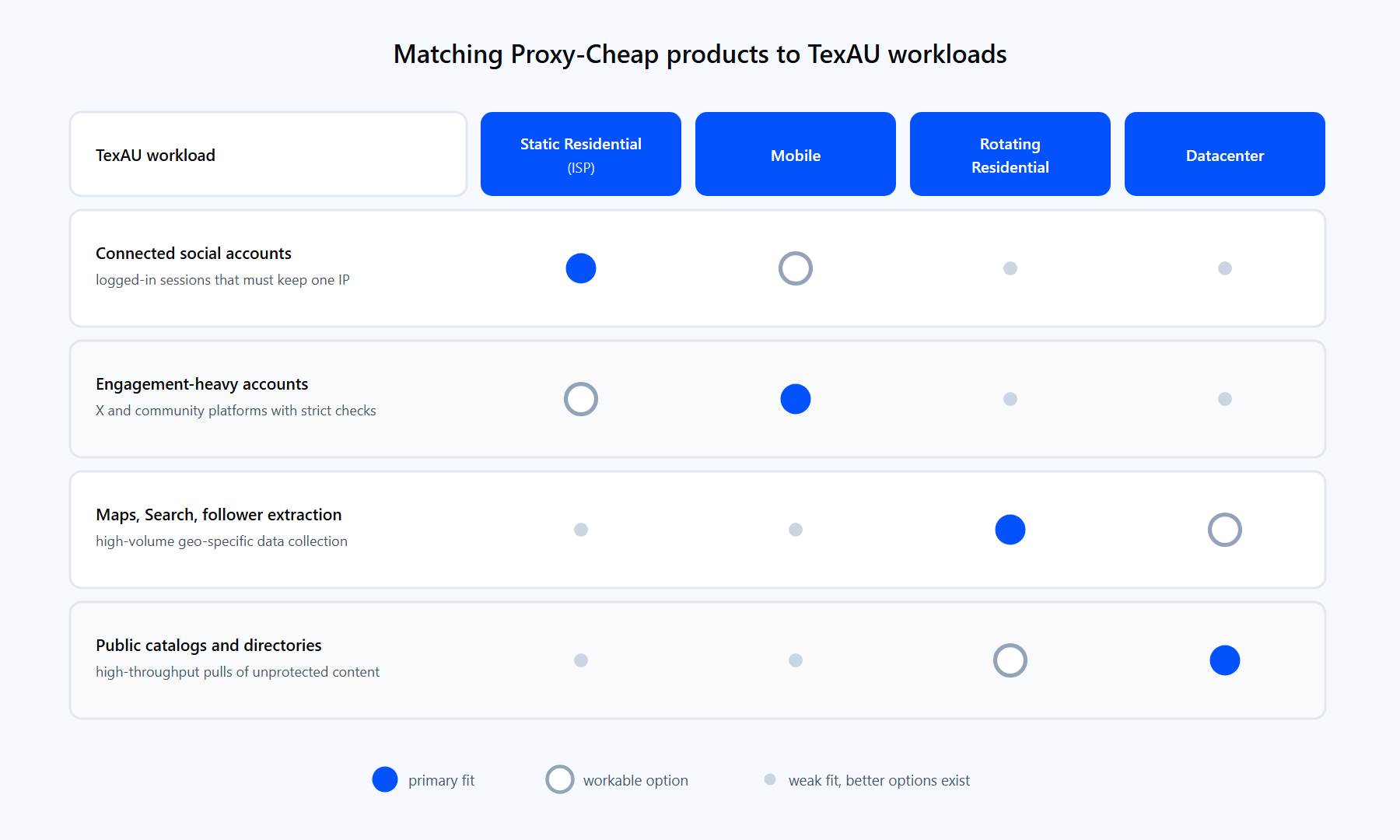
Each Proxy-Cheap product line maps to a different TexAU workload. Filled dots mark the primary fit, rings mark a workable secondary option.
Here is how the Proxy-Cheap product lines line up against TexAU workloads:
For most TexAU users the split is simple: static residential or mobile for every account you log into, rotating residential for every extraction job.
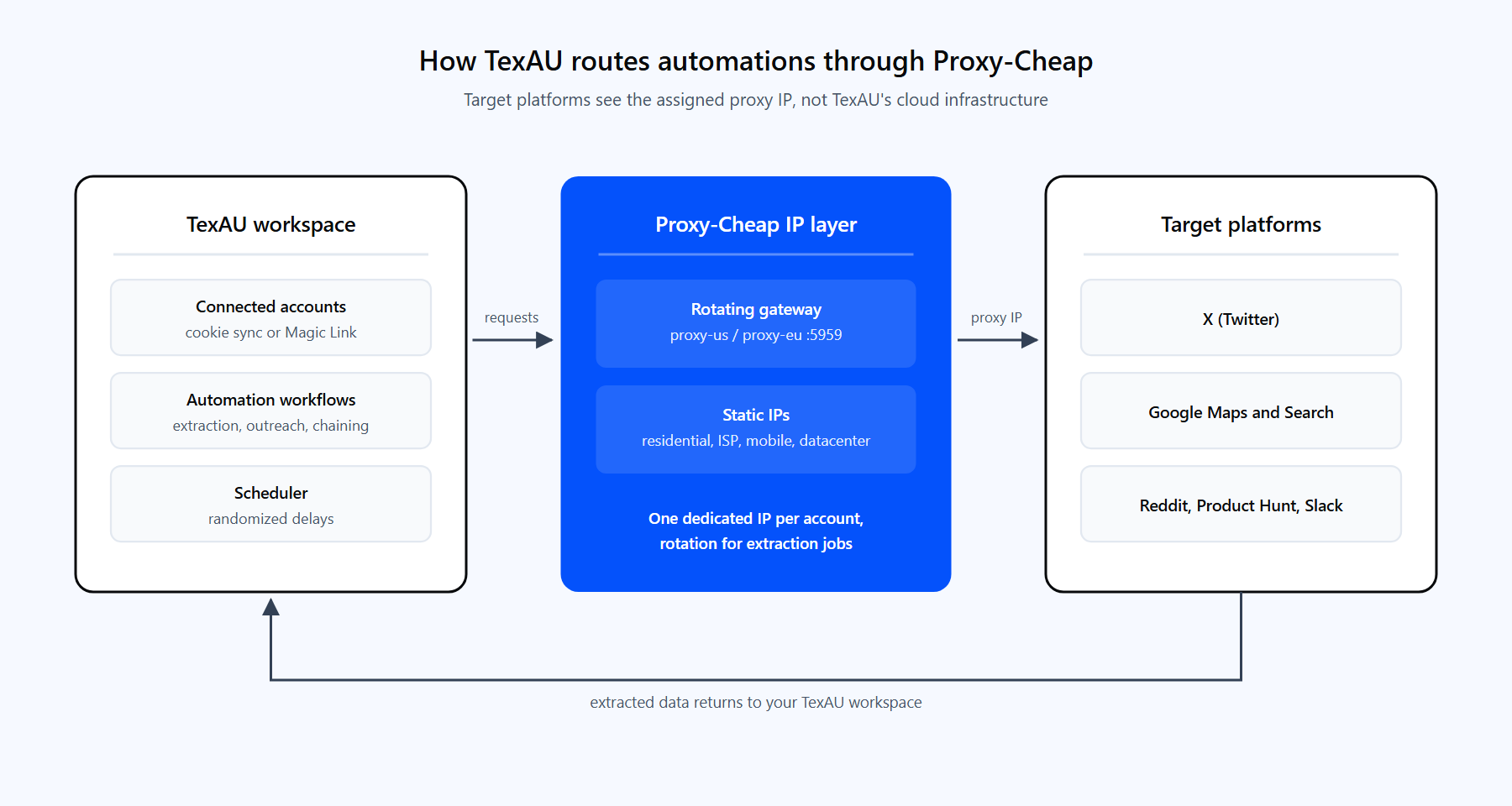
TexAU cloud automations route each request through your assigned Proxy-Cheap IP, so target platforms see the proxy's location, not TexAU's servers.
Step 1: get your Proxy-Cheap credentials.
Order the proxy type you picked above, then open the Setup Credentials panel in the dashboard. The Proxy-Cheap dashboard guide walks through credential generation in detail. The endpoint format depends on the product line:
Optional but recommended: verify the credentials from any terminal before touching TexAU, so a typo never masquerades as a TexAU problem.
# Verify a Proxy-Cheap rotating residential gateway over HTTP.
# Credentials go in the -U flag, not inside the URL.
curl -x http://thehub.proxy-cheap.com:8080 \
  -U "<your-proxycheap-username>:<your-proxycheap-password>" \
  https://httpbin.org/ip

# Static residential, ISP, datacenter, or mobile over SOCKS5.
# Copy <host> and <port> from the dashboard Setup Credentials panel.
curl --max-time 10 \
  -x "socks5://<user>:<pass>@<host>:<port>" \
https://httpbin.org/ipIf the command returns a JSON object with an IP that is not your own, the proxy works.
Step 2: add the proxy in TexAU.
Fill in the fields. TexAU keeps them separate rather than accepting a single pasted string:
Click Test Proxy. TexAU sends a request through the proxy and confirms the connection; a successful test shows a confirmation message. Then click Save, and the proxy appears in your Proxies list.
Step 3: assign the proxy to an account or automation.
Adding a proxy stores it at the workspace level; nothing uses it until you assign it.
Click Save, run the automation, and TexAU routes all its requests through the assigned proxy.
TexAU's own documentation notes that the platform supports rotating proxies for bulk tasks, and the distinction between rotation and a fixed IP is the most consequential choice in this whole setup.
Rotation belongs to extraction. Point a Google Maps or follower-list automation at the rotating residential gateway and the rotation happens server-side: each request exits from a different IP in the pool, so no single address absorbs the whole run. You add one entry in TexAU and the gateway does the rest. If a job needs the same IP across a short sequence of requests, sticky sessions hold one exit IP for around 30 minutes.
Logged-in accounts want the opposite. An account that hops IPs mid-session looks like a hijacked session to the platform's security systems. Assign each connected account a static residential or mobile IP and leave it alone for the life of the account. The static vs rotating proxies comparison breaks down the decision in more depth.
A practical workspace pattern combines both: one static IP saved per connected account, plus one rotating gateway entry saved for extraction automations, all living side by side in the Proxies list and assigned per account or per run.
This is the detail most TexAU guides skip entirely, and it is the one that decides whether a proxied account stays healthy.
When you connect an account, the TexAU extension syncs cookies from a session that was created somewhere specific: your office in Amsterdam, a client's home in Austin. The platform recorded that context at login. If the automations then run through an IP on another continent, the session's history contradicts itself, and contradictions are what security systems act on.
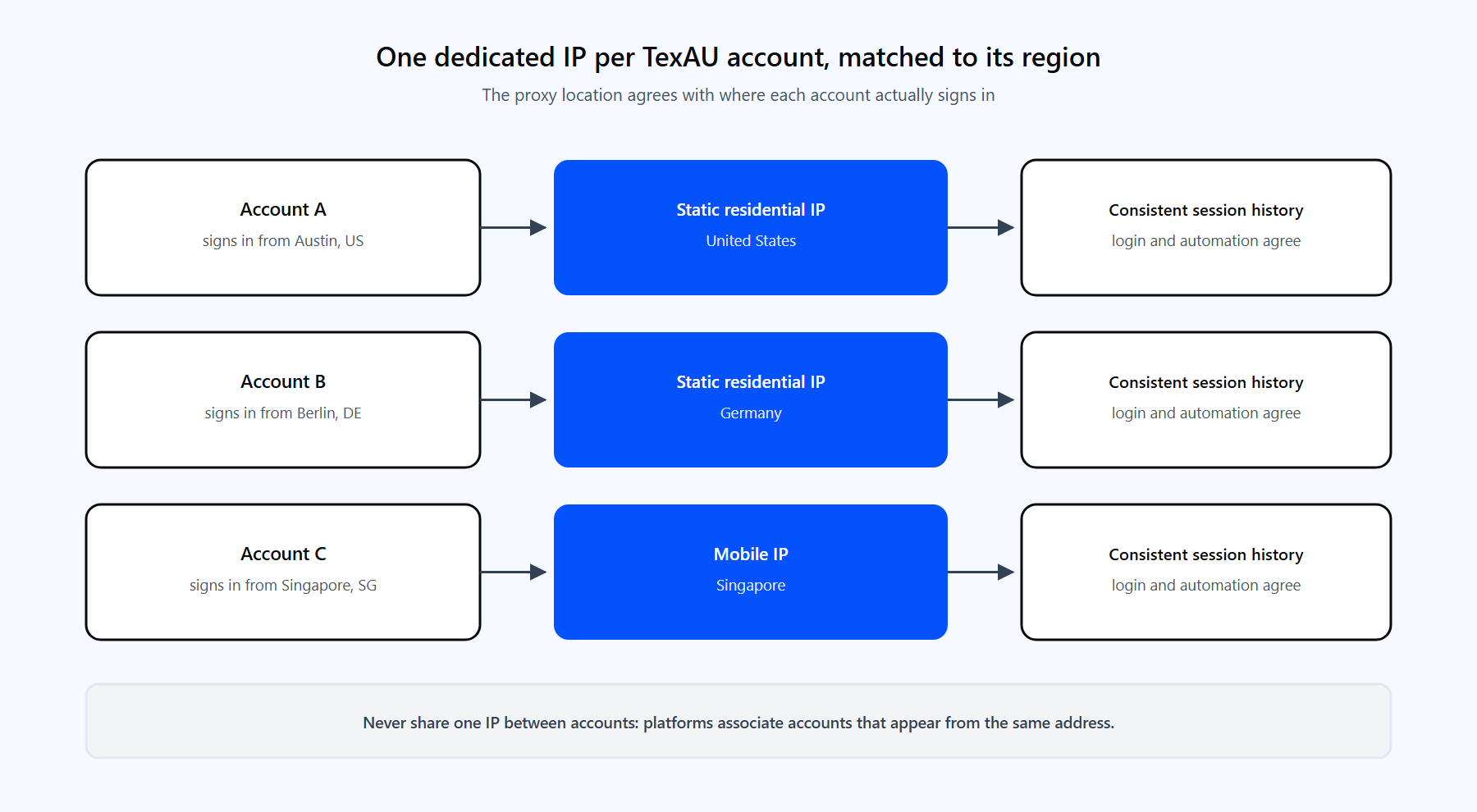
One dedicated IP per connected account, in the region where each account actually signed in, keeps every session's story consistent.
The playbook:
1. Test Proxy fails immediately. Usually a transcription problem: host pasted with a stray space, wrong port, or the Proxy Type set to SOCKS for an HTTP endpoint (or the reverse). Re-copy the host and port from the Proxy-Cheap dashboard and re-check the type. If it still fails, run the curl test from Step 1; if curl succeeds while TexAU fails, recreate the proxy entry from scratch.
2. Authentication errors (407). The proxy is reachable but rejected the credentials. Check for swapped username and password fields and for an expired plan. Keep credentials in the Username and Password fields rather than appended to the host string, since TexAU expects them separately. For TexAU cloud runs, username-and-password authentication is the dependable choice: IP-allowlist authentication would need the allowlist to cover the infrastructure the requests actually leave from, which is TexAU's cloud rather than your own machine.
3. The test passes but the location looks wrong. The Test Proxy check confirms connectivity, not geography. If a run returns results for the wrong market, confirm the proxy's country in your Proxy-Cheap dashboard and, for extraction jobs, order the proxy with explicit country targeting rather than relying on a generic pool.
4. The proxy works but the account still gets warnings. The proxy is not the whole story. Check the three usual causes in order: the IP's region does not match where the account normally signs in, more than one account shares the IP, or daily automation volume is set too high. Fix the mismatch, isolate the account on its own static IP, and cut volumes roughly in half, then scale back up slowly.
5. Slow runs or timeouts mid-automation. Cloud automations queue, and a single proxy carrying several concurrent jobs multiplies latency. Keep one or two concurrent automations per proxy, and for big extraction jobs let the rotating gateway spread the load instead of pushing one static IP.
6. An account keeps disconnecting or asking to re-sync cookies. Frequent forced re-logins usually mean the platform keeps seeing the session from unexpected places. Re-connect the account with the extension from a browser session in the account's home region, assign the matching-region proxy, and the cookie churn typically stops.
For teams that want no-code growth automation with real control over their network identity, TexAU remains one of the most capable options, with the important caveat that the product line is mid-transition in 2026.
Pros
Cons
Weigh it against the workload you actually run. If your pipeline depends on extraction plus a handful of well-tended accounts, TexAU with dedicated IPs per account is a proven pattern. Whichever direction the product family takes after August 2026, the proxy fundamentals in this guide travel with you: the Desktop app runs from whatever network you give it, and every other automation tool worth using accepts the same host, port, username, and password. If you want a steady, ISP-grade IP for each account that outlives any single tool, ISP proxies with flexible per-IP plans you can cancel anytime are the natural place to start.