Key takeaways
Linken Sphere 2 is one of the more capable multi-account browsers on the market, but it only earns that reputation when each session runs on a clean, geo-accurate IP. This guide walks through the whole process: what the browser does, how to install it, how to attach a proxy to a session, how rotation works, and how to script the whole thing through the Local API. Every code sample and endpoint here was checked against the live product.
What is Linken Sphere?
Linken Sphere is an antidetect browser built by Tenebris. The current generation, Linken Sphere 2, runs on a customized Chromium core and is available for Windows and macOS on both Apple Silicon and Intel. There is no Linux build at the time of writing.
The core idea is profile isolation. Linken Sphere calls each profile a session, and every session carries its own cookies, cache, local storage, and browser fingerprint. Two sessions opened side by side look like two separate devices to the sites they visit, which is what lets operators run many accounts from one machine without those accounts sharing a single footprint.
A proxy is the other half of that isolation. A distinct fingerprint paired with the same IP across every session still ties the accounts together at the network layer. Assigning each session its own IP is what makes the separation complete, and it is why proxy configuration sits right inside the session setup screen.
What is Linken Sphere used for?
Linken Sphere is used wherever one person or team needs to operate many accounts in parallel while keeping each account consistent with the market it belongs to. The common applications:
The through line is compliant multi-account work. Each session behaves like a genuine local user because it holds a real, market-appropriate IP and a self-consistent fingerprint.
Key features of Linken Sphere
The features that matter once you move past a single account:
Is Linken Sphere free to use?
Yes, there is a genuine free plan. It gives you one seat, unlimited desktops, and 5 sessions with no time limit, which is enough to learn the workflow and test a proxy end to end.
Paid plans scale by the number of simultaneous sessions:
| Plan | Price (monthly) | Sessions | Notable additions |
|---|---|---|---|
| Free | $0 | 5 | No time limit, 1 seat |
| Pure | $24 | 30 | Cloud sync, warm-up |
| Light | $72 | 150 | Mobile emulator, proxy analytics |
| Pro | $128 | 500 | Local API, team management, session log |
| Premium | $240 | 1,000 | Onboarding manager, unlimited team members |
The free and Pure tiers cover most individual operators. The Local API, which powers scripted automation, unlocks on Pro. Note that Linken Sphere sells the browser, not the proxies. You bring your own IPs, which is where a pay-as-you-go provider keeps the running cost predictable.
How to install Linken Sphere
Installation takes a couple of minutes on either supported platform.
Once the browser opens on your account, you are ready to create your first session.
Quickstart: create your first Linken Sphere profile
Before touching a proxy, confirm the basic session workflow so you know what a clean session looks like.
Visit an IP echo service such as httpbin.org/ip in that session. It reports your real IP, because you have not attached a proxy yet. That is exactly the gap the next two sections close.
Why you need a proxy with Linken Sphere
A unique fingerprint on a shared IP only does half the job. If ten sessions all exit through your home or office IP, the accounts inside them are trivially correlated at the network level, no matter how different their fingerprints look. Routing each session through its own IP on a residential proxy network is what makes the separation real. Three concrete reasons to put a proxy behind every serious session:
The practical takeaway: match the IP type to the account. High-value social and marketplace accounts want residential or mobile IPs, while high-volume public data tasks run fine on datacenter.
How to set up a proxy in Linken Sphere
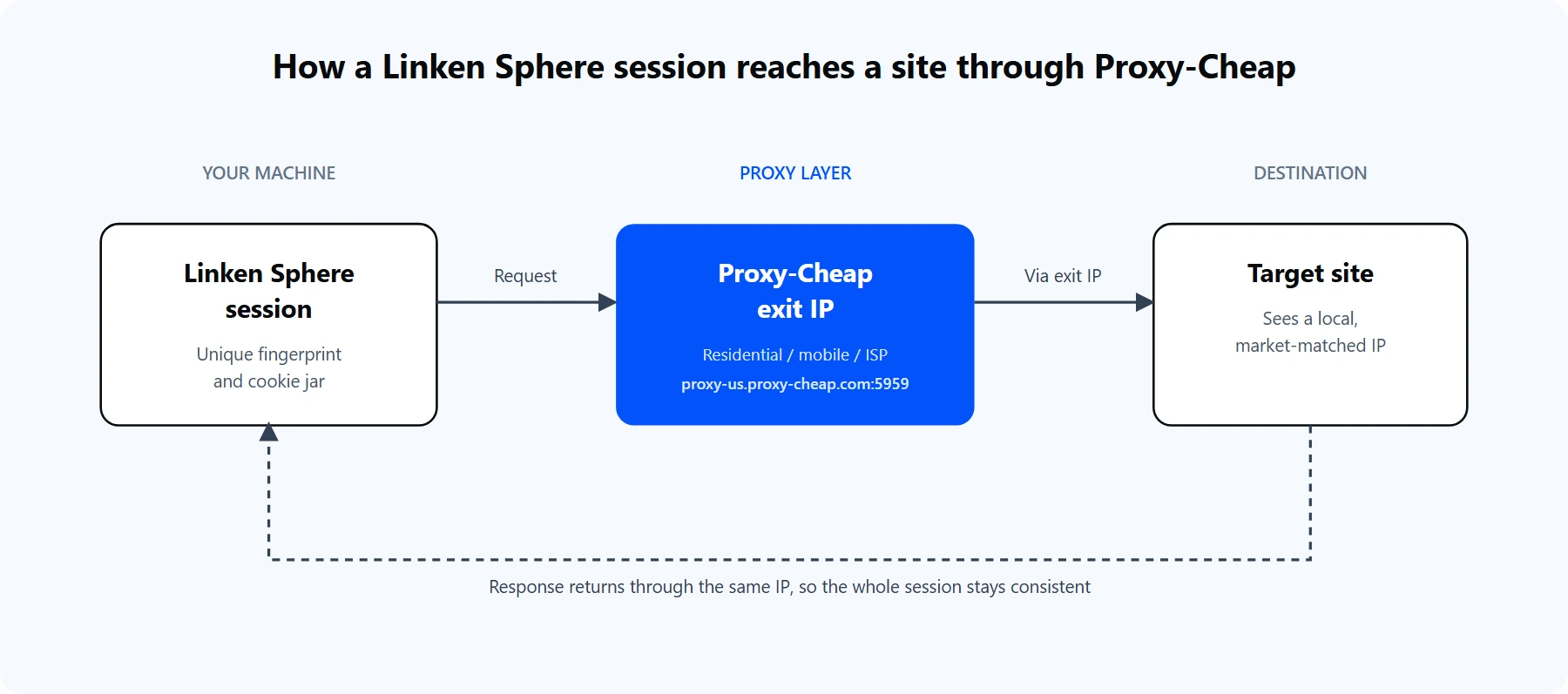
Each Linken Sphere session carries its own fingerprint and exits through a Proxy-Cheap IP, so the target site sees a local user, not your real connection.
Proxy setup happens per session, inside the connection area of the session setup window. Here is the full sequence.
For a Proxy-Cheap rotating residential proxy, the values map like this:
Protocol: HTTP
Host: thehub.proxy-cheap.com
Port: 8080
Username: <your-proxycheap-username>
Password: <your-proxycheap-password>
For static residential, ISP, or datacenter proxies, each IP has its own host and port. Copy the exact values from the dashboard's Setup Credentials panel; the Proxy-Cheap dashboard guide shows where to generate them. If your machine has a stable IP, you can whitelist it in the dashboard on static products and leave the username and password fields empty.
You can confirm the same credentials from a terminal before you paste them into the browser. The command below reaches the live US gateway:
# A 407 response with placeholder credentials confirms the gateway
# is reachable and expects your real username and password.
curl -x http://thehub.proxy-cheap.com:8080 \
-U '<your-proxycheap-username>:<your-proxycheap-password>' \
https://httpbin.org/ip
A real credential pair returns a JSON body with an exit IP from the pool. That IP is what every session bound to this proxy will present.
Rotating proxies with Linken Sphere
There are two ways to rotate IPs, and the right one depends on the Proxy-Cheap product you buy.
For most multi-account work you actually want the opposite of rotation on a given account. A single account should keep a steady IP so its login history stays consistent, which is what static residential and ISP proxies deliver. Rotation is for tasks that touch many pages across many identities, such as research crawls and ad checks. The static vs rotating proxies guide covers where each one fits.
Linken Sphere also exposes a "Live SOCKS5 and HTTP" proxy type for services that rotate on their own schedule. With the Proxy-Cheap rotating gateway you do not need it, because rotation is handled at the gateway and the standard HTTP or SOCKS5 type works cleanly.
Advanced: automate proxied sessions with the Local API
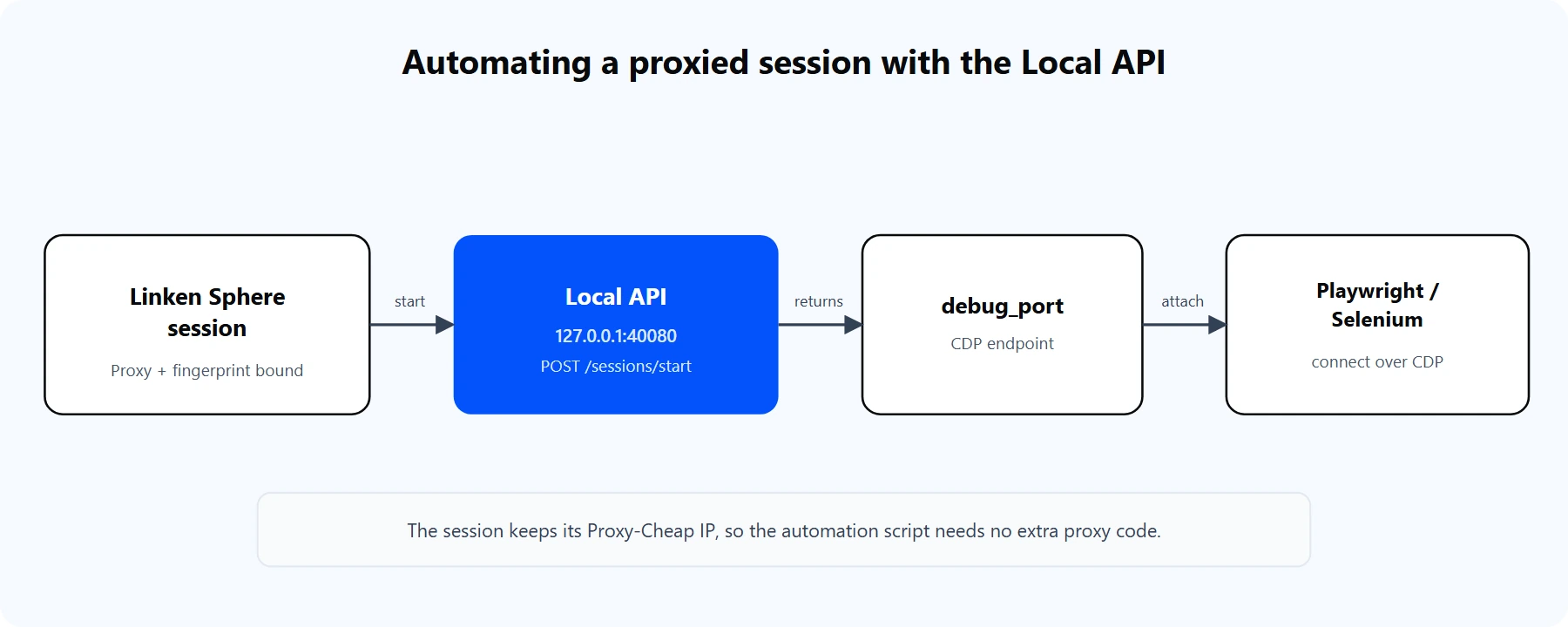
The Local API starts a proxied session and returns a debug port. Playwright, Selenium, or Puppeteer attach to that port over CDP.
On Pro and Premium plans, Linken Sphere runs a Local API you can drive from any HTTP client. Turn it on in the gear menu under Network by setting an Api port (for example 40080). The API only answers requests from the same machine while the browser is running.
The lifecycle is three calls: create a session, start it, and stop it. Starting a session returns a debug_port, which is the Chrome DevTools Protocol endpoint your automation attaches to.
# 1. Start an existing session by its uuid. The response includes a debug_port.
curl -X POST http://127.0.0.1:40080/sessions/start \
-H "Content-Type: application/json" \
-d '{"uuid": "<session-uuid>", "headless": false}'
Once a session is running, connect Playwright over CDP. Because the proxy is bound to the session inside Linken Sphere, the automation inherits it with no extra proxy code:
import asyncio
from playwright.async_api import async_playwright
async def main():
debug_port = 12345 # value returned by /sessions/start
async with async_playwright() as p:
# Attach to the running Linken Sphere session over CDP.
browser = await p.chromium.connect_over_cdp(f"http://127.0.0.1:{debug_port}")
context = browser.contexts[0]
page = context.pages[0] if context.pages else await context.new_page()
# The session already exits through its Proxy-Cheap IP.
await page.goto("https://httpbin.org/ip")
print(await page.inner_text("body"))
await browser.close()
if __name__ == "__main__":
asyncio.run(main())
Selenium attaches the same way through the debuggerAddress option (127.0.0.1:<debug_port>), and Puppeteer uses browserURL. The pattern is identical: Linken Sphere owns the proxy and the fingerprint, and your script only drives the page.
Common errors and how to fix them
Most proxy problems in Linken Sphere fall into a handful of buckets.
1. The proxy check turns red. The most frequent cause is a protocol mismatch. A SOCKS5 proxy set to HTTP, or the reverse, fails the check. Confirm the type with your provider, then re-run Check proxy & geo.
2. SOCKS4 selected for a SOCKS5 proxy. SOCKS4 and SOCKS5 are not interchangeable, and SOCKS4 has no username and password support. Proxy-Cheap proxies use SOCKS5, so select SOCKS5, not SOCKS4.
3. Wrong port or credentials. Copy the host, port, username, and password straight from the dashboard. A single trailing space breaks authentication. The terminal curl test in the setup section confirms a credential pair works before you paste it into the browser.
4. The session timezone does not match the IP. After the geo check, let the session adopt the timezone the proxy reports. A US IP paired with a European clock is an obvious inconsistency, so keep the two aligned.
5. Real IP appears through WebRTC. If WebRTC is left on "Direct" or "N/A", the browser can expose your true IP. Set WebRTC to Fake in the session so it follows the proxy.
6. DNS leak. Set DNS to a public resolver such as 1.1.1.1 or 8.8.8.8, or use SOCKS5, which routes DNS through the proxy. Then confirm with a DNS leak test inside the session.
7. The proxy works elsewhere but not in Linken Sphere. A local firewall may allow only ports 80 and 443. Confirm the proxy port is open outbound, and test the same credentials with the curl command above to isolate the browser from the network.
Is Linken Sphere good? Pros and cons
For serious multi-account work, Linken Sphere 2 is a strong, mature option. The fingerprinting is granular, the session model is clean, and the Local API makes automation straightforward. A few honest trade-offs are worth weighing.
Pros
Cons
The middle ground for most operators: start on the free or Pure plan, pair it with a pay-as-you-go proxy pool, and scale sessions and IPs together as the account count grows.
Choosing the right Proxy-Cheap proxy for Linken Sphere
The best proxy for a session depends on the account it holds and the work it does. This matrix maps common Linken Sphere workloads to the Proxy-Cheap product that fits.
| Workload | Rotating Residential | Static Residential / ISP | Mobile | Datacenter |
|---|---|---|---|---|
| High-value social accounts | Workable | Best fit | Best fit | Not ideal |
| E-commerce and marketplace | Workable | Best fit | Workable | Not ideal |
| Affiliate and ad verification | Best fit | Workable | Workable | Workable |
| Market research crawls | Best fit | Workable | Not needed | Best fit |
| High-volume public data tasks | Workable | Not needed | Not needed | Best fit |
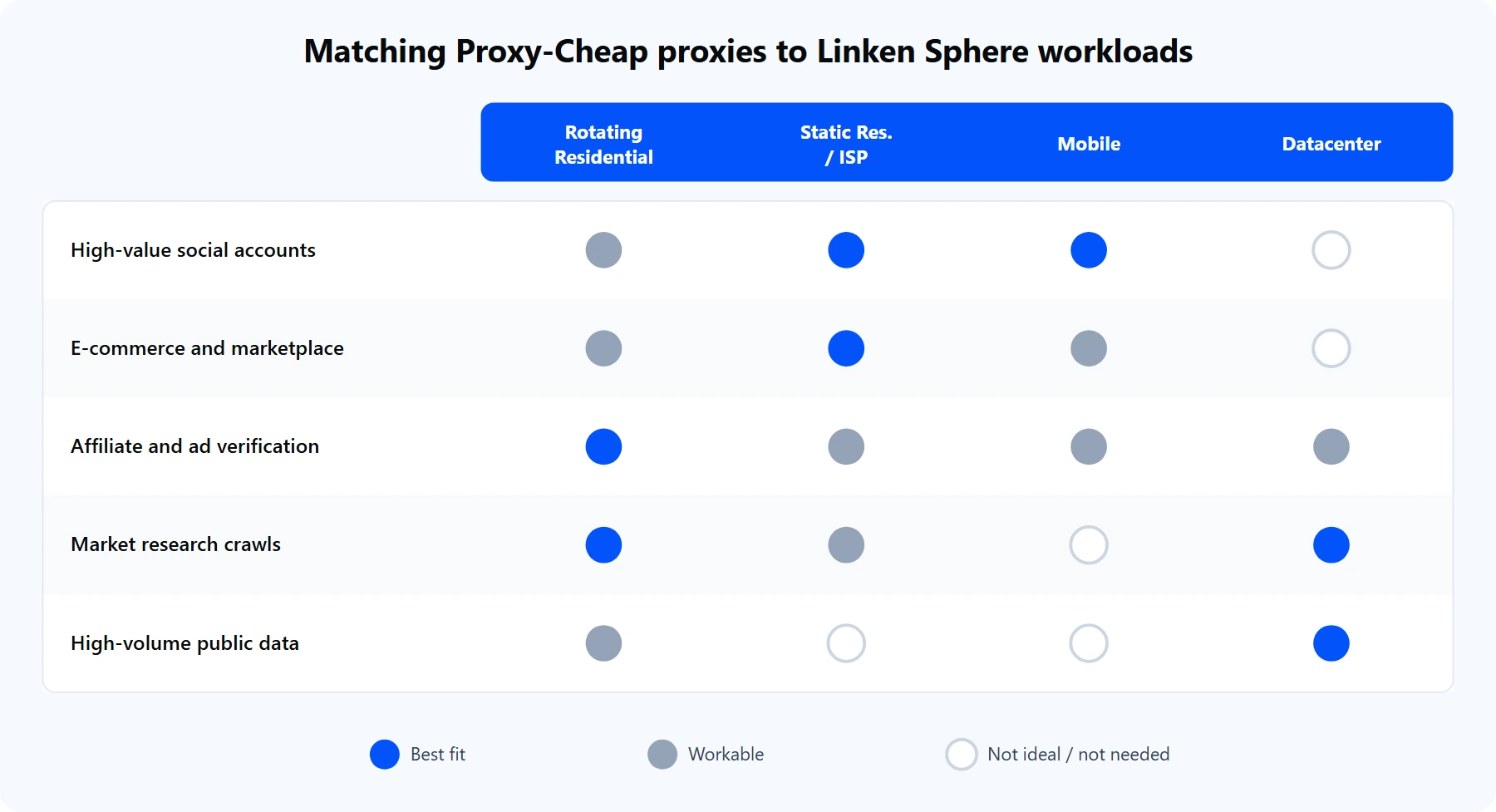
Match the proxy type to the account. Persistent identities want static IPs; broad research tasks want rotation and throughput.
Three picks cover almost every case. For an account that must keep one steady identity, static residential (ISP) proxies hold the same IP for the life of the session. For the highest-trust consumer profile, mobile proxies route through real carrier networks. For high-volume research and public data tasks where throughput matters more than a consumer footprint, datacenter proxies deliver speed at predictable per-IP pricing. All of them plug into the same Linken Sphere connection fields you configured above, with pay-as-you-go pricing and no monthly commitment.