

Although Windows 11 proxy settings may not be the most exciting thing on your mind, they can be quite helpful if you've ever had to deal with slow connections, banned content, or network restrictions when working from home.
When you know where to look, changing proxy settings in Windows 11 is easier than you would think, whether you're seeking to route your traffic more securely or troubleshoot access issues.
To make it easier for you, we'll explain the how-to in this guide without using any technical jargon. Let's get started!
A proxy is like an intermediary between your device and the internet. Your computer connects to websites or online services via a proxy server before doing so directly. Think of it as sending your online requests through a helpful gatekeeper who can add some extra benefits along the way.
People use a proxy for several common reasons. One big reason is privacy. Your true location and identity can remain hidden when you use a proxy server because the internet only sees the proxy's address and not yours. This is useful if you wish to prevent websites from tracking you or keep your browsing more private.
Speed is an additional justification for using a proxy. Proxy servers can occasionally save copies of well-known websites so that pages load more quickly the next time you visit them. It's similar to having a shortcut to your preferred online locations.
You can also modify your location online via proxies. For instance, connecting through a proxy server in a distant location can allow you access websites that may be prohibited at work or school. Changing your proxy IP address to an authorized one will accomplish this.
Another reason for configuring proxy server settings is security. By blocking direct internet access to your device or screening out malicious content, proxies can provide an extra degree of security.
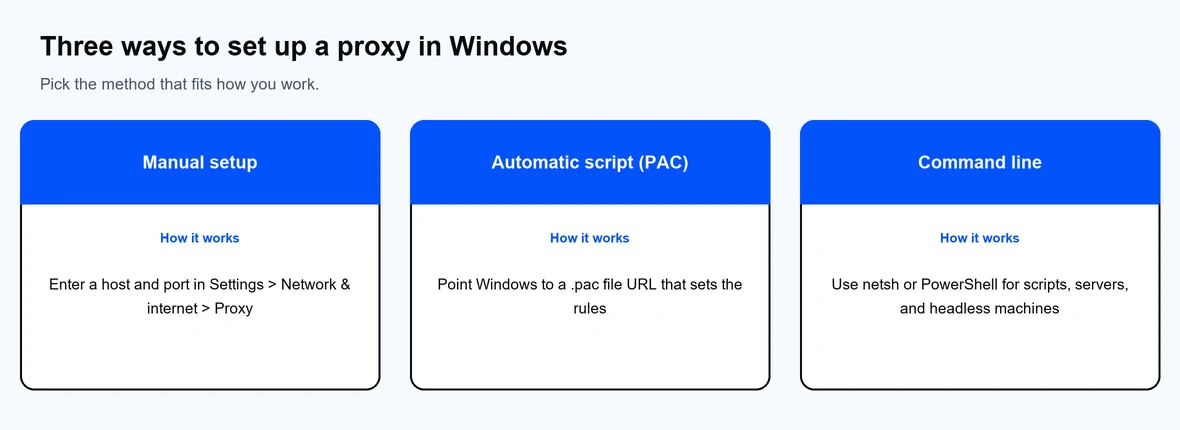
Depending on your needs, Windows 11 give you the choice to set up your proxy manually or automatically. Whether you want the computer to choose the best proxy for you or you want to set it up yourself by inputting a specific proxy IP address, you can easily configure proxy server settings through the system settings.
Additionally, you can easily disable proxy settings to resume connecting directly if you decide to stop utilizing a proxy.
In conclusion, proxies aid in privacy, speed, location flexibility, and security - all of which contribute to a more seamless and secure online experience, particularly when attempting to access prohibited websites or in settings like work or school.
It's useful to be aware that not all proxies are made equal when choosing to employ one. Knowing the fundamentals can help you choose the best proxy for your needs, as different types have distinct functions. You'll most likely come across HTTP, HTTPS, SOCKS5, and transparent proxies.
Web traffic using the standard HTTP protocol is handled via HTTP proxies. By caching web pages and filtering information, these proxies can help speed up browsing. They do not, however, function on secure HTTPS websites; they are limited to HTTP websites.
By encrypting your online traffic, HTTPS proxies - also known as SSL proxies - provide an extra degree of protection. This is crucial if you wish to protect the privacy and security of your data when using protected websites, such as email or online banking.
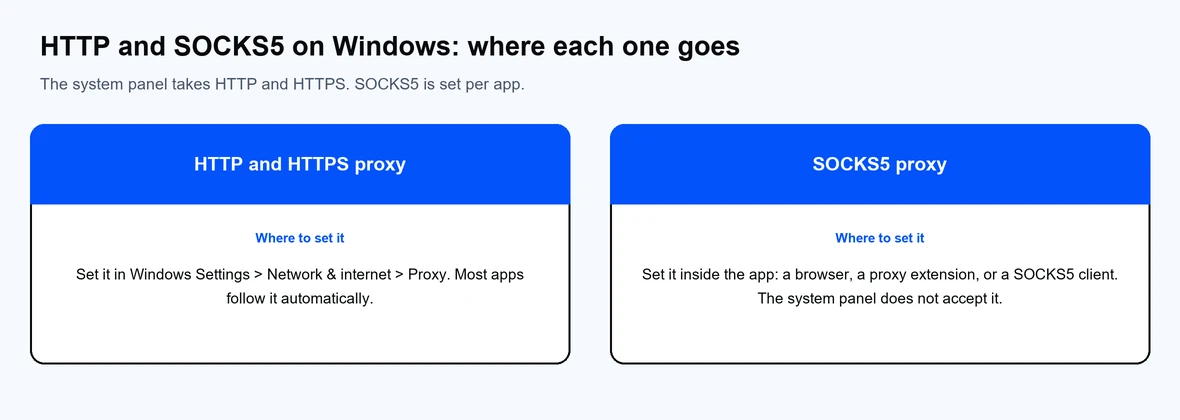
More adaptable are SOCKS5 proxies. Not only can they manage web sites, but they can also manage torrents, emails, and even gaming. SOCKS5 proxies also offer better performance and security but usually require a bit more setup.
Transparent proxies are a little different. They are frequently used by businesses or institutions to monitor or limit internet use, and they don't conceal your IP address. If you want anonymity, they aren't the best option because they don't provide privacy.
Setting up these proxies on Windows 11 can be accomplished either directly through LAN settings or by accessing your internet settings via the control panel. If your network administrator provides one, Windows can utilize a proxy setup script (sometimes called a setup script) or automatically identify settings. As an alternative, you can manually modify proxy settings according to your preferences by entering the proxy server name or proxy IP address.
Residential proxies, static residential proxies, and rotating residential proxies are solutions for consumers seeking dependable proxy services; each is appropriate for a certain surfing purpose.
| Proxy Types | What It Does | Pros | Cons | Best For |
|---|---|---|---|---|
| HTTP Proxy | Handles regular web traffic (HTTP) | Speeds up Browse, filters content | Doesn't work with secure HTTPS sites | Casual Browse, content filtering |
| HTTPS Proxy | Handles secure web traffic (HTTPS) | Encrypts data, keeps Browse private | Slightly slower due to encryption | Banking, email, secure Browse |
| SOCKS5 Proxy | Handles all traffic types | Supports many protocols, faster, secure | Requires manual setup, more complex | Streaming, gaming, torrents |
| Transparent Proxy | Monitors/restricts traffic without hiding IP | Easy for admins to manage | No privacy, not suitable for anonymity | Schools, workplaces for control |
Choosing the right proxy depends on what you want to achieve. If privacy and security top your list, an HTTPS or SOCKS5 proxy is the way to go. If you need simple web filtering or faster access to websites, HTTP proxies can work fine. And for environments where control and monitoring are needed, transparent proxies are often used.
Once you pick a proxy type, you can either let Windows handle the automatic proxy setup through setup scripts or dive into manual proxy setup by entering the proxy server name and details yourself.
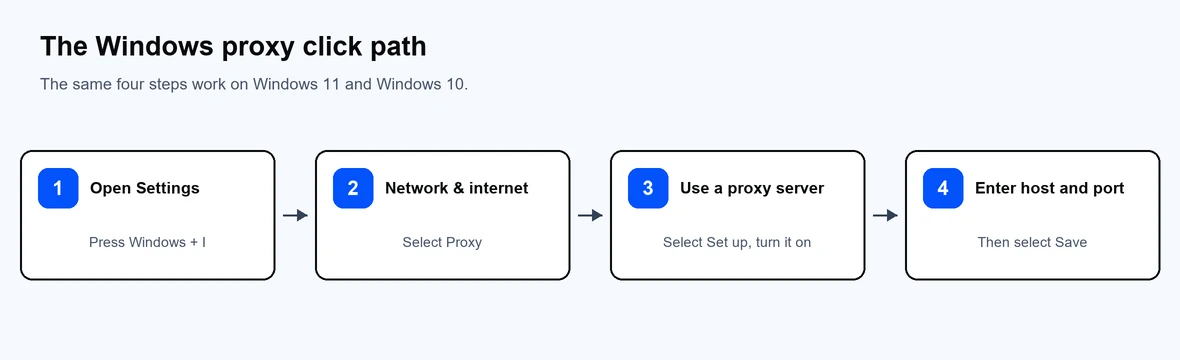
Setting up a proxy manually in Windows 11 is a simple procedure if you need to connect to a specific proxy server or want more control over your network settings.
Here's how to use the built-in Settings menu to set things step-by-step.
For things like getting around limits, protecting your traffic, or personalizing your surfing experience, setting up a manual proxy can be helpful. You may also find this summary on configuring Windows proxy settings helpful for a more thorough knowledge of when and why to use these settings.
Companies and networks occasionally use a PAC file (Proxy Auto-Config file) to automatically choose which proxy to use for certain web requests rather than requiring users to manually provide a proxy server address and port. In larger enterprises or educational institutions where proxy settings must be centrally maintained across numerous devices, this is quite helpful.
A PAC file is a small JavaScript file that tells your browser or system how to choose the correct proxy server for a given URL. Think of it as a set of smart rules that say, “use this proxy for website A, but bypass it for website B.”
For example:

This script bypasses the proxy for example.com but sends everything else through a proxy at IP 192.168.1.100.
You can use Windows 11 to automatically manage proxy connections if your employer provides you with a PAC file URL, which is often something like http://proxy.example.com/proxy.pac.
For example, schools may use a PAC file to restrict social media access but allow educational resources. Companies often rely on this method to automatically configure proxies across their offices without confusing employees.
If you're unsure whether to use a PAC file or a manual setup, or if you’re just looking for more context, this detailed article on configuring proxy settings in Windows breaks down both methods with examples.
Despite Windows 11's built-in proxy configuration capabilities, many users - especially beginners - prefer to utilize third-party software or VPN applications for easier proxy management. These applications frequently have quick-switch options, user-friendly dashboards, and support for various proxy kinds without requiring the user to delve into system settings.
For example, services like Proxy-Cheap’s rotating residential proxies are designed to work seamlessly with various proxy software, offering users a plug-and-play solution without the technical complexity of configuring Windows settings manually.
Most proxy software or VPNs come with clear installation instructions and intuitive interfaces. Once installed, you usually just:
This approach is perfect if you want a stress-free experience, or if you're unsure how to change proxy settings, navigate LAN settings, or input a proxy setup script in Windows.
Setting up a proxy in Windows 11 is usually straightforward - but like any tech task, things can go sideways. Here are some of the most common issues users run into when trying to use a proxy server, and how to quickly fix them.
What’s happening:
You’ve entered proxy details, but now nothing loads—your browser says “no internet.”
Fix:
What’s happening:
You expected your IP to change (e.g., appear from another location), but websites still show your original IP.
Fix:
What’s happening:
Windows shows an error saying it can’t reach the proxy server.
Fix:
What’s happening:
Websites are loading very slowly or not loading completely.
Fix:
What’s happening:
You enable the proxy, but it keeps switching back to “off.”
Fix:
If you're comfortable with advanced system configurations, Windows 11 offers additional ways to manage and configure proxy server settings outside the usual Settings menu.
Note: These methods are recommended only if you know what you're doing. Mistakes can cause network issues or system errors.
Advanced users can use netsh or PowerShell commands to quickly change or reset proxy configurations. For example:

You can also clear proxy settings via:

This is useful for scripting changes or applying the same proxy setup across multiple systems.
For even more control, proxy settings can be modified directly via the Windows Registry.
Registry path:

You can tweak values like ProxyEnable, ProxyServer, and AutoConfigURL. Just make sure to backup the registry before making any edits.
In work environments, IT admins often configure proxy server settings using Group Policy. This helps enforce network rules, disable proxy settings for end-users, or apply a universal proxy setup script across the organization.
Setting up a proxy server on Windows 11 can improve your privacy, unlock geo-restricted content, and help you browse more securely. But here’s the catch: not all proxies are created equal.
Free or unknown proxy services might sound tempting, but they come with real risks:
If you’re using a proxy for work, gaming, research, or privacy, it’s worth going with a provider that’s both secure and consistent.
Proxy-Cheap offers a great balance of affordability and quality. Whether you need residential proxies, static proxies, or rotating proxies, or IPv6 proxies, they provide safe options backed by solid infrastructure and uptime.
When you’re setting up a proxy - especially if you're digging into manual proxy setup, PAC files, or proxy setup scripts - a reliable provider ensures your efforts actually pay off.
In short, if you’re going to go through the steps to configure proxy server settings properly, it only makes sense to connect to a service that won’t slow you down or put you at risk.
Setting up Windows 11 proxy settings might sound technical at first, but as you’ve seen, it’s more accessible than most people think. Whether you're manually entering a proxy IP address, using a setup script, or tweaking your LAN settings, the steps are straightforward - and the benefits can be big.
From improved privacy and faster browsing speeds to accessing content blocked in your region, a properly configured proxy server gives you more control over how and where you connect online. Plus, for schools, workplaces, and even gamers, the right proxy setup can make all the difference in performance and security.
The key is choosing the setup that works best for your needs - manual proxy setup, automatic configuration with a PAC file, or trusted third-party software - and using a reliable provider that won’t compromise your connection.
Now that you know the what, why, and how, give it a try. Configuring proxy settings on Windows 11 isn’t just for IT pros anymore - it’s a smart move for anyone who wants a better online experience.