Proxies are useful tools that allow users to reroute their traffic through a proxy server, effectively changing their IP address and appearing to connect from a different location. That said, these tools are notoriously technical to configure and adapt. Due to this, proxy tools are just as popular as proxies themselves.
Proxy tools are simply the process of configuring and switching between proxies when browsing. There are many such management tools on the market, and FoxyProxy is one of them. Read on to learn all about FoxyProxy and how to use them with ProxyCheap proxies, including cheap residential proxies and other affordable proxies.
What is FoxyProxy?
FoxyProxy is a browser extension that simplifies the use of proxy servers. It is a proxy management extension that makes it easy for users to manage and switch between different proxies. The extension is available on Google Chrome and Mozilla Firefox, two of the most popular browsers in the world. On both browsers, FoxyProxy enhances user experience by reducing the technical know-how required for people to configure proxies and enjoy the benefits of proxy use. Furthermore, there are two versions of the extension available: the FoxyProxy Basic and FoxyProxy Standard. The former is a simpler version of the latter for less technical users. Here are some of the key features of FoxyProxy:
- Easy switching of proxies. Provided you have correctly input and saved the proxy on the manager, you can switch proxies at any time using the FoxyProxy icon in the browser's toolbar.
- URL patterning. This feature allows users to set specific rules guiding the use of certain proxies for specific websites or domain types. As a result, they can automate the process of switching proxies while browsing, based on the website they are trying to access. In addition to domain names, URL patterning can also discriminate between web activity by paths or protocols. In order to use this feature optimally, users need to define the patterns to look out for in the URL and assign the specific proxy server they want to handle the rerouting of requests to websites matching the preset patterns. As a result, users have more granular control over proxy server use.
- Support for multiple proxy types. It supports proxies employing different proxy protocols, including HTTP proxies, HTTPS, and SOCKS5 proxies. Similarly, it manages proxies of all types from any proxy service, making it a very versatile proxy management tool.
These features of FoxyProxy make the proxy manager extension useful for proxy use cases that prioritize rapid and efficient changing of proxies. Such use cases may include web scraping, managing multiple accounts and profiles, and using SEO tools.
First, you will need to download and install FoxyProxy extension:
How to Set up FoxyProxy on Google Chrome
It is fairly easy to set up FoxyProxy on Google Chrome. Here's a breakdown of the procedure to follow.
- First, open the browser and go to the Chrome web store
- In the Chrome web store, search for the FoxyProxy extension
- Select the FoxyProxy standard for the full range of proxy control
- Click on "Add to Chrome"
- Confirm the addition of the extension to complete the installation on the browser
- After installing the FoxyProxy extension, a FoxyProxy icon should appear in the toolbar of the browser in the top-right-hand corner. If it doesn't, open your extensions and pin the FoxyProxy extension to the toolbar
- Alternatively, you can go to getfoxyproxy.org to download the proxy
- Click on the FoxyProxy icon to open the extension
- In the FoxyProxy menu, you need to add your proxies. To do so, open "Options", and "Proxies", then click "Add". Afterward, fill in all the required fields and details to configure the proxy. The fields should include title, proxy types, IP address or hostname, port number, and authentication details if necessary.
- Save the proxy. Repeat the process of configuring and saving the proxy for as many proxies as you have.
- Go back to the main menu. Here, you should see all the added proxies. Click on the proxy name of the one you wish to use to enable it.
- If you want to set up the URL pattern matching, go back to the FoxyProxy options. This time, click on "Add a new pattern". Then identify the URL pattern. Next, you select the proxy you would like to facilitate connections to URLs meeting this pattern. Finally, save the pattern and proxy selection.
- Test the proxy by visiting https://whatismyipaddress.com/. You should confirm that the IP address matches that of the proxy. Alternatively, you can check the proxy by trying to visit a website or access resources that would otherwise be unavailable.
- In the event that there are problems with the proxy's operation, verify that all the details of your proxies (or the malfunctioning proxy) are accurate.
How to Set up FoxyProxy on Mozilla Firefox
It is fairly easy to set up FoxyProxy on Mozilla Firefox. Here's a breakdown of the procedure to follow.
- First, open the browser, click on three lines in the top right corner denoting the application menu, and select addons and themes. It should lead to a page with a search bar on top, use the search bar to search for FoxyProxy. It should redirect you to the search results on addons.mozilla.org
- Alternatively, you can visit addons.mozilla.org and search for the proxy directly
- Select the FoxyProxy standard for the full range of proxy control
- Click on "Add to Firefox"
- Confirm the addition of the extension to complete the installation on the browser
- After installing the FoxyProxy extension, a FoxyProxy icon should appear in the toolbar of the browser in the top-right corner. If it doesn't, open your extensions and pin the FoxyProxy extension to the toolbar
- Click on the FoxyProxy icon to open the extension
- In the FoxyProxy menu, you need to add your proxies. To do so, open "Options", and open the "proxies" menu. Click "add". Afterward, fill in all the required fields and details to configure the proxy. The fields should include title, proxy types, IP address or hostname, port number, and authentication details if necessary.
- Save the proxy. Repeat the process of configuring and saving the proxy for as many proxies as you have.
- Go back to the main menu. Here, you should see all the added proxies. Click on the proxy name of the one you wish to use to enable it.
- If you want to set up the URL pattern matching, go back to the FoxyProxy options and open proxies again. At the bottom corner of the proxy configuration page, you will see patterns, with a sign to add patterns in front of it. Click on the sign and identify the URL pattern in the fields that would open below. Finally, save the pattern and proxy selection. If you don't want the specificity of using a pattern, you can exclude certain hosts from connecting through particular proxies from the options menu.
- Test the proxy by visiting https://whatismyipaddress.com/. You should confirm that the IP address matches that of the proxy. Alternatively, you can check the proxy by trying to visit a website or access resources that would otherwise be unavailable.
- In the event that there are problems with the proxy's operation, verify that all the details of your proxies (or the malfunctioning proxy) are accurate.
Best Proxy for FoxyProxy
There are many proxy providers on the market. However, none matches Proxy Cheap premium proxies for value. We offer best-in-class proxies at affordable rates and with pricing flexibility for prospective customers wanting more. The proxies we currently offer are:
- Proxy Cheap Static Residential Proxies, which offer high-privacy connections to users.
- Proxy Cheap Rotating Residential Proxies, which offer automatic IP rotation and are perfect for web scraping because of the added privacy of residential proxies.
- Proxy Cheap Datacenter IPv4 Proxies, which offer unrivaled performance using addresses from the Internet Protocol version 4 communication protocol.
- Proxy Cheap Datacenter IPv6 Proxies, which utilizes addresses obtained from the Internet Protocol version 6.
- Proxy Cheap Mobile Proxies, which offer similar privacy to residential proxies using IP addresses associated with mobile device use in the location of your choice.
When using any of the above Proxy Cheap proxies, users can rest assured that they will enjoy:
- Responsive Customer Support. We offer experience-specific onboarding to help prospective buyers facilitate purchases and 24/7 support to help users get the best out of our proxies.
- Cost-Effective Proxy Solutions. Proxy Cheap offers quality IP addresses, free from damaging histories, and constantly updated to ensure activity and expanding coverage. Best of all, though, is the affordability of these proxies and the possibility of bulk purchase deals to sweeten things for users. Put simply, with Proxy Cheap, you get market-leading proxies at a reasonable price for the present and long term.
- Broad Geographical Coverage. Proxy Cheap proxies provide access to 10M+ IP addresses in over 125 locations. We allow our customers to connect to websites and platforms from almost any country, making them ideal for market research and accessing region-specific content.
- User-Friendly Interface. Our friendly interface allows users to purchase, customize, and manage their proxies easily. This interface includes a proxy dashboard through which users can top up their accounts and view their purchased proxies, among other things. It also provides real-time stats on bandwidth usage and success rates.
How to Setup Proxy on FoxyProxy browser extension
1. Click on Options
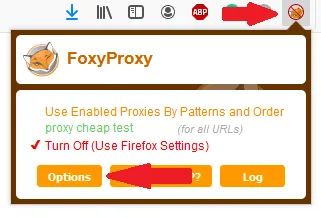
FoxyProxy settings on Firefox
2. Select Add
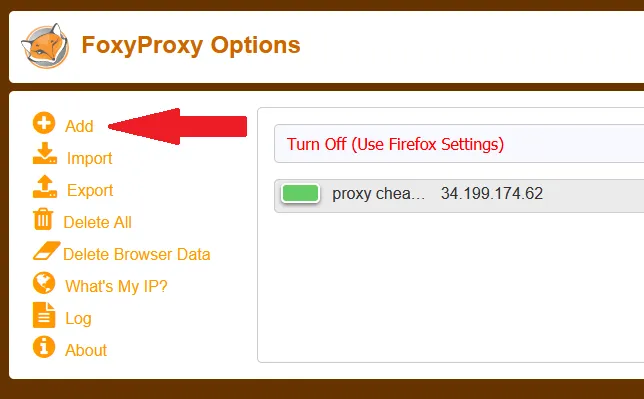
FoxyProxy add new proxy on Firefox
3. Select Proxy Type HTTP or SSL (HTTPS): enter IP, Port, Username, and Password and click Save
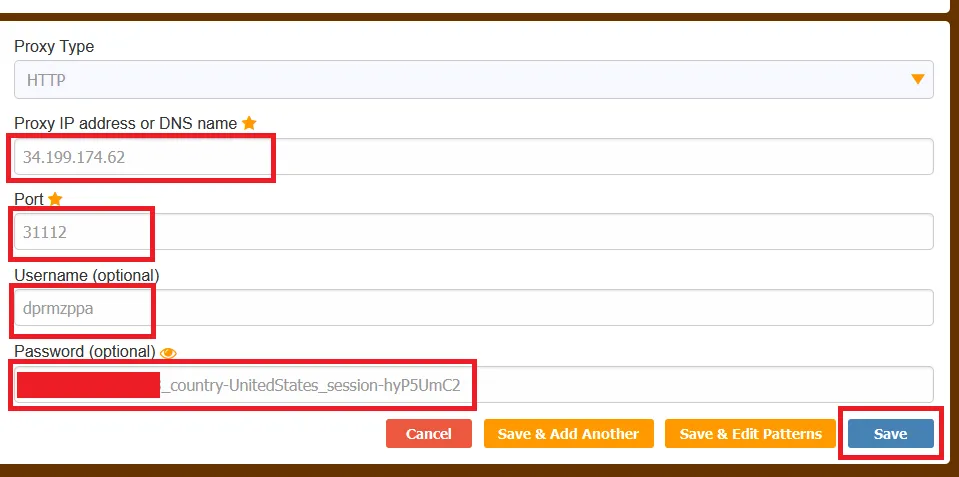
FoxyProxy proxy settings on Firefox
4. Go to Proxy mode and select Proxy-Cheap proxy from the drop-down menu
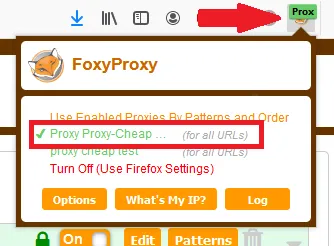
FoxyProxy select use proxy on Firefox
5. Check the IP – https://whatismyipaddress.com/