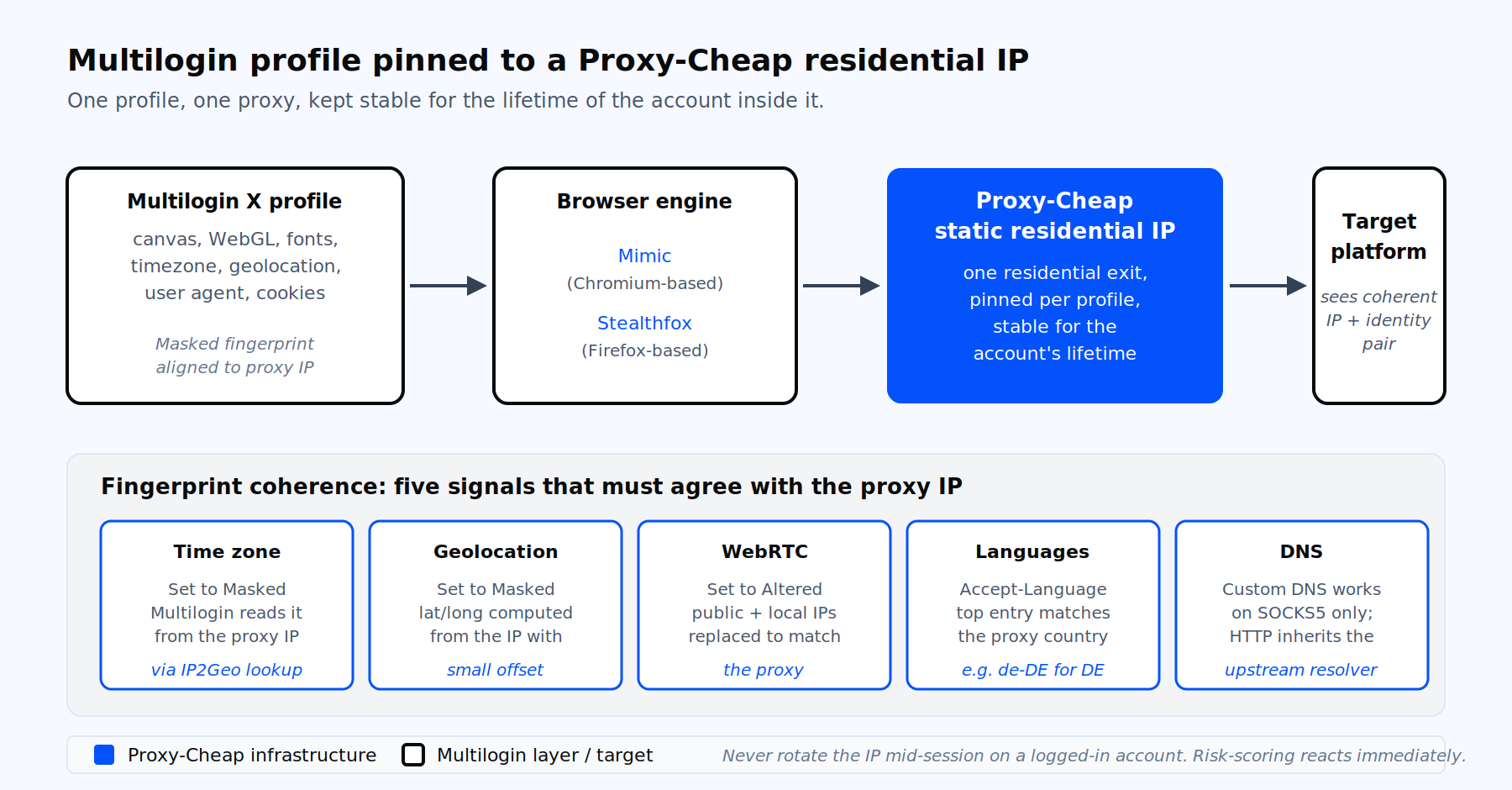
One profile, one proxy, pinned to one residential IP for the lifetime of the account inside it.
Multilogin is an antidetect browser that runs many isolated browser profiles in parallel. Each profile carries its own canvas, WebGL, font set, screen resolution, hardware concurrency, time zone, geolocation, user agent, and cookie store. Teams use it for multi-account management workflows on advertising platforms, marketplaces, social channels, and QA environments.
A unique fingerprint is only half the job. If many profiles share one outgoing IP, those accounts share a single network footprint, which undermines the separation the setup is meant to create. The IP and the fingerprint have to agree on geography, time zone, and language. That is why a proxy is mandatory inside Multilogin, not optional. The proxy supplies the network identity. The browser profile supplies the device identity. The network identity and the device identity should share a consistent geography, time zone, and language.
The strongest fit is one profile, one proxy, kept stable for the lifetime of the account inside it. We will return to this rule throughout the article.
Multilogin ships two product generations. Multilogin X is the current generation as of 2026. It runs on cloud profile storage, exposes a REST API, and includes the built-in proxy service known as Multilogin proxy. Multilogin 6 is the legacy desktop application, still maintained for users who have not migrated. It supports HTTP, HTTPS, SOCKS4, SOCKS5, and a separate proxy-over-SSH plugin.
The proxy assignment flow is nearly identical in both. The field labels match, the auto-detect behavior matches, and the test button works the same way. The differences below only matter where called out.
Multilogin X bundles a residential and mobile proxy pool with every paid plan. Coverage runs across 150 plus countries and 1,400 plus cities. Pricing is gigabyte-based: each plan includes bonus traffic, top-ups cost €3 per gigabyte, and unused traffic does not expire.
Bringing your own proxies is the right call when you need any of the following.
You need static IPs for accounts that must stay on one address for the long term, such as advertising accounts or marketplace seller logins. The built-in pool is rotating residential and mobile only.
You run heavy bandwidth and the gigabyte rate does not work for your math. A flat-rate IP plan finishes cheaper at scale.
You want pay-as-you-go billing decoupled from your Multilogin seat plan, plus the option to settle in crypto.
You need a wider product matrix: ISP IPs for residential trust with datacenter speed, dedicated datacenter IPs for QA and scraping, or carrier-grade mobile IPs for the hardest targets.
In every one of those cases the upstream proxy is your own. Multilogin handles the browser and fingerprint layer. The provider handles network identity. To compare proxy categories before settling on one, see the residential proxy product page.
The flow below assumes you have a Multilogin X account and a proxy endpoint from your Proxy-Cheap dashboard.
That is the full setup. Most failures happen at step 8 or 9. We handle both in the troubleshooting section.
For teams still on the legacy desktop app, the proxy flow lives under New browser profile then the Proxy tab. The same paste string IP:port:username:password auto-populates the four fields. Connection types are HTTP, HTTPS, SOCKS4, SOCKS5, and Proxy over SSH via the POSSH plugin. Click Check proxy to confirm the handshake. After the check passes, switch to the Advanced tab and confirm the timezone, WebRTC, and geolocation values reflect the proxy IP. Save, then launch.
Long term, plan a migration to Multilogin X. The latest desktop installer of Multilogin 6 includes a Migrate button that ports your profiles over.
A clean IP paired with a contradictory browser fingerprint is the most common reason a profile's location and device signals look inconsistent. Multilogin handles most of this for you when fingerprint masking stays on its defaults, but you still own the review.
The five signals that must agree with the proxy IP:
After launching the profile, open the built-in browser and test against browserleaks.com. Confirm the time zone, language, WebRTC IP, and DNS all read the proxy region. Re-running Check proxy from the profile screen refreshes the auto-detected values if you swap IPs.
Two layers of verification keep early-stage errors out of your account.
The first layer is Check proxy inside Multilogin’s Proxy section. It confirms the network handshake, latency, detected country, city, and time zone. A passing check does not guarantee target-site reachability. It only guarantees the proxy itself is reachable from Multilogin.
The second layer runs after profile launch. Inside the launched browser, load:
If browserleaks.com/dns returns your real ISP’s resolver and you are on an HTTP proxy, that is expected behavior for HTTP transport. Switch to SOCKS5 with Multilogin’s Custom DNS feature enabled if DNS leakage is a deal-breaker for your workflow. The SOCKS5 protocol overview covers the trade-offs.
One profile, one identity, one IP, kept stable for the lifetime of the account. That is the rule for account management work inside Multilogin.
For static residential and ISP IPs from your proxy provider, this is automatic. The host and port do not change between launches.
For rotating residential, you keep the IP stable by attaching a sticky session parameter to the proxy username. The Proxy-Cheap dashboard generates the sticky string for you, and Multilogin treats the whole gateway hostname as a single proxy entry. The session lifetime is configured in your provider dashboard; for deeper context on session control across product lines, the static versus rotating proxy comparison covers the trade-offs.
Pure rotation is reserved for scraping work inside Multilogin profiles. For that pattern, use a rotating residential gateway as the proxy hostname. Multilogin sees one host. The provider rotates the egress on each request or by time interval. Keep the IP stable for the lifetime of a logged-in account. A sudden IP change mid-session commonly triggers a re-verification prompt and interrupts legitimate access.
Multilogin X does support managing a proxy list natively in the UI. In the Custom proxy source you can paste up to 25 proxies (IP:port or IP:port:username:password) and choose sequential or random selection, and the Proxy template manager lets you save proxy configurations and apply them across profiles. For larger volumes, use the REST API. The supported paths to scale are the Proxy template manager (save proxies as reusable presets, then bulk-assign them to existing profiles) and the REST API (programmatic profile creation, up to ten profiles per call via the times parameter).
A CSV that pairs profile names with proxy strings is the cleanest way to drive API-based bulk creation:
profile_name,connection_type,host,port,username,password,country
fb_us_01,http,gate.example.proxy,7000,prx_user_a,prx_pass_a,US
fb_us_02,http,gate.example.proxy,7000,prx_user_b,prx_pass_b,US
fb_de_01,socks5,gate.example.proxy,7777,prx_user_c,prx_pass_c,DELoop over each row, sign in to the Multilogin API, and POST a profile-create request that embeds the proxy. The skeleton below uses Python and the Multilogin X API at api.multilogin.com:
import csv
import hashlib
import requests

BASE = "https://api.multilogin.com"
EMAIL = "[email protected]"
PASSWORD_MD5 = hashlib.md5(b"your_password").hexdigest()
FOLDER_ID = "your-folder-id"

# Sign in and grab a bearer token. Use an automation token in production.
auth = requests.post(
    f"{BASE}/user/signin",
    json={"email": EMAIL, "password": PASSWORD_MD5},
).json()
token = auth["data"]["token"]
headers = {"Authorization": f"Bearer {token}"}

def create_profile(row):
    payload = {
        "name": row["profile_name"],
        "folder_id": FOLDER_ID,
        "browser_type": "mimic",
        "os_type": "windows",
        "parameters": {
            "storage": {"is_local": False, "save_service_worker": True},
            "flags": {
                "proxy_masking": "custom",
                "timezone_masking": "mask",
                "webrtc_masking": "mask",
                "geolocation_masking": "mask",
                "localization_masking": "mask",
            },
            "proxy": {
                "host": row["host"],
                "port": int(row["port"]),
                "type": row["connection_type"],
                "username": row["username"],
                "password": row["password"],
            },
        },
    }
    r = requests.post(
        f"{BASE}/profile/create",
        headers=headers,
        json=payload,
    )
    r.raise_for_status()
    return r.json()

with open("profiles.csv") as f:
    for row in csv.DictReader(f):
        result = create_profile(row)
print(row["profile_name"], result.get("status", result))Production runs should use an automation token (available from the Pro 10 plan and up) rather than the 30-minute signin token. Throttle to the rate limit your plan exposes and validate every proxy in the CSV before posting.
The errors below cover roughly 90 percent of the support tickets that show up in real multi-account work.
"Proxy check failed" or "Failed to get IP data, can’t connect through proxy." The proxy provider’s server is unreachable from Multilogin. Test the proxy in a regular browser with a proxy extension. If it fails outside Multilogin, the proxy is the issue. If it works outside, check antivirus, firewall, and any system VPN that may intercept the launched browser. Reconnect the Multilogin Agent at the top right of the app.
"Wrong proxy data." The proxy is out of bandwidth, the credentials drifted, or the egress IP for that session is dead. For Proxy-Cheap rotating residential, refresh the session string. For static residential or ISP, re-verify credentials in the dashboard and confirm the IP is still on your plan.
ERR_SOCKS_CONNECTION_FAILED. The SOCKS5 proxy is offline or misconfigured. Multilogin’s documented fix is to switch the Connection type to HTTP if both protocols are supported on the same proxy, or refresh the IP.
ERR_CONNECTION_RESET or ERR_TIMED_OUT. Network path issue. Reconnect the Agent, switch network if possible, whitelist Multilogin in antivirus, and retest. Persistent errors point to ISP-level interference; a different network confirms it.
DNS leak detected. Expected on HTTP and HTTPS proxies, since Multilogin’s Custom DNS only applies to SOCKS5, SOCKS4, VPN, or direct connection. Move the profile to SOCKS5 and set a Custom DNS that matches the proxy region.
Time zone mismatch. Profile time zone set to Real instead of Masked, or the host operating system has a manually pinned time zone. Set Masked, then on the host OS enable Set time zone automatically and sync. Reconnect the Agent.
WebRTC leak shows the real IP. WebRTC mode set to Real while a proxy is configured. Switch to Altered (Masked). Do not pick Disabled. A disabled setting is itself an unusual signal that can make the profile stand out, so Altered (Masked) is the consistent choice.
Slow profile startup on first launch. Multilogin downloads the Mimic or Stealthfox browser core on demand the first time a core version is used. Subsequent launches are dramatically faster. If the first download is stuck, whitelist Multilogin in antivirus and try a direct connection until the core finishes downloading.
Profile works one day, fails the next. The IP rotated unexpectedly, or session cookies are dead. For account work, switch from rotating residential to static residential or ISP, which keep the same IP for the lifetime of the account.
Multilogin is a fingerprint layer. The proxy layer underneath it has to match the trust profile of the target platform. The matrix below maps each Proxy-Cheap product to the workload it fits.
| Workload inside Multilogin | Best fit | Why |
|---|---|---|
| Ad accounts and marketplace logins (long-term identity) | Static residential | One residential-grade IP per profile, stable for the account’s lifetime |
| Agency client portfolios and SaaS multi-tenant ops | ISP proxies | Residential-grade trust with datacenter-grade speed |
| Social media management at scale | Mobile proxies | Carrier-grade mobile IPs provide residential-equivalent trust for platforms with the strictest network requirements |
| Scraping inside Multilogin profiles, ad verification across many cities | Rotating residential | Wide pool, country and city targeting, sticky sessions on demand |
| QA, internal testing, light scraping, dev work | Datacenter proxies | Fast, predictable, dedicated IPv4 or IPv6 at flat rates |
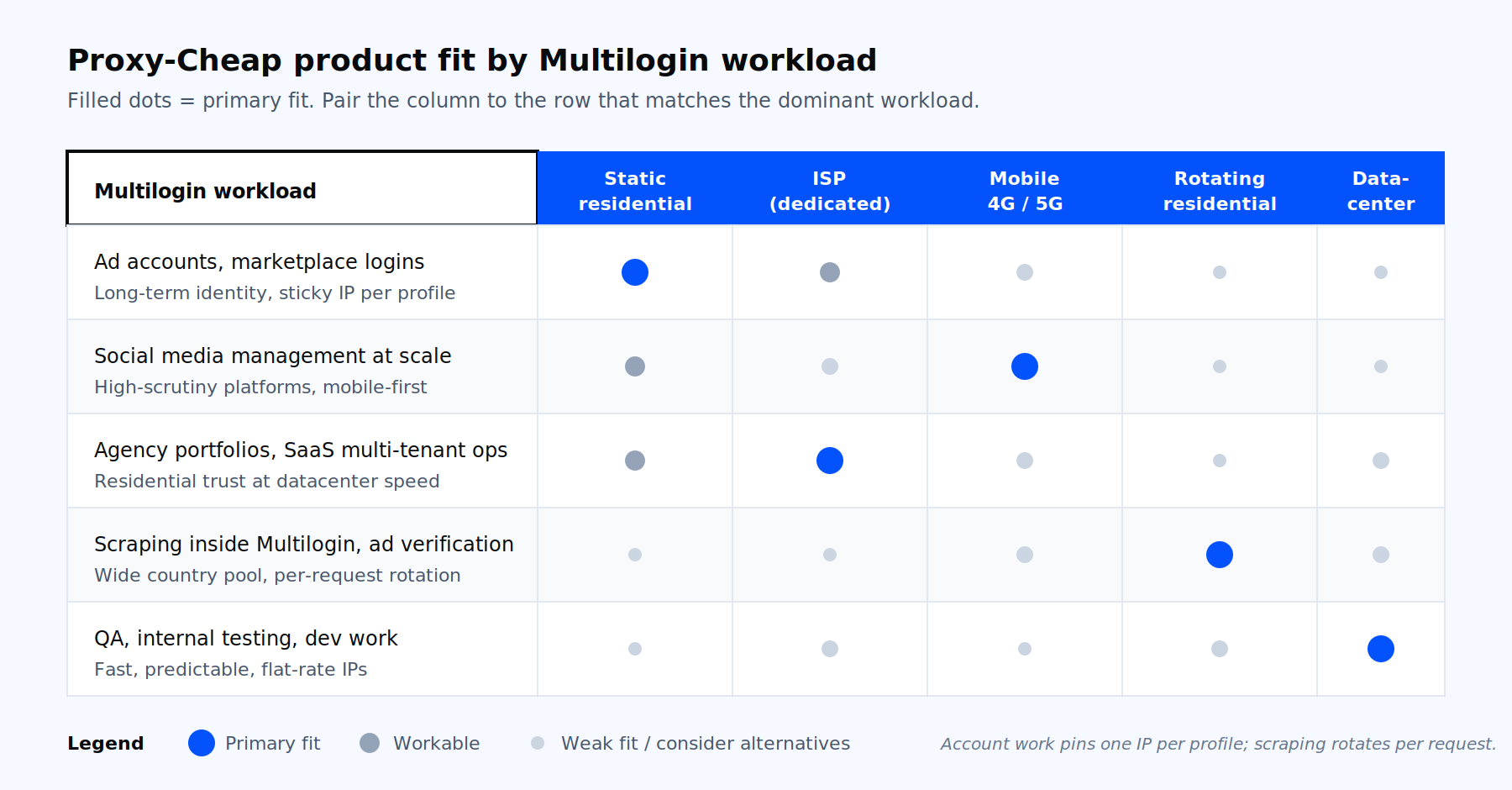
Which Proxy-Cheap product fits which Multilogin workload.
A short way to think about it: account management workloads pin one residential or ISP IP per profile and never rotate. Scraping workloads attach a rotating gateway as the proxy hostname and let it rotate per request. Pick the product that matches the dominant pattern of your work, then mix in others where specific profiles need a different trust tier.
Ready to plug a clean IP into your next profile? Spin up the proxy product that matches your workflow in the Proxy-Cheap dashboard, copy the endpoint, and paste it into your next Multilogin profile.