

Wget with proxy isn’t just a combo - it’s your digital sidekick when the internet decides to play hard to get. Whether you're wrangling files from remote servers or working with region-specific content, this duo can make life a lot smoother.
For the uninitiated, Wget is a powerful command-line utility used to download content from the web. It’s fast, script-friendly, and doesn't need a flashy interface to get the job done. Now, throw a proxy server into the mix (essentially a middleman between your computer and the internet) and you've got a setup that keeps your connection private, routes traffic through network firewalls, and can even speed up downloads under the right conditions.
In this 2026 guide, we’re breaking down exactly how to use them together so you can reclaim control over your downloads - whether you’re scraping data, grabbing large files, or just outsmarting a stubborn network.
Let’s get into it.
Wget is a robust command-line utility designed for downloading files from the web - whether it’s via HTTP, HTTPS, or FTP protocols. Unlike web browsers that rely on point-and-click interactions, Wget operates purely through the terminal, making it a favorite among developers, system administrators, and data scrapers alike. One of its biggest advantages? It supports non-interactive downloads, meaning you can schedule, automate, and script large or repetitive download tasks without lifting a finger.
Many users prefer Wget over a traditional browser for its flexibility and control. For instance, when dealing with networks that route through a proxy server, Wget can be easily configured to handle these connections. Using wget with a proxy lets you access publicly available content from multiple regions, speed up access to mirrored content, or simply keep your connection private online. And for more advanced needs, such as when a proxy server requires authentication, Wget supports credentials like a proxy username and password directly in its configuration.
To get started, you’ll first need to install Wget - a quick process on most operating systems. Once installed, you can fine-tune your setup using the wget configuration file, where you can define everything from the specified proxy server to the use of an http proxy for outbound requests. Whether you're automating backups, mirroring websites, or navigating through proxies, Wget remains a timeless tool in a modern internet landscape.
A proxy server acts as a middleman between your device and the internet. Instead of connecting directly to a website or server, your request is routed through the proxy, which then makes the request on your behalf. This might sound like a simple detour, but it comes with powerful advantages, like keeping your IP private, strengthening data protection, and accessing region-specific content.
When downloading files, especially multiple files or bulk data, proxies help you maintain stable, reliable sessions by managing traffic and reducing IP-level rate limiting. You can use an HTTP proxy for general web access or a SOCKS proxy for more flexibility across different protocols. Depending on your setup, you might need to provide proxy credentials such as a username and password—especially if the proxy requires authentication.
To get started, it’s important to understand the basic proxy server details - like the IP address and port. Not sure what that means? This quick guide on proxy addresses breaks it down clearly.
Once you have your proxy info, you can use the following command in Wget or configure everything through your .wgetrc file. For trusted options, Proxy-Cheap's Residential Proxies offer high privacy and real-user IPs, while their Datacenter Proxies provide high-speed solutions ideal for large-scale tasks.
In short, pairing Wget with a proxy server doesn’t just boost performance - it gives you more control, privacy, and access across the web.
Pairing Wget with a proxy server isn't just about privacy, it's about getting the full potential out of this powerful command line tool. Whether you're automating downloads, scraping websites, or pulling data from region-specific sources, using a proxy with Wget gives you the flexibility and privacy you need to work smarter, not harder.
One of the most common reasons to use a proxy with Wget is to access regionally limited content. Some websites serve content based on your IP address, but by routing your request through an HTTP proxy from the appropriate region, Wget can seamlessly download the files as if you're browsing locally. This is especially useful when working with data sets or research tools that aren’t available in your country.
Another key use case is web scraping. When downloading multiple files or pulling large amounts of data, your IP can quickly get flagged or rate-limited. By rotating through proxies - or simply routing traffic through a trusted proxy URL - you can avoid throttling and ensure uninterrupted access. For bulk downloads, you can even organize your target URLs in a .txt file and run a wget command grouped with proxy settings, making automation simple and scalable.
Before you begin, make sure to install Wget and, if you’re handling repeated or complex downloads, configure your wget configuration file for persistent proxy settings. This ensures every request is routed properly without having to repeat flags or commands each time.
Bottom line: Using a proxy with Wget not only protects your identity but also gives you the freedom to access and automate content from anywhere, without limits.
There’s more than one way to get Wget working with a proxy, and the method you choose depends on your setup and what kind of proxy you're using. Whether you're downloading files through a standard HTTP proxy, a more flexible SOCKS proxy, or setting up Wget for repeated use, the configuration process is pretty straightforward once you know the options.
In this section, we’ll walk you through multiple ways to set up Wget with a proxy URL, so you can confidently run Wget commands behind any proxy. Whether you're just getting started with a quick command or diving into advanced settings after using something like brew install wget, there’s a method here that’ll fit your workflow. Let’s get you downloading safely, efficiently, and with full proxy support.
If you're looking for a quick, one-off way to route your downloads through a proxy, the --proxy option in Wget is your go-to solution. This method is ideal for users who don’t want to permanently modify configuration files and just need to use a proxy URL temporarily while downloading files.
While Wget doesn't have a --proxy flag by itself (it uses environment variables and .wgetrc primarily), you can still define proxy settings directly via the command line using environment variables like http_proxy, https_proxy, and ftp_proxy. These can be declared inline with your wget command for temporary use.
Here’s how to do it.
To route traffic through an HTTP proxy:

For HTTPS downloads, just replace the environment variable with https_proxy:

Note: Even though the destination is HTTPS, the proxy is still typically specified with http:// unless it explicitly supports SSL.
If you're downloading over FTP, use the ftp_proxy variable:

FTP downloads work similarly and still route through an HTTP proxy in most setups.
If your proxy does not require login credentials, just skip the username and password:

You can also use this approach while downloading multiple files from a .txt file:

By using these inline proxy commands, you can run Wget behind a proxy with full flexibility—no need to permanently change your Wget environment. This is perfect for scripts, one-off downloads, or testing different proxy servers on the fly.
If you frequently download files using Wget and want to avoid typing proxy settings every time, the .wgetrc file is your best friend. This configuration file allows you to permanently (or semi-permanently) define settings such as proxy usage, user-agent strings, download limits, and more - so you can streamline your workflow without repeating yourself.
Wget looks for configuration files in a few key locations:
If you’re only setting up Wget for your user account, modifying ~/.wgetrc is the safest and most effective route.
Open your .wgetrc file with any text editor, for example:

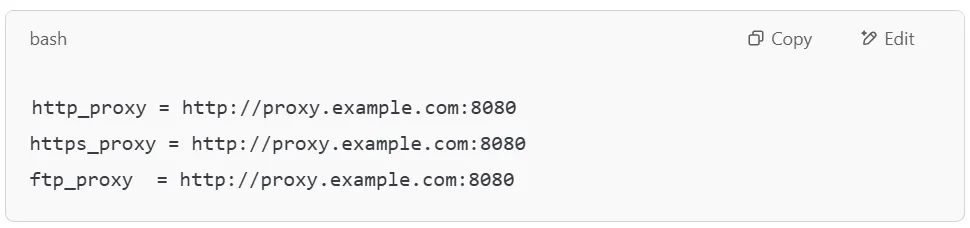
Then, add or edit the following lines depending on the proxy type you're using:



If your proxy server doesn’t require login credentials, simply leave out the username and password:
Want to disable proxy usage without removing your settings? Add this line at the bottom:

You can then toggle this back to on when needed:

While you're editing .wgetrc, consider adding other useful flags like:
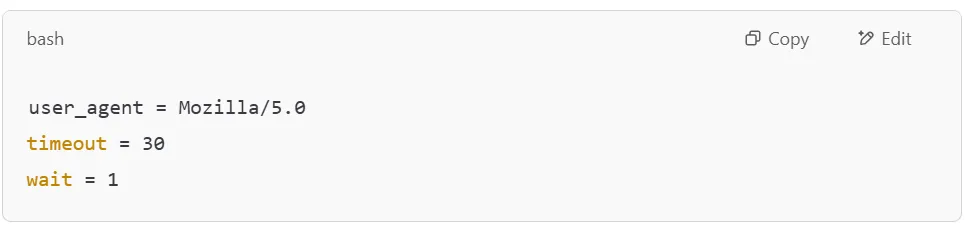
These tweaks help route traffic through connections that match typical end-user environments and throttle your downloads gently, which is great for scraping while maintaining stable, reliable sessions.
Once your .wgetrc file is configured, you can run Wget commands without manually specifying the proxy every time. This makes life a whole lot easier - especially when you’re frequently downloading files or testing proxy performance.
For reliable and private proxy options that work seamlessly with Wget, check out Proxy-Cheap's Residential Proxies or Datacenter Proxies.
If you're looking for a quick, temporary way to route your downloads through a proxy without modifying your .wgetrc or retyping proxy info with every command, environment variables are the way to go. This method is ideal for short-term sessions, scripting, or when you're switching between proxies and don’t want to hard-code settings permanently.
In the context of Wget and proxies, environment variables like http_proxy, https_proxy, and ftp_proxy act as temporary placeholders that tell your system (and Wget) how to route your traffic. Once these are set, Wget will automatically use the specified proxy without needing any additional flags in your command.
Here’s how to set them temporarily in your terminal:
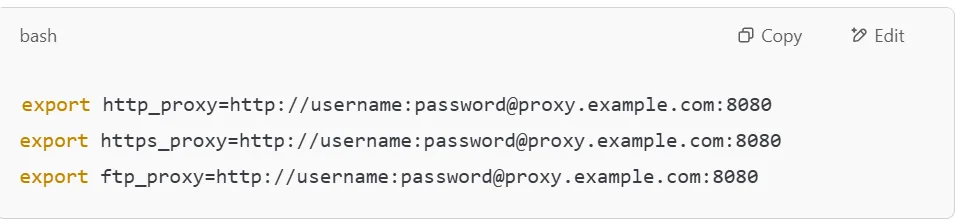
Note: If your proxy requires authentication, include your username:password@ before the proxy address.
Now, when you run:

Wget will automatically route the download through the specified proxy.
If the proxy doesn’t need login credentials:

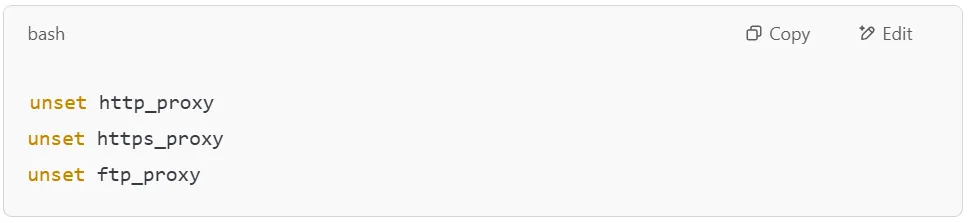
Once you're done and want to go back to direct internet access:
If you want these settings to persist across terminal sessions, you can add the export commands to your shell profile file:
Using environment variables is one of the fastest and most flexible methods to integrate a proxy into your Wget sessions - ideal when you're downloading files, testing proxy performance, or running scripts that use different proxies. Pair this method with premium services like Proxy-Cheap Residential Proxies or Datacenter Proxies for smooth, private downloads.
Need help understanding what a proxy address is in this context? Here's a helpful guide: What is the Proxy Address?
Once you've configured Wget to use a proxy—whether via command-line options, environment variables, or the .wgetrc file - it’s essential to verify that it’s actually routing traffic through your proxy server. The easiest way to do this? Use a service that echoes back your IP address when accessed. If the IP shown belongs to your proxy provider and not your real one, congrats - you’re all set.
Here’s a quick and reliable method to check:
These websites return your public IP address as plain text:
Depending on how you've set up Wget, use the appropriate method. For example:
Using command-line with proxy URL:

Using environment variables (make sure they’re exported):

Using .wgetrc (with saved proxy settings):

If you're still unsure whether Wget is using the proxy, you can add the --debug flag to get detailed output:

This will print the steps Wget takes, including proxy connections.
Make sure your proxy credentials (if needed), proxy URL, and port number are correctly set, especially if your proxy requires authentication. If you're using a SOCKS proxy or switching between HTTP and HTTPS proxies, verify that the proxy type is supported and accurately declared.
Even with a solid setup, using wget with a proxy isn’t always smooth sailing. If your downloads aren't going through as expected, here are some of the most common snags - and how to fix them.
Problem: A single typo in the proxy URL or misused syntax can prevent Wget from connecting.
Fix:

Problem: You’re getting 407 Proxy Authentication Required errors.
Fix:

Problem: Downloads time out or fail.
Fix:
Problem: Your local network (home, office, or public Wi-Fi) is filtering proxy ports.
Fix:
Problem: You set http_proxy but it’s not being used.
Fix:

Problem: You added settings to .wgetrc, but they’re not being applied.
Fix:
Setting up wget with a proxy is a smart, accessible way to enhance your downloading experience—whether you're automating tasks, scraping region-specific data, or simply looking to boost privacy. In this guide, we explored three effective methods: using the --proxy command-line option for quick, one-off downloads; editing the .wgetrc configuration file for a more permanent setup; and setting environment variables like http_proxy and https_proxy for temporary flexibility.
Each approach offers its own benefits, depending on your workflow and technical comfort level. We also discussed how to verify your configuration and troubleshoot common hiccups like incorrect syntax, proxy authentication errors, or unreachable ports. Regardless of which method you choose, pairing Wget with a proxy opens the door to secure, efficient, and customized downloads right from your command line.
To maximize reliability and performance, consider using trusted services like Proxy Cheap. Try it out for yourself - and experience how much smoother and smarter downloading files can really be.