Дешевий проксі
Інтеграції
How to set up a SocksDroid proxy on Android (2026 guide)

SocksDroid Proxy Integration

Learn how to set up a SocksDroid proxy on Android: install the app, enter your SOCKS5 host, port, and login, route per app, and connect Proxy-Cheap proxies.
Отримати проксі для How to set up a SocksDroid proxy on Android (2026 guide)
How to set up a SocksDroid proxy on Android (2026 guide)
What is SocksDroid?
SocksDroid is a free, open-source SOCKS5 client for Android that routes your app traffic through a SOCKS5 proxy, with no root needed. It uses Android's built-in VpnService, so you enter your proxy's host, port, username and password, switch it on, and approve one VPN prompt. SocksDroid doesn't come with any IPs of its own, so you pair it with a SOCKS5 proxy from a provider like Proxy-Cheap.

Key takeaways

  • SocksDroid is a free, open-source SOCKS5 client for Android (package net.typeblog.socks) that routes app traffic through a SOCKS5 proxy using the built-in VpnService, with no root needed.
  • To connect, enter the SOCKS5 host, port, username, and password from your provider in the default profile, toggle the switch on, and approve the Android VPN prompt.
  • SocksDroid handles SOCKS5 only, so set the proxy type to SOCKS5 and copy the SOCKS5 host and port from your Proxy-Cheap dashboard, not the HTTP gateway.
  • Match the product to the job: mobile or static residential (ISP) for identity-stable accounts, rotating residential for geo-accurate testing, and datacenter for high-volume public data.

Android does not let you set a SOCKS5 proxy from its native settings, only HTTP. SocksDroid fills that gap, forwarding your device traffic to any SOCKS5 proxy you point it at, app by app or for the whole phone. This guide covers what SocksDroid is, why the proxy behind it matters, and the steps to connect Proxy-Cheap proxies, route specific apps, and fix common errors.

What is SocksDroid?

SocksDroid is a lightweight SOCKS5 client for Android. It uses Android's built-in VpnService API to capture traffic from your apps and forward it to a SOCKS5 proxy server you configure. Because it relies on VpnService rather than system-level changes, it runs on a standard, non-rooted device.

The app is open source under the GPL-3.0 license. It was created by developer PeterCxy and lives on as community-maintained forks (the net.typeblog.socks package), with the current build at version 1.0.4 from late 2023. The project is in maintenance mode, meaning the maintainers ship bug fixes and compatibility updates rather than new features. That stability is part of the appeal: it does one job and keeps doing it across Android releases.

One point to set straight early. SocksDroid is a proxy client, not a proxy provider. It does not give you any IP addresses of its own. You supply a SOCKS5 endpoint from a proxy service, and SocksDroid routes your traffic through it. If you are new to the protocol, the primer on what a SOCKS proxy is explains how SOCKS5 differs from an HTTP proxy.

What is SocksDroid used for?

SocksDroid is used wherever someone needs a SOCKS5 connection on Android that the native settings cannot provide. The most common jobs:

  • Privacy on shared and public networks. Route traffic through a proxy so requests present the proxy's IP, while HTTPS sites stay encrypted end to end.
  • Localization and QA testing. Check how an app or site renders for users in a specific market by routing the device through an IP in that country.
  • Ad verification. Review how publicly served ads appear to users in different regions for compliance and quality checks.
  • Multi-account management. Keep each account on its own consistent, location-accurate IP in line with each platform's terms.
  • Public-web data collection. Gather publicly available data from a mobile device for pricing, research, and analytics work.
  • Routing non-browser apps. Send traffic from apps that have no proxy setting of their own, since SOCKS5 works at a lower level than an HTTP proxy.

Because the device is an Android phone, the proxy choice carries as much weight as the app, which is why operators pair SocksDroid with proxies chosen for Android that fit the task.

Key features of SocksDroid

The capabilities that matter when you plan a proxy setup:

  • SOCKS5 support with authentication. Connect to any SOCKS5 server, with optional username and password login.
  • No root required. It works through Android's VpnService, so a standard device is enough.
  • Per-app routing. Choose exactly which apps go through the proxy and which use the normal connection.
  • UDP forwarding. Carry UDP traffic through a UDP gateway for apps that need it, not just TCP.
  • Custom DNS. Set the DNS server and send name lookups through the proxy to keep results consistent with the exit IP.
  • IPv6 support. Enable IPv6 routing when your network and proxy support it.
  • Auto-connect. Start the proxy automatically so the connection is ready when you are.

Per-app routing and DNS handling are the two features to keep in mind, since they decide what traffic flows and how cleanly it resolves.

Is SocksDroid free to use?

Yes. SocksDroid is fully free and open source under the GPL-3.0 license. There is no paid tier, no account, and no ads. You can read the source, build it yourself, or install a published build at no cost.

The only thing you pay for is the proxy itself. SocksDroid supplies the routing; your proxy provider supplies the IPs, the locations, and the connection quality. That split suits budget-conscious users: you bring a pay-as-you-go proxy, and the client around it costs nothing.

How to install SocksDroid on Android

Installation takes a minute. SocksDroid runs on Android 5.0 and newer.

  1. Get the app. Install SocksDroid from Google Play, or download the open-source package from F-Droid or GitHub. Confirm the package name is net.typeblog.socks so you have the genuine client.
  2. Open SocksDroid. The app launches to a single default profile, which is where you will enter your proxy details.
  3. Approve the VPN prompt when asked. The first time you connect, Android shows a connection request because SocksDroid uses VpnService to capture traffic. Approving it once is enough.

That is the whole install. There is no sign-up or onboarding before you add a proxy.

Why you need a proxy with SocksDroid

SocksDroid on its own does nothing visible, because it has no IPs to route through. The proxy you attach is the entire point of the setup, and its quality decides how well everything works. Three reasons make the proxy choice the most important decision here.

  1. Reliable connectivity and stable sessions. A quality residential proxy network spreads requests across many real IPs, which keeps success rates steady on long sessions instead of leaning on a single address.
  2. Accurate geo-specific data. Prices, listings, and search results change by country and city. Routing through an IP in the target market is the only way to see what a local user sees, which matters for localization, ad verification, and research.
  3. Compliance with site terms and regional requirements. Public-web work at scale should respect each site's rate limits and regional rules. Country and city targeting lets you stay inside those limits while still gathering the data you need.

SocksDroid is the steering wheel; the proxy is the engine. A weak or mislabeled IP undercuts the setup, so the product you pick decides most of the outcome.

How to set up a SOCKS5 proxy in SocksDroid

This is the core integration. The flow is: get SOCKS5 credentials from Proxy-Cheap, enter them in the SocksDroid profile, turn the switch on, approve the VPN prompt, then confirm the exit IP.
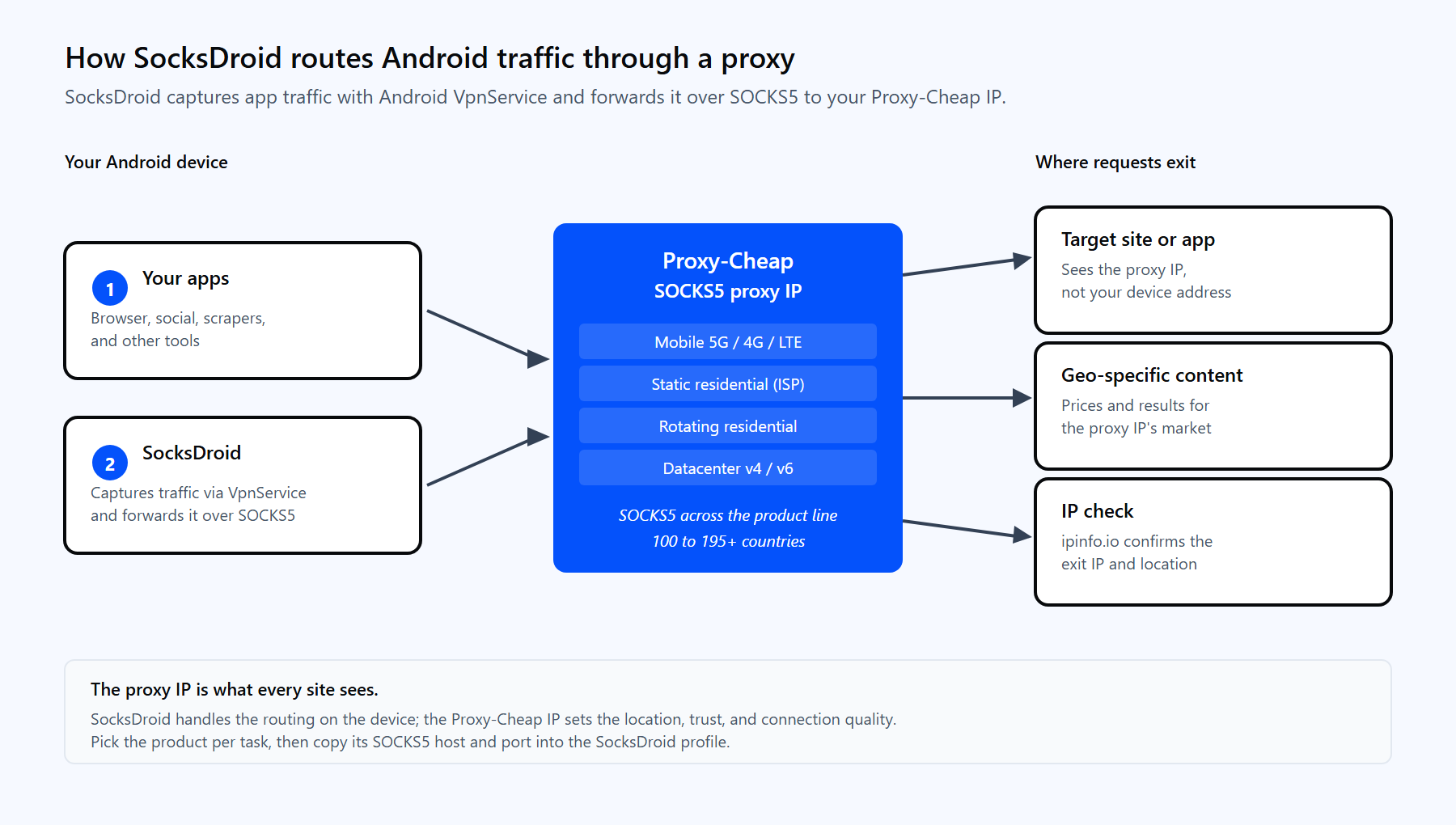
Diagram of an Android phone running SocksDroid routing app traffic through the Proxy-Cheap SOCKS5 proxy to a target site and back.

SocksDroid captures traffic with Android VpnService and forwards it to your Proxy-Cheap SOCKS5 IP, which fetches the target and returns the response.

Step 1: Get your SOCKS5 credentials from Proxy-Cheap. Buy the product that fits your task (see the matrix near the end), then open the Setup Credentials panel in your Proxy-Cheap dashboard and copy four values: the host, the SOCKS5 port, your username, and your password. For static products you copy the exact host and port assigned to that proxy. For rotating residential you use the gateway host shown in your dashboard with its SOCKS5 port. Use the SOCKS5 endpoint, not the HTTP one, because SocksDroid speaks SOCKS5 only.

Step 2: Open the default profile. In SocksDroid, tap the profile to edit it. You can rename it so a saved setup is easy to find later.

Step 3: Enter the proxy details. Fill in each value in its own field:

  • Server IP: the host from your Proxy-Cheap dashboard
  • Server Port: the SOCKS5 port from your dashboard (the SOCKS default is 1080, but use the port your dashboard shows)
  • Username: your Proxy-Cheap username
  • Password: your Proxy-Cheap password

Leave Username and Password empty only if you authenticate by IP allowlist instead. Keep credentials in their own fields rather than pasting them into the host.

Step 4: Turn the proxy on. Go back to the main screen and toggle the switch to on. Android shows a connection request the first time; approve it. A key icon appears in the status bar once the tunnel is up.

Step 5: Confirm the exit IP. Open a browser and visit an IP checker such as ipinfo.io or ipleak.net. The IP and location shown should match your proxy, not your carrier or Wi-Fi. The guide on how to test proxies lists more ways to verify a connection.

If you want to confirm the same credentials from a computer before entering them on the phone, the SOCKS5 string works in curl too:

curl --max-time 10 -x socks5h://<your-proxycheap-username>:<your-proxycheap-password>@<host-from-dashboard>:<port-from-dashboard> https://ipinfo.io

The socks5h scheme resolves DNS through the proxy too, mirroring how SocksDroid should resolve names. A returned IP proves the credentials work before you open the app.

Per-app routing, UDP, and DNS settings

Once the basic connection works, the advanced options decide what traffic actually flows and how cleanly it resolves.
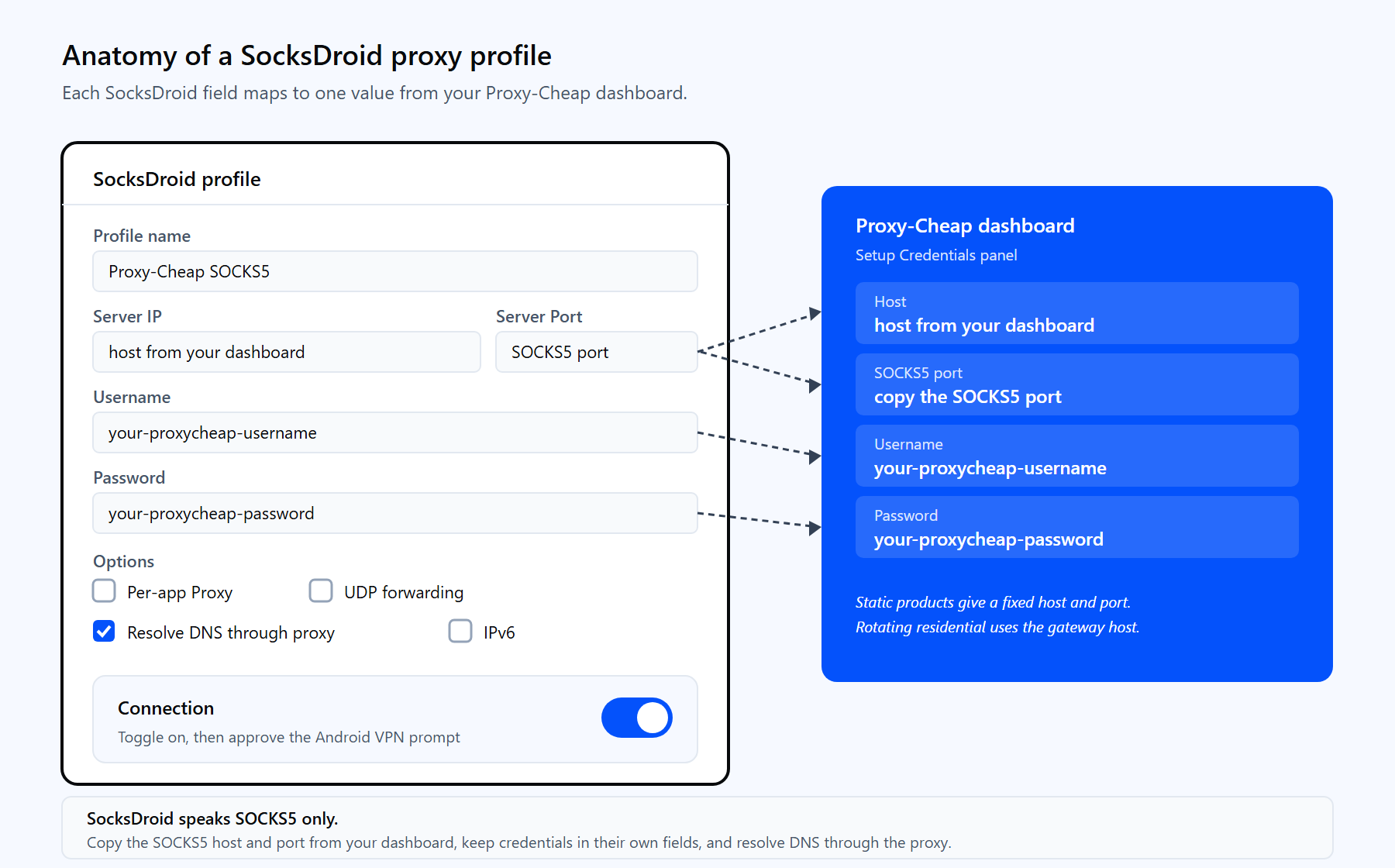
Diagram mapping SocksDroid profile fields (server, port, username, password, UDP, DNS, per-app) to the matching values in the Proxy-Cheap dashboard.

Each SocksDroid field maps to a value from your Proxy-Cheap dashboard. The advanced options below control routing, UDP, and DNS.

  • Per-app routing. Turn on Per-app Proxy and pick the apps you want to route. You can send only the chosen apps through the proxy, or send everything except the apps you choose. This is useful when you want one app on the proxy IP and the rest of the phone on its normal connection.
  • UDP forwarding. SOCKS5 can carry UDP, which TCP-only setups cannot. If an app needs UDP, enable UDP forwarding and set the UDP Gateway. Most browsing and scraping is TCP, so leave this off unless an app requires it.
  • DNS resolution. Set the DNS server and send lookups through the proxy so names resolve from the exit IP's location. Local DNS is the most common reason some apps load nothing after you connect, so routing DNS through the proxy fixes that and keeps results consistent with your IP.
  • IPv6. Enable IPv6 only when both your network and your proxy support it. If a connection behaves oddly on a dual-stack network, turning IPv6 off is a quick test.

A practical default: leave UDP off, route DNS through the proxy, and use per-app routing only when you genuinely want some apps off the proxy. Simpler profiles connect more reliably.

Rotating and static proxies with SocksDroid

SocksDroid holds one SOCKS5 endpoint per profile, so how you rotate IPs depends on the Proxy-Cheap product behind it. The choice between static vs rotating proxies comes down to whether you want a fixed identity or a fresh IP over time.

  • Rotating residential, one entry. Point SocksDroid at the rotating residential gateway and the exit IP refreshes automatically on the gateway side. You enter a single host and port, and the pool does the rotation for you. This fits geo-spread testing and high-volume public data work.
  • Static products, a fixed entry. Static residential (ISP), datacenter, and static mobile products give you a fixed IP and port. The same IP persists for as long as you need it, which suits account-bound work where a steady identity matters. To change IPs, edit the profile or save a second profile with another static endpoint.

A common pattern is one saved profile per identity: a static IP for the account you keep long term, and a rotating gateway profile for the testing and research work that benefits from fresh IPs. Switching profiles in SocksDroid then switches your whole routing in a tap.

Common SocksDroid errors and how to fix them

Most SocksDroid problems come from the same short list. Each has a direct fix.

1. The proxy is not SOCKS5. SocksDroid speaks SOCKS5 only. An HTTP or SOCKS4 endpoint will not connect. Copy the SOCKS5 host and port from your Proxy-Cheap dashboard and use those.

2. Some apps show no internet after you connect. This is almost always DNS. Set the DNS server in the profile and send lookups through the proxy so names resolve from the exit IP. Enabling UDP forwarding also helps apps that resolve over UDP.

3. The connection fails with an authentication error. The username or password is wrong or has a trailing space. Re-copy both from your dashboard and paste them into their own Username and Password fields, not into the host.

4. A local or private address was entered. Values like 127.0.0.1, 192.168.x.x, or 10.x.x.x point back at the device, not your proxy. Use the public host and port from your dashboard.

5. A whitelisted proxy will not connect. With IP allowlist auth, the whitelisted IP must match the phone's current network. Mobile and Wi-Fi addresses change often, so username and password authentication is simpler on a phone.

6. One app still shows the real IP. Per-app routing excludes it, or the app cached a connection. Check the Per-app Proxy list, then close and reopen the app so it reconnects through the tunnel.

7. The exit country looks wrong. The proxy IP is in or labeled for the wrong place. Verify it with an IP checker or the curl ... ipinfo.io test above, and pick a product with accurate country targeting for that market.

Is SocksDroid good? Pros and cons

For getting a SOCKS5 connection onto Android without root, SocksDroid is the cleanest free option available. It is small, focused, and open source, and it has stayed reliable across Android versions. A few honest tradeoffs are worth weighing before you commit.

Pros

  • Free and open source under GPL-3.0, with no ads or account.
  • No root required; it works through Android's VpnService.
  • Per-app routing, UDP forwarding, custom DNS, and IPv6 in one small app.
  • Username and password authentication for SOCKS5, plus IP allowlist support.
  • Stable and predictable, with a low footprint on the device.

Cons

  • SOCKS5 only. HTTP and SOCKS4 endpoints will not work, which surprises new users.
  • No proxies included. You buy and manage them separately, so quality is on you.
  • No built-in rotation. Rotation happens on the proxy side or by switching profiles.
  • Android only, in maintenance mode, so do not expect new features.

For most users, SocksDroid handles the routing well, and the result rises or falls on the proxy you feed it. Pair it with the right product, use the SOCKS5 endpoint, and route DNS through the proxy.

Which Proxy-Cheap proxy works best with SocksDroid

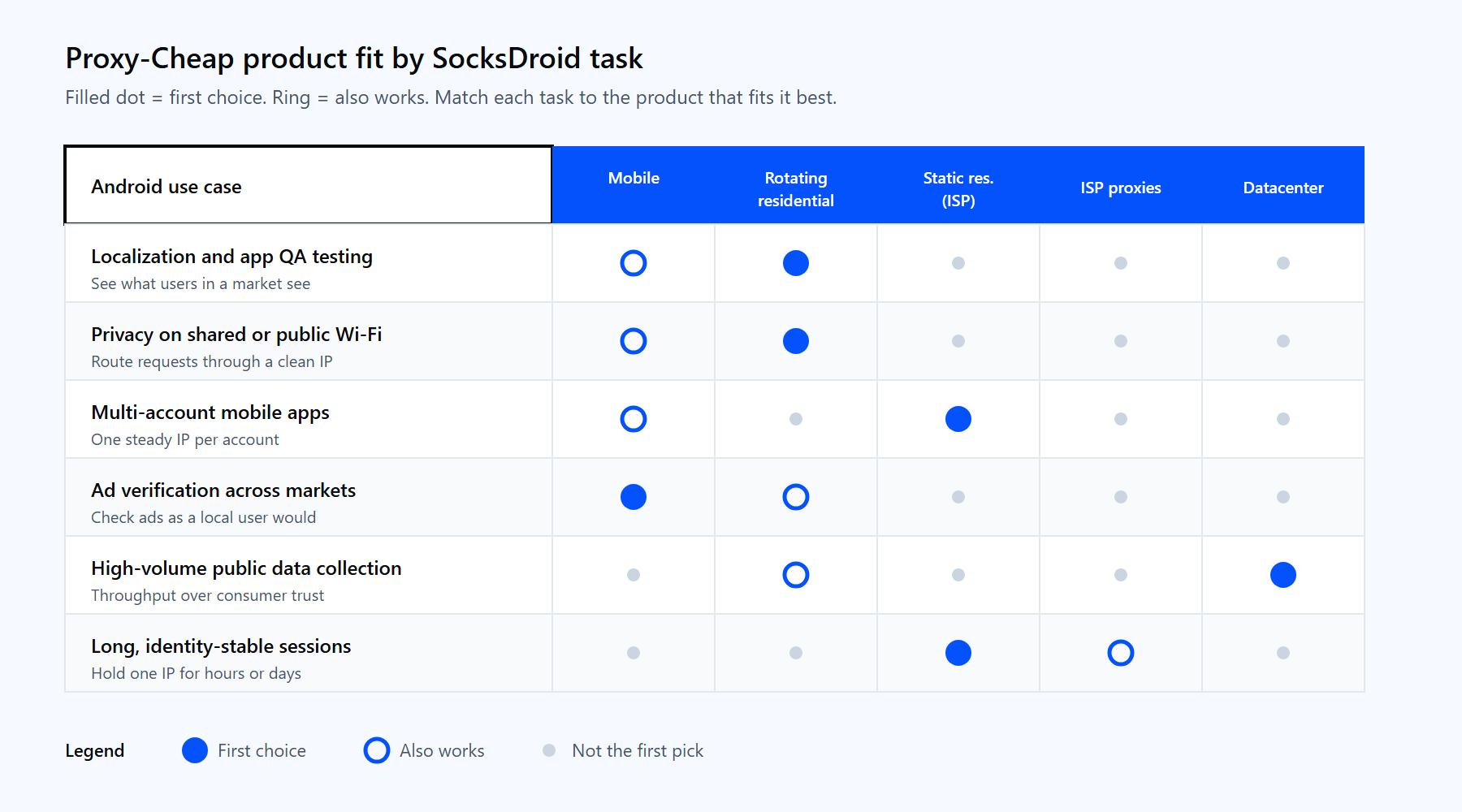
The right product depends on the task, not the size of your budget. Because SocksDroid routes a whole Android device, match the proxy to how stable the identity needs to be and how the target treats mobile traffic. The table maps common SocksDroid jobs to the Proxy-Cheap product that fits first, with a workable second choice.

Android use caseFirst choiceAlso works
Localization and app QA testingRotating ResidentialMobile
Privacy on shared or public Wi-FiResidentialMobile
Multi-account mobile appsStatic Residential (ISP)Mobile
Ad verification across marketsMobileRotating Residential
High-volume public data collectionDatacenterRotating Residential
Long, identity-stable sessionsStatic Residential (ISP)ISP proxies

Matrix matching SocksDroid Android use cases to Proxy-Cheap proxy types: rotating residential, residential, static residential ISP, mobile, and datacenter.

Match the Proxy-Cheap product to the shape of your SocksDroid task.

  • Mobile proxies suit mobile-native apps and ad verification, with real carrier IPs across 100+ countries and SOCKS5 support that maps straight into SocksDroid.
  • Static residential (ISP) proxies give a fixed, trusted IP for account-bound work that needs one steady identity.
  • Datacenter proxies deliver high throughput at a low per-IP price for high-volume public data collection.
  • ISP proxies pair residential legitimacy with flexible authentication for long-lived sessions.

For most setups the answer is a mobile or static residential product, picked by how sensitive the work is, on pay-as-you-go pricing with no monthly commitment. Copy the SOCKS5 host and port from your dashboard into the profile, and your Android traffic routes through an IP you chose.


Поширені запитання

No. SocksDroid uses Android's built-in VpnService to capture and forward traffic, so it runs on a standard, non-rooted device. The first connection asks for VPN permission, which you approve once.

No. SocksDroid is a SOCKS5 client and connects to SOCKS5 endpoints only. If your provider offers more than one protocol, choose the SOCKS5 host and port. An HTTP or SOCKS4 endpoint will fail to connect.

The field defaults to 1080, the standard SOCKS port. In practice you should replace it with the exact SOCKS5 port shown in your proxy dashboard, since providers assign their own ports rather than always using 1080.

This is usually a DNS issue. Set the DNS server in the profile and send lookups through the proxy so names resolve from the exit IP. Turning on UDP forwarding helps apps that resolve names over UDP.

Not quite. SocksDroid uses the VpnService API to capture traffic, but it is a SOCKS5 proxy client, not an encrypted VPN tunnel. HTTPS sites stay encrypted end to end, while the proxy decides which IP your requests present.

No. SocksDroid is an Android app and needs Android 5.0 or newer. On a computer you would use a different SOCKS5 client or set the proxy in your browser or system network settings instead.

The app is free, but it has no IPs of its own, so you need a SOCKS5 proxy from a provider. Pay-as-you-go residential, mobile, or datacenter products keep the cost proportional to your usage.

Some overhead is normal, since traffic now takes an extra hop through the proxy. Real-world speed depends mostly on the proxy's quality and distance, so a nearby, high-quality IP keeps the difference small.

It is in maintenance mode. The maintainers ship bug fixes and compatibility updates rather than new features, and the current build is version 1.0.4.