A WebRTC leak is the reason your real IP can appear on a leak-test page while every other request goes through your proxy. This guide explains why that happens, how to test for it, and how to turn WebRTC off or lock it to the proxy in every major browser, on mobile, and inside Selenium, Playwright, and Puppeteer.
WebRTC (Web Real-Time Communication) is a free, open standard that lets browsers exchange audio, video, and data directly with each other. Video calls, voice chat, screen sharing, and peer-to-peer file transfer all run on it. It is built into Chrome, Firefox, Edge, Safari, Brave, and Opera, and it works with no plugin.
To connect two peers directly, WebRTC has to learn the network addresses each device can be reached on. It does this with a framework called ICE (Interactive Connectivity Establishment), which gathers a list of candidate addresses and tries each one until a connection succeeds. That address-gathering step is what makes calls work. It is also the part that can expose your IP. A proxy server routes your normal web requests through a different IP, and WebRTC can quietly work around that, which is the problem the rest of this guide solves.
A WebRTC leak happens when a web page uses the WebRTC API to read an IP address your browser would otherwise keep private. The page does not ask for permission. A few lines of JavaScript create a peer connection, ICE gathers candidates, and each candidate carries an IP address the script can read.
ICE produces two kinds of candidate that matter here:
When I gathered candidates in an up-to-date Chromium build, the host candidate showed a masked .local hostname, but the server-reflexive candidate still carried the real public IP. The local address was protected; the public one was not. That second candidate is what a leak test reports, and it is what undoes the privacy you expect from a proxy.
Most browser proxies forward HTTP and HTTPS traffic, which runs over TCP. WebRTC's address discovery uses UDP. An HTTP or HTTPS proxy does not carry that UDP traffic, so the STUN request that finds your public IP goes out over your normal connection instead of the proxy. The result: your pages load through the proxy IP, but a WebRTC leak test still shows your real one.
SOCKS5 can carry UDP in theory, but browsers implement SOCKS5 over TCP only, for security reasons. So a browser on a SOCKS5 proxy leaks WebRTC the same way unless you turn WebRTC off or lock it to the proxy path.
This matters in three practical situations:
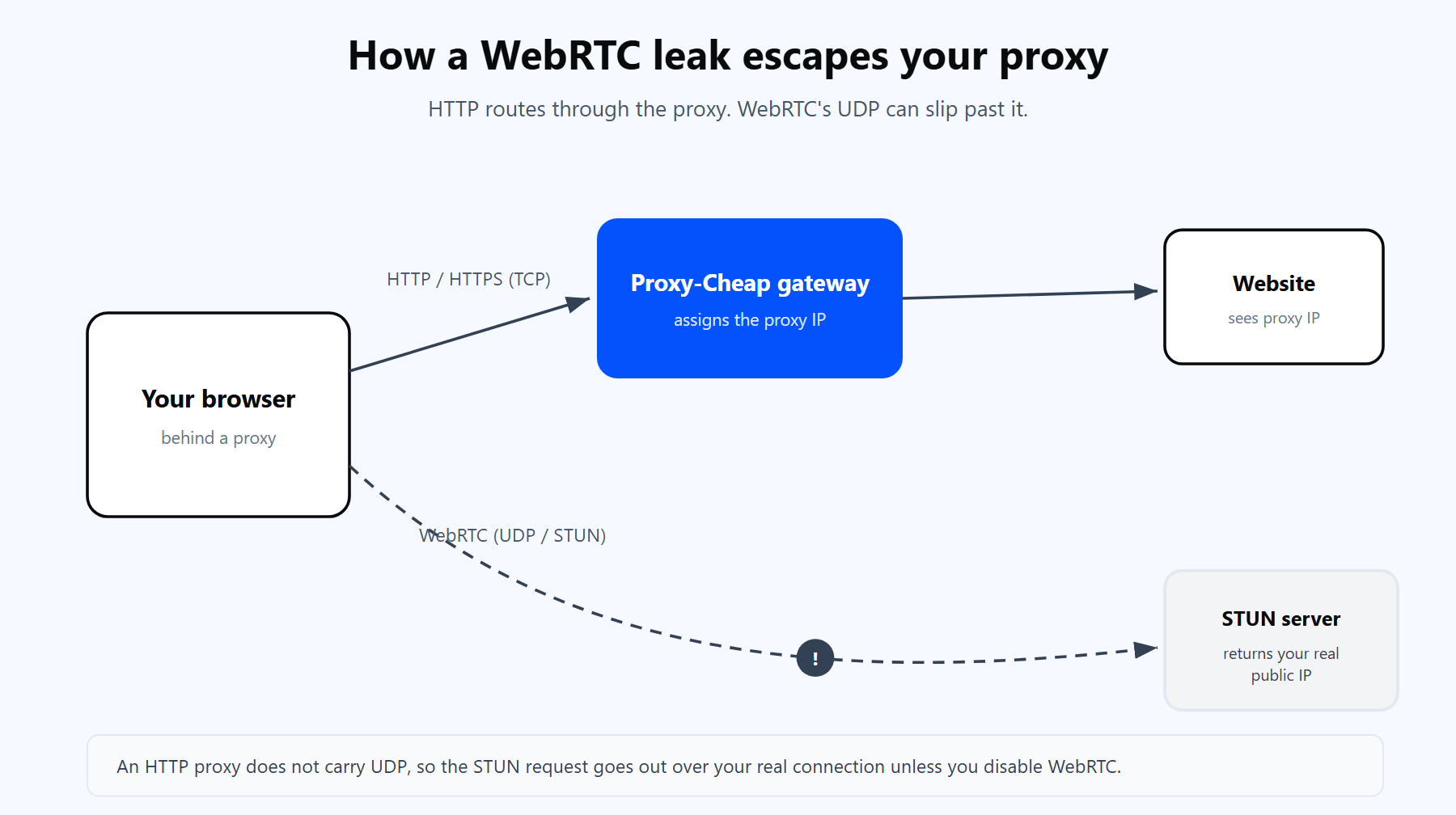
HTTP traffic goes through the proxy, but WebRTC's UDP STUN request can slip past it and reveal your real public IP unless you disable WebRTC or lock it to the proxy.
The fix is always on the browser side. The proxy carries your web traffic; WebRTC has to be turned off or pointed at the proxy in the browser itself. The rest of this guide shows how, starting with a quick test so you can confirm the change worked.
Test before and after you change anything, so you know the fix worked. There are two ways.
Use a leak-test page. Open a WebRTC leak-test site in the browser you want to check. It runs the same WebRTC calls a tracker would and shows any local and public IPs it can read. With your proxy active, the public IP it reports should be the proxy's, not yours. To confirm the proxy is routing correctly in the first place, follow how to test proxies.
Run a quick script. Paste this into the browser console (F12, then the Console tab). It asks WebRTC to gather candidates and prints each one. If your real public IP shows up in the output, WebRTC is leaking:
const pc = new RTCPeerConnection({
  iceServers: [{ urls: 'stun:stun.l.google.com:19302' }],
});

pc.createDataChannel('');

pc.onicecandidate = (event) => {
  if (event.candidate) {
    console.log('ICE candidate:', event.candidate.candidate);
  }
};

pc.createOffer().then((offer) => pc.setLocalDescription(offer));A candidate marked typ host with a .local hostname is masked and fine. A candidate marked typ srflx followed by a public IP is the leak. Once WebRTC is off or locked to the proxy, the srflx line carrying your real IP disappears.
Chrome has no built-in switch to turn WebRTC off, because it treats real-time communication as a core web feature. Two facts shape what you can actually do:
For the public IP, which is the one that leaks past a proxy, you have two reliable options.
Option 1: a WebRTC extension. Install a WebRTC management extension such as WebRTC Control from the Chrome Web Store. One click turns WebRTC off per tab. This is the simplest route for everyday browsing, and it is easy to switch back on when you need a video call.
Option 2: lock WebRTC to the proxy at launch. Start Chrome with a flag that tells WebRTC to use only the proxy path and to drop non-proxied UDP. This keeps WebRTC working while stopping the public-IP leak:
chrome.exe --proxy-server="thehub.proxy-cheap.com:8080" --force-webrtc-ip-handling-policy=disable_non_proxied_udpClose every Chrome window first, because Chrome reuses a running process and ignores the flag otherwise. On managed devices, an administrator can set the same behavior with the WebRtcIPHandling policy value disable_non_proxied_udp, which applies it without a launch flag.
Firefox is the one major browser that lets you turn WebRTC off completely from settings. Use about:config:
WebRTC is now off for the whole browser. To confirm, rerun your leak test: the WebRTC section should report nothing.
If you still want WebRTC for calls but without the IP exposure, leave it enabled and set these two preferences instead:
For a browser-only proxy in Firefox without changing your whole system, the Firefox proxy add-on handles proxy setup and keeps the configuration in the browser profile.
Edge is built on Chromium, so it behaves like Chrome. It masks the local IP with mDNS by default, and the old edge://flags entry for local-IP masking is gone for the same reason it left Chrome. There is no settings toggle that turns WebRTC off.
Your options mirror Chrome:
msedge.exe --proxy-server="thehub.proxy-cheap.com:8080" --force-webrtc-ip-handling-policy=disable_non_proxied_udpClose all Edge windows before relaunching with a flag, since Edge, like Chrome, reuses an open process.
Safari protects the local IP by default on recent macOS versions, using the same mDNS approach as Chromium browsers. For finer control, use the Develop menu:
Safari does not expose a single off switch the way Firefox does, but the legacy-API option plus the default local-IP masking covers the common leak. On iPhone and iPad, Safari gives no WebRTC toggle at all, which the mobile section below addresses.
Brave has the cleanest built-in control of any Chromium browser:
That setting keeps WebRTC usable while sending it only through the proxy path, so your real IP stays off leak tests. It is the in-browser equivalent of the Chrome launch flag above.
Opera is Chromium-based and has no native WebRTC switch. Use a WebRTC management extension from the Chrome Web Store, the same as Chrome, or set the IP-handling launch flag when you start Opera.
Mobile browsers give you fewer controls, but options exist:
Automation frameworks drive real Chromium and Firefox builds, so they leak WebRTC exactly like a normal browser. If your script routes through a proxy but never touches WebRTC, a target page can still read the real public IP of the machine running the script. Set the WebRTC policy in the same place you set the proxy.
All three Chromium-based tools accept the same flag: --force-webrtc-ip-handling-policy=disable_non_proxied_udp. I tested each configuration below against a current Chromium build. The flag is accepted, and the leaking candidates stop appearing.
Playwright (Python). Pass the proxy as a dict and the WebRTC flag in args. Keep credentials in their own fields, never in the server URL:
from playwright.sync_api import sync_playwright

PROXY = {
    "server": "http://thehub.proxy-cheap.com:8080",   # or proxy-eu...
    "username": "<your-proxycheap-username>",
    "password": "<your-proxycheap-password>",
}

with sync_playwright() as p:
    browser = p.chromium.launch(
        headless=True,
        proxy=PROXY,
        args=["--force-webrtc-ip-handling-policy=disable_non_proxied_udp"],
    )
    page = browser.new_page()
    page.goto("https://browserleaks.com/webrtc")
    print(page.title())
browser.close()Selenium (Chrome). Add the flag through ChromeOptions. For a username-and-password proxy, allowlist your IP in the dashboard and skip inline credentials, or use a helper such as Selenium Wire:
from selenium import webdriver
from selenium.webdriver.chrome.options import Options

options = Options()
options.add_argument("--proxy-server=http://thehub.proxy-cheap.com:8080")
options.add_argument("--force-webrtc-ip-handling-policy=disable_non_proxied_udp")

driver = webdriver.Chrome(options=options)
driver.get("https://browserleaks.com/webrtc")
print(driver.title)
driver.quit()Selenium (Firefox). Firefox uses profile preferences instead of a flag. Turn WebRTC off, or keep it and drop host candidates:
from selenium import webdriver
from selenium.webdriver.firefox.options import Options

options = Options()
options.set_preference("media.peerconnection.enabled", False)
# Or keep WebRTC but stop local candidates:
# options.set_preference("media.peerconnection.ice.no_host", True)
# options.set_preference("media.peerconnection.ice.default_address_only", True)

driver = webdriver.Firefox(options=options)
driver.get("https://browserleaks.com/webrtc")
driver.quit()Puppeteer (Node). Pass the flag in args and send proxy credentials with page.authenticate:
const puppeteer = require('puppeteer');

(async () => {
  const browser = await puppeteer.launch({
    headless: true,
    args: [
      '--proxy-server=http://thehub.proxy-cheap.com:8080',
      '--force-webrtc-ip-handling-policy=disable_non_proxied_udp',
    ],
  });

  const page = await browser.newPage();

  // Proxy credentials go in their own fields, never in the server URL.
  await page.authenticate({
    username: '<your-proxycheap-username>',
    password: '<your-proxycheap-password>',
  });

  await page.goto('https://browserleaks.com/webrtc');
  await browser.close();
})();For stubborn pages, add one more layer: inject JavaScript before the page loads to replace RTCPeerConnection with a no-op, so the API is gone before any tracker script runs. The launch flag covers most proxy work, and the override helps against pages that probe aggressively.
Turning WebRTC off solves the leak. Pairing that with the right proxy is what makes a browser present a clean, consistent IP. The combination is simple: route the browser's traffic through a Proxy-Cheap IP, then make sure WebRTC is off or locked to that same path.
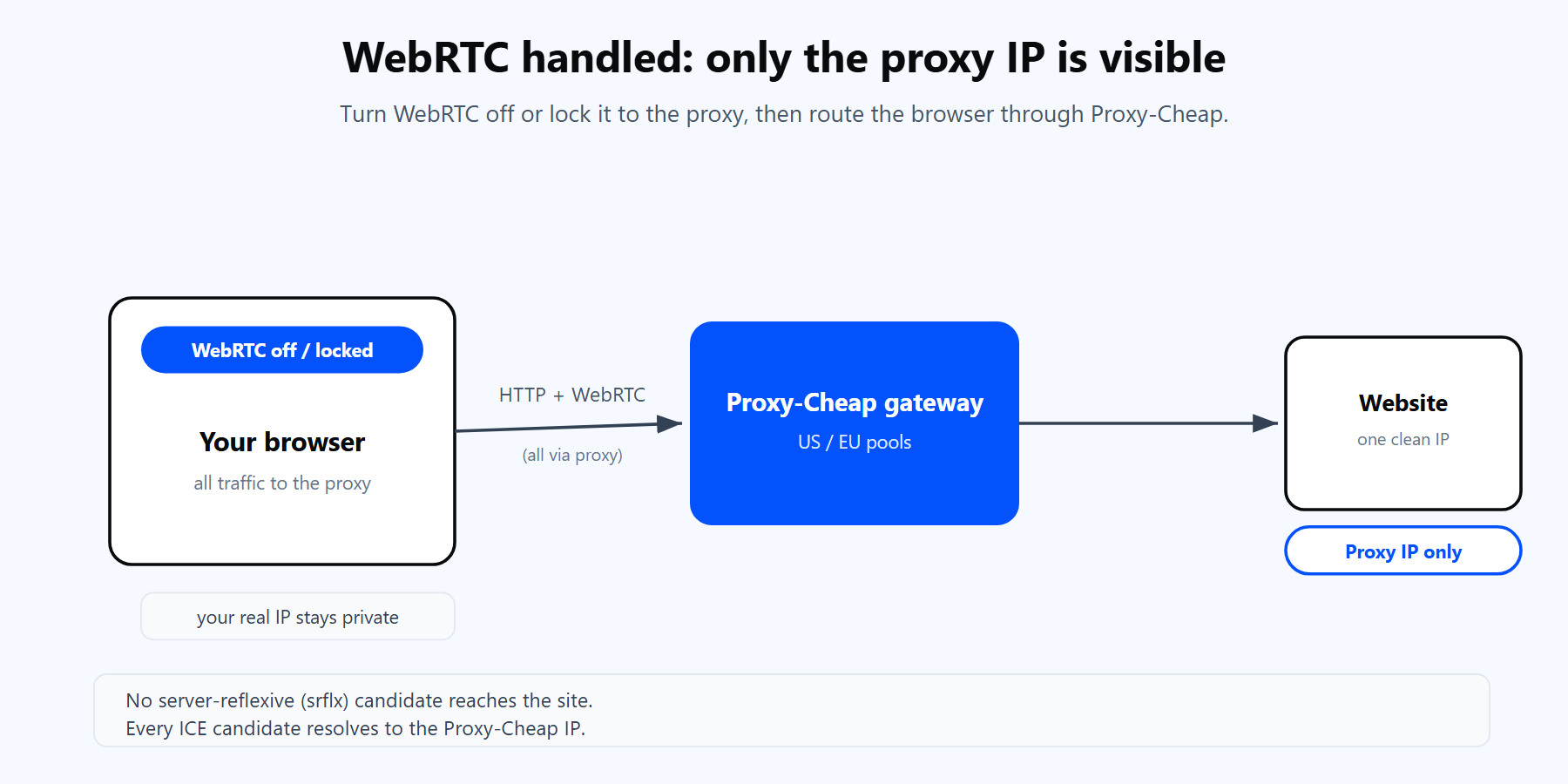
With WebRTC turned off or locked to the proxy, every request and every ICE candidate resolves to the Proxy-Cheap IP, so the site never sees your real address.
Proxy-Cheap delivers proxies in two endpoint formats. Rotating residential uses a single shared hub: thehub.proxy-cheap.com on port 8080, with the country chosen in the dashboard credential generator and a new exit IP per request, so there is no separate US or EU gateway. Static products (static residential, ISP, datacenter, mobile) give you a unique host and port per proxy, copied from your dashboard. Put that host and port in the browser or in your automation config, and keep the username and password in their own fields.
For browser use specifically, the Proxy-Cheap browser extension bundles proxy management with WebRTC protection in one place. It imports HTTP and SOCKS5 proxies, switches profiles in a click, and includes WebRTC protection so the browser does not reveal a local IP outside the proxy. You set the proxy and close the WebRTC leak in a single tool, with no flags or about:config edits.
Most WebRTC issues come down to one of these. Work down the list from the top:
The method to disable WebRTC is the same whatever proxy you use. The proxy you choose decides what the clean IP actually looks like to the sites you visit. Match the product to the job:
| What you are doing | Best fit | Why |
|---|---|---|
| Location-accurate research and localized pricing | Rotating residential | A new IP per request from real consumer connections across many regions |
| Signed-in sessions and account-bound work | Static residential (ISP) | The same trusted IP held for the whole session |
| Long-lived sessions with flexible login | ISP proxies | Static or rotating, username and password or IP allowlist |
| Fast access to public, unprotected pages | Datacenter | High throughput and predictable per-IP cost |
| Mobile-first platforms and apps | Mobile | Real carrier IPs for mobile-network tasks |
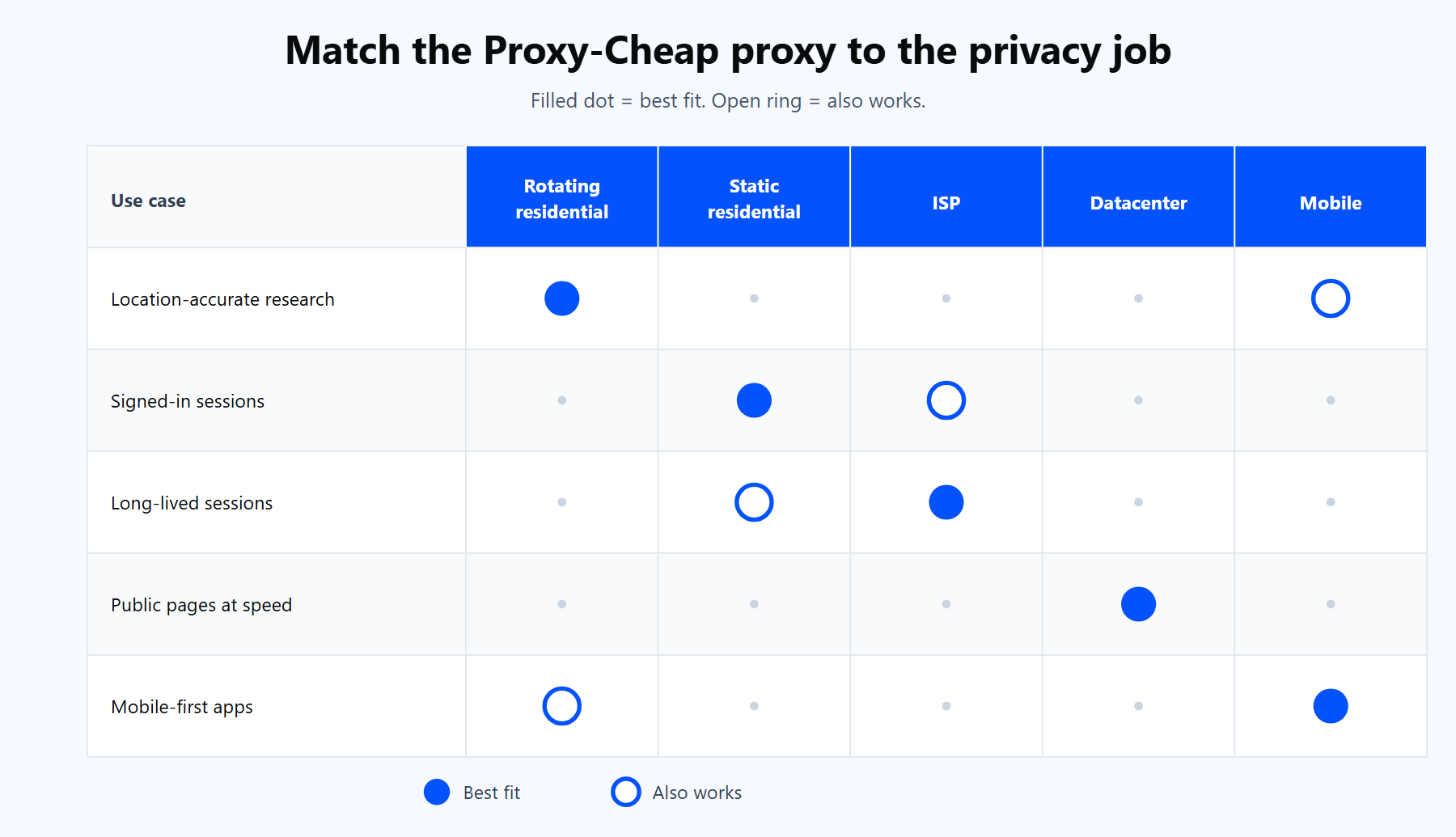
Pick the proxy type by the job: rotating residential for location-accurate research, static residential or ISP for signed-in sessions, datacenter for speed on public pages.
A quick way to choose: if a site changes its content by visitor or location, use a rotating residential IP so the browser sees what a local user sees. If you need the same IP across a signed-in session, use a static residential or ISP proxy. If the target is public and speed matters most, a datacenter IP is the efficient pick, and for mobile-first platforms a mobile proxy presents a real carrier IP.
Proxy-Cheap covers all of these on pay-as-you-go and per-IP plans, with no setup costs and cancel anytime. Disable WebRTC with the method that fits your browser, point the browser at a Proxy-Cheap IP, and run a leak test to confirm only the proxy IP shows.