
A proxy on HarmonyOS routes your phone's traffic through a different IP address before it reaches a website. HarmonyOS handles this differently from Android and iOS, because it has no single proxy screen. This guide covers every method that works today: the Wi-Fi proxy, mobile data, authentication, the developer tools, and the exact steps to add Proxy-Cheap proxies.
HarmonyOS is Huawei's own operating system, first released in 2019 and now running on more than 800 million devices. The 2024 release, HarmonyOS NEXT (branded HarmonyOS 5), is the turning point for anyone configuring a proxy. It removed the Android (AOSP) base that earlier versions shared, so it runs only native HarmonyOS apps built with Huawei's own development stack. By late 2025 the native app catalog had passed 300,000 titles, and HarmonyOS held roughly 5 percent of the global mobile market while ranking second in China.
That history matters for proxies. HarmonyOS versions up to 4 share networking behavior with Android, so the familiar Wi-Fi proxy fields are present and Android proxy apps run after a quick setup. HarmonyOS NEXT keeps a Wi-Fi proxy option on many devices but drops Android app compatibility, which changes how you handle authentication and device-wide routing. The methods below note which path fits which version.
A proxy gives your HarmonyOS phone a different IP address and location for the sites and services it connects to. People set one up on a phone for a few practical reasons:
The right product depends on the task, and the last section maps common HarmonyOS jobs to the proxy that fits each one.
You need two things: a HarmonyOS phone you can reach the Wi-Fi settings on, and a working proxy. A proxy arrives as a small set of connection details:
With Proxy-Cheap you generate these in the dashboard. Rotating products share a single hub, thehub.proxy-cheap.com on port 8080, with the country chosen in the dashboard credential generator, while static products assign a unique host and port to each proxy you order. The Setup Credentials panel in the dashboard shows the exact host, port, username, and password to copy. For a full walkthrough of generating and using credentials, see the guide to using residential proxies.
Note the allowlist option now. It is the cleanest way to authenticate on HarmonyOS, for the reason the authentication section explains.
This is the method most people need. HarmonyOS has no standalone proxy screen, so you attach the proxy to a Wi-Fi network. The setting lives inside that network's details and applies only while you are on that network.
HarmonyOS now sends that network's traffic through the proxy. Open a page that shows your IP address and confirm it matches the proxy rather than your home or mobile connection.
Two limits are worth stating up front. This proxy covers Wi-Fi only, so it does nothing for mobile data, which the mobile data section handles. And the Server hostname and Server port fields are the only inputs: there is no place for a username and password. The native Wi-Fi proxy speaks HTTP, which is why an HTTP gateway is the right choice here. If you want the detail on protocols, the difference between SOCKS and HTTP proxies guide explains it.
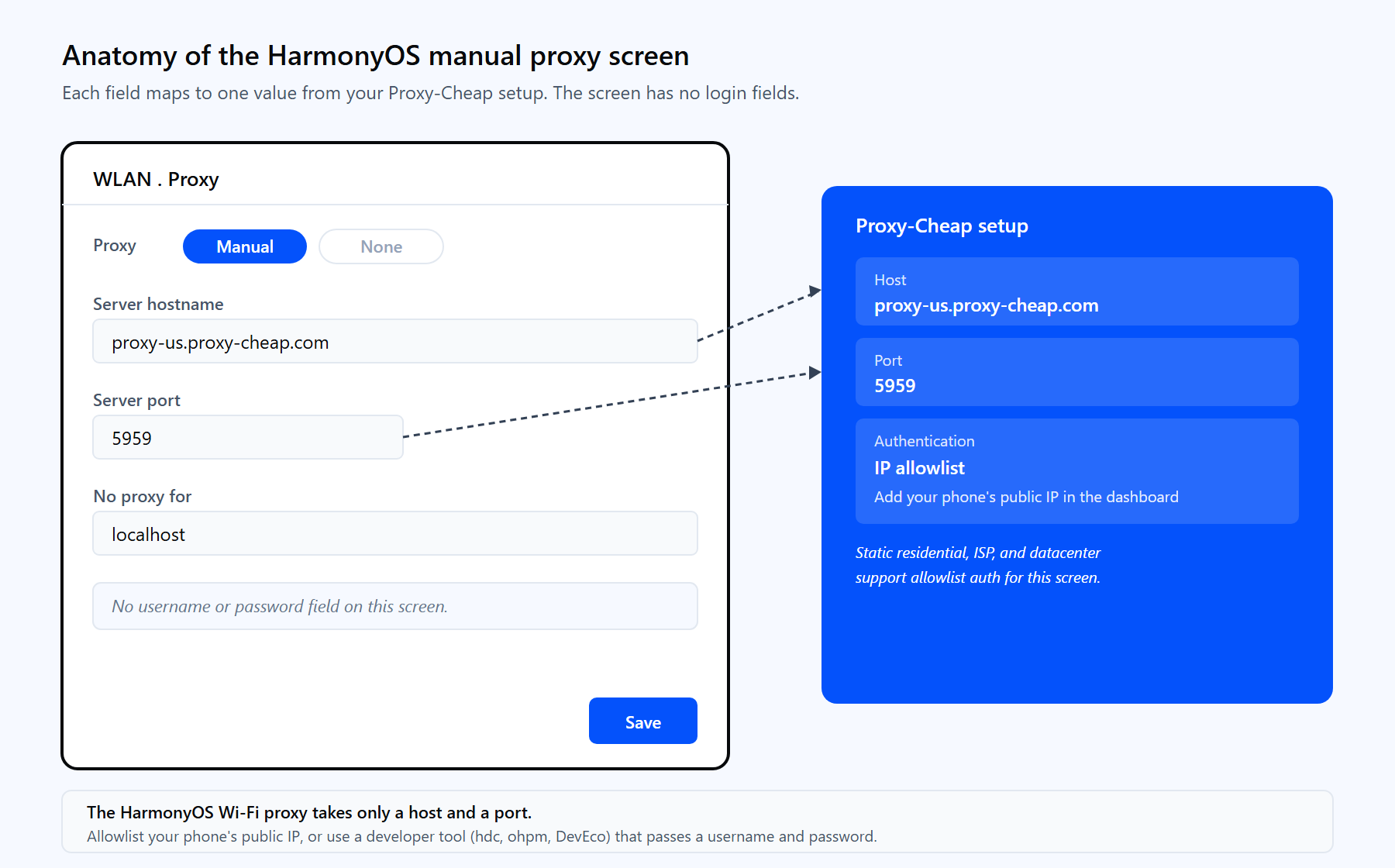
The HarmonyOS Manual proxy screen maps onto your Proxy-Cheap credentials: host into Server hostname, port into Server port. Because the screen has no login fields, an allowlisted IP handles authentication.
Authentication is where most HarmonyOS proxy setups stall, so it is worth understanding. The native Wi-Fi proxy field takes a host and a port and nothing else. A proxy that requires a username and password will reject the connection, because HarmonyOS has nowhere to send those credentials.
There are two clean ways around this:
For most people, the allowlist is the answer. It turns an authenticated proxy into one the phone can use with host and port alone. One caveat: a phone's public IP can change as it moves between networks, so the allowlist suits a phone that stays on one Wi-Fi connection. Update the allowlisted IP in the dashboard whenever it changes.
With the methods above in hand, here is the exact Proxy-Cheap setup. Proxy-Cheap delivers two endpoint formats, and they fit HarmonyOS in different ways.
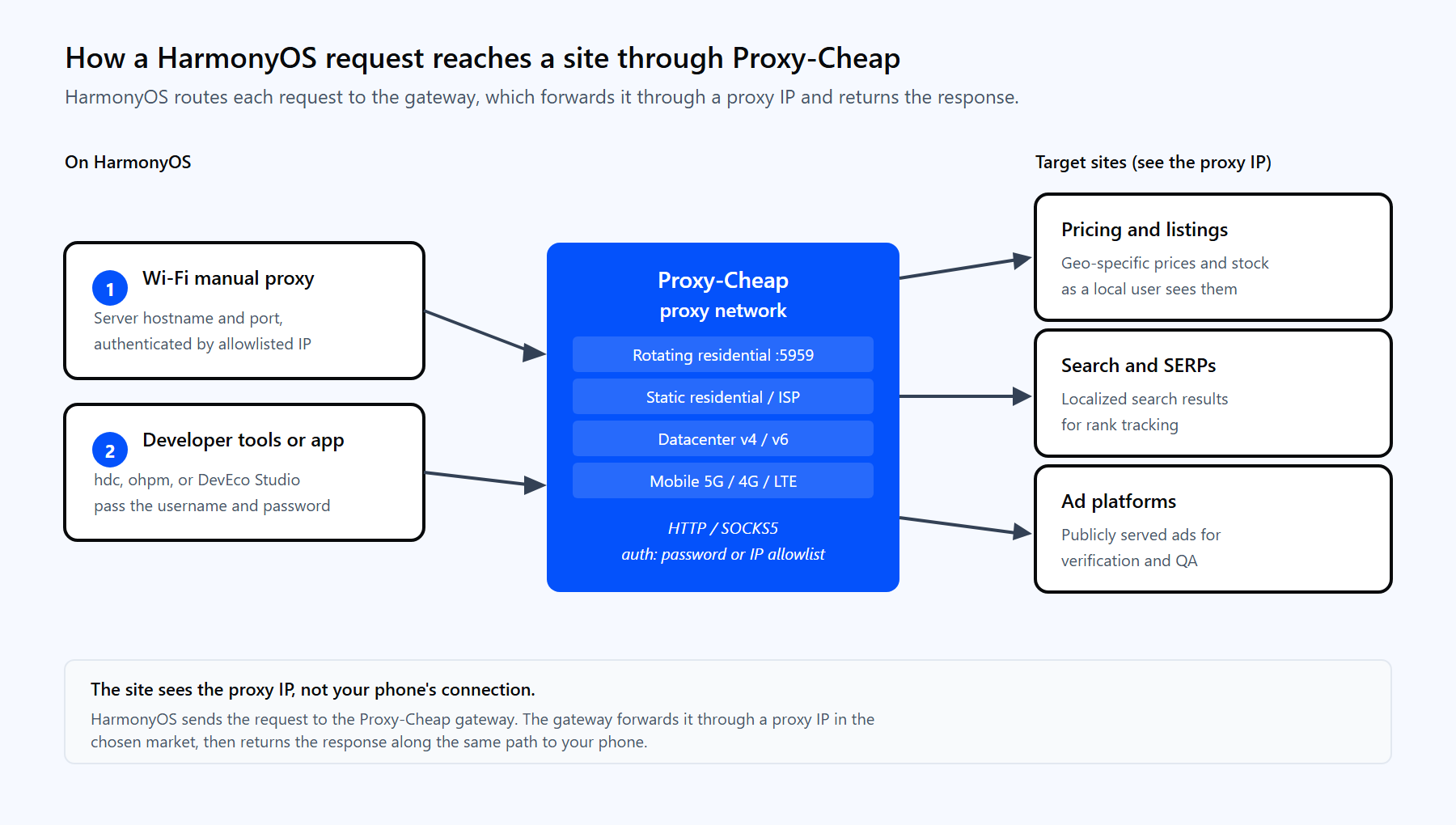
A single HarmonyOS request routes through the Proxy-Cheap gateway, reaches the target site through a proxy IP, and returns to the phone.
Static residential, ISP, and datacenter proxies each come with a unique host and port and support allowlist authentication. That combination is the native path on HarmonyOS, because the Wi-Fi field needs no login once your IP is on the list:
Rotating residential uses a single shared hub and authenticates with a username and password:
Because the native Wi-Fi field cannot pass a username and password, route the rotating residential gateway through a proxy manager app on an Android-compatible HarmonyOS version, or through the developer tools below, which do accept inline credentials. Each request through the gateway then gets a fresh IP automatically.
The Wi-Fi proxy does not touch mobile data. To route mobile data on HarmonyOS versions that share the Android network stack, set a proxy on the access point name (APN):
Like the Wi-Fi field, the APN proxy carries no username and password, so pair it with an allowlisted IP on a static product. On a phone, a mobile proxy matches the mobile-network identity of the device, which suits tasks that expect a carrier IP. Not every carrier or HarmonyOS build exposes an editable APN proxy. If yours does not, use the Wi-Fi method or the developer tools instead.
Rotation gives you a different IP over time, which keeps response quality steady on long sessions. You get it on HarmonyOS two ways:
The right choice depends on the task. Rotating residential suits broad data collection where a fresh IP per request helps. A fixed IP suits account sessions and dashboards that expect the same address each time, and it is the one that works in the native Wi-Fi field with allowlist auth. The static versus rotating proxies guide breaks down when to use each.
Three methods reach beyond a single Wi-Fi network: a device-wide command for Android-compatible builds, the DevEco Studio proxy for HarmonyOS app development, and the package-manager proxy for ohpm and npm.
Device-wide on HarmonyOS 4 and earlier. These versions share the Android settings store, so the HarmonyOS Device Connector (hdc) can set a global HTTP proxy from a connected computer:
hdc shell settings put global http_proxy thehub.proxy-cheap.com:8080This routes system HTTP traffic through the proxy. It carries no credentials, so pair it with an allowlisted IP on a static product. To clear it later, run hdc shell settings put global http_proxy :0. HarmonyOS NEXT may not support the global proxy command, so treat this as an older-version method.
DevEco Studio. If you build HarmonyOS apps, set the IDE proxy at File, Settings, Appearance & Behavior, System Settings, HTTP Proxy. Choose Manual proxy configuration, enter the host and port, and add your username and password if the proxy needs them. This proxies the IDE, not the phone.
ohpm and npm. HarmonyOS package tooling reads its own proxy settings. The ohpm config file (.ohpmrc) accepts inline credentials, so a rotating gateway works here:
http_proxy=http://<your-proxycheap-username>:<your-proxycheap-password>@thehub.proxy-cheap.com:8080
https_proxy=http://<your-proxycheap-username>:<your-proxycheap-password>@thehub.proxy-cheap.com:8080For npm, set the same value from the command line:
npm config set proxy http://<your-proxycheap-username>:<your-proxycheap-password>@thehub.proxy-cheap.com:8080These developer tools accept a username and password in the connection string, which is why rotating residential is straightforward in this context even though the native Wi-Fi field is not.
After any setup, confirm the proxy is actually carrying your traffic.
On the phone. Load an IP-check page such as ipinfo.io. The address and location should match your proxy, not your home or carrier connection. If it still shows your own IP, recheck the host, the port, and that you saved the change on the network you are using.
From a computer, before you trust the credentials. Test the host, port, and login with a one-line curl request. This confirms the proxy works before you put it on the phone:
curl -x http://<your-proxycheap-username>:<your-proxycheap-password>@thehub.proxy-cheap.com:8080 https://ipinfo.io/jsonA JSON response showing the proxy's IP and country means the gateway and credentials are good. A 407 Proxy Authentication Required response means the username or password is wrong, and a timeout means the host or port is off. Fix it on the computer, then enter the working host and port on the phone.
Most HarmonyOS proxy problems fall into a handful of buckets.
The proxy option is missing from Wi-Fi settings. Some HarmonyOS NEXT builds move or remove the field. Use the developer tools above, or a proxy app on an Android-compatible version.
Pages still load on your real IP. The proxy applies per Wi-Fi network. Confirm Manual is selected, that you tapped Save, and that you are on the same network you configured. Mobile data ignores the Wi-Fi proxy.
The connection is refused or times out. The host, port, or protocol is off, or the proxy needs authentication it has not received. Recheck the host and port against the dashboard, and allowlist your IP for static products.
`407 Proxy Authentication Required`. The proxy wants a username and password the native field cannot send. Switch to allowlist authentication, or move the proxy to a developer tool or app that passes credentials.
Mobile data has no proxy. The Wi-Fi setting does not cover it. Set an APN proxy as described in the mobile data section, on a build that exposes one.
A rotating IP is slow. A given exit IP may be busy. Start a new session or pull a fresh IP, and the gateway hands you another.
The best product depends on the kind of work you do on the phone. This matrix maps common HarmonyOS tasks to the Proxy-Cheap line that fits each one.
| HarmonyOS task | First choice | Also works |
|---|---|---|
| Native Wi-Fi proxy with allowlist auth | ISP | Static residential |
| Geo-specific testing and research | Static residential | Rotating residential |
| Public-web data collection | Rotating residential | Datacenter |
| Account sessions on one IP | Static residential | ISP |
| Mobile-network identity | Mobile | Static residential |
| High-throughput public pages | Datacenter | ISP |
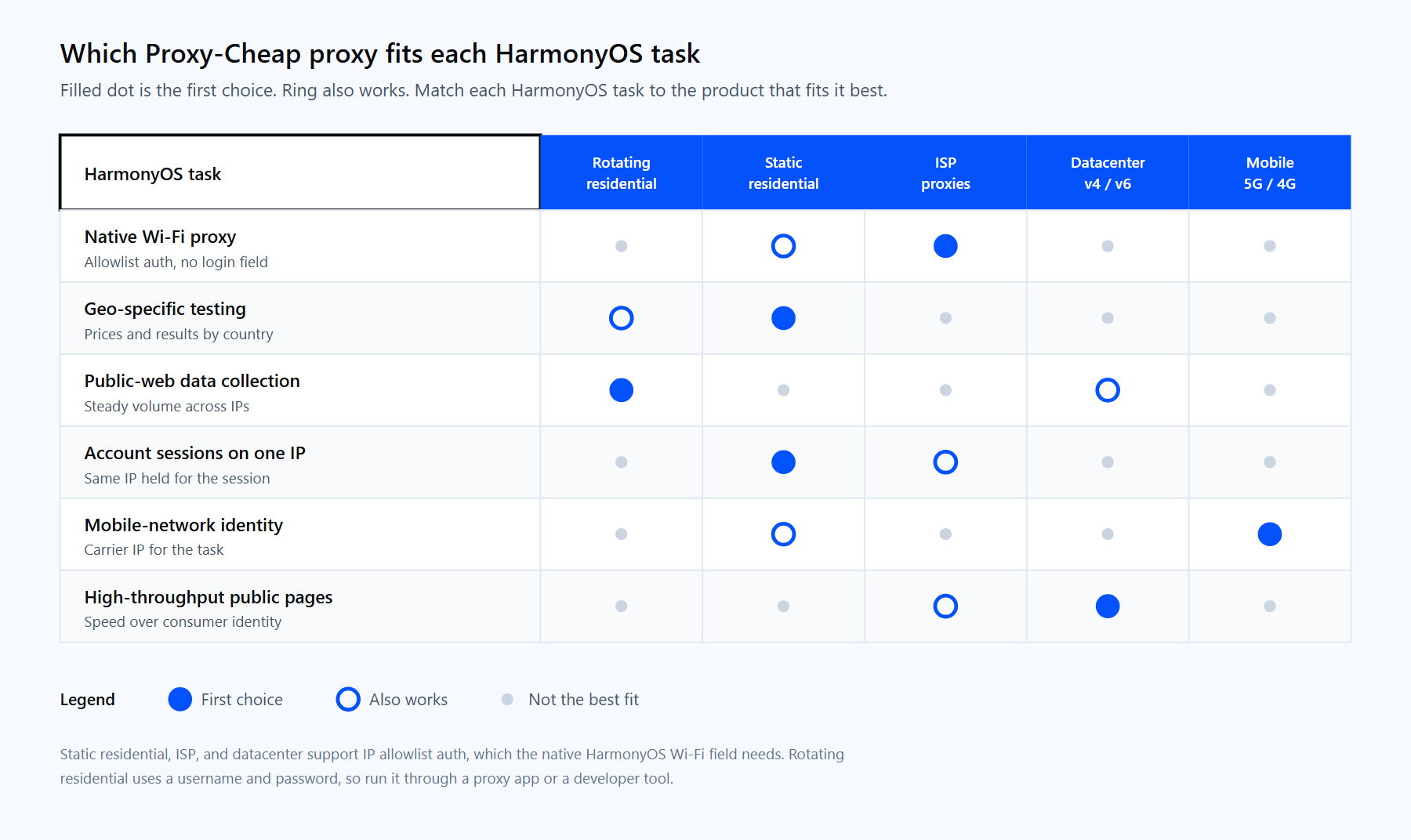
Each HarmonyOS task has a first-choice Proxy-Cheap product and a workable alternative. A filled dot is the first choice, a ring also works.
For the native Wi-Fi field, start with an ISP proxy or static residential and allowlist your phone's IP, since both keep a fixed address the dashboard can authorize. Reach for datacenter proxies when you want high throughput on public pages, and rotating residential through an app or developer tool when a fresh IP per request helps. All of them carry pay-as-you-go pricing, HTTP and SOCKS5 support, and 24/7 support, so you can copy credentials into HarmonyOS and start in minutes.