
-p-2000.webp&w=3840&q=75)
How to find proxy server address without turning into an IT wizard? You’re in the right place. Whether you’re troubleshooting connection issues, trying to access network settings at work, or just making sense of your device’s internet behavior - knowing your proxy server address can help clear things up.
A proxy server acts as a gateway between your device and the internet, rerouting traffic and sometimes adding a layer of security or control. But where exactly do you find this mysterious address? That’s where this guide comes in. We’ll walk you through how to locate your proxy server address on Mac, Windows PC, and iOS - so you’re never left guessing, no matter what device you’re on.
Imagine you're sending a letter to a friend, but instead of mailing it directly, you hand it over to a middleman who sends it on your behalf. That’s basically how a proxy server works - it acts like a go-between for your device and the internet. Instead of connecting straight to a website, your device sends the request to the proxy, which then forwards it to the site. When the site responds, the proxy passes the info back to you. It’s like having a digital middleman for your online traffic.
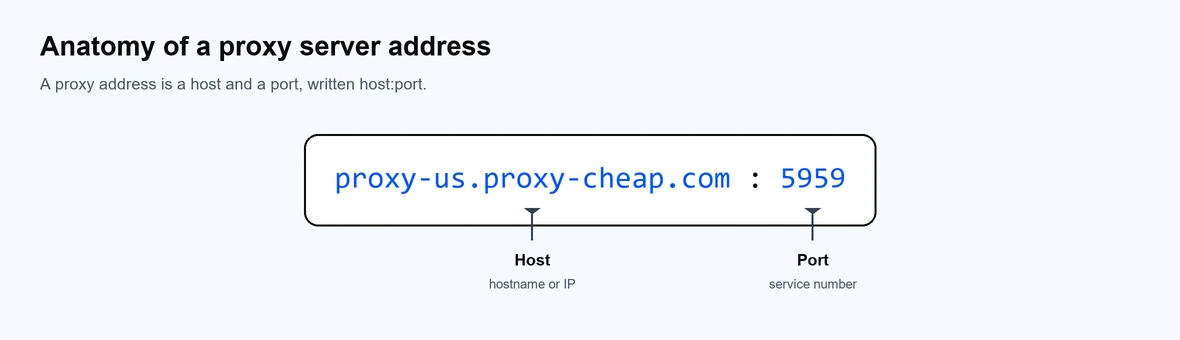
Now, every proxy server has two important pieces of info: the proxy IP address and a port number. Think of the proxy IP as the street address of the middleman and the port number as the specific room or mailbox where your message needs to go. Together, these two form your proxy server address - the exact location your device uses to route its web traffic through the proxy. You can dive deeper into the topic with this quick breakdown on what the proxy address really is.
You’ll usually need to know your proxy server details when you're setting up or troubleshooting network connections. For example, if you're using a secure web proxy to protect your privacy or access blocked content, you may need to manually configure proxy settings in your device. These settings tell your computer or phone where to send your web traffic before it reaches the open internet.
There are also times when a network uses an automatic configuration script to set up system proxy settings without needing manual input. But if that’s not enabled, you might need to enter the proxy address and port yourself. That’s especially true if you're connecting through services like residential proxies for more authentic location-based browsing or datacenter proxies for high-speed, large-scale data tasks.
Knowing your web proxy setup or how to find your proxy IP address can help you solve slow connections, improve online privacy, or access restricted content at school, work, or abroad. And in the sections ahead, we’ll show you exactly how to find these details on Mac, Windows, and iOS devices - no tech degree required.
There are plenty of practical reasons why someone might need to locate their proxy server address, especially if you're dealing with a network that doesn’t connect the way it should - or you're trying to tweak how your device interacts with the internet.
Here are some of the most common scenarios:
Many apps - like browsers, email clients, and data scrapers - rely on specific proxy settings to function properly. To ensure those apps work smoothly, you might need to manually enter the proxy address and port into the app’s configuration area.
If you're having trouble with internet access, your device may be trying (and failing) to connect through an outdated or incorrect proxy. In that case, checking your computer proxy's settings can help pinpoint the problem. Sometimes a quick glance at your active network connection and removing an incorrect web proxy setup can bring everything back to life.
Some users - especially those who travel often or work in tech - frequently switch between home, office, and public networks. Each of these may have different proxy settings. Knowing how to locate and adjust these configurations ensures you’re always connected efficiently.
If you're using a proxy for privacy, performance, or region-based browsing, it’s a good idea to regularly check your system settings to confirm that everything is set up as expected. You can even test your proxy to make sure it’s working correctly and not leaking your real IP.
If you're curious about how proxies shape your online experience, learning about your current configuration is a great place to start. You can also read more in this helpful guide on what a proxy server is and how it works.
Sometimes, especially on Mac or PC, you may need to open system preferences or dive into the system settings to update or remove proxy info manually. Whether you're troubleshooting or setting up a new connection, knowing where to look and what to change can save you time and headaches.
In short, whether you're a tech pro or just someone trying to get their browser working again, understanding your proxy address and how it fits into your network configuration is incredibly useful.
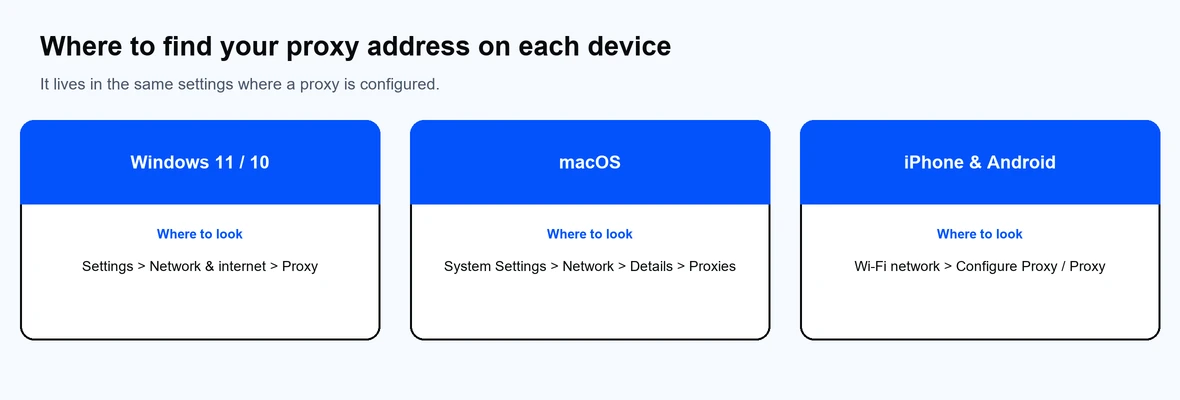
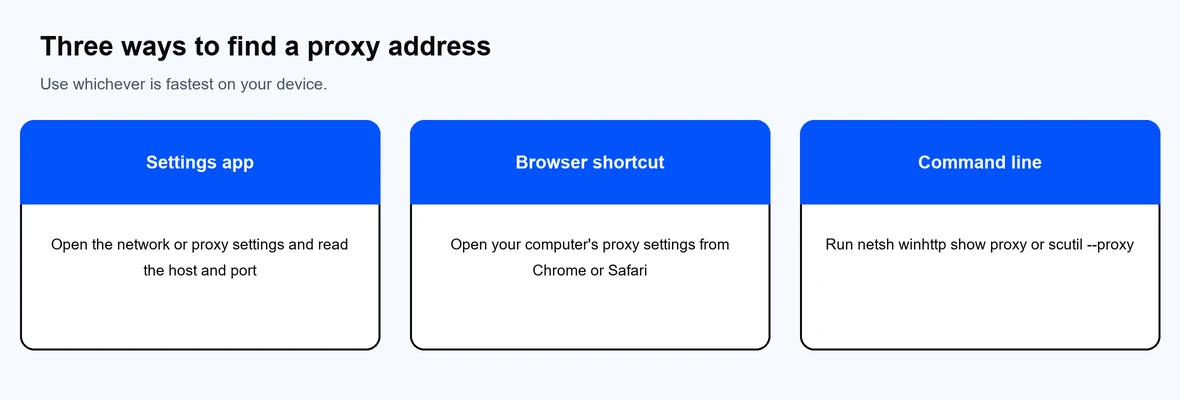
If you're using a Windows PC and need to locate your proxy server address, you have a couple of easy ways to find it - either through the Windows Settings app or the classic Internet Options panel. Below are step-by-step instructions for both methods, whether you're using Windows 10 or 11.
These details are your active proxy server settings, and they determine how your Windows PC connects to the internet via a web proxy.
Tip: Need help configuring your proxy instead? This guide on how to set up a proxy in Windows 11/10 walks you through the process step-by-step.
Using either method, you can view or modify your computer proxy’s settings based on your needs - whether you're troubleshooting, configuring a new proxy, or checking your active network connection for any issues.
Finding the proxy server address on an Android device is fairly straightforward, but keep in mind that the steps may vary slightly depending on your phone's brand (Samsung, Pixel, OnePlus, etc.) and Android version. That said, the general process is similar across most devices. Below is a detailed step-by-step guide to help you check your proxy settings and view the configured proxy IP address and port.
Whether you're troubleshooting connectivity issues, checking if your web proxy is working, or need the info to configure another app, knowing where to find your Android device’s proxy server details can make things much simpler.
Whether you're troubleshooting a connection issue or configuring a new application, knowing how to find the proxy server address on your Mac is key. macOS makes this fairly simple through System Preferences, specifically within the Network settings.
Here's a step-by-step guide to help you locate the proxy IP address, port, and any other active proxy settings configured on your device.
If you’re using an iPhone and need to check the proxy server address, it’s super simple - but keep in mind that proxy settings are only available for Wi-Fi networks, not cellular data. Also, not every network will have a proxy configured. If one is set up, you’ll find the proxy IP address, port, or an automatic configuration script (PAC file) in the Wi-Fi settings.
Here’s how to find it:
With just a few taps, you can access your proxy server details on iOS - helpful for troubleshooting network issues, configuring apps, or verifying secure connections.
So, you followed all the steps and... nothing? Don’t worry - it’s actually quite normal. If you don’t see a proxy server address listed in your device’s network or proxy settings, it most likely means one simple thing:
You're not using a proxy server.
Not every network is configured to use a proxy. In fact, most home Wi-Fi setups connect you directly to the internet without routing through a proxy IP. Proxies are more commonly used in:
Here’s what that absence usually indicates:
If you were expecting to see proxy information—for example, if you're on a company or campus network - it’s possible that:
In those cases, reach out to your IT team or check within the specific app you're using to see if it has custom proxy server details configured.
If you’re exploring your device’s proxy settings, chances are you’re looking to boost privacy, bypass restrictions, or manage network traffic. Instead of relying on outdated or misconfigured proxies, consider using a reliable proxy service.
Proxy-Cheap offers affordable and high-performance residential and datacenter proxies - ideal for everything from secure browsing to data scraping and content access. Whether you're a beginner or a pro, they've got scalable solutions tailored to your needs.
Check them out if you're ready to take control of your internet access with confidence.
Finding your proxy server address might seem like a technical task, but it’s straightforward once you know where to look. To recap: on a Windows PC, you can find your proxy settings through both the Settings app and Internet Options. On Android, check your Wi-Fi network settings for proxy configurations. For iPhone (iOS), go to Wi-Fi settings, tap your connected network, and look for proxy details. On a Mac, navigate to System Preferences > Network, then go to the Proxies tab to find your proxy server details.
If you don’t see a proxy server address, it usually means you’re not using one, which is typical for most users. You can always refer back to these steps as needed, whether you're troubleshooting, configuring applications, or improving privacy. And if you're looking for a reliable proxy, check out Proxy-Cheap for affordable, high-performance solutions.
Stay connected, secure, and informed!