Proxy-Cheap
Tích hợp
How to set up a Kameleo proxy: the full 2026 walkthrough

Kameleo Proxy Integration

Kameleo pairs Chromium and Firefox-based browser profiles with device-level fingerprints, but it doesn't generate IPs of its own. Add a Proxy-Cheap residential, mobile, ISP, or datacenter proxy to match your profile's IP to its fingerprint, so every signal — location, timezone, language, and device, tells the same story.
Nhận proxy cho How to set up a Kameleo proxy: the full 2026 walkthrough
How to set up a Kameleo proxy: the full 2026 walkthrough
What is Kameleo?
Kameleo is an antidetect browser built on two engines, Chroma (Chromium-based) and Junglefox (Firefox-based), that gives each browser profile its own isolated fingerprint: canvas, WebGL, audio, hardware and device details. It supports desktop and mobile device emulation, including real Android and iOS fingerprints. Kameleo doesn't supply proxies itself, so every profile needs an external IP, which should fit its fingerprint's country and, ideally, its device type.

Key takeaways

  • Kameleo assigns one proxy per profile through the Proxy section of profile settings, with HTTP, HTTPS, SOCKS5, and SSH supported and a built-in Test Proxy button to confirm the connection.
  • Pair the proxy type with the profile type: mobile Kameleo profiles fit best with carrier-grade mobile IPs, while desktop profiles fit best with static residential or ISP proxies for sticky sessions.
  • Leave Timezone, Geolocation, and WebRTC on Automatic so Kameleo auto-aligns the fingerprint to the proxy IP. Match the profile Language to the proxy country.
  • Automate at scale with the Kameleo Local API on http://localhost:5050 using the official Python, JavaScript, or C# SDKs, then pass a Proxy-Cheap endpoint into the profile request.

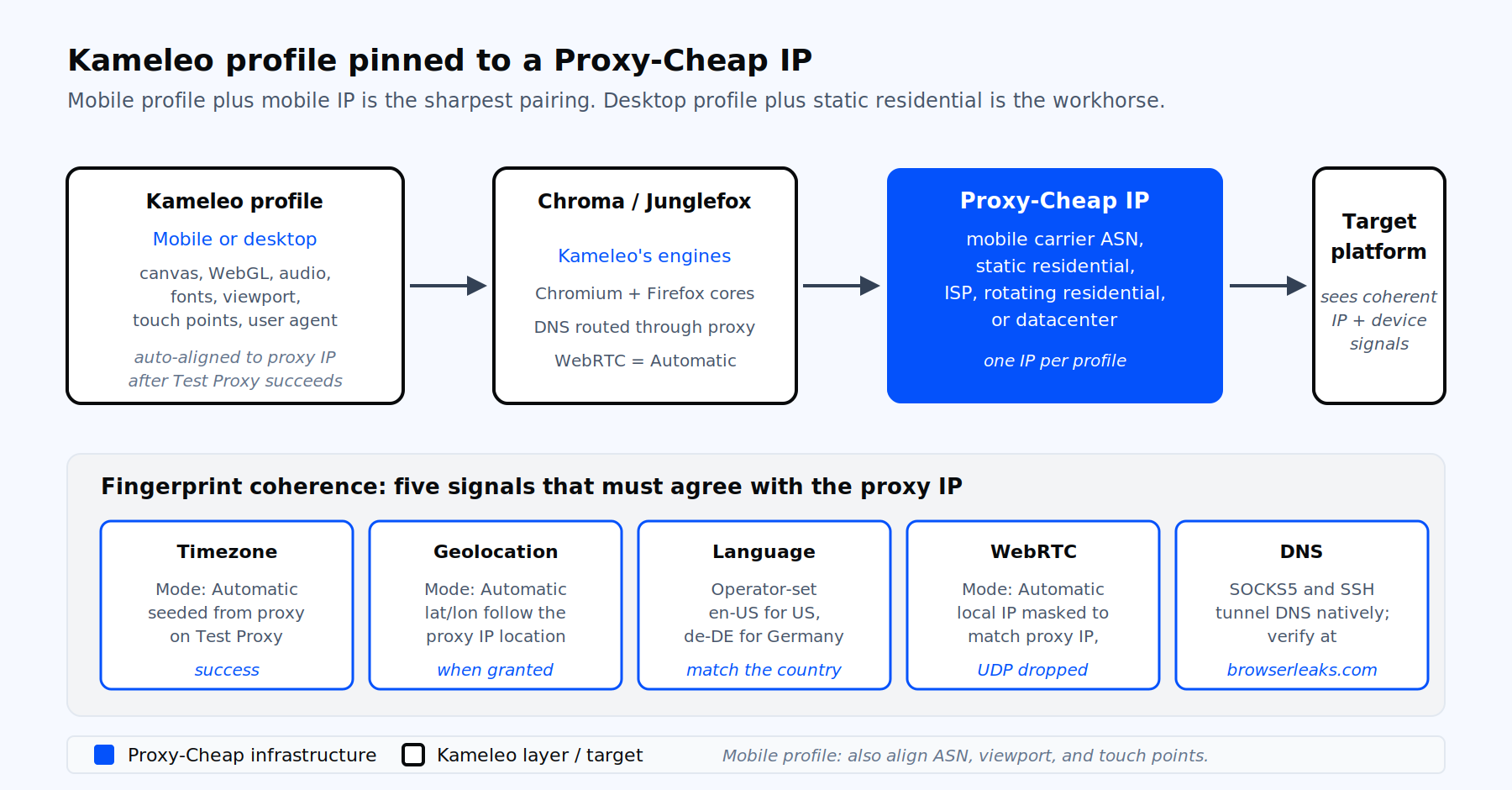
Kameleo profile pinned to a Proxy-Cheap IP architecture diagram with fingerprint coherence checklist

One profile, one Proxy-Cheap IP, one identity. Mobile profile plus mobile IP is the sharpest pairing.

What Kameleo is and why the IP has to fit the fingerprint

Kameleo is an antidetect browser built on two in-house engines, Chroma (Chromium based) and Junglefox (Firefox based). Each profile carries its own canvas, WebGL, audio, hardware, font, and screen fingerprint. The desktop app for Windows and macOS handles profile creation, the Local API drives automation, and Kameleo’s cloud storage syncs profiles across machines.

Kameleo runs the browser. It does not generate IPs. Every profile still needs an external proxy so the IP, the timezone, the language, and the device fingerprint tell the same story. When the fingerprint and the IP describe the same kind of device and location, the session is internally consistent. When they describe different devices or locations, the setup is incoherent, which undermines the privacy and regional-testing workflows that depend on a consistent profile.

The pairing recommendation is direct. For the best fit, pair a mobile fingerprint with a mobile IP, and a desktop fingerprint with a residential-grade desktop IP. Pairing a datacenter IP with a profile configured as a mobile device creates a mismatch between the IP type and the device the profile presents, which breaks the internal consistency of the setup.

Kameleo’s mobile profile edge

Most antidetect browsers stop at desktop. Kameleo emulates Android Chrome and iOS Safari profiles with real device-level fingerprints, including viewport size, touch points, user agent, and hardware specs. That makes it a natural fit for social media account management, ad verification on mobile placements, and dropshipping workflows that run on mobile placements.

The cleanest possible match in the antidetect category is therefore a Kameleo mobile profile routed through a 4G or 5G mobile proxy. The profile says "iPhone on Verizon." The IP says "AS6167, mobile carrier, United States." Both signals agree.

Built-in proxy options versus bringing your own

Kameleo integrates with partner proxy networks inside its app, but it does not run a proxy pool of its own. Bringing your own proxies is the default for any serious operator who needs control over country selection, sticky session length, IP volume, and billing model.

Bringing Proxy-Cheap proxies into Kameleo gives you:

  • Pay-as-you-go ($/GB) on rotating residential and rotating mobile, with per-IP monthly pricing on static residential (ISP), datacenter, static mobile, and unlimited-bandwidth SOCKS5. No monthly commitment; cancel anytime.
  • Sticky sessions on static residential proxies for accounts that need the same IP for the lifetime of the profile.
  • Datacenter speed combined with residential-grade trust on ISP proxies, useful when you run many Kameleo profiles in parallel.
  • Crypto billing, 24/7 support, and broad country coverage across all product lines.

Step-by-step proxy setup in the Kameleo desktop app

The flow below follows the May 2026 Kameleo build. The order matters. Assign the proxy before the first launch so Kameleo seeds Timezone, Geolocation, and WebRTC from the proxy IP rather than from your machine.

  1. Generate the proxy endpoint in your Proxy-Cheap dashboard. Copy the host, port, username, and password. Note the protocol your plan supports. If you bought SOCKS5 proxies, copy the SOCKS5 endpoint specifically.
  2. Open Kameleo, click Profiles, then New. Pick the base browser (Chroma or Junglefox) and the device type. For desktop work choose Windows, macOS, or Linux. For mobile work choose Android or iOS.
  3. Name the profile. Use a system that ties the profile to its proxy and target account, for example tiktok-uk-04-static-resi.
  4. Pick the Language that matches the proxy country. A US proxy paired with fr-FR is an inconsistency. Set en-US for US proxies, de-DE for German proxies, and so on.
  5. Scroll to the Proxy section. Switch the toggle from Without Proxy to With Proxy.
  6. Pick the connection type from the dropdown. Options are HTTP, HTTPS, SOCKS5, and SSH. Kameleo does not support UDP-based proxies. SOCKS5 routes DNS through the tunnel, which is the safer default for privacy-sensitive workflows.
  7. Enter Server (host) and Port. Toggle Authentication on, then enter Username and Password. You can also paste a string in host:port:user:pass format and Kameleo will parse it.
  8. Click Test Proxy. Kameleo will route a request to Google, then fall back to Archive.org or Wikipedia if needed. On success you will see a green confirmation and the proxy’s country.
  9. Open Advanced Settings. Confirm Timezone, Geolocation, and WebRTC are set to Automatic. Confirm WebGL, Canvas, Audio, Hardware Concurrency, and Screen Resolution look reasonable for the device class.
  10. Save the profile, then click Start. The custom Chroma or Junglefox engine launches with the proxy already attached.

If Test Proxy fails on a proxy you know is healthy, your provider’s allow list may not include the test domains. Whitelist Google, Archive.org, and Wikipedia at the provider side, or run a manual check in a separate browser tab once the profile is open.

Setting up a mobile profile with a mobile proxy

Mobile profile setup follows the same Proxy section flow, with two extra checks for fingerprint coherence.

  1. In New Profile, set Device Type to Mobile. Pick Android with Chrome or iOS with Safari. Pick a real device model from the fingerprint list, for example Pixel 8 Pro or iPhone 15.
  2. Confirm the viewport, touch points, and user agent that Kameleo seeds from the chosen fingerprint. These should stay on their defaults unless you have a specific reason.
  3. Open the Proxy section. Pick HTTP or SOCKS5. Paste your Proxy-Cheap mobile endpoint. The mobile pool is rotating by default, so use the sticky-session token your dashboard generates if your account needs a stable IP for the session.
  4. Click Test Proxy. Confirm the ASN that comes back is a mobile carrier ASN, not a hosting ASN. The country code should match the profile Language.
  5. Save and Start. The profile launches as a mobile browser with touch events and a mobile viewport, all routed through a carrier IP.

This is the workflow behind most multi-account management setups for TikTok, Instagram, and short-form video that run on Kameleo. The use-case page for multi-account management proxies lists the protocols and rotation options supported on each product line.

Faster proxy entry with the connection-string format

When you run more than a handful of profiles, enter proxies once and attach them by reference. 

Paste a list in the standard one-per-line format:

192.0.2.10:8000:user1:pass1
192.0.2.11:8000:user2:pass2
gw.example-provider.net:7777:account-zone-uk-sessid-A1B2C3:secret
[2001:db8::1]:8080:user3:pass3
proxy.example.net:1080:user4:p%40ssword

Format rules from Kameleo’s documentation:

  • One proxy per line, four fields separated by colons.
  • IPv6 hosts must be wrapped in square brackets.
  • Special characters in passwords (@, :, #, $) must be URL encoded. pass@word becomes pass%40word.
  • Hostnamed proxies need the port after the colon, just like IPv4.

Once imported, open any profile, scroll to Proxy, and pick the saved entry from the library dropdown. Attaching a new IP to a profile is a one-click action.

Fingerprint coherence in five fields

A proxy is not enough on its own. Session consistency depends on whether the IP and the browser fingerprint describe the same device and location. Kameleo handles most of the heavy lifting automatically, but the operator owns the review.

  • Timezone. Kameleo sets this from the proxy IP when Automatic is on. Manual override only if the account’s history justifies a different one.
  • Geolocation. Latitude and longitude follow the proxy IP. Sites that ask for permission read this value when the user grants it.
  • WebRTC. Kameleo masks the local IP to match the proxy IP. For Chroma profiles you can also set webrtc.ip_handling_policy = disable_non_proxied_udp to keep WebRTC on the proxied path. For Junglefox set media.peerconnection.ice.proxy_only = true.
  • DNS. SOCKS5 and SSH route DNS through the proxy. HTTP and HTTPS proxies usually do too inside Kameleo. Verify on browserleaks.com/dns after launch.
  • Language. Kameleo does not auto-set this. The operator picks Language at profile creation and it must match the proxy country.

For mobile profiles, add three more checks. Confirm the carrier ASN matches the device. Confirm the viewport matches the chosen device model. Confirm the touch points value stays at the device default (usually 5 for modern phones).

Verifying the proxy before you log in

Run two checks every time you launch a fresh profile. Kameleo’s Test Proxy confirms connectivity, latency, country, IP, and ASN before the browser opens. After the browser opens, load a public IP echo as a second pass.

  • https://api.ipify.org returns the exit IP as plain text.
  • https://browserleaks.com/ip shows IP, DNS server, and WebRTC findings on one page.
  • https://browserleaks.com/javascript confirms timezone and locale.

If the WebRTC IP on browserleaks differs from the api.ipify result, stop. The profile has a leak. Close, reopen the profile with the proxy already attached, and recheck. Never log into an account through a profile that shows two different public IPs.

Rotation strategy and session stickiness

The rule inside Kameleo is one profile, one identity, one IP for as long as the account lives. A consistent IP across sessions keeps the profile coherent for account management and testing. An IP that jumps between cities and ASNs from session to session breaks that consistency, even when each individual IP is clean.

Two patterns cover almost every Kameleo workflow.

  • Sticky for account management. Assign a static residential, ISP, or sticky mobile session to the profile. Keep the same proxy attached for the lifetime of the account. This is the right default for social media accounts, dropshipping stores, affiliate dashboards, and any logged-in identity.
  • Rotating for data collection. When the workflow scrapes publicly available content rather than holding a logged-in session, point the profile at a rotating gateway URL from a rotating residential proxies pool. Each new TCP session yields a new exit IP, with rotation handled by the provider rather than by Kameleo itself.

Never swap proxies mid-session on a logged-in profile. Stop the profile first, change the proxy in profile settings, then restart. For a deeper read on when to use which pattern, see this guide to static vs rotating proxies.

Common errors and verified fixes

SymptomMost likely causeFix
"Could not connect to proxy"Wrong protocol selected for the plan, or provider allow list missing test domainsMatch the protocol your dashboard documents. Allow Google, Archive.org, and Wikipedia at the provider side, or whitelist your local IP.
Browser starts but Test Proxy failsSpecial characters in password broke parsingEnter Username and Password in the dedicated fields instead of one string, or URL encode @, :, #, $.
DNS leak shown on browserleaksProfile launched before the proxy was assignedStop the profile. Assign the proxy in the Proxy section. Relaunch. SOCKS5 routes DNS through the tunnel by default.
WebRTC shows real IPWebRTC not restricted to the proxied path'.Confirm Automatic on WebRTC. Force webrtc.ip_handling_policy = disable_non_proxied_udp on Chroma profiles.
Timezone differs from proxy countryManual override left in place from a previous editSet Timezone, Geolocation, and WebRTC back to Automatic. Re-run Test Proxy to reseed values.
Slow first launch through residentialCold TLS handshake, residential pool selectionWarm a pool of pre-tested proxies and reuse them. First launches on residential are typically 1 to 3 seconds slower than ISP.
Profile worked yesterday, fails todayRotating gateway issued a different exit IP or citySwitch to a sticky session token, or move that profile to a static residential or ISP endpoint.
Mobile profile presents inconsistently on a social platformDatacenter or non-carrier ASN paired with the mobile fingerprintMove the profile to a mobile proxy whose ASN belongs to a real carrier in the profile’s country.

Automating proxy assignment with the Kameleo Local API

Kameleo exposes a local REST API at http://localhost:5050 once the CLI or desktop app is running. The official SDKs cover Python, JavaScript, TypeScript, and C#. The pattern below provisions a desktop profile, attaches a SOCKS5 endpoint, and starts the profile.

from kameleo.local_api_client import KameleoLocalApiClient
from kameleo.local_api_client.models import (
    CreateProfileRequest,
    ProxyChoice,
    Server,
)
 
client = KameleoLocalApiClient(endpoint="http://localhost:5050")
 
# Pick a desktop Chrome fingerprint
fingerprints = client.fingerprint.search_fingerprints(
    device_type="desktop",
    browser_product="chrome",
    language="en-us",
)
 
# Attach a Proxy-Cheap SOCKS5 endpoint
proxy = ProxyChoice(
    value="socks5",
    extra=Server(
        host="resi.proxy-cheap.example",
        port=7777,
        id="your_username",
        secret="your_password",
    ),
)
 
profile = client.profile.create_profile(
    CreateProfileRequest(
        fingerprint_id=fingerprints[0].id,
        name="kameleo-proxy-cheap-demo",
        proxy=proxy,
    )
)
 
client.profile.start_profile(profile.id)

A few notes for production runs. Stop the profile before calling update_profile if you need to swap the proxy. Pass proxy=None to remove the proxy. Wrap fingerprint search in retries when iterating across many regions, since the index is large.

For wider patterns on rotating, sticky, and per-request proxy switching across different toolchains, the roundup on the best proxies for web scraping covers code-side approaches that pair well with the Local API.

Running Kameleo at scale

Three operational habits separate a five-profile setup from a five-hundred-profile one.

  • Organize profiles with folders and tags. Tag by target platform, country, and proxy type. Filter the profile list when you scale.
  • Run parallel profiles on the same machine. Kameleo isolates each profile’s storage and fingerprint. Hardware concurrency is the practical ceiling.
  • Pre-warm proxies. Run Test Proxy in a nightly job for every entry in the proxy library. Replace any entry that returns more than 2 seconds of latency or a wrong country.
  • Pair the Local API with a small queue worker. A worker creates profiles, attaches a Proxy-Cheap endpoint, starts the profile, hands the WebSocket URL to your automation script, then stops the profile when done.

For multi-account management across Instagram, TikTok, Facebook, X, and YouTube, the social media proxies use case page documents which protocol and rotation pattern fits which platform.

Matching the Proxy-Cheap product to your Kameleo workflow

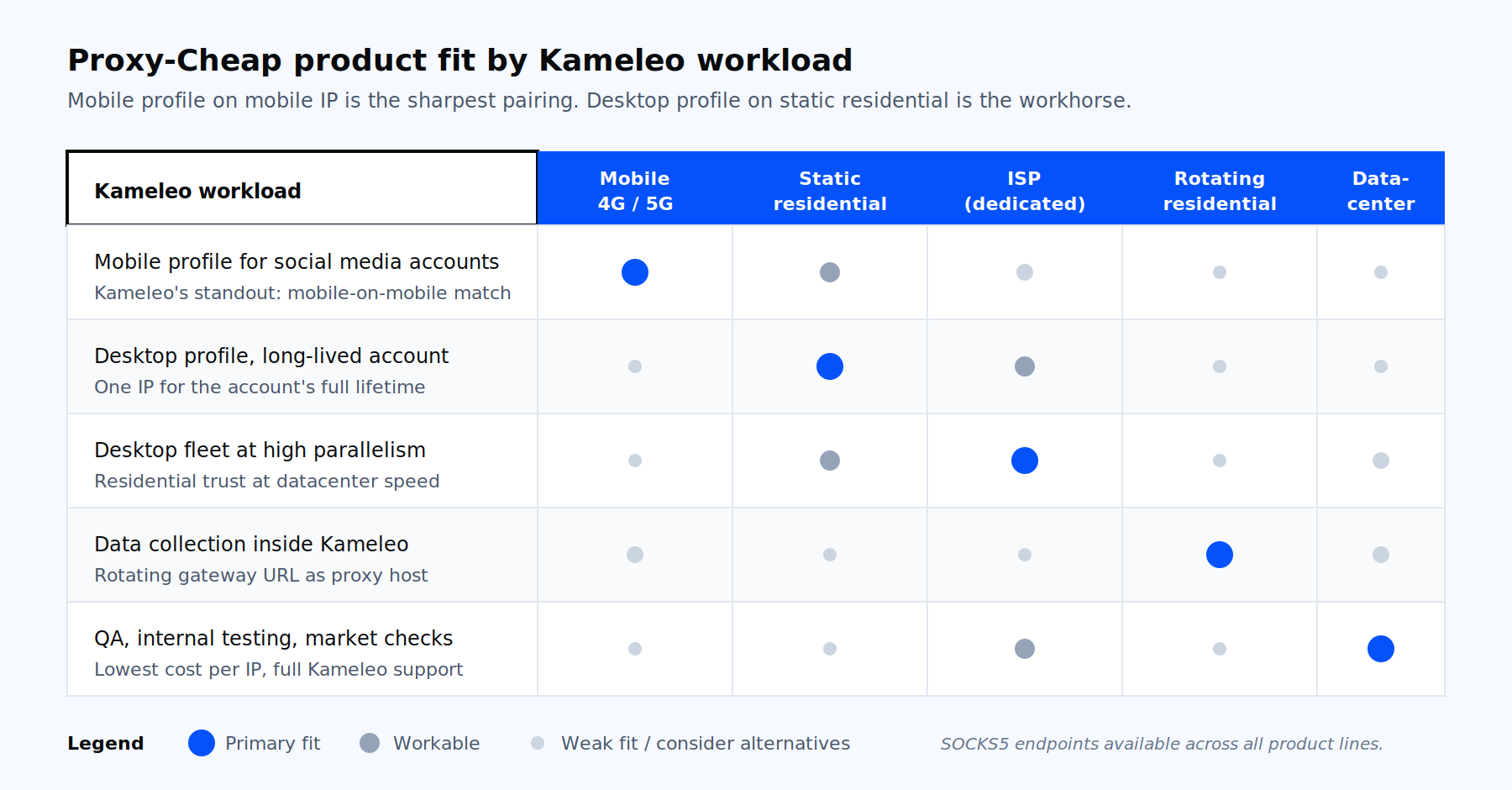
The right Proxy-Cheap product depends on what the Kameleo profile is doing. The table below summarizes the fit. Mobile profiles get pride of place because mobile-on-mobile is the cleanest match available in the antidetect category.

Kameleo workflowPrimary fitStrong alternativeNotes
Mobile profile for social media account managementMobile proxies (rotating with sticky session)Static residential when carrier match is not requiredMatch the carrier ASN’s country to the profile Language.
Desktop profile for long-lived account ownershipStatic residential proxiesISP proxiesOne IP per profile for the account’s lifetime.
Desktop profile fleet at high parallelismISP proxiesStatic residentialDatacenter-grade speed with residential-grade trust.
Data collection inside Kameleo on publicly available contentRotating residential proxiesMobile proxies for cellular-heavy targetsUse a rotating gateway URL as the proxy host.
QA, internal testing, market-specific page checksDatacenter proxiesISP proxiesLowest cost per IP, full Kameleo compatibility.
Any of the above on SOCKS5SOCKS5 across product linesn/aDNS travels through the tunnel by default.

Decision matrix mapping Kameleo workloads to Proxy-Cheap product lines

Pick the Proxy-Cheap product line that matches what the Kameleo profile is doing, not the other way round.

The shortest path to a working Kameleo setup is to pick the product line that matches your profile type, generate the endpoint in the matching product dashboard, then paste it into the Proxy section of a new profile. From there the patterns above carry every workflow from one profile to a thousand.


Câu hỏi thường gặp

No. Kameleo runs the browser engines (Chroma and Junglefox) and the fingerprint surface. It integrates with third-party proxy providers but does not generate IPs. Every profile needs a proxy you supply, which is why bringing your own endpoints from a provider with broad product breadth gives you the most control over country, session length, and rotation.

It is technically possible but not recommended. Two separate accounts sharing one IP links those identities together, which undermines the separation you want for privacy-sensitive and testing workflows. The Kameleo recommendation, echoed by every serious operator, is one profile to one proxy. Set a default proxy in the Proxy Manager only when you intend to override it per profile.

Chroma is Kameleo’s Chromium-based engine, updated within days of every Chrome Stable release. Junglefox is the Firefox-based engine, updated roughly every two months. Proxy setup is identical between them: the Proxy section in profile settings accepts HTTP, HTTPS, SOCKS5, and SSH for both. WebRTC handling is the one place where the underlying preference name differs, which matters only when you force a setting beyond Automatic.

The most common reason is the provider’s allow list. Kameleo’s test reaches Google, Archive.org, and Wikipedia. If your provider whitelists by destination, those three domains may not be on the list. The second most common reason is wrong protocol selection in the dropdown, for example picking SOCKS5 on an HTTP-only endpoint. The third is special characters in the password breaking the connection string, which the dedicated Username and Password fields avoid.

No. Stop the profile first, edit the Proxy section, then restart. Live proxy rotation is not supported in Kameleo, and changing the IP mid-session on a logged-in account breaks the consistency of that session, so it is best avoided. For rotation-style data collection use a rotating gateway URL as the proxy host so the rotation happens on the provider side without changing the configured value in Kameleo.

Use Kameleo’s cloud sync. Profiles created on machine A appear on machine B once both clients sign into the same Kameleo account, and the proxy configuration travels with the profile. If you prefer local export, Kameleo writes profile data to disk under its application data directory; copy the directory across machines and reattach the proxy from the Proxy Manager library, which also syncs. Avoid hand-editing the JSON in the profile folder, since checksums will invalidate the profile on load.

Only for HTTPS proxies that present a custom certificate, which is rare on standard residential and mobile pools. The HTTP, SOCKS5, and SSH connection types in Kameleo handle authentication through Username and Password without certificate installs.

en-US. The Language field in profile settings is operator-set, not auto-derived. A US IP paired with fr-FR or de-DE is inconsistent and undermines localization testing, where the locale should match the proxy country. Match the Language to the country your proxy IP resolves to, then leave Timezone, Geolocation, and WebRTC on Automatic so Kameleo handles the rest.