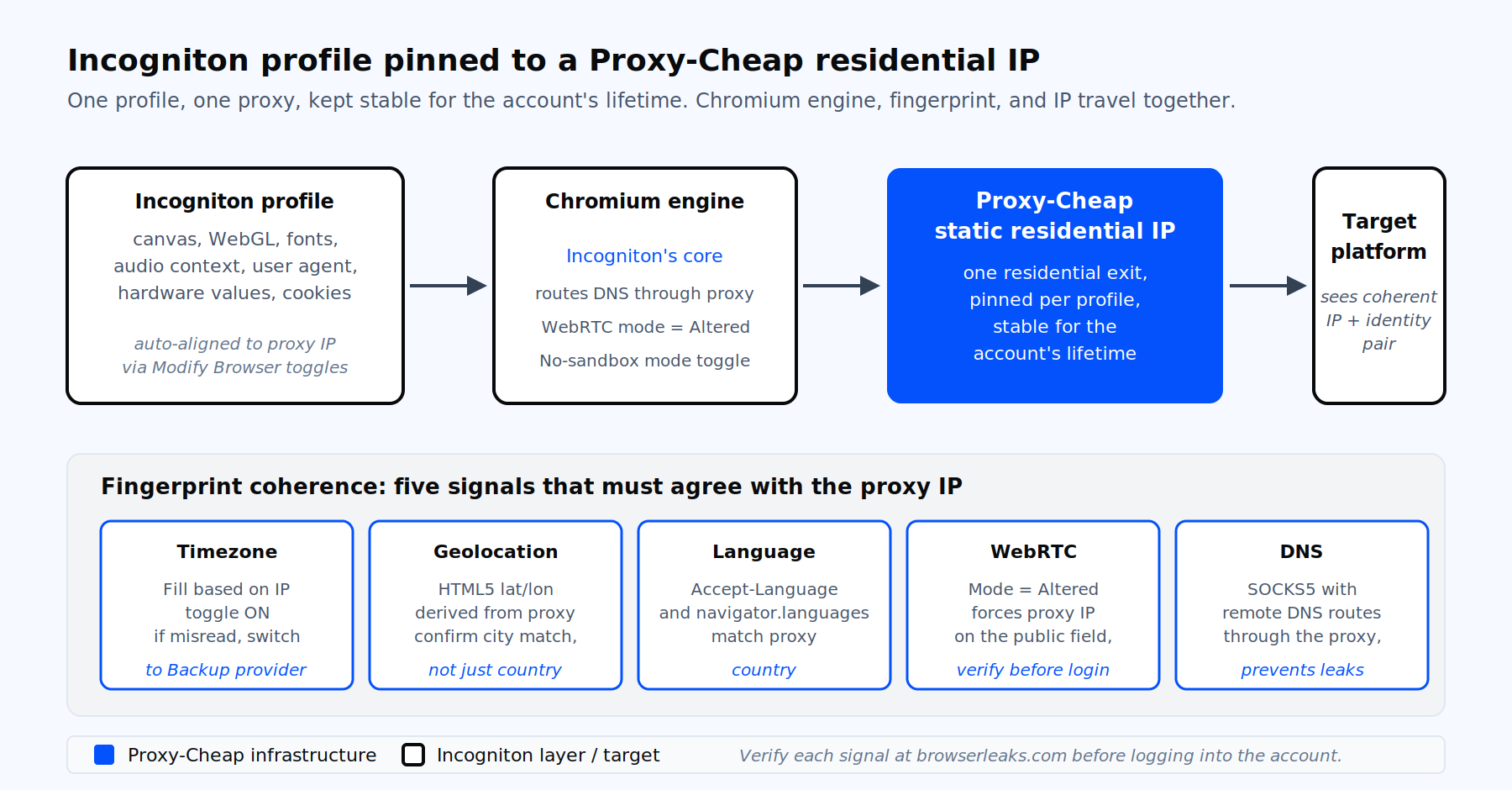
One Incogniton profile, one Proxy-Cheap IP, one consistent identity across timezone, language, WebRTC, and DNS.
Incogniton is a Chromium-based antidetect browser for Windows and macOS that lets one operator run many separate browser profiles, each with its own cookies, storage, canvas signature, WebGL signature, audio context, fonts, user agent, and hardware values. Per Incogniton’s documentation, each profile is a fully isolated, self-contained environment with its own data, and a single workspace can scale to 5,000 profiles and 25 team seats.
The product is built for multi-account workflows: affiliate operators, dropshippers, e-commerce sellers, paid-traffic teams, and social media managers who manage many separate accounts in parallel, each kept fully isolated: agencies running client accounts, regional campaign testing, and similar legitimate multi-account work. The free Starter package includes 10 profiles for the first two months, then drops to 3. Paid tiers start at $19.99 per month, with REST API access from the $29.99 Entrepreneur tier upward.
A clean fingerprint is only half the picture. Modern scoring services compare the browser fingerprint against the IP: country, timezone, language, ASN class, and DNS resolver. If the fingerprint says New York but the IP geolocates to Frankfurt, the profile fails the first risk check. The proxy is the other half of the identity, and the two must agree.
Incogniton ships three proxy options in the app.
The free unblocked proxies toggle gives quick access to shared IPs by country. Incogniton’s own documentation states these are not suitable for account management. Treat them as a quick test path, not a production tool.
The in-app Proxy Shop sells residential, ISP, datacenter, and mobile proxies you can buy without leaving the dashboard. It is convenient, and purchased proxies auto-import into Proxy Management.
Bring your own proxies is the pattern most operators choose at scale. You get pay-as-you-go billing, sticky sessions across hundreds of profiles, country and city selection that matches the account’s claimed location, and the ability to mix product types per profile group. Proxy-Cheap supports the two connection types you need in Incogniton (HTTPS and SOCKS5) and gives you per-IP credentials or IP whitelisting. See the static residential proxies plan for the most common multi-account setup.
Before you open Incogniton, prepare the proxy. Log into the Proxy-Cheap dashboard, pick the product that fits your workload (see the matrix near the end of this article), and either generate a sticky residential IP or copy a rotating gateway URL. You will need four values:
If your password contains : @ / # or other reserved characters, URL-encode them or regenerate a password with only letters and digits. The most common Incogniton paste format uses : as a delimiter, so colons in passwords break parsing.
For account work, a single static IP per profile is the cleanest setup. Proxy-Cheap ISP proxies provide HTTPS and SOCKS5 endpoints with high uptime, which is the typical pattern for affiliate and e-commerce multi-account use.
This is the canonical single-profile workflow, verified against Incogniton’s Knowledge Hub.
The four critical fingerprint fields (timezone, geolocation, language, WebRTC) are set under Modify Browser settings. Incogniton’s WebRTC mode defaults to Altered, which forces WebRTC to report the proxy’s external IP rather than your real one. Confirm this before launching the profile for the first time.
Proxy-Cheap issues HTTPS and SOCKS5 endpoints, so those are the two connection types to pick from Incogniton's dropdown.
HTTPS is the standard choice. Most Proxy-Cheap residential, ISP, and datacenter endpoints are issued as HTTPS. Pick this unless you have a specific reason to switch.
SOCKS5 is the choice when you need TCP and UDP support, or when you want DNS resolved through the proxy instead of your local machine. SOCKS5 is the safer pick for DNS-sensitive workflows because the proxy resolves hostnames upstream. Proxy-Cheap SOCKS5 proxies work across residential, datacenter, and mobile IPs.
For ten or more profiles, single entry is slow. Incogniton’s Proxy Management dashboard supports bulk import in four formats:
Open Incogniton, click Proxy Management in the left sidebar, click Create bulk, pick the format, paste or upload, click Check to validate, then Import.
The most common standard format paste looks like this:
45.91.10.22:8000:pc_user_001:Pw9aQ2rT
45.91.10.23:8000:pc_user_002:Lm3xV7zB
45.91.10.24:8000:pc_user_003:Kt2nR8sJ
185.199.20.55:8000:pc_user_004:Hg5wE1pY
185.199.20.56:8000:pc_user_005:Xr4uN6oMEach line is host:port:username:password. Use this format with the Standard option and the colon delimiter. If any password contains a colon, switch to the CSV file template where columns are explicit and the delimiter is semicolon.
After import, attach the saved proxies to profiles by opening the profile editor, going to the Proxy section, and selecting from the Proxy Management list. Incogniton added a search field for proxy assignment in 2025, which speeds this up when you have hundreds of stored entries.
For dropshipping or e-commerce account farms, see Proxy-Cheap’s multiple accounts creation use case for product mix guidance.
A proxy on its own is not enough. The browser must report values that agree with the IP. Five fields decide whether the session passes risk scoring.
Timezone must match the proxy’s country. A US IP with a Berlin timezone reads as proxied. Incogniton’s fill_timezone_based_on_ip toggle handles this automatically, but it can silently fail if the proxy info provider returns no data. If Check proxy returns a wrong country, switch the proxy information provider to Backup or Second backup and re-check.
Geolocation: the HTML5 geolocation API returns coordinates. Incogniton auto-fills them from the proxy IP. Confirm the coordinates match the city, not just the country.
Language: Accept-Language and navigator.languages should match the proxy country. A US IP serving de-DE headers is an obvious mismatch. Incogniton’s navigator_languageIPToggle handles this; verify after the first launch.
WebRTC: the browser can leak the real IP through WebRTC even when the proxy is set. Incogniton’s default Altered mode forces WebRTC to use the proxy’s public IP. Confirm by loading browserleaks.com/webrtc inside the launched profile and checking the public IP field. It should match the proxy IP.
DNS: DNS requests should resolve through the proxy. SOCKS5 with remote DNS is the cleanest way to enforce this. Proxy-Cheap endpoints support both, so pick SOCKS5 when DNS leakage is a concern.
Open browserleaks.com or iphey.com inside the launched profile after every new profile setup. Compare the reported IP, timezone, language, and WebRTC values against the proxy you assigned. If any one of the five disagrees, fix it before you log into anything.
Run two checks before you trust a new profile.
The first is the in-app Check proxy button. It confirms the credentials work, returns the external IP, and reports the country and city Incogniton sees. If it shows a green status, the connection layer is fine.
The second is an in-browser verification. Launch the profile, open a new tab, and load these in order:
Run this four-tab audit once per profile when you set it up. Two minutes of verification confirms the profile presents one consistent, coherent identity, which is what platforms expect.
One profile equals one identity equals one IP. That is the rule for account work in Incogniton.
For logged-in accounts (social media, e-commerce, affiliate dashboards, ad accounts), assign a single static IP and keep it for the lifetime of the account. Static residential and ISP proxies are designed for this. Never let the IP rotate on a logged-in profile. A new IP on an existing session is the single most common cause of "my profile worked yesterday, today it asks for verification."
For scraping sessions launched through a profile (price monitoring, public data collection, QA), rotation is fine and often preferred. With the current Proxy-Cheap setup there is no separate rotation URL to paste. You connect to the rotating residential hub (Host: thehub.proxy-cheap.com, Port: 8080) with the username and password from your dashboard, and the rotation behavior is set by the credentials you generate:
Country, session, and TTL live in the password. In the dashboard credential generator you pick the country, choose whether the IP rotates on every request or stays sticky, and set the TTL (a sticky session holds one IP for up to around 30 minutes). Those choices are encoded in the generated password, so each credential set maps to one rotation behavior.
A new session means a new IP. To rotate manually, generate a fresh session credential in the dashboard and paste the new password into the profile. Reusing the same session password keeps the same exit IP until the TTL expires.
A simple manual rotation for a small setup:
In the Proxy-Cheap dashboard, generate a session credential for your target country. You get Host: thehub.proxy-cheap.com, Port: 8080, a username, and a session password.
Paste host, port, username, and password into the profile's Proxy section and launch. The profile holds that exit IP for the session TTL.
When you want a new IP, generate another session credential (a new password) and update the profile with it. The next launch exits from a fresh IP.
For automated rotation at scale, drive this from Incogniton's local API instead of pasting credentials by hand. Incogniton's developer and local API documentation covers creating profiles, updating proxy credentials, and rotating sessions programmatically. Proxy-Cheap rotating residential proxies cover this with a large IP pool, country and city targeting, and sticky session support.
If you need to understand the difference at a deeper level, the static vs rotating proxies comparison breaks down which fits which workload.
These are the failures Incogniton operators report most often, with the verified fix for each.
"Proxy connection failed" or red status on Check proxy. Causes: wrong connection type, missing port, IP whitelist not configured, credentials wrong, or special characters in the password. Fix: confirm the connection type matches what your dashboard issued (HTTPS vs SOCKS5), include the port, URL-encode special characters in credentials, and test the same proxy in a standalone browser with a proxy extension to isolate whether the proxy or Incogniton is at fault.
Profile launches but no pages load. First confirm the proxy itself: re-run Check proxy, verify the port and credentials, and test the same endpoint in a standalone browser. If the proxy checks out and pages still fail, No-sandbox mode (Account Settings, then Browser Settings) can clear a Chromium sandboxing edge case, but it weakens browser isolation, so use it only as a last resort, not a first step for proxy issues.
Timezone does not match the proxy country. Cause: Incogniton’s proxy info provider could not read the proxy. Fix: in the profile’s Proxy section, switch the Proxy information provider to Backup or Second backup and click Check proxy again. If it still misreads, disable "Fill timezone based on IP" and pin the timezone manually to a city in the proxy’s country.
WebRTC leaks the real IP. Fix: confirm WebRTC mode is set to Altered, and that the proxy was assigned before the first launch. If you set a proxy on a profile that was already launched once without one, delete the profile data and recreate the profile from scratch.
DNS resolves outside the proxy. Fix: switch the connection type to SOCKS5 if your endpoint supports it, which forces DNS through the proxy. Alternatively configure custom DNS in Incogniton’s Modify Browser settings.
Profile is slow on first launch through a residential proxy. Expected behavior. TLS handshakes over residential IPs are slower than datacenter. Subsequent launches are faster because connections are pooled.
Profile worked yesterday, fails today. Two likely causes: the IP rotated unexpectedly (move to a static residential or ISP product), or session cookies were invalidated by the target site. Confirm the IP via Check proxy; if it changed, switch products.
Proxy works in a regular browser but not in Incogniton. Almost always a credentials encoding issue. Regenerate the password with alphanumeric characters only and re-paste.
Incogniton exposes a local REST API on http://localhost:35000 for paid tiers Entrepreneur and above. No tokens are required because all calls hit the local desktop app. Use it to create profiles, assign proxies, and launch sessions programmatically with Selenium, Puppeteer, or Playwright.
The example below creates a profile, attaches a Proxy-Cheap static residential proxy, and launches it under Playwright. Replace the placeholders with your own values.
import requests
from playwright.sync_api import sync_playwright

API = "http://localhost:35000"

# 1. Create a profile with a Proxy-Cheap static residential IP attached.
new_profile = {
    "profile_name": "store_account_de_001",
    "platform": "windows",
    "userAgent": "Mozilla/5.0",
    "proxy": {
        "connection_type": "https",
        "host": "45.91.10.22",
        "port": 8000,
        "username": "pc_user_001",
        "password": "Pw9aQ2rT"
    }
}
resp = requests.post(f"{API}/profile/add", json=new_profile).json()
profile_id = resp["profile_browser_id"]

# 2. Launch the profile for Playwright automation.
launch = requests.get(
    f"{API}/automation/launch/puppeteer/{profile_id}"
).json()
cdp_url = launch["puppeteerUrl"]

# 3. Attach Playwright over CDP and run your task.
with sync_playwright() as p:
    browser = p.chromium.connect_over_cdp(cdp_url)
    context = browser.contexts[0]
    page = context.new_page()
    page.goto("https://browserleaks.com/ip")
    print(page.title())
    browser.close()

# 4. Stop the profile when done.
requests.get(f"{API}/profile/stop/{profile_id}")This pattern scales to hundreds of profiles when paired with a queue and a worker pool. For larger scraping pipelines, the IP rotation guide covers how to balance session length against rotation frequency.
The proxy fixes the IP layer. Incogniton fixes everything above it. Use both together.
Canvas noise injects per-profile randomness into 2D canvas readback. WebGL noise does the same for 3D rendering. AudioContext noise randomizes the audio fingerprint. Hardware concurrency sets the reported CPU core count to a believable value (2, 4, 6, 8, or 16). Device memory matches it (2, 4, 6, or 8 GB). Screen resolution picks from realistic values. Font masking is on by default and limits the font enumeration surface. The user-agent auto-updates to the latest Chrome by default.
None of these matter if the IP geolocates to the wrong country. The proxy and the fingerprint together produce a coherent profile. One without the other is inconsistent on the first request.
When profile counts move from ten to a hundred, manual setup breaks. Three patterns keep operations clean.
Group profiles by purpose, not by person. A folder for each platform, a subfolder for each campaign, and a tag for each proxy tier. Search and filter work better than memory.
Match proxy product to profile tier. Use mobile IPs for the hardest fingerprinting targets, static residential or ISP for the standard account base, and datacenter for QA and internal testing. Mixing products inside one operation is normal, not a sign of incoherence.
Automate with the API for repetitive work. Profile creation, cookie loading, screenshot capture, and health checks are all REST calls. Run them on a schedule. For social platforms, see the social media management use case page for proxy product fit by network.
Different Incogniton workloads need different proxy products. The table below maps the common patterns. Pick by workload, not by price alone.
| Incogniton workload | Best fit | Why it fits |
|---|---|---|
| Multi-account management on standard platforms (e-commerce, affiliate dashboards, ad managers) | Static residential / ISP | One stable residential-grade IP per profile, kept for the account’s lifetime |
| Social media multi-account work on the strictest networks | Mobile (4G/5G) | Carrier-grade IPs share trust with millions of real mobile users |
| High-volume account creation and warm-up | ISP proxies | Residential-grade trust with datacenter speed; large pool for variety |
| Scraping sessions launched through Incogniton profiles for public data | Rotating residential | Sticky session windows when needed, full rotation for wide coverage |
| QA and internal testing of geo-specific content from many locations | Datacenter | Fastest and most cost-efficient for non-account workloads |
| Mixed DNS-sensitive workflows across products | SOCKS5 endpoints on any product | DNS resolved through the proxy, TCP and UDP support |
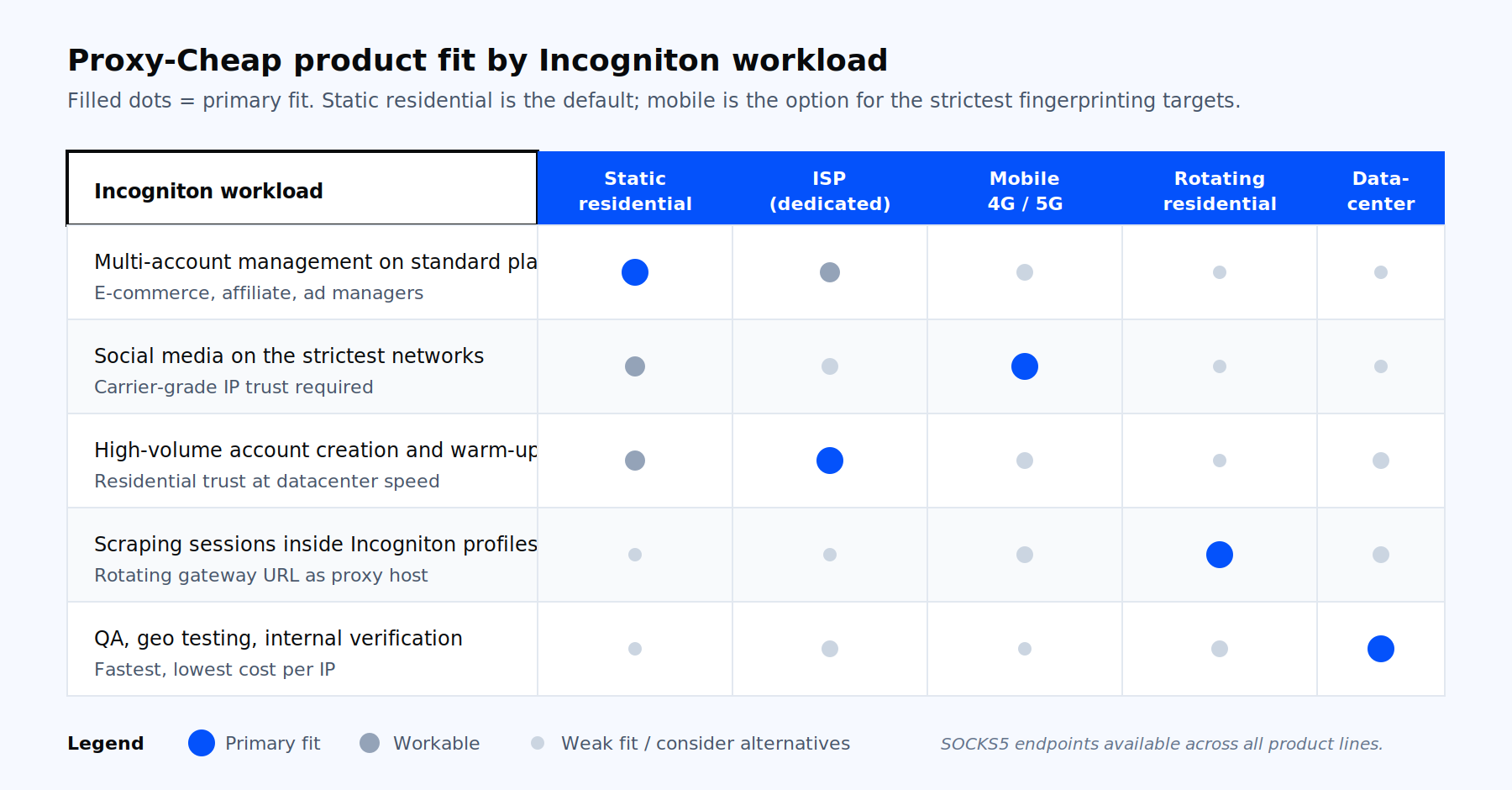
Workload-to-product fit for Incogniton operators.
Most operators end up running a mix: static residential or ISP for the main account base, mobile for the strictest networks, and rotating residential for scraping tasks launched inside profiles. Pick the product line that matches your dominant workload, generate the endpoint in your Proxy-Cheap dashboard, paste it into a new Incogniton profile, and you are ready to scale.