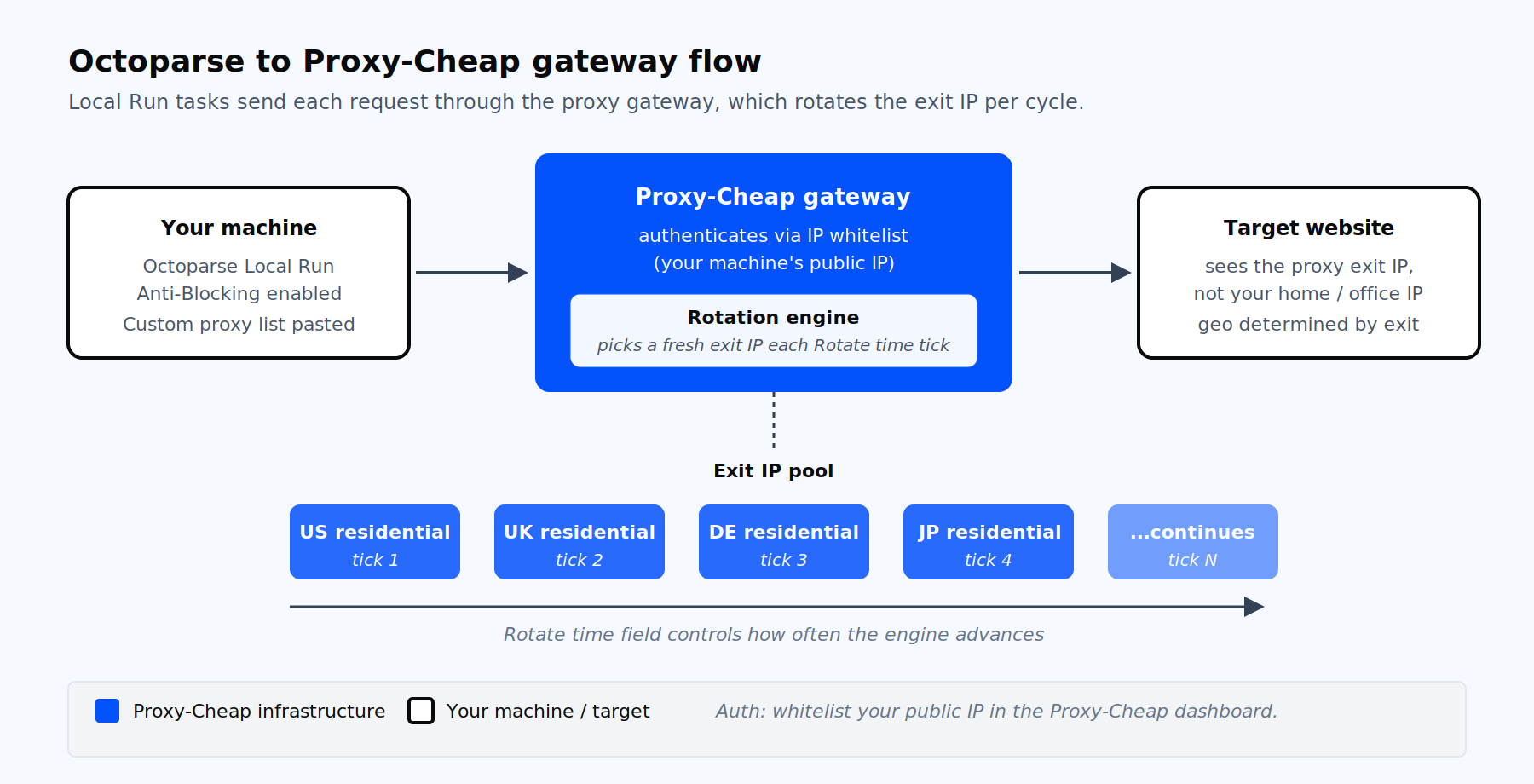
How an Octoparse Local Run task reaches the target site through a Proxy-Cheap gateway.
Octoparse is a no-code visual web scraping tool from Octopus Data Inc., shipped as a desktop client for Windows and macOS with an optional Cloud tier. You build "tasks" by pointing and clicking elements on a page, and Octoparse generates the extraction workflow for you. That removes the coding barrier, but it does not change how target websites measure traffic.
Every request your task makes carries an IP address. When one IP sends hundreds of requests to the same domain in minutes, rate limits trigger, CAPTCHA pages appear, and sessions drop. Even Octoparse's built-in Anti-Blocking features (User-Agent rotation, time delays, cookie clearing) cannot compensate for a single overused IP for long.
Proxies fix three problems at once. They distribute requests across many IP addresses so no single one exceeds a site's rate limits. They let you collect publicly available content from multiple geographic locations for compliance and QA, since you can route through residential exits across 180+ countries, drawn from a 155M+ residential IP pool. And they let multi-account workflows assign a clean IP per profile so sessions stay isolated.
For the why and how behind rotation, our explainer on how IP rotation works walks through the mechanics that Octoparse depends on.
Octoparse offers two proxy modes inside the Anti-Blocking panel. Picking the right one shapes your cost, your country coverage, and which run type you can use.
Built-in Octoparse proxies are a residential pool sold by Octoparse at $3 per GB of traffic, with a $3 minimum top-up. Octoparse estimates roughly 500 pages per GB. Country and region selection is offered as a dropdown. These proxies work in both Local Run and Cloud Run, and they are the only option for Cloud Run.
Your own proxies (custom) are pasted into a textbox. You control the source, the rotation pool, the country mix, and the billing model. Custom proxies work in Local Run only. They are the right fit when you need wider country coverage, higher per-task volume, sticky sessions for logins, or pay-as-you-go pricing that you control. This is where Proxy-Cheap connects.
Before opening Octoparse, set up the proxy side. Log into your Proxy-Cheap dashboard and pick the product that matches your workload. For most Octoparse jobs, the four common fits are:
In your dashboard, pick a line that supports IP whitelist authentication (static residential, ISP, datacenter, or static mobile), then generate its endpoints in IP:PORT form. Because Octoparse cannot send credentials, open the dashboard's IP whitelist section and add your current public IP address. That is the authentication step. Rotating residential does not offer IP whitelisting, so it cannot authenticate through the Octoparse field.
If you are not sure which product matches your workload, the comparison in static versus rotating proxies maps each rotation style to real Octoparse scenarios.
These steps reflect the current Octoparse UI on Windows and macOS. Wording matches the official Help Center.
45.137.66.10:8080
45.137.66.11:8080
45.137.66.12:8080This catches many new users. Octoparse’s current documentation states clearly that custom proxies require IP:PORT only and that proxies needing username and password are not supported. There is no input field for credentials in the Configure pop-up.
The compliant workaround is IP whitelisting on the proxy provider side. You add the public IP of the machine that runs Octoparse Local Run to your Proxy-Cheap dashboard’s whitelist. Proxy-Cheap then accepts unauthenticated requests from that machine, and Octoparse never has to send a credential.
Two practical notes:
For background on what gets routed through a proxy line and how providers structure these endpoints, what is a proxy list breaks down the building blocks.
Octoparse rotates proxies on a time interval, not per request. The Rotate time field is the only control. Pick the value based on what the task does.
For high-volume scraping of public catalog pages (product listings, search results, public profiles), set Rotate time to 1 minute. Pair this with a list of static residential, ISP, or datacenter IPs so Octoparse draws a new whitelisted IP from your list each minute. These lines support the IP:PORT plus IP-whitelist model the custom-proxy field requires. This is the standard configuration for the kind of jobs covered in our best proxies for web scraping guide.
For multi-step flows that require a persistent session (login, add to cart, checkout simulation, paginated dashboards behind auth), set Rotate time to a high value such as 600 minutes. Use static residential or ISP proxies so the IP itself stays constant for the duration. Switching IP mid-session invalidates cookies and breaks the flow.
For sites that fingerprint aggressively or use mobile-specific defences (carrier-grade NAT detection, mobile app endpoints), use mobile proxies and keep Rotate time low enough that you draw a new carrier IP regularly.
A proxy alone is rarely enough on a hardened site. Octoparse’s Anti-Blocking tab includes companion features that should be enabled alongside the proxy list.
Auto-switch browser agents rotates the User-Agent header. Click Configure next to it and pick desktop UAs for desktop scraping (do not mix mobile UAs into a desktop run). Choose "Switch UAs concurrently" for maximum variation across requests.
Auto clear cookies prevents the previous session’s cookies from following a new IP. The most useful option is Clear cookies when IPs rotate, which synchronizes the cookie reset with each Rotate time tick. This stops the cookie itself from becoming a tracking signal that survives the IP change.
Time delays and AJAX timeout live inside each workflow step, not on the Anti-Blocking tab. On Go to Web Page and Click Item actions, set Wait Before Action between 2 and 5 seconds for most targets. Raise AJAX timeout to 30 or 60 seconds when scraping through residential proxies, since residential latency varies more than datacenter.
Clear cache before loading is a per-step option on Go to Web Page. Useful when proxies serve geo-cached content and you need a fresh fetch.
This is the single most important constraint to understand before you commit to a proxy budget.
| Aspect | Local Run | Cloud Run |
|---|---|---|
| Your own proxies | Supported | Not supported |
| Octoparse built-in proxies | Supported | Supported (required) |
| Cloud subscription needed | No | Yes (Standard or higher) |
| Egress IP | Your machine, or your proxy | Octoparse cloud nodes |
| Parallelism | One desktop process | 6 to 20 concurrent cloud nodes |
| Best for | Custom country mix, sticky sessions, pay-as-you-go billing | Large-scale parallel runs on Octoparse’s pool |
If your job requires both cloud parallelism and a specific proxy provider, Octoparse cannot serve that combination today. Either run locally with custom proxies, or run in the cloud and use Octoparse’s built-in pool. There is no published list of Octoparse cloud egress IPs to whitelist on your proxy provider, so cloud plus custom proxies is not a documented path.
Trust nothing until you confirm the IP at the target. Build a one-step verification task before running your real scrape.
If the returned IP matches your home IP, the proxy did not connect. Re-check the format (no scheme prefix, no credentials), the whitelist entry, and the proxy endpoint status in your dashboard.
These are the recurring issues users report on community forums and vendor support pages. Each one has a verified fix.
"Failed to connect through proxy" or connection timed out. The most common causes are a wrong port number, a trailing space in the proxy line, a scheme prefix that Octoparse cannot parse, or a proxy that is HTTPS-only or SOCKS5-only. Re-paste the list as bare IP:PORT, confirm the port number against the dashboard, and ensure you selected an HTTP-compatible proxy product. Octoparse custom proxies do not accept SOCKS5.
407 Proxy Authentication Required. Octoparse sent a request that the proxy demands credentials for. The fix is to switch to IP whitelisting on the Proxy-Cheap dashboard, not to embed credentials in the line. Credentials in the line are ignored.
Only the first proxy in the list is used. Rotate time is either unset or set too high for the duration of your run. Lower it to 1 minute. Also confirm there are no blank lines in the textbox, since some builds stop parsing at the first empty line.
CAPTCHA appears despite proxy rotation. The IP is rotating but the rest of the request looks repetitive. Enable Auto-switch browser agents, enable Auto clear cookies with the Clear cookies when IPs rotate option, raise Wait Before Action on each step, and consider switching from datacenter to residential or mobile for that target.
Scraping is slow with proxies. Residential and mobile latency is naturally higher than datacenter. Increase AJAX timeout to 30 to 60 seconds, lower the number of concurrent tasks, and choose an exit country geographically close to the target server.
Task runs but data is from the wrong country. Either the proxy product does not let you target a country, or the target site geolocates by Accept-Language and cookies rather than IP. Pick a country-targeted residential or ISP plan, and use Auto clear cookies to drop stale region preferences.
Custom proxies work locally but not in Cloud Run. This is by design. Cloud Run does not accept custom proxies. Switch the task to Local Run or move to Octoparse’s built-in proxy pool for the cloud version of that task.
Picking the wrong product is the most common reason an Octoparse task underperforms. This matrix maps workload types to the best fit.
| Octoparse workload | Best Proxy-Cheap product | Why it fits |
|---|---|---|
| High-volume scraping of public catalogs, listings, SERPs | Static residential or ISP | Residential-grade trust with IP-whitelist auth for the Octoparse custom field; Octoparse rotates the list on a timer. |
| Multi-account management, logged-in dashboards, persistent carts | Static residential or ISP | Same IP for hours, residential or ISP-grade trust |
| Cheap public-content scraping, simple HTML pages | Datacenter | Lowest cost per GB, fast response times |
| Hardened targets that fingerprint mobile traffic | Mobile | Carrier-assigned mobile IPs with mobile-grade trust for mobile-first targets and localization testing. |
| Mixed workload, single account | General residential pool | Flexibility across sticky and rotating modes |
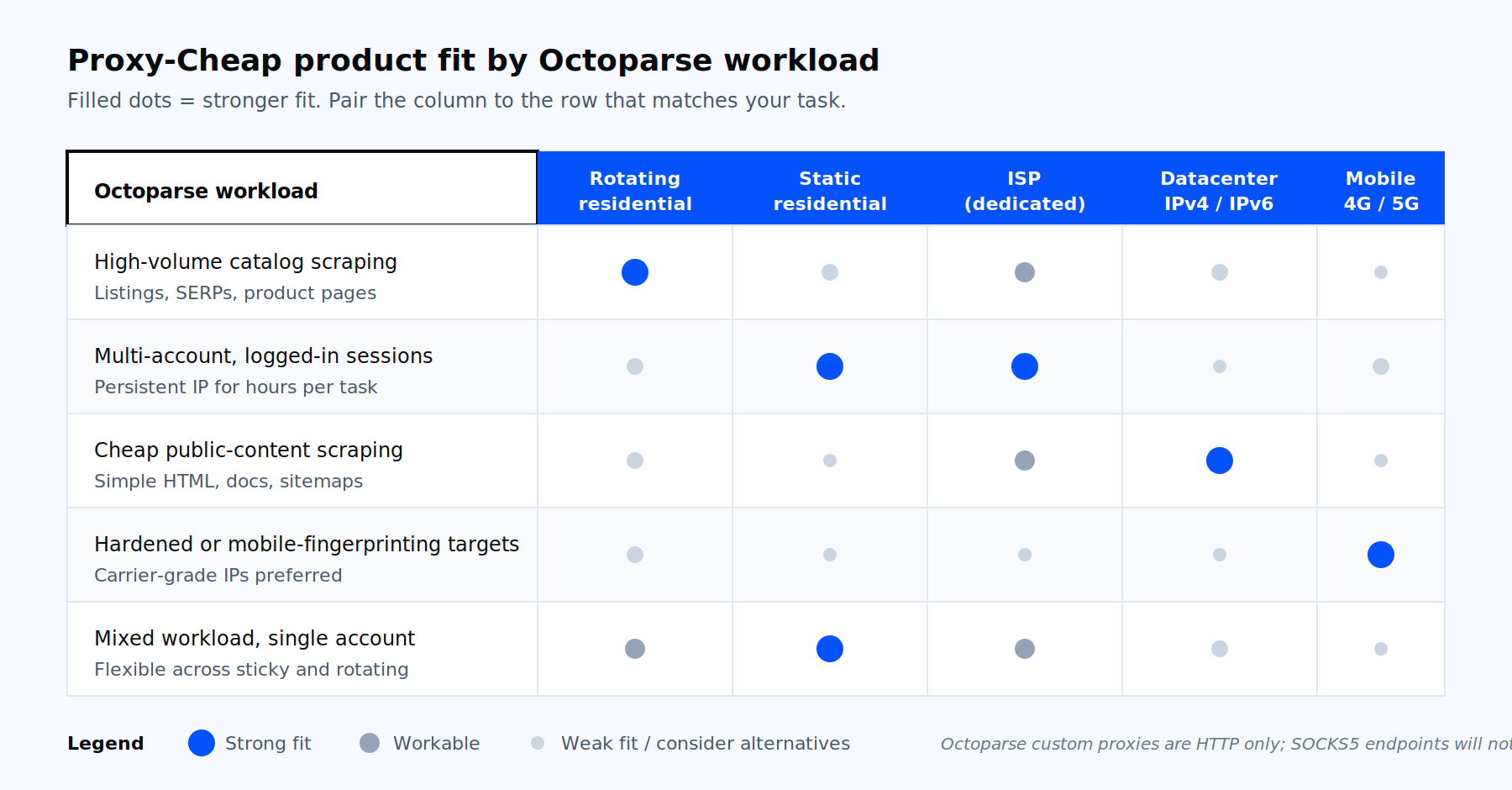
Which Proxy-Cheap product fits which Octoparse workload.
If you already know the workload but want to start a task, the proxies for data scraping use case walks through the same product matrix from a use-case angle. Open a Proxy-Cheap account on pay-as-you-go billing, whitelist your machine’s IP, generate the endpoint list in the dashboard, and paste it straight into the Octoparse proxy textbox.