A proxy in Firefox routes your browser traffic through a different IP address before it reaches a website. The setup takes about a minute once you have working credentials. This guide covers every method, from the standard dialog to SOCKS5, authentication, the Proxy-Cheap add-on, and fleet deployment.
Firefox is one of the few mainstream browsers with its own built-in proxy controls. Chrome and Edge defer to the operating system, but Firefox keeps a separate setting. That independence is useful. You can send Firefox through a residential proxy network while every other app on your machine connects directly.
People configure a Firefox proxy for a few common reasons:
Firefox supports HTTP, HTTPS, and SOCKS proxies, so almost any commercial proxy works with it.
You need two things: a current version of Firefox and a working proxy.
A proxy comes as a set of connection details:
With Proxy-Cheap, you generate these in the dashboard. Rotating products share a single hub, thehub.proxy-cheap.com on port 8080, with the country chosen in the dashboard credential generator, while static products assign a unique host and port to each proxy you order. The Setup Credentials panel in the dashboard shows the exact host, port, username, and password to copy. For a full walkthrough of generating and using credentials, see the guide to using residential proxies.
Keep these details handy. Every method below uses the same four values.
This is the standard method and the one most people need. It sends Firefox traffic through one HTTP or HTTPS proxy.
Firefox now routes every request through the proxy. Open a site that shows your IP address, such as an IP-check page, and confirm the address matches your proxy rather than your home connection.
If the proxy needs a username and password, Firefox shows a prompt the first time you load a page. Enter the credentials and tick the option to save them so the prompt does not return.
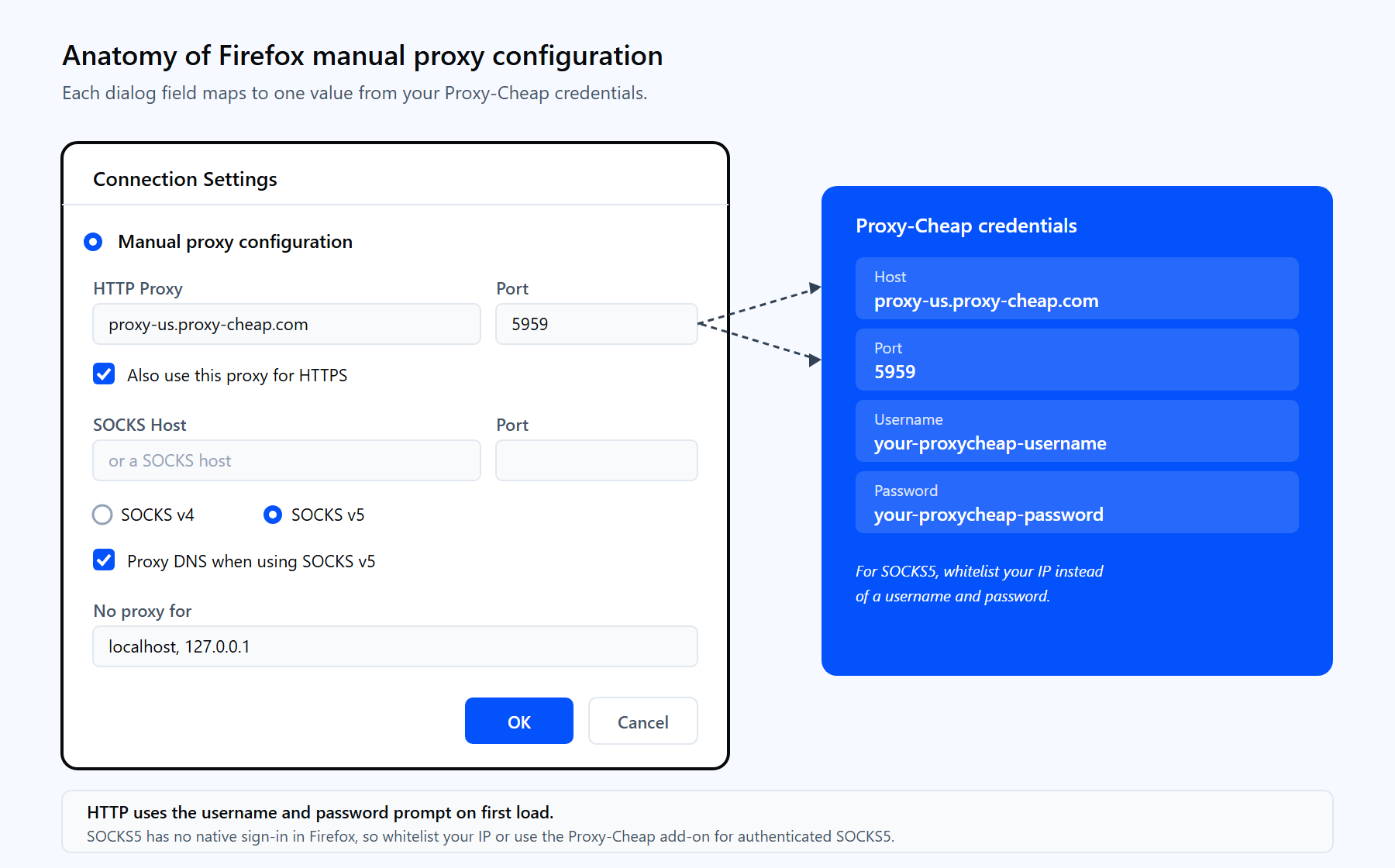
The Firefox Manual proxy configuration dialog maps one to one onto your Proxy-Cheap credentials: host into HTTP Proxy or SOCKS Host, port into Port, and your username and password into the sign-in prompt.
SOCKS5 is a lower-level protocol that carries any kind of traffic, not just web requests. Firefox supports it natively. The difference between the two protocols comes down to how they handle your traffic, which the SOCKS vs HTTP proxy comparison covers in detail.
To set up SOCKS5:
The DNS step matters. Without it, Firefox resolves domain names on your own connection, which can reveal the sites you visit even while the page traffic goes through the proxy. Ticking Proxy DNS when using SOCKS v5 is the equivalent of the socks5h scheme that command-line tools use.
Authentication is where most Firefox proxy setups go wrong, so it is worth understanding the two cases.
HTTP and HTTPS proxies. Firefox handles these well. The first time you load a page, it shows a username and password prompt. Enter your credentials, save them, and you are done.
SOCKS5 proxies. Here Firefox has a long-standing limitation. The browser cannot send a username and password to a SOCKS5 proxy, so the prompt never appears and the connection fails. This gap in Firefox has stood for years. You have two clean ways around it:
For HTTP proxies that need credentials, the saved username and password are enough. Reserve the whitelist or the add-on for SOCKS5.
With the methods above in hand, here is the exact Proxy-Cheap setup.
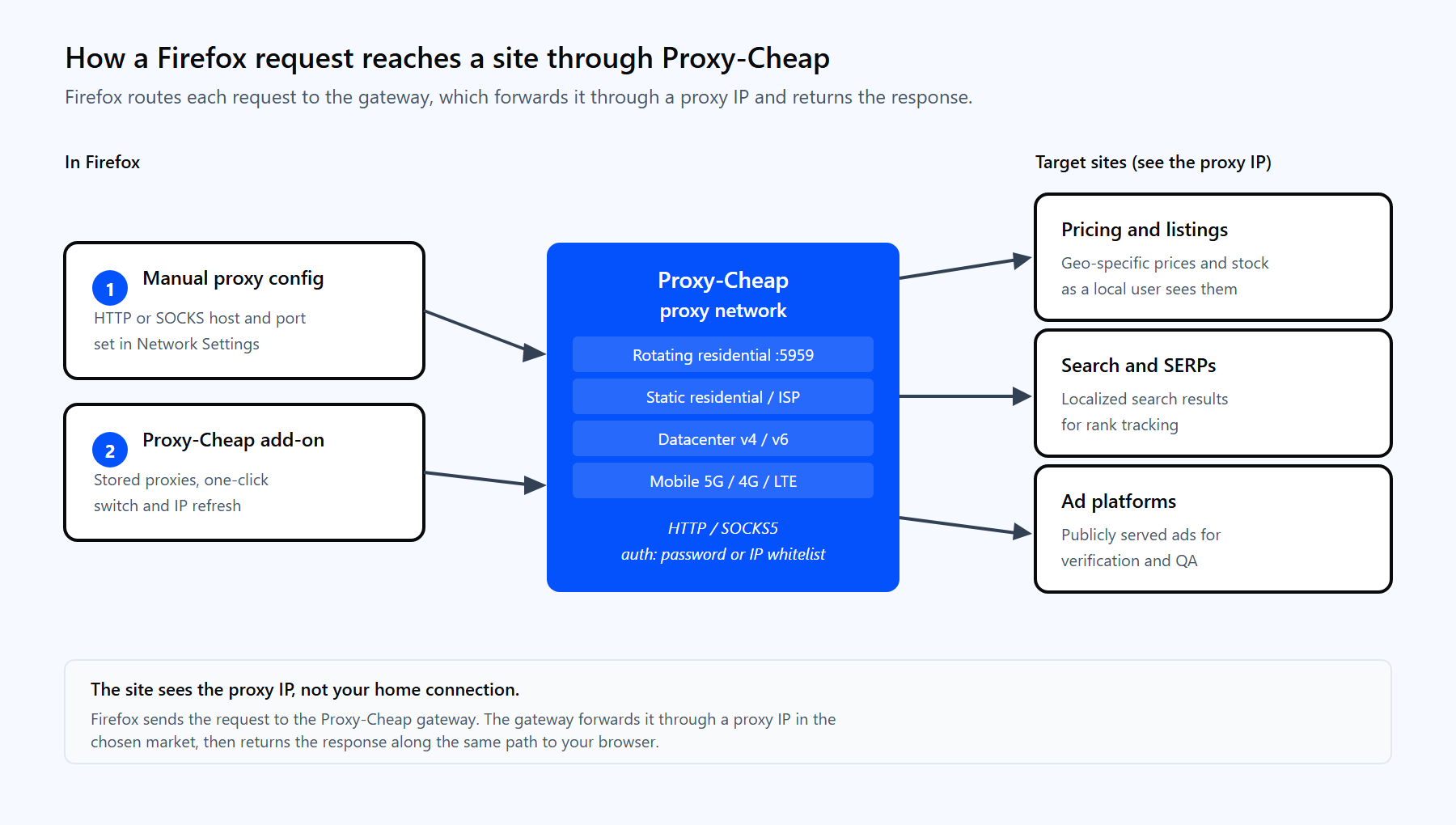
A single Firefox request routes through the Proxy-Cheap gateway, reaches the target site through a proxy IP, and returns to the browser.
Proxy-Cheap delivers two endpoint formats, and they go into Firefox differently.
Rotating residential uses a single shared hub. Point Firefox at that hub and every request gets a fresh IP automatically:
To use the rotating residential hub:
Static residential, ISP, and datacenter proxies each come with a unique IP and port. The steps are identical, except you enter that unique host and port instead of the gateway, and you can authenticate with either a username and password or your whitelisted IP.
HTTP is the most compatible scheme for Firefox because the browser handles HTTP proxy authentication natively. Use SOCKS5 with a whitelisted IP when an application specifically needs SOCKS.
If you switch proxies often or want per-site rules, a browser extension is easier than editing the dialog each time. The Proxy-Cheap Firefox add-on manages your proxies from the toolbar.
What it gives you over the manual dialog:
To install it, open the Firefox Add-ons store, search for the Proxy-Cheap proxy manager, and add it to Firefox. Then import your credentials from the dashboard and pick a proxy. The add-on writes the connection for you, so you skip the manual fields entirely.
Rotation gives you a different IP over time, which keeps response quality steady on long sessions. You get it in Firefox three ways:
The right choice depends on the task. Rotating residential suits broad data collection where a fresh IP per request helps. A fixed IP suits account sessions and dashboards that expect the same address each time. The static versus rotating proxies guide breaks down when to use each.
Two methods help when the dialog is not enough: about:config for scripted profiles, and policies.json for managed fleets.
about:config. Firefox stores proxy settings as preferences you can set directly. Type about:config in the address bar, accept the warning, and set these keys for a SOCKS5 proxy with proxied DNS:
network.proxy.type             1     // 1 means manual configuration
network.proxy.socks            thehub.proxy-cheap.com
network.proxy.socks_port       8080
network.proxy.socks_version    5
network.proxy.socks_remote_dns true // resolve DNS through the proxyFor an HTTP proxy, set network.proxy.http and network.proxy.http_port instead, and set network.proxy.share_proxy_settings to true to reuse the same proxy for HTTPS. The network.proxy.no_proxies_on key holds the hosts that should connect directly.
policies.json. To push one proxy to many machines, use an enterprise policy. Drop a policies.json file in the Firefox distribution folder:
{
  "policies": {
    "Proxy": {
      "Mode": "manual",
      "HTTPProxy": "thehub.proxy-cheap.com:8080",
      "UseHTTPProxyForAllProtocols": true,
      "Passthrough": "localhost, 127.0.0.1",
      "Locked": false
    }
  }
}Set Mode to manual, point HTTPProxy (or SOCKSProxy with SOCKSVersion) at your proxy, and use Passthrough for direct hosts. Set Locked to true to keep users from changing it.
After any setup, confirm three things.
Your exit IP. Load an IP-check page in Firefox. The address and location should match your proxy, not your home connection. If it still shows your own IP, recheck the host, port, and protocol.
DNS. Run a DNS leak test. Every server it reports should belong to the proxy network. If your own provider appears, enable Proxy DNS when using SOCKS v5 for SOCKS, or switch to an HTTP proxy, which resolves DNS remotely by default.
WebRTC. WebRTC can reveal your real IP even when the proxy is set. Test it on a WebRTC-check page. If your real address shows, use the add-on's WebRTC privacy protection, or set media.peerconnection.enabled to false in about:config to turn WebRTC off.
Run these three checks once per setup and you can trust the connection.
Most Firefox proxy problems fall into a handful of buckets.
"The proxy server is refusing connections." The host, port, or protocol is wrong, or the proxy needs authentication it has not received. Recheck the host and port against the dashboard, confirm whether the proxy is HTTP or SOCKS, and make sure your credentials or whitelisted IP are correct.
The SOCKS5 prompt never appears. Firefox cannot send a username and password over SOCKS5. Whitelist your IP in the dashboard, or use the add-on, as covered above.
Pages load on your real IP. The change did not take, or another app overrode it. Confirm Manual proxy configuration is selected, that you clicked OK, and that no other extension controls the connection. Remember that Firefox proxy settings apply only to Firefox, not the whole system.
Only HTTP works, not HTTPS. You did not tick Also use this proxy for HTTPS. Open the dialog and enable it.
DNS leaks on SOCKS5. Proxy DNS when using SOCKS v5 is off. Enable it, or use socks5h-style resolution.
Slow or failed pages on rotating IPs. A given exit IP may be busy. Pull a fresh IP with the add-on, or start a new session through the gateway.
The best product depends on the kind of work you do in Firefox. This matrix maps common Firefox tasks to the Proxy-Cheap line that fits each one.
| Firefox task | First choice | Also works |
|---|---|---|
| Geo-specific testing and research | Rotating residential | Static residential |
| Public-web data collection | Rotating residential | Datacenter |
| Account sessions and dashboards | Static residential | ISP |
| Ad verification across markets | Rotating residential | Mobile |
| High-throughput public pages | Datacenter | ISP |
| SOCKS5 with a whitelisted IP | ISP | Static residential |
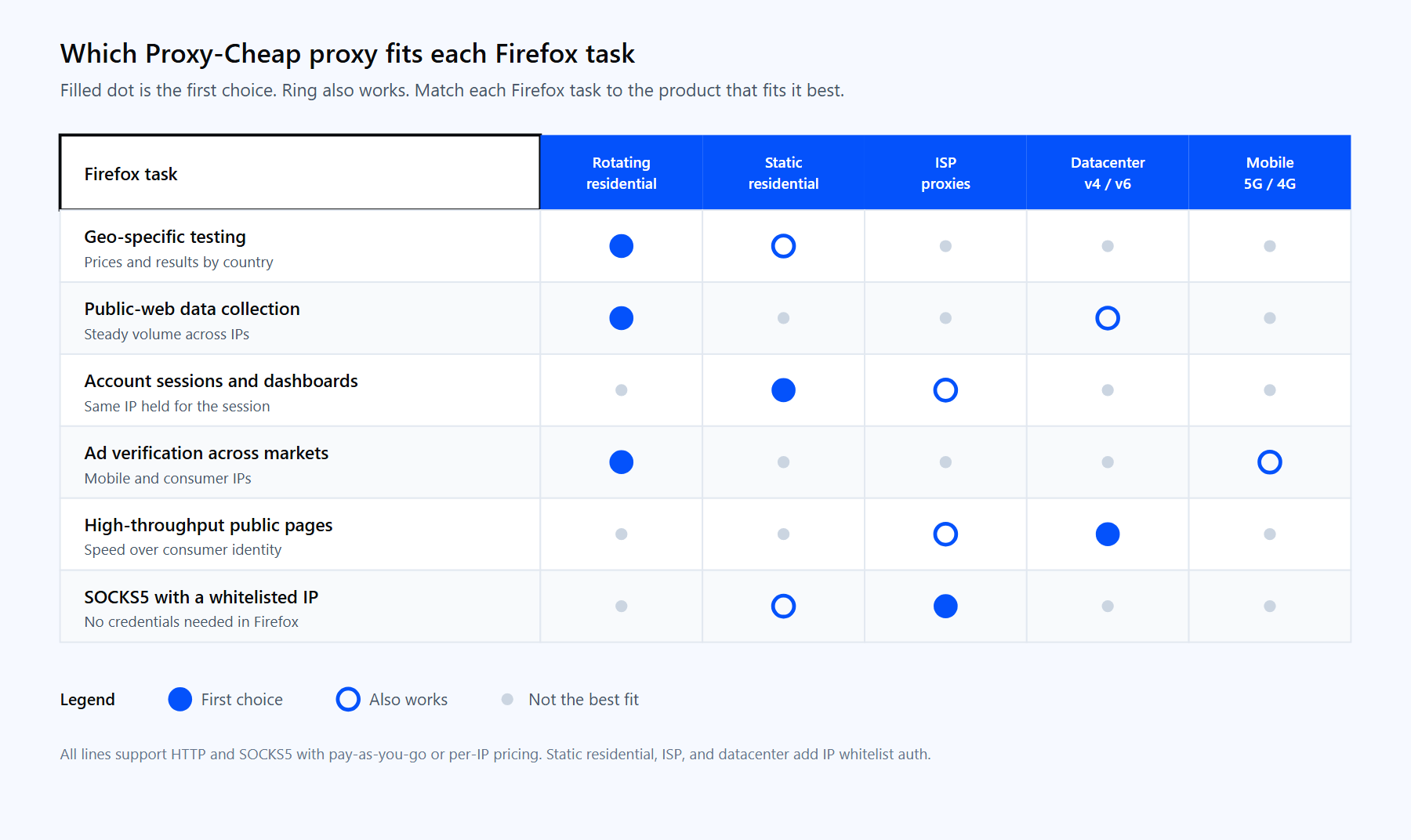
Each Firefox task has a first-choice Proxy-Cheap product and a workable alternative. A filled dot is the first choice, a ring also works.
For most Firefox users, a rotating residential proxy is the place to start, with ISP proxies for fixed-IP sessions and datacenter proxies for high-volume public pages. All of them carry pay-as-you-go pricing, HTTP and SOCKS5 support, and 24/7 support, so you can plug credentials into Firefox and start in minutes.