WebHarvy is a no-code visual web scraper for Windows from SysNucleus. You point and click on the data you want, and the software extracts it into Excel, CSV, JSON, XML, TSV, or a SQL database. A 15-day free evaluation is available, with a one-time perpetual licence and one year of updates for paid users.
Because WebHarvy runs as a desktop application, every request leaves from your own IP unless you route it through a proxy. That becomes a problem fast. Large scrape jobs send many requests per minute from a single address, which targets read as suspicious traffic. Rate caps, CAPTCHAs, and dropped sessions follow, and your job stops half-finished.
Proxies fix four practical problems at once. They distribute requests across many IPs for stable session quality. They let you collect publicly available content from multiple geographic locations for compliance and QA. They keep long, logged-in sessions consistent when paired with the right proxy type. And they preserve your real network identity for privacy and data protection. For deeper background on how this works in practice, see Proxy-Cheap’s guide on the best proxies for web scraping.
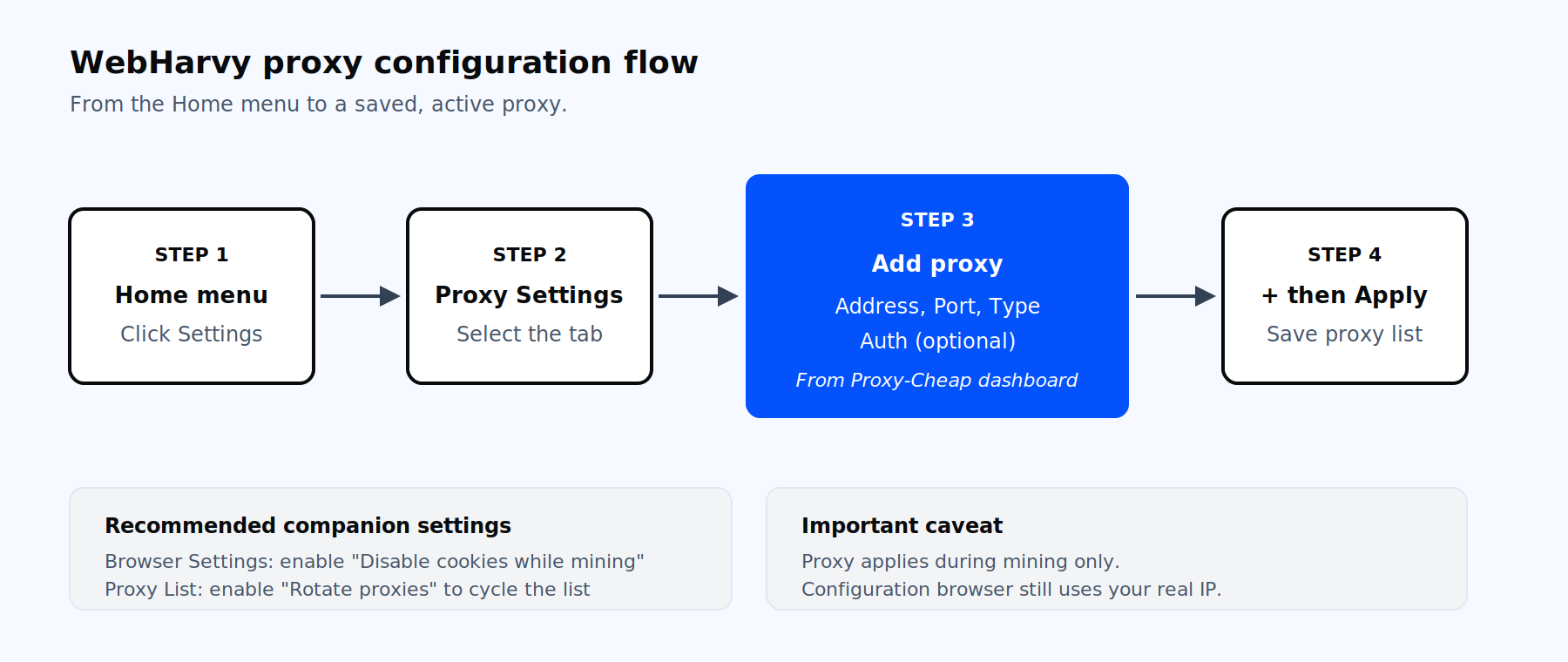
The WebHarvy proxy configuration flow, from Home menu to Apply.
WebHarvy version 6.2 and later supports five protocols. Earlier builds only handled HTTP, so verify your version under Help if you see fewer options. The current dropdown contains:
Most public scraping targets work fine on HTTP or HTTPS. Choose SOCKS5 proxies when you need protocol flexibility, encrypted credential transport, or compatibility with tooling that expects SOCKS.
The full setup takes about a minute once you have credentials ready. Open WebHarvy and follow these steps in order.
You can pull host, port, and credential details directly from your Proxy-Cheap account. The walkthrough on how to use the Proxy-Cheap dashboard shows the exact panels you need.
To edit a saved entry, double-click its name in the Proxy List, change any field in the Add proxy section, then click the tick button to commit. The − button removes the selected proxy. To disable proxying entirely, uncheck Enable network connection via Proxy Server and click Apply again.
One important behaviour to know up front: From version 6.1 onward, WebHarvy applies the proxy set in its Proxy Settings to the configuration browser as well as to mining, so the configuration browser routes through the proxy. On versions before 6.1 the proxy applies during mining only; on those older builds, set the proxy at the Windows system level to route the configuration browser.
For larger jobs, typing in one proxy at a time is not enough. WebHarvy accepts bulk imports through the Import button on the Proxy Settings tab. The file can be CSV or plain text.
The format is straightforward:
proxy-address:port:username:passwordUsername and password are optional. If credentials are not provided, only address and port are required. Each part is separated by a colon. You can list entries on separate lines, or use commas or semicolons as separators on a single line. A valid file looks like this:
89.199.75.41:8080:user1:pass1
203.162.168.89:80
195.144.128.14:3128
gate.example.com:7777:user2:pass2In this example, the first and fourth proxies use credentials. The middle two are open or rely on IP whitelisting. After import, the entries appear in the Proxy List, ready to use individually or as part of a rotating set.
The Proxy List supports two modes. By default, WebHarvy uses the first proxy in the list and only the first. Tick the Rotate proxies option and WebHarvy cycles through every entry on a timer you set. That gives you free rotation logic without any external scripting.
Pair rotation with one more setting. In Browser Settings, enable Disable cookies while mining. Sites can re-identify visitors across IP changes through cookies stored locally, which defeats the point of rotation. With this option on, WebHarvy clears browser cookies periodically during mining, so cookies set under one IP do not carry over to the next during rotation.
Rotation cadence matters as much as the rotation itself. Three rules of thumb help.
If your provider also rotates at the gateway level, do not stack a fast WebHarvy timer on top. Two layers of rotation can break session-based targets. For a deeper look at the trade-offs, Proxy-Cheap’s article on static vs rotating proxies walks through both models.
As a starting benchmark for request pacing, stay under roughly 500 requests per hour per IP on protected targets. Then test up from there. If the older Miner tab in your WebHarvy build still exposes Inject Pauses during mining, enable it with a random pause interval for additional pacing.
Picking the proxy type is usually a bigger decision than the WebHarvy setup itself. The four product families fit different jobs.
| Target type | Recommended product | Why it fits |
|---|---|---|
| E-commerce, classifieds, social, travel | Rotating residential proxies | Real consumer IPs across 180+ locations for high-volume crawls with strong session quality |
| Logged-in accounts, long sessions, checkout flows | Static residential proxies | Dedicated IPs, unlimited bandwidth, multiple concurrent threads |
| Mobile-first apps and mobile sites | Mobile (4G/5G) proxies | Real carrier IPs across 100+ countries with automatic rotation |
| Public documentation, sitemaps, open APIs | Datacenter proxies | Large IP pool, high uptime, fast throughput for high-volume public crawls |
| Mixed targets at scale | Residential proxies hub | Choose rotating or sticky modes, SOCKS5 support, 155M+ residential IPs across 180+ countries |
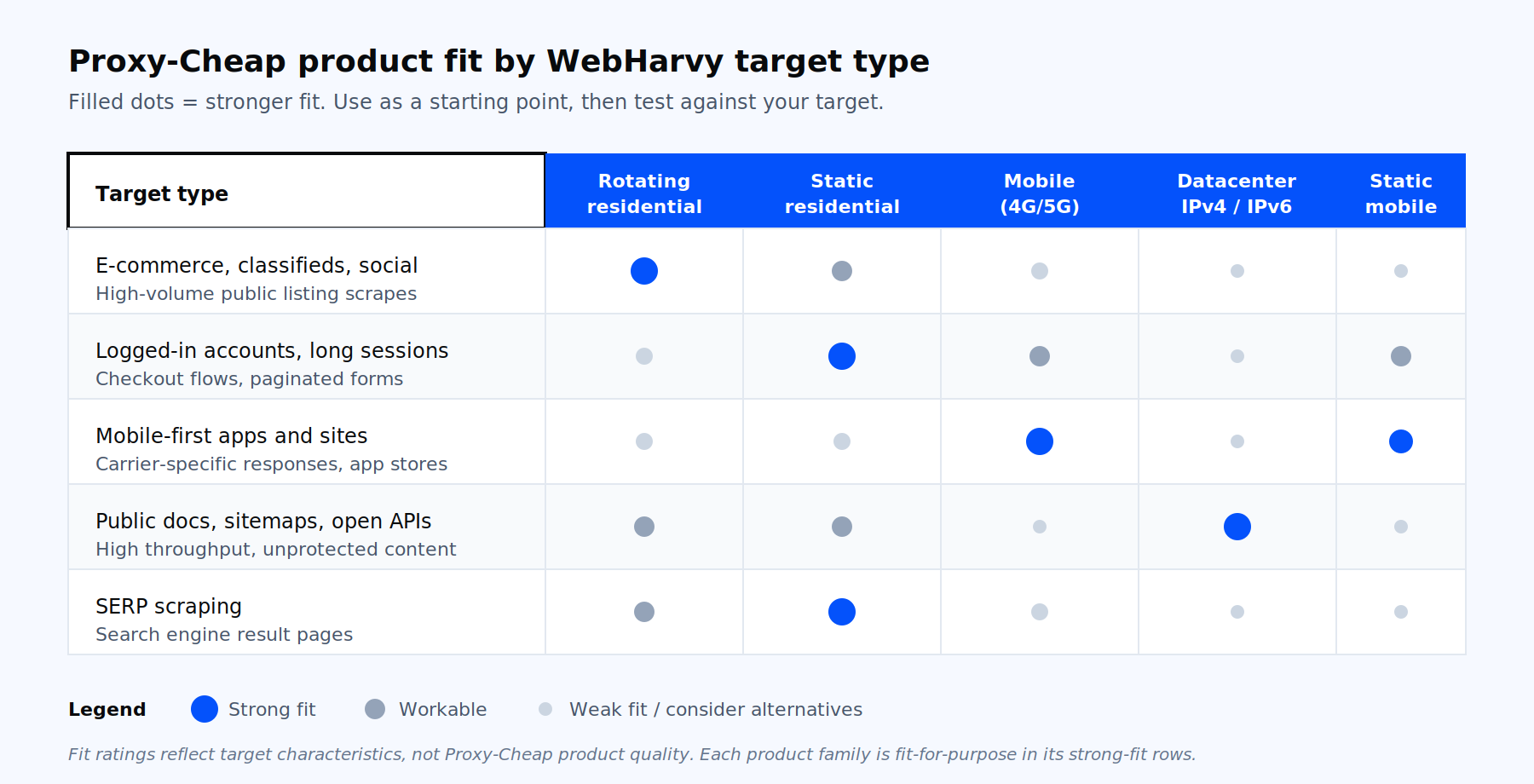
Decision matrix for matching a Proxy-Cheap product to a WebHarvy scraping target.
Rotating residential is the default starting point for proxies for web scraping at scale. Static residential is the safer pick when you need the same IP for the length of a session. Datacenter proxies deliver the best cost-per-request for high-throughput crawls on unprotected public content. Mobile proxies are the right tool for the most strictly policed mobile properties.
Most issues fall into five buckets. Work through them in this order.
Pages do not load after enabling a proxy. Open WebHarvy Settings, go to Browser, clear the cache and browsing history, then restart WebHarvy. Re-test with a known-good URL. If the issue persists, try a different proxy from the list to rule out a single bad endpoint.
Authentication errors or 407 responses. Re-check that Requires Authentication is ticked and that the username and password contain no leading spaces. Some providers require IP whitelisting instead of credentials. On Proxy-Cheap, IP whitelist authentication is available on static residential, datacenter, static mobile, and unlimited-bandwidth lines; rotating residential uses username and password only. If you follow the matrix and pick rotating residential for high-volume work, authenticate with username and password. In that case, leave the auth fields blank in WebHarvy and add your machine’s public IP to the allowlist in your provider dashboard.
Mining returns blank pages or mismatched data. This usually means WebHarvy can reach the page but the proxy session is being throttled. Lower the request rate, enable Disable cookies while mining, and add Inject Pauses during mining if available. If the target serves an interstitial CAPTCHA, switch from datacenter to residential or mobile IPs.
SERP scraping returns thin or empty results. Major search engines are a special case. Use IPs in the same country as the search market, run a slower rotation cadence, and consider ISP-class static residentials for stability.
Seeing your real IP in configuration browser is not expected. On WebHarvy 6.1 and later, the configuration browser should route through the proxy set in WebHarvy, so seeing your real IP there is NOT expected. Confirm the proxy is enabled in Proxy Settings, then re-test with an IP-echo page such as ip-api.com. On pre-6.1 builds the proxy applies during mining only, so upgrade or set the proxy at the Windows level to route the configuration browser.
To verify a proxy is live before kicking off a large job, run a one-page test scrape against ip-api.com or any public IP-echo endpoint, then check that the captured IP matches your proxy’s egress.
Three habits separate one-off scrapes from production-grade jobs. First, match the proxy geo to the target market. If you are collecting US listings, use US exit IPs. If you are collecting German market data, use DE exit IPs. WebHarvy does not enforce this; you do, by selecting the right pool in your provider dashboard.
Second, treat free proxies as a non-option. WebHarvy’s own documentation calls them out for slow performance and early mining termination. Paid pools deliver the success rates and uptime that long scrape runs depend on, with predictable per-GB or per-IP costs.
Third, log everything. Capture which proxy handled which request, what the response status was, and how long the page took. That single habit cuts troubleshooting time on the next job by half. The Proxy-Cheap pools recommended in the matrix above are sized for production WebHarvy workloads, with pay-as-you-go billing, 24/7 support, and crypto payments through the dashboard.