
Imagine testing a website without ever opening a browser window or automating online tasks without clicking a single button. That’s exactly where headless browsers come in. So, what is a headless browser? Simply put, it’s a web browser that functions just like Chrome, Firefox, or Edge - but without a visible interface. It loads web pages, runs JavaScript, and interacts with elements, but everything happens behind the scenes.
In this article, we’ll break down the concept of headless browsers, explaining how they work and why developers, testers, and marketers rely on them. We’ll cover their key benefits, from faster performance to seamless automation, and explore common use cases like web scraping, automated testing, and SEO monitoring. Whether you're a tech enthusiast or a business looking to streamline workflows, understanding headless browsers can open up new possibilities. Let’s dive in!
A headless browser is a web browser that operates without a graphical user interface (GUI). In other words, it can load web pages, execute JavaScript, and interact with elements - just like Google Chrome, Firefox, or Edge - but without displaying anything on a screen. It runs entirely in the background, making it ideal for tasks that don't require human interaction, such as browser automation, automated testing, and accessibility audits.
Think of it as opening a website without actually seeing it. The browser still processes everything - fetching content, rendering HTML, and handling user interactions - but instead of showing the page, it logs or analyzes the results behind the scenes. This is particularly useful for developers and QA testers who need to simulate how a website behaves across different conditions.
One of the most widely used headless browsers is headless Chrome, which is simply Chrome running in headless mode. Developers use it for headless browser testing, allowing automated scripts to navigate a site, click buttons, fill out forms, and check for errors - all without opening a visible browser window. This makes testing faster and more resource-efficient, especially when working with large-scale applications.
Beyond testing, headless browsers play a key role in SEO monitoring and performance analysis. They can check search engine rendering, measure page load speeds, and audit accessibility without manual effort.
A headless browser operates just like a standard browser but without displaying any visual content. Instead of rendering web pages on a screen, it processes everything in the background. This makes it ideal for automation, testing, and data extraction.
Since a headless browser runs without a graphical user interface, it is controlled entirely through code or command-line instructions. Developers use it to load web pages, click buttons, fill out forms, and extract data—just like a real user would.
Let’s break down the working mechanism of a headless browser step by step.
To begin, a headless browser is launched through a script or command-line interface. Instead of opening a visible window, it runs in the background.
For example, launching Headless Chrome using Node.js and Puppeteer:
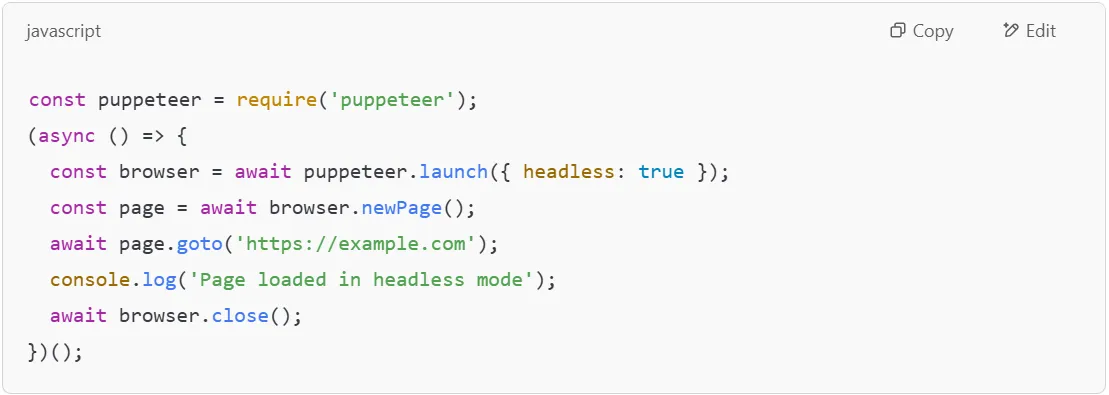
Here, the { headless: true } option ensures the browser runs without a GUI.
Once launched, a headless browser loads a web page just like a regular browser. It processes HTML, CSS, and JavaScript and interprets them to render the page.
However, unlike popular web browsers such as Google Chrome or Mozilla Firefox, it does not display the page visually. Instead, it processes everything internally, making it much faster.
For instance, if a script is testing a login page, the headless browser will:
This is useful in cross-browser testing, ensuring that the page loads correctly across different devices and platforms.
A headless browser can simulate real user interactions without human involvement. This is crucial for headless testing and automated regression testing.
For example, a script can:
Example of filling out a login form using Puppeteer:
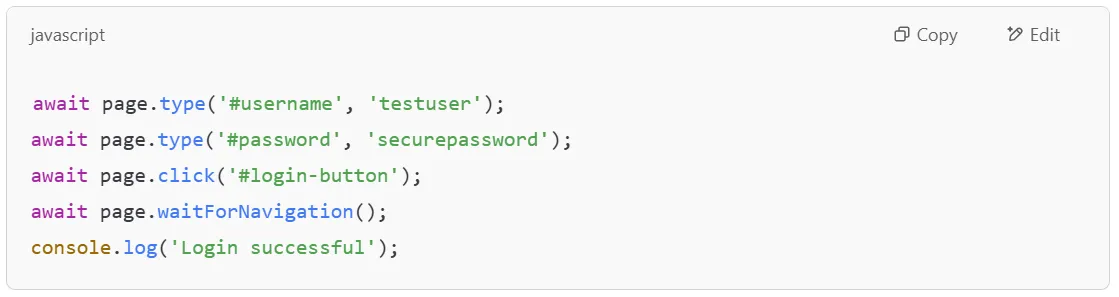
This simulates a user entering credentials and logging in, all without ever opening a visible browser window.
Headless browsers are widely used for browser tests in CI/CD pipelines. They allow developers to verify that web applications function correctly before deployment.
Example of running a headless testing process using Selenium:
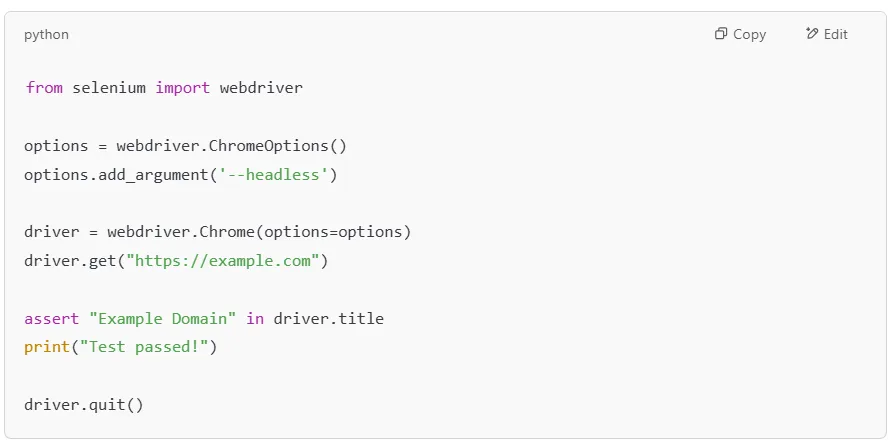
This test ensures the website loads properly in headless mode and verifies the page title.
Many developers use headless browsers to take automated screenshots of web pages as part of their QA and documentation workflows. This is useful for visual regression testing, capturing dynamic content for reports, and generating PDF versions of pages for archiving or client delivery.
Many developers use headless browsers to take automated screenshots of web pages. This is useful for:
Example using Puppeteer to take a screenshot:

Or saving a webpage as a PDF:

Once all tasks are completed, the headless browser is closed to free up resources. This can be done programmatically to ensure the process doesn’t keep running in the background.
Example using Puppeteer:

This prevents memory leaks and ensures smooth execution.
There are several popular headless browsers used for automation and testing:
Each of these modern headless browsers allows developers to perform browser tests, automate tasks, and conduct cross-browser testing efficiently.
By understanding how headless browsers perform tasks behind the scenes, developers and testers can leverage them for fast, efficient, and scalable web automation.
A headless browser offers several advantages, making it a powerful tool for developers, testers, and data analysts. Since it operates without a graphical user interface, it runs faster, consumes fewer resources, and is ideal for automation tasks. Below are the key benefits of using a headless mode browser.
One of the biggest advantages of headless browsers is speed. Since they don’t load or display visual elements like images, videos, or animations, they execute tasks much faster than traditional browsers.
For example, running a headless browser script to execute a full test suite across dozens of pages will complete in a fraction of the time it would take in a standard browser. Similarly, developers running automated test execution on web applications can process multiple tests simultaneously without lag.
Modern web development relies heavily on automation, and headless browsers play a key role in these workflows. By eliminating manual intervention, they enable seamless automated regression testing and performance testing in continuous integration pipelines.
For example, when a developer makes changes to a website, headless mode can automatically run a full set of browser tests to detect any errors before deploying updates.
Since most popular headless browsers support automation tools, they are widely used by QA engineers for web application testing.
Headless browsers integrate cleanly into continuous integration and deployment pipelines. Every time a code change is pushed, automated test suites can run in headless mode to catch regressions before they reach production. This removes the need for a dedicated test machine with a display and makes testing a standard part of the build process. Tools like Selenium, Playwright, and Puppeteer all support headless execution in CI environments like GitHub Actions, Jenkins, and CircleCI.
A headless browser is crucial for headless browser testing, ensuring that a website functions correctly across different browsers and devices. Since it can interact with elements like buttons, forms, and JavaScript dynamically, it is widely used for:
Developers use popular headless browsers like Headless Chrome and Headless Firefox to automate the testing process, ensuring that sites work seamlessly across all platforms.
SEO specialists and web developers use headless browsers for automated audits. Since search engines rely on JavaScript rendering, headless browser testing helps analyze how pages load and how they appear to Google bots.
For example, an SEO analyst can use browser automation to check for:
Tools like Google’s Headless Chrome allow developers to audit websites programmatically, ensuring they meet modern SEO and performance standards.
Web developers and designers use headless browsers to capture website screenshots for documentation, testing, and client reporting. Since these screenshots are generated programmatically, they provide an automated way to verify UI consistency.
For example, an e-commerce brand can use headless mode to take automated screenshots of their product pages to ensure that promotions and banners are displayed correctly.
A headless browser is a game-changer for developers, QA engineers, and analysts who need fast, automated, and efficient web interactions. Whether it's for headless browser testing, test execution, screenshot generation, or accessibility audits, it outperforms traditional browsers in many ways.
By integrating most popular headless browsers into your workflow, you can speed up development, improve testing accuracy, and optimize performance without the overhead of a graphical UI.
Headless browsers perform many tasks beyond simple web navigation. Their ability to execute scripts, load pages quickly, and interact with content without rendering a visible UI makes them perfect for browser automation tools. Below are some of the most common use cases where headless browsers shine.
1. Automated UI and Regression Testing
Headless browsers are widely used to verify that web applications behave correctly across code changes. QA engineers write scripts that navigate pages, click elements, submit forms, and check expected outcomes. Because there is no UI to render, these tests run fast and can be triggered automatically on every commit. This makes headless browsers a core part of modern CI/CD quality gates.
Why Use a Headless Browser for Web Scraping?
Headless browsers are essential for browser testing and headless browser testing. Developers use them to check how a website behaves under different conditions without manually interacting with it.
For example, a software engineer might use headless testing to simulate multiple users clicking buttons, filling out forms, or navigating a site - all without needing to physically see the actions.
Types of Tests Using Headless Browsers:
With tools like Selenium, Playwright, and Puppeteer, headless browsers can execute thousands of tests quickly, improving the overall testing process.
Headless browsers are commonly used to generate website screenshots for documentation, monitoring, and archiving.
For example, a developer working on an email newsletter might use a headless browsing tool like Headless Chrome to capture how the email renders across different screen sizes and devices.
Why Is This Useful?
This technique is also useful for visual elements testing, where UI consistency needs to be verified across multiple versions of a site.
SEO specialists and web admins use headless browser testing to analyze how well a website is optimized for search engines.
For example, a digital marketer may use browser automation tools to check for broken links, missing meta tags, or slow-loading pages. Since headless browsers perform like real browsers (but without UI overhead), they can help diagnose issues that may affect search rankings.
SEO Audit Tasks Performed by Headless Browsers:
Google’s own Google Chrome team even recommends headless testing for checking site performance, as it provides insights into loading times, JavaScript execution, and user experience.
Modern websites are complex, running multiple scripts, images, and third-party integrations. Headless web browsers help developers measure how well a website performs under different conditions.
For example, a QA engineer might simulate headless browsers performing hundreds of user requests at once to see how a server handles traffic spikes.
Key Benefits of Performance Monitoring with Headless Browsers:
Most popular headless browsers like Headless Chrome and Headless Firefox are frequently used in browser automation for performance benchmarking.
By leveraging headless browsing, businesses and developers can streamline their workflows, improve website performance, and automate repetitive tasks efficiently. Whether it's for automated testing, performance monitoring, or screenshot generation, headless browsers perform crucial roles in modern web development.
When discussing what is a headless browser, it’s important to compare it with a regular browser to understand when and why developers prefer one over the other. Both types of browsers are built for web navigation, but they serve different purposes and are used in different scenarios.
A regular browser is what most people use daily - Google Chrome, Mozilla Firefox, Safari, or Microsoft Edge. It provides a graphical user interface (GUI) that displays web pages visually, allowing users to interact with buttons, links, and forms using a keyboard and mouse.
A headless browser, on the other hand, operates without a user interface. It loads and processes web pages just like a normal browser but runs in the background. This makes it ideal for headless testing, web scraping, and other automation tasks where visual display isn’t necessary.
| Feature | Headless Browser | Regular Browser |
|---|---|---|
| Visibility | No visual interface, runs in the background | Full graphical user interface for display and interaction |
| Speed | Faster since it doesn’t render visual elements | Slower due to rendering of images, CSS, and animations |
| Use Case | Automated tasks, QA testing, screenshot generation, accessibility audits, automated regression testing, and performance monitoring. | Browsing websites, playing media, online transactions, and interacting with content |
| User Interaction | Simulates real user interactions through scripts and automation tools | Direct human interaction via keyboard, mouse, and touch |
| Resource Usage | Lower CPU and memory consumption since it doesn’t load UI elements | Higher resource usage due to graphics rendering and animations |
| Cross-Browser Testing | Great for headless testing, ensuring website compatibility across multiple browsers | Requires manual navigation across different browsers |
| Automation Support | Works seamlessly with headless Chrome, headless Firefox, and other automation tools like Puppeteer, Playwright, and Selenium | Limited automation; requires additional browser extensions or plugins |
| Debugging Capabilities | More challenging since there’s no visual feedback; logs and screenshots are used instead | Easier, as developers can visually inspect elements and console logs |
| Best Used For | E2E testing, SEO rendering audits, automated browser testing, performance monitoring, and screenshot generation. | Everyday browsing, media consumption, and manual website testing |
| Examples | Headless Chrome, Headless Firefox, Puppeteer, Playwright, Selenium | Google Chrome, Mozilla Firefox, Microsoft Edge, Safari |
Choose a headless browser when speed, efficiency, and automation are the priority, such as in headless browser testing, automated regression testing, cross-browser testing, and performance monitoring.
By understanding the strengths of headless browsing and popular web browsers, developers can decide when to use a headless browser versus a GUI-based one.
There are several browser automation tools that make working with headless browsers easy and efficient. Whether you're performing headless browser testing, accessibility audits, or automating interactions with web applications, these tools help streamline the testing process while reducing resource usage. Below are some of the most popular headless browsers and automation libraries, each suited for different tasks.
Puppeteer is a powerful Node.js library developed by Google that allows full control over Headless Chrome and Chromium browsers. It provides a high-level API to automate everything from clicking buttons to filling out forms, making it a favorite among developers for browser automation tools.
Advanced Browser Automation: This tool is commonly used for headless browser testing, taking website screenshots, generating PDFs, and automating interactions with web pages.
Puppeteer is ideal for running automated tests on Chrome-specific projects, generating structured reports from dynamic websites, and automating Chrome-based workflows.

Playwright, developed by Microsoft, is one of the most popular headless browsers because it supports multiple browser engines, including Chromium, WebKit, and Firefox. This makes it perfect for cross-browser headless browser testing, ensuring that web applications function correctly across different platforms.
If your priority is cross-browser testing and ensuring compatibility across different popular web browsers, Playwright is the best tool for the job.

Selenium is one of the oldest and most popular headless browsers for automated testing. Unlike Puppeteer and Playwright, which are newer tools, Selenium has been widely used for over a decade in enterprise-level testing processes.
Selenium is best suited for teams that need a robust, scalable tool for automating web applications across different browsers and operating systems.
Google’s Headless Chrome is a built-in feature of the Chrome browser that allows it to run without a visible user interface, making it a great choice for headless browsing and browser automation tools.
Ideal for SEO Audits and Performance Checks: Many developers use Headless Chrome for checking SEO rendering, auditing page performance, and monitoring web page loading speeds.
If your focus is on speed, efficiency, and simplicity, Headless Chrome is the best tool for performing high-speed automation tasks.
Each of these tools has its strengths, whether it’s browser automation, headless browser testing, or running automated tests. The best choice depends on your project’s needs - Puppeteer for Chrome-based automation, Playwright for cross-browser testing, Selenium for enterprise-level automation, and Headless Chrome for speed and simplicity.
To get the most out of a headless web browser, it's important to follow best practices. Whether you're using it for browser automation, headless browser testing, or performance monitoring, these tips will help ensure smooth operation and avoid common pitfalls.
Each test or automated workflow should run in a clean browser context. Reusing sessions between unrelated tests can cause state contamination, leading to false positives or failures that are hard to debug. Most frameworks like Playwright and Puppeteer support per-test browser contexts out of the box.
Modern websites heavily rely on JavaScript to load content dynamically. When running browser automation tools, use libraries like Puppeteer or Playwright, which allow you to wait for elements to load before extracting data.
Many websites track users through cookies and sessions. To simulate real user interactions, store and reuse cookies when needed. This helps maintain authentication and avoids frequent logouts during long-running browser tests.
Even though modern headless browsers are lightweight, they can still consume system resources if not managed properly. Limit concurrent instances, disable unnecessary scripts, and set timeouts to prevent memory leaks.
Headless browsers may crash or encounter unexpected issues. Always include error-handling mechanisms to retry failed requests and log errors for debugging.
By following these best practices, you can ensure smooth, efficient, and reliable headless browser workflows, whether for testing, automation, or performance monitoring.
A headless browser is a powerful tool that operates just like a regular browser but without a graphical user interface. It runs in the background, allowing developers and QA teams to automate tasks like end-to-end testing, accessibility audits, screenshot generation, SEO rendering checks, and performance monitoring.
By eliminating the need for a visual display, headless browsers perform tasks faster and more efficiently. With tools like Puppeteer, Playwright, Selenium, Headless Chrome, and Headless Firefox, developers can streamline testing, boost automation, and improve overall efficiency. Businesses can leverage these capabilities for better data extraction, website monitoring, and enhanced user experience testing.
To maximize results, follow best practices such as running tests in isolation, handling dynamic content correctly, managing cookies and sessions, and optimizing resource usage.
Whether you're a developer optimizing workflows or a business looking for deeper web insights, headless browsing is a game-changer in automation and efficiency.