
An Android proxy is an HTTP, HTTPS, or SOCKS5 endpoint that sits between your phone or emulator and the destination server. Outgoing requests go to host:port, the proxy forwards them, and responses come back the same way. The destination sees the proxy’s IP, not the device’s carrier or Wi-Fi IP.
Android exposes proxy configuration at three layers. The system Wi-Fi proxy is per network and lives in the Settings app. The APN proxy rides on mobile data and is configured per access point. The global HTTP proxy is a hidden system setting reachable through ADB and a few developer tools. Per-app routing apps add a fourth layer by acting as a local VPN that funnels selected apps through an upstream proxy.
These layers matter because apps decide individually whether to honor system proxy settings. Code built on OkHttp, HttpURLConnection, or WebView usually respects them. Apps that ship their own networking stack often do not, and apps with certificate pinning reject any TLS certificate that is not their pinned cert. Picking the right layer for your use case is the difference between five minutes of work and a debugging session.
Mobile-app QA is the most common reason. Routing test traffic through a proxy lets you record requests in Charles, mitmproxy, or Proxyman, replay failure scenarios, and inspect headers your backend actually sees. Ad verification on mobile is similar in spirit but uses residential or mobile IPs to load creative as a real subscriber would. Scraping data exposed by mobile-app APIs often requires the same mobile IPs because the backend may treat datacenter ranges differently. Regional rendering tests check how your app loads from an IP in a specific country, which matters for pricing pages, payment methods, and localized inventory. CI test automation on emulators or device farms uses the ADB and emulator methods below to route traffic into a recording proxy without touching any UI.
General users sometimes want a proxy on a personal device for privacy on hostile Wi-Fi or to view publicly available content from a different region. The Wi-Fi method covers both cases.
If you are unsure whether running these workloads through a proxy is allowed in your jurisdiction, our overview of whether proxies are legal covers the practical answer.
You need four things on hand:
If your phone is enrolled in a corporate MDM, ask the network admin first. Managed Wi-Fi networks often push their own proxy configuration and overwrite manual changes.
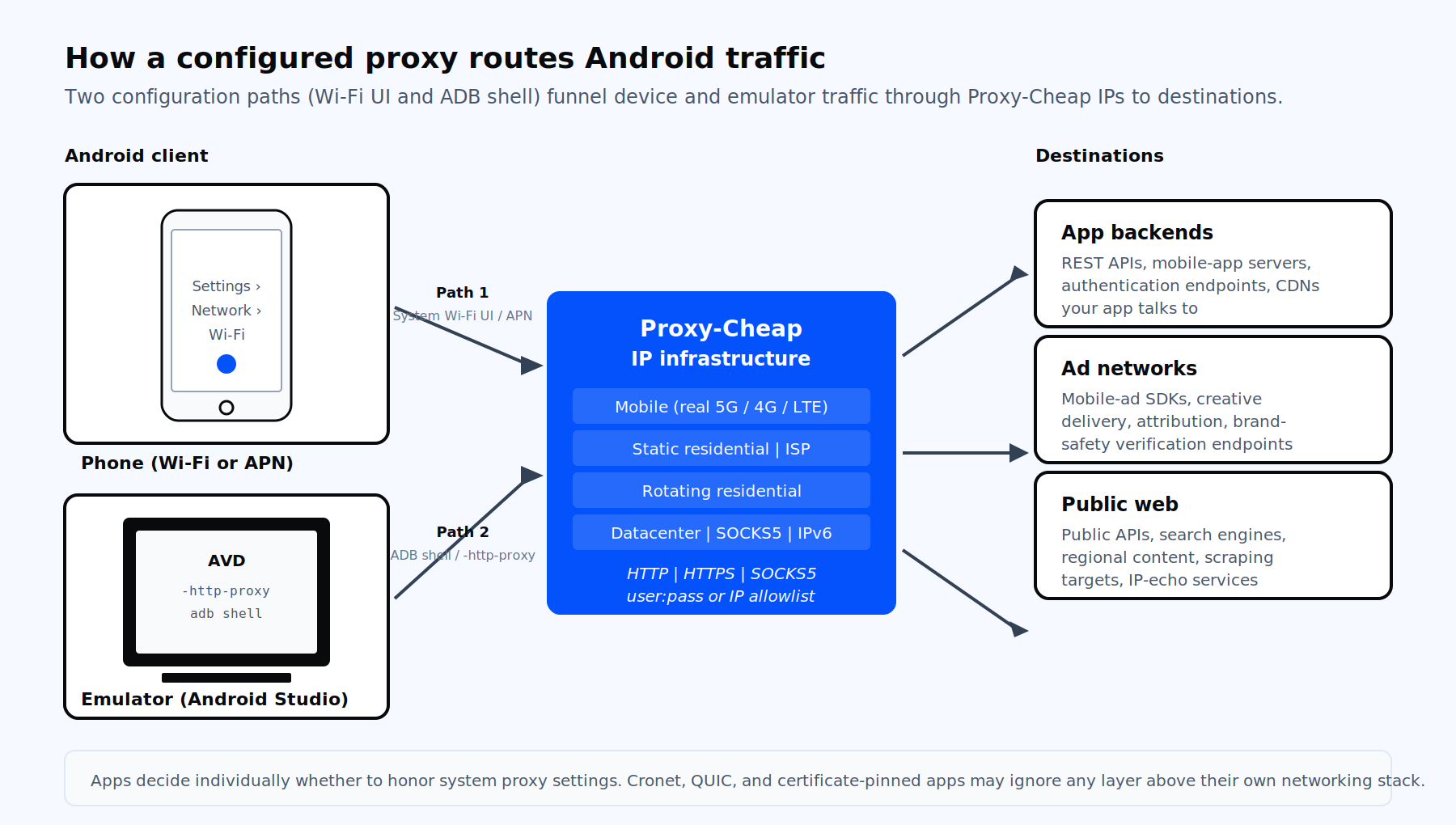
How a configured proxy sits between your device or emulator and the destinations your app talks to.
This is the most common method and the foundation everything else builds on. Steps below are for stock Android 14 on a Pixel. Samsung One UI is similar but starts at Settings > Connections > Wi-Fi. Xiaomi HyperOS and other skins keep the same field labels because they are AOSP framework strings.
The setting is scoped to that Wi-Fi network. Connect to a different SSID and you start clean. Removing the network or selecting None under Proxy clears it.
The Wi-Fi proxy UI does not accept credentials. If your proxy requires a username and password, a browser will pop up a sign-in prompt on the first request, but most native apps will not. Use a PAC URL with an authenticated upstream, switch to APN, use a per-app routing app, or use ADB if you need credentials end to end. For sustained sessions where you want one IP that stays the same across days of testing, our static residential proxies work well behind a PAC file that you host yourself.
Use this when you need to route traffic from an Android device that is not on Wi-Fi, for example field testing or QA against a cellular environment.
APN proxies are HTTP and HTTPS only. They do not handle SOCKS5. They also depend on the carrier honoring the proxy fields, which is not guaranteed. If you are doing serious mobile QA, the more reliable path is to use Wi-Fi tethered to a workstation that runs a local recording proxy, or to use real-carrier IPs through Proxy-Cheap mobile proxies so your test traffic matches the network conditions of your actual production users.
When you need credentials, SOCKS5 support, or per-app rules that the system UI cannot give you, install a routing app that creates a local VPN and forwards selected apps to your upstream proxy.
Steps are similar across all of these: install the app, create a profile with host, port, protocol, and credentials, choose target apps, then tap a connect button. The phone shows a key icon to indicate the local VPN is active.
This method is the cleanest non-root workaround for the Wi-Fi UI’s missing credential fields, and it works on cellular and Wi-Fi alike. The trade-off is that the routing app sees all the traffic it forwards, so pick maintained, open-source projects when possible.
Android Studio’s AVD supports two distinct proxies that often get confused. The system proxy inside the emulator is the one you would set with the Wi-Fi method above, useful when you want apps inside the AVD to send traffic to a recording proxy like Charles. The emulator proxy at the QEMU layer tunnels all egress at the network level and is the right choice for CI environments where you want all emulator traffic routed without touching the guest OS.
To set the emulator proxy from the command line:
| emulator -avd Pixel_8_API_34 -http-proxy http://proxy.example.com:8080 |
With credentials:
| emulator @Pixel_8_API_34 -http-proxy http://user:[email protected]:8080 |
From the GUI, click the ... button on the emulator toolbar, then go to Settings > Proxy and fill in the manual fields.
The QEMU-layer proxy tunnels HTTPS as raw TCP, so you cannot decrypt traffic at this level. For decryption, use the system proxy inside the AVD plus an installed CA certificate. UDP is not redirected, so DNS over HTTPS and QUIC need to be disabled in the app under test or they will skip the proxy entirely. For high-volume emulator fleets where cost matters more than residential trust, dedicated datacenter proxies are the most economical pick.
The ADB method is what you reach for in CI, on device farms, and any time you do not want to touch a UI. It writes to the same global setting that the system honors after a network change.
Set the proxy:
| adb shell settings put global http_proxy proxy.example.com:8080 |
Read the current value:
| adb shell settings get global http_proxy |
Disable immediately, without a reboot:
| adb shell settings put global http_proxy :0 |
Full cleanup, which usually needs a reboot to flush:
adb shell settings delete global http_proxy adb shell settings delete global global_http_proxy_host adb shell settings delete global global_http_proxy_port adb reboot |
adb shell settings put global http_proxy :0 is the fast disable used in test scripts because it takes effect without restarting the device. The delete form is cleaner for teardown when a reboot is acceptable.
There is no officially supported ADB command for setting credentials. The global_http_proxy_username and global_http_proxy_password keys exist in the framework but do not consistently take effect across modern Android. For authenticated upstream proxies in CI, either use an IP-allowlisted endpoint or chain through a local proxy on the test runner that handles auth and forwards plain HTTP to the device.
For scripts and Appium suites that need protocol flexibility, SOCKS5 proxies work well when the toolchain supports them, because SOCKS5 carries TCP and UDP and avoids the HTTPS tunneling complications of HTTP CONNECT proxies.
Three quick checks tell you whether the proxy is live and what it covers.
If the browser shows the proxy IP but a specific app does not, that app is ignoring the system setting. See the next section.
Apps ignore the system proxy. Many production apps use Cronet, native networking libraries, or QUIC, none of which always honor System.getProperty("http.proxyHost"). The fixes, in order of effort, are: switch the app to a debug build that opts in to user-installed CAs, use a per-app routing app like Drony, or use the emulator with the QEMU-layer -http-proxy flag, which traps traffic below the app’s networking stack.
TLS handshake fails after configuring the proxy. Apps targeting API 24 and above do not trust user-installed CA certificates by default. Install your recording proxy’s CA into the system trust store on a rooted device or -writable-system emulator, or modify network_security_config.xml to opt into user certs and re-sign the APK for testing. Pinned apps reject the cert regardless of where it is installed and need Frida, Objection, apk-mitm, or android-unpinner.
Wi-Fi forgets the proxy after reconnecting. The proxy setting is bound to the Wi-Fi network entry. If the device forgets the network and rejoins, you lose the configuration. For lab environments, prefer the ADB method or an MDM profile.
IP allowlisting fails on mobile. Carrier-grade NAT puts many subscribers behind the same public IPv4, and the egress IP rotates as the device hands off between towers. You cannot reliably allowlist a mobile device’s IP. Use username and password authentication on the proxy, or stick to Wi-Fi for any scenario that requires allowlist auth.
Apps respect the proxy but break on HTTPS. Confirm the proxy supports HTTPS via CONNECT tunneling. APN proxies are HTTP and HTTPS only and do not handle SOCKS5. If you need SOCKS5 on mobile data, you need a per-app routing app, not an APN proxy.
ERR_TUNNEL_CONNECTION_FAILED in Chrome. This usually means the proxy host or port is wrong, the proxy is down, or your IP is not on the allowlist. Re-check the host and port from your provider dashboard and confirm the egress IP your laptop shows is allowlisted before you blame the phone.
Pick the right product for the workload. If you are testing or scraping a mobile app, use IPs that match real subscribers. Datacenter IPs are fine for emulator fleets where cost matters more than fingerprint, but they often look out of place to backends that mostly serve mobile traffic.
Prefer credentials over IP allowlisting for mobile. Carrier NAT and IP rotation make allowlisting impractical. A username and password works on any network, on any device, in CI and in the field.
Use static IPs for sustained sessions. If your test workflow logs into an account and runs a long sequence of actions, rotating the IP mid-session triggers session resets and trust checks. Static residential or ISP proxies keep the same IP across the session and behave like a normal household connection. Our breakdown of static vs rotating proxies covers the trade-offs in more depth.
Plan for IPv6. Many carriers run IPv6-only mobile networks with 464XLAT. If your proxy provider supports only IPv4, you may need to disable IPv6 on the device for testing or pick a proxy with IPv6 endpoints.
Separate concerns in CI. Set the proxy with ADB at the start of the test job, run the suite, then clean up with adb shell settings put global http_proxy :0. Keep the credentials out of the device image and inject them at job time.
For ad verification specifically, use rotating residential IPs so each impression looks like an independent subscriber. The rotating residential pool covers 180-plus countries, which matters when you are verifying creative across multiple markets. The mechanics of running ad checks through a proxy are covered in the ad verification use case.
For mobile-app data collection, mobile and residential IPs both work, but mobile IPs are the closer match for endpoints that serve a mostly-mobile user base. The broader data scraping use case walks through the pool sizing and rotation choices.
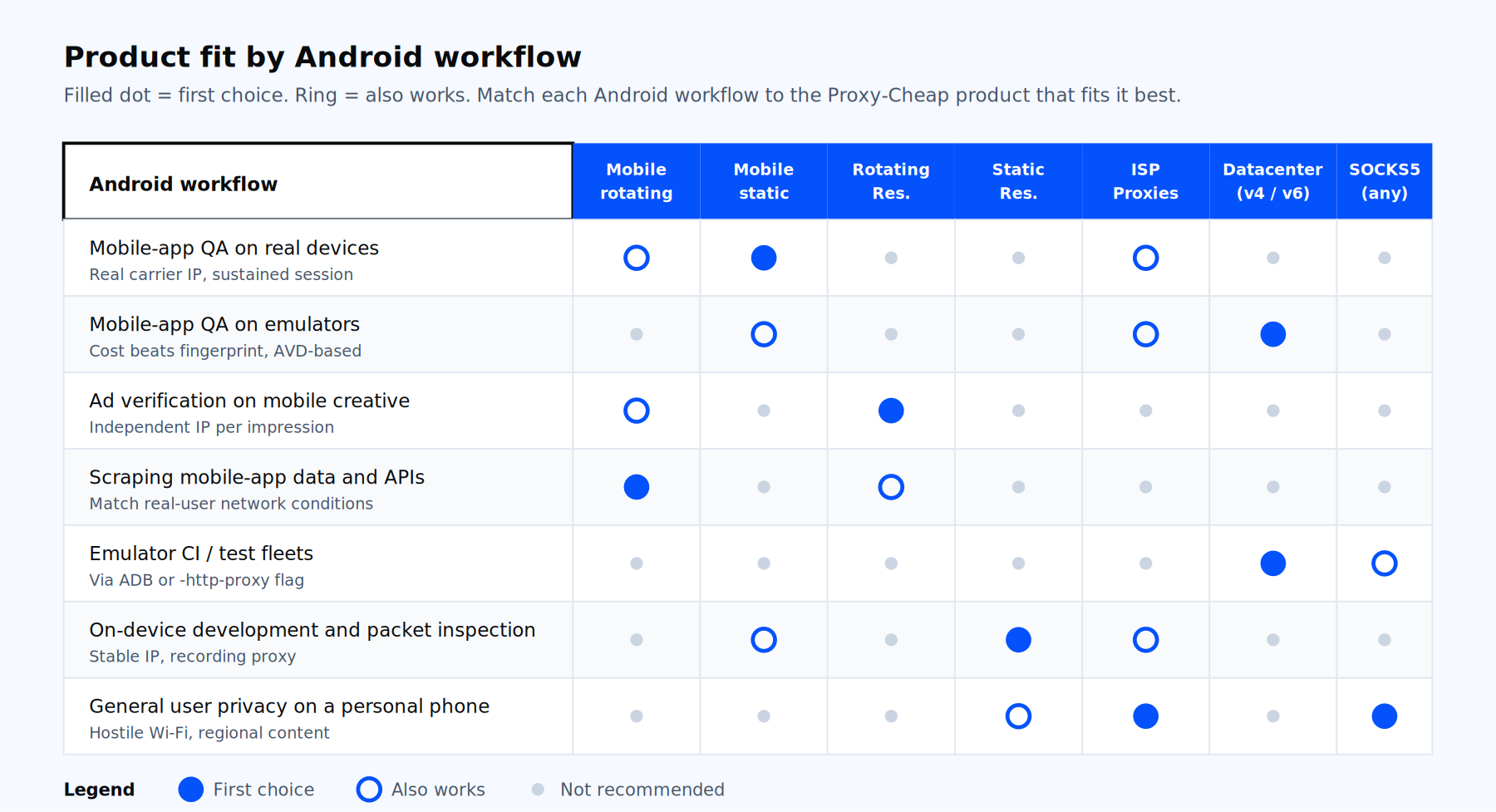
The right product depends on what you are doing with the device, not just on Android itself. Use the matrix below to pick.
| Use case | First choice | Also works |
|---|---|---|
| Mobile-app QA on real devices | Mobile static | Mobile rotating, ISP |
| Mobile-app QA on emulators | Datacenter | ISP, mobile static |
| Ad verification on mobile creative | Rotating residential | Mobile rotating |
| Scraping mobile-app data and APIs | Mobile rotating | Rotating residential |
| Emulator CI / automated test fleets | Datacenter (via ADB or -http-proxy) | SOCKS5 |
| On-device development and packet inspection | Static residential | ISP, mobile static |
| General user privacy on a personal phone | SOCKS5 or ISP | Static residential |
For scripted setups where the toolchain supports it, SOCKS5 is the cleanest protocol because it carries TCP and UDP without the HTTPS tunneling complications of HTTP CONNECT proxies.